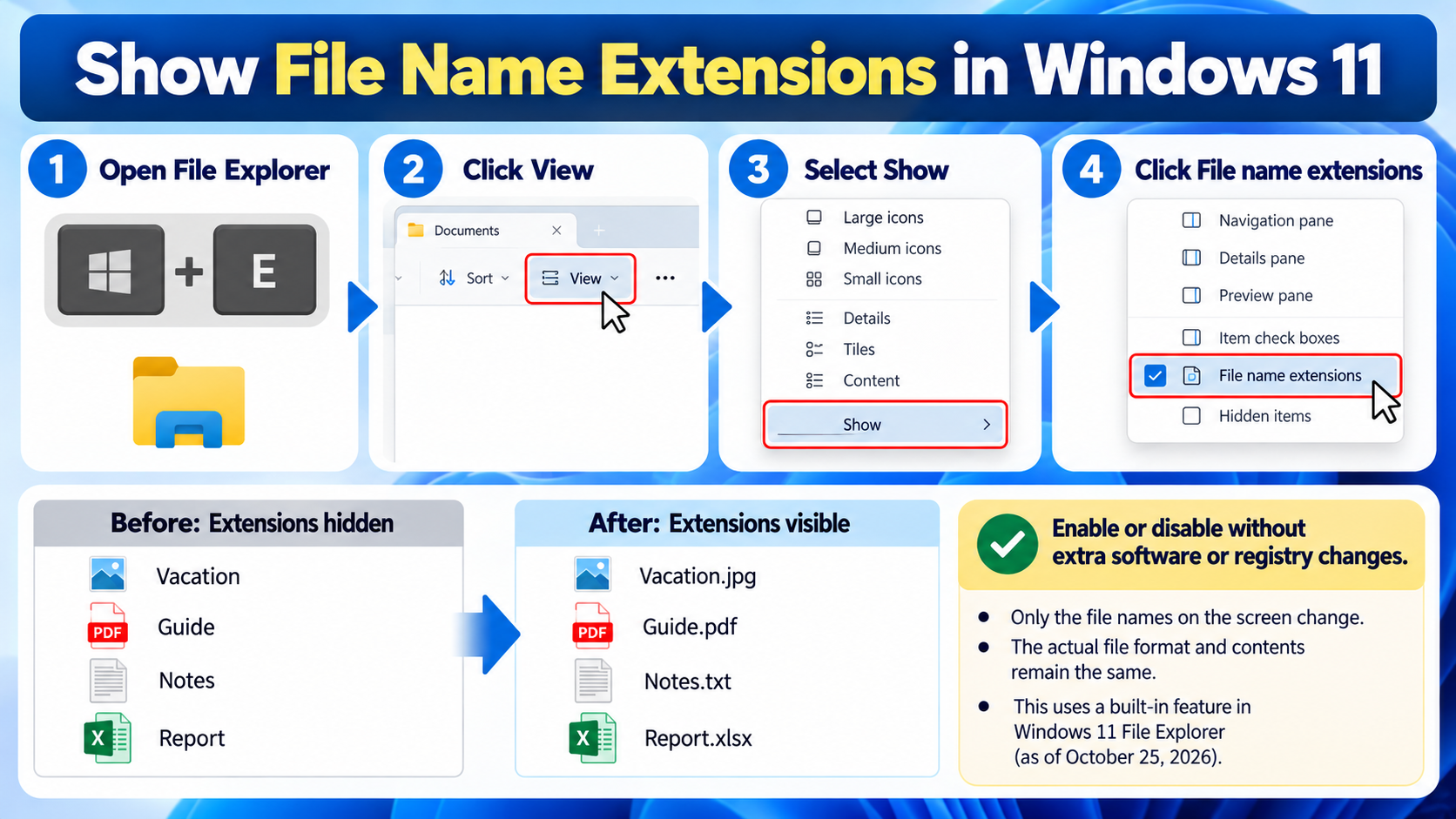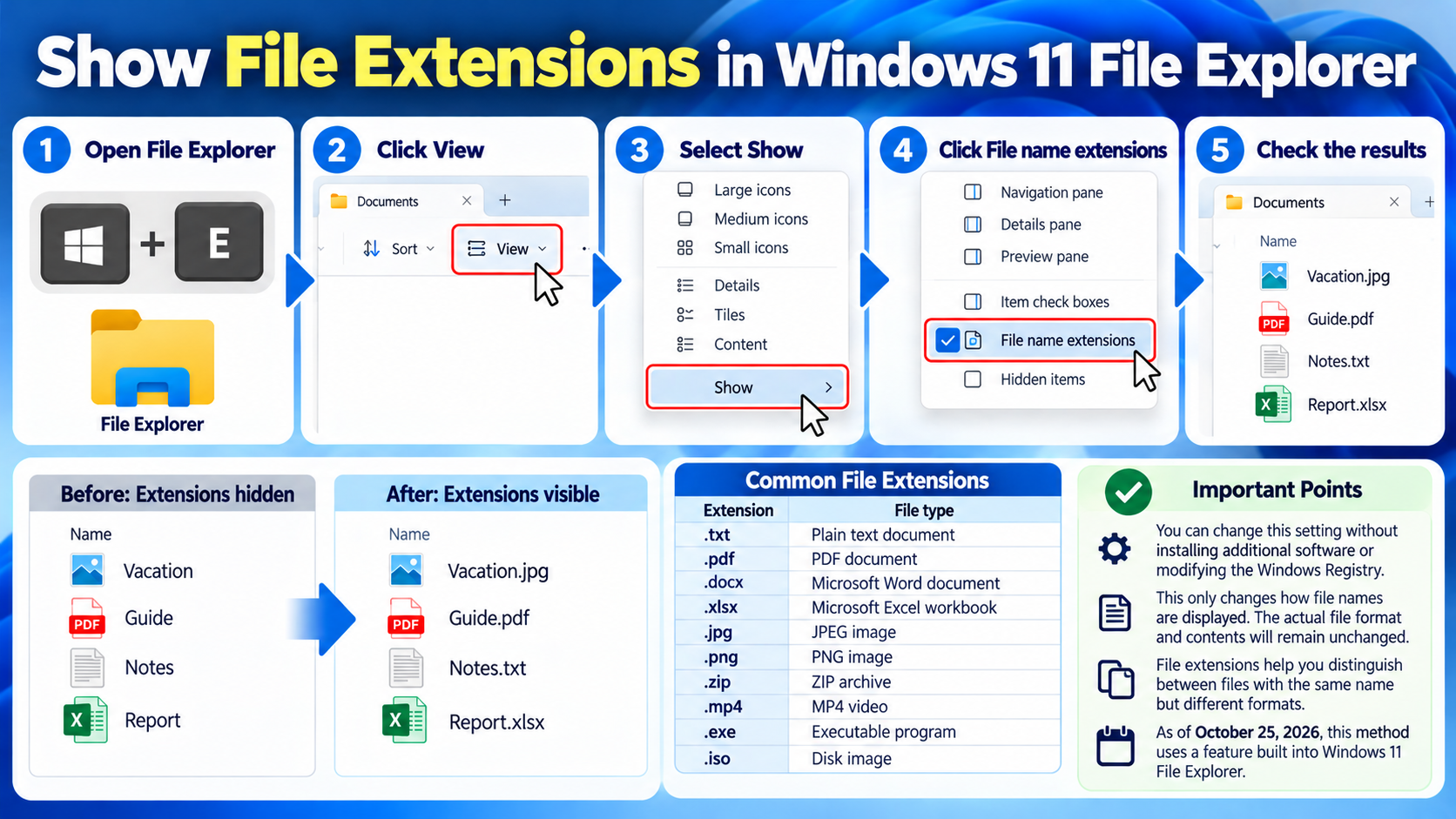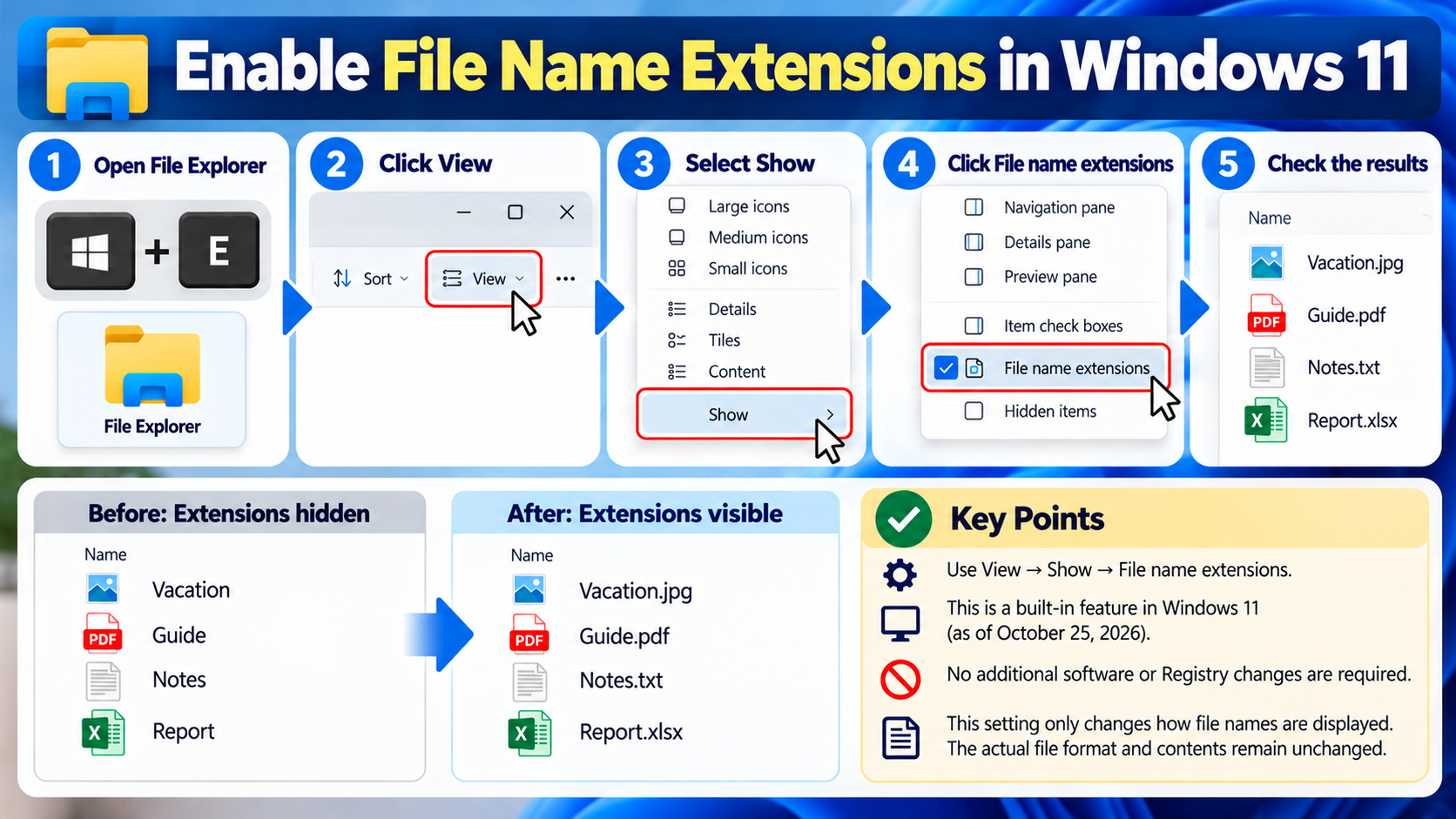

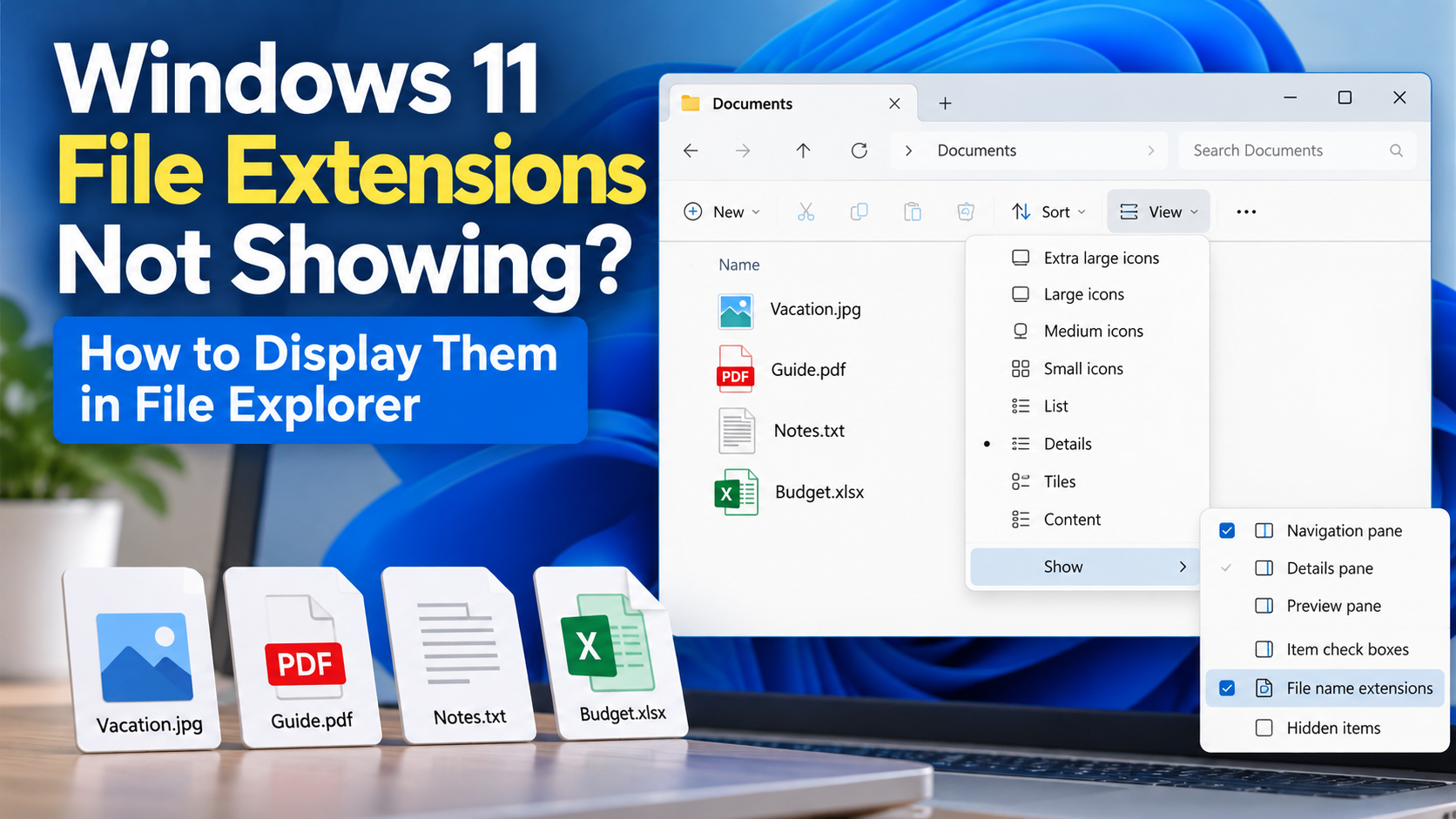
If file extensions such as `.jpg`, `.pdf`, `.txt`, or `.xlsx` are not visible after file names in Windows 11, open File Explorer and select View → Show → File name extensions. You can change this setting without installing additional software or modifying the Windows Registry. The actual format and contents of your files will remain unchanged.
this method uses a feature built into Windows 11 File Explorer.
Select View → Show → File name extensions from the menu at the top of File Explorer. Windows 11 provides a built-in option to show or hide extensions included in file names.
Follow these steps:
1. Press `Windows + E` on your keyboard to open File Explorer.
2. Click View in the menu at the top of File Explorer.
3. Select Show from the expanded menu.
4. Click File name extensions so that a check mark appears next to it.
5. Open a folder containing documents or photos and check the file names.
Once the setting is enabled, file extensions will appear after file names.
For example, an Excel document previously displayed as `Report` may now appear as `Report.xlsx` in File Explorer.
If File name extensions already has a check mark, the setting is enabled. Clicking it again will turn off extension display, so check its current status before making changes.
A file extension is the part of a file name that follows the final period. Windows uses this information to identify file types. Displaying extensions makes it easier to distinguish between files with the same name but different formats.
Common file extensions include:
| Extension | File type |
|---|---|
| .txt | Plain text document |
| PDF document | |
| .docx | Microsoft Word document |
| .xlsx | Microsoft Excel workbook |
| .jpg | JPEG image |
| .png | PNG image |
| .zip | ZIP archive |
| .mp4 | MP4 video |
| .exe | Executable program |
| .iso | Disk image |
For example, two files displayed with the same name, `Photo`, may actually be `Photo.jpg` and `Photo.png`.
When extensions are visible, you can identify the difference in file format directly from their names.
Enabling file extensions in File Explorer does not convert or modify files. It only changes how their existing names are displayed on the screen.
You can also check the extension display setting through File Explorer's Folder Options. If you cannot find the extension setting in the View menu, you can use the advanced settings in Folder Options instead.
Windows File Explorer includes an option called Hide extensions for known file types.
As its name suggests, this setting hides extensions for file types recognized by Windows.
To display extensions, follow these steps:
1. Open File Explorer.
2. Select See more (…) → Options from the toolbar.
3. Open the View tab in the Folder Options window.
4. Under Advanced settings, locate Hide extensions for known file types.
5. If the option is checked, clear the check box.
6. Click OK to apply the change.
This method also leaves the contents of your files unchanged.
In Windows 11, using View → Show is generally the simpler way to enable file extensions, so it is best to check that menu first.
These are two different features. Showing file extensions reveals the format-related part of a file name, while showing hidden files makes files and folders with the hidden attribute visible.
The View → Show menu in Windows 11 File Explorer contains separate options for:
File name extensions: Displays extensions such as `.txt`, `.jpg`, and `.pdf` after file names.
Hidden items: Displays files and folders marked with the hidden attribute.
Item check boxes: Displays check boxes for selecting files and folders.
You do not need to enable Hidden items to fix missing file extensions.
Conversely, even if hidden files are visible, their extensions may remain hidden when File name extensions is turned off.
It is therefore important to distinguish between displaying file formats and locating hidden files before changing these settings.
You can rename files, but changing a file extension is not the same as converting a file to another format. Microsoft explains that changing a file extension does not convert the file into a different format.
For example, these two file names do not simply represent different ways of displaying the same file type:
`Document.txt`
`Document.pdf`
Renaming a text file from `Document.txt` to `Document.pdf` does not create a genuine PDF document.
To change a file's format, you need to convert it or save it in another format using a program that supports the desired format.
When renaming files with extensions visible, be careful not to accidentally change the extension after the final period.
In particular, arbitrarily changing an extension simply because a file will not open is not an appropriate solution.
Displaying file extensions and choosing which program opens a file are separate tasks. If an extension is displayed correctly but the file still will not open, check whether you have a program that supports that file format.
Windows allows certain file types to be opened with multiple programs.
To choose a program manually, follow these steps:
1. Right-click the file you want to open.
2. Look for Open with or Choose another app.
3. Select an application that supports the file format from the list of available programs.
4. If no suitable application is installed, you can search the Microsoft Store for compatible software using the file extension.
Displaying an extension does not guarantee that every file can be opened with a built-in Windows application.
Identify the file format first, then choose a program that supports it.
No additional software is necessary. You can use the built-in View → Show → File name extensions feature in Windows 11 File Explorer.
No, the files themselves will not change. The extension display setting only changes how file names appear in File Explorer. It does not alter the actual contents or formats of your files.
To hide extensions again, select View → Show → File name extensions in File Explorer and click the option to remove its check mark.
Yes. ZIP files use the `.zip` extension. When File name extensions is enabled, you can see `.zip` at the end of the file name.
Creating ZIP archives and extracting compressed files are separate operations. Instructions for using the built-in Windows features are available in the relevant guide.
Displaying an ISO file's extension and mounting an ISO disk image are different functions.
If Smart App Control is blocking ISO file mounting in Windows 11, consult the relevant troubleshooting guide.
If file extensions are missing in Windows 11, start by opening File Explorer and checking whether View → Show → File name extensions is enabled. You can make extensions visible without modifying the files themselves.