
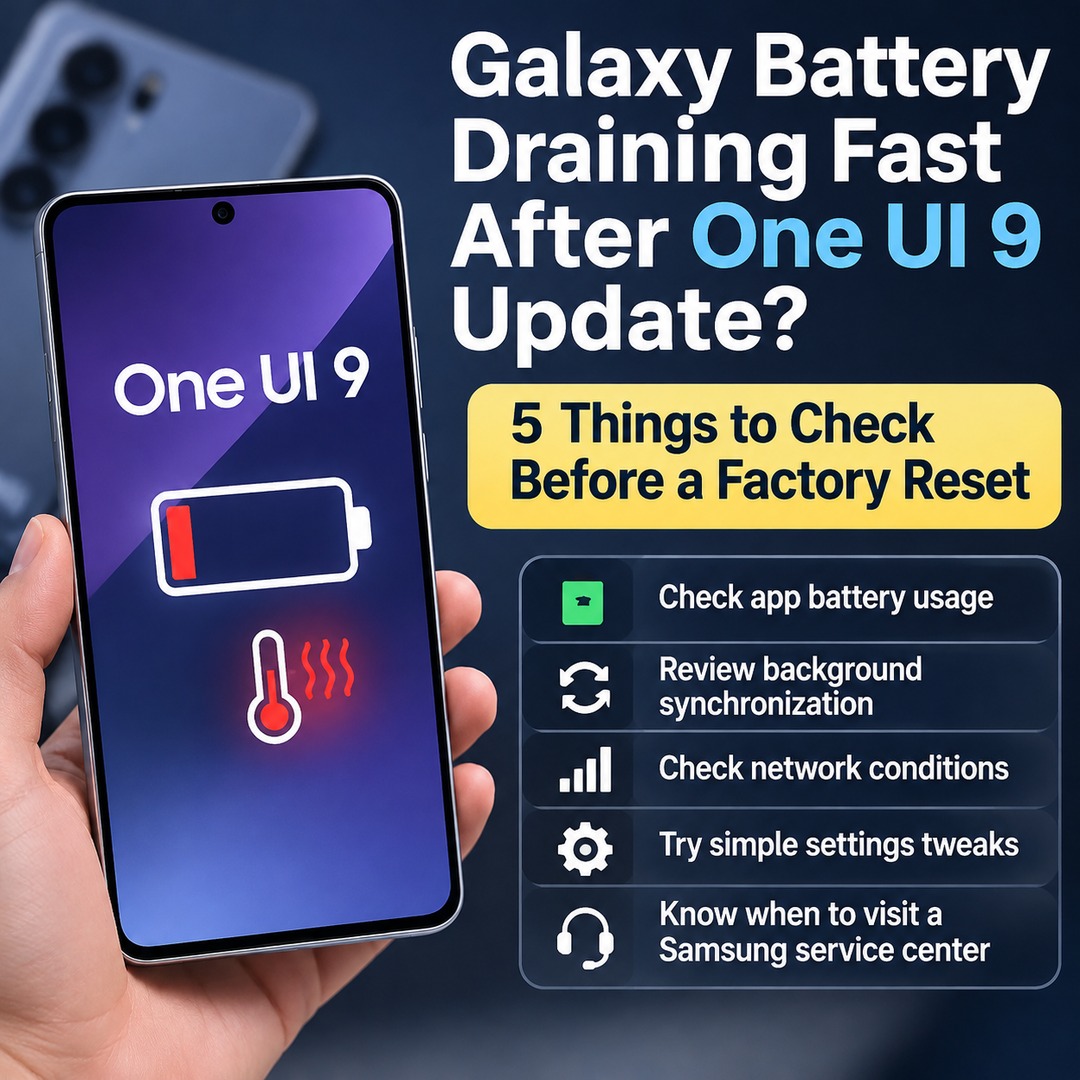
A Galaxy phone losing battery rapidly after the One UI 9 update does not necessarily indicate a defective battery or an operating system bug. Battery consumption may temporarily increase while apps and system services optimize themselves for the updated software. However, if the battery continues draining while the phone is idle overnight or overheating persists for several days, start by checking battery usage and background apps.
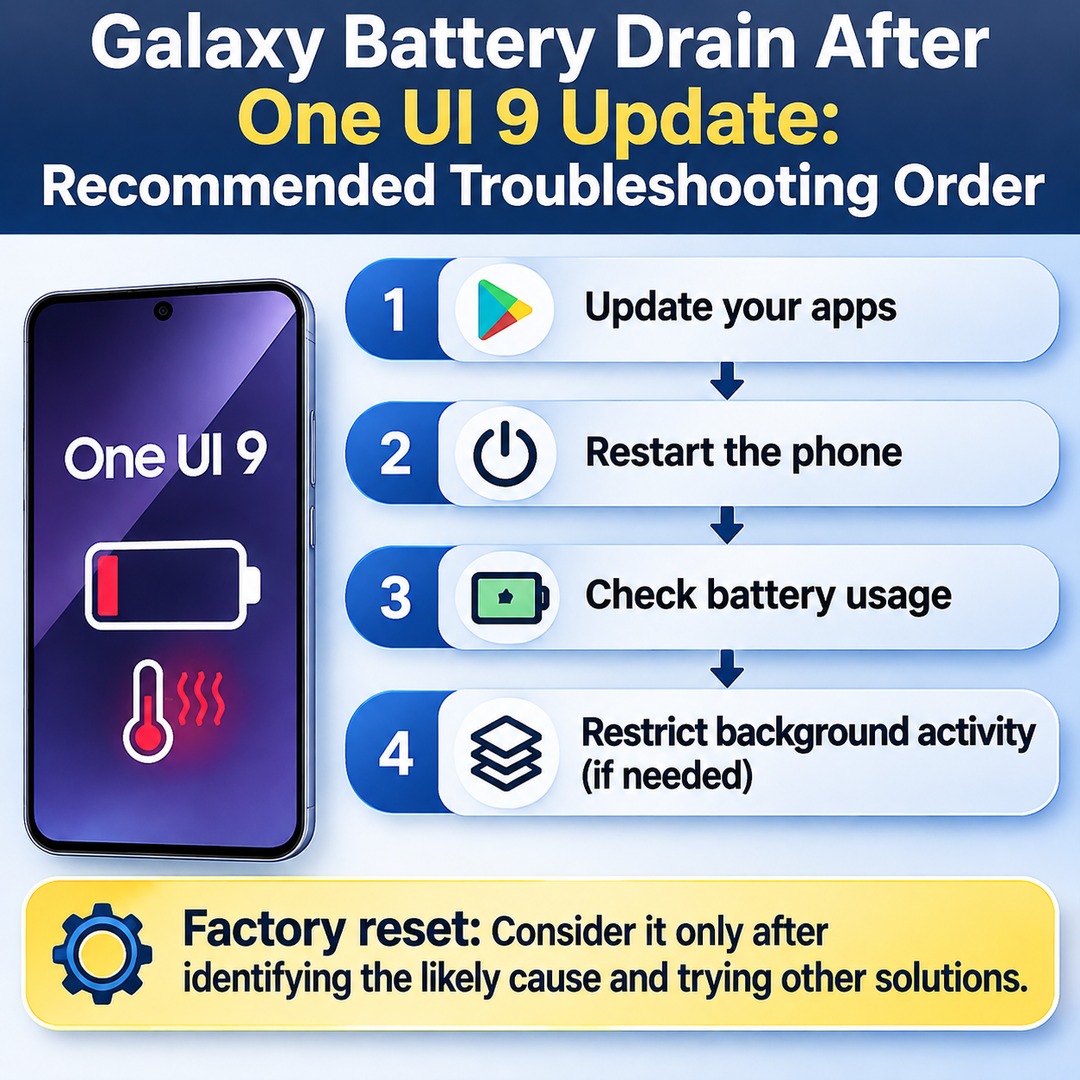
If you have installed One UI 9 on a Galaxy S26, S26+, S26 Ultra, or another supported device, it is better to follow a troubleshooting sequence before attempting a factory reset: update your apps, restart the phone, check battery usage, and then restrict background activity where necessary. A factory reset should be considered only after identifying the likely cause and trying other solutions.
Why Does Battery Drain Increase Immediately After the One UI 9 Update?
Immediately after an update, the system and apps may behave differently as they adapt to the new software environment. Samsung explains that battery consumption can temporarily increase while apps and services are being optimized, including during the initial setup of a new device.
The important distinction is between temporary optimization activity and continuous power consumption by a particular app.
Battery life decreases temporarily immediately after the update: Check whether optimization processes are still running.
One particular app shows unusually high battery usage: Check whether the app needs an update and whether it is running in the background.
Battery percentage continues falling while the screen is off: Investigate background synchronization and network conditions.
The phone stays warm even during light use: Review app activity and check the device's overall condition.
Some users have also posted reports of increased overnight battery drain after the One UI 9 update. One user, for example, reported noticing substantial cloud synchronization activity in the Gallery app. This does not mean every device has the same problem. Rather, it illustrates why synchronization apps should also be checked when investigating battery issues after an update.
Samsung announced the expanded rollout of One UI 9, beginning with the Galaxy S26 series, on September 16, 2026. Eligible devices and rollout schedules may vary by model and region, so check the software information on your phone to confirm the version actually installed.
How to Identify Which Apps Are Consuming the Most Battery
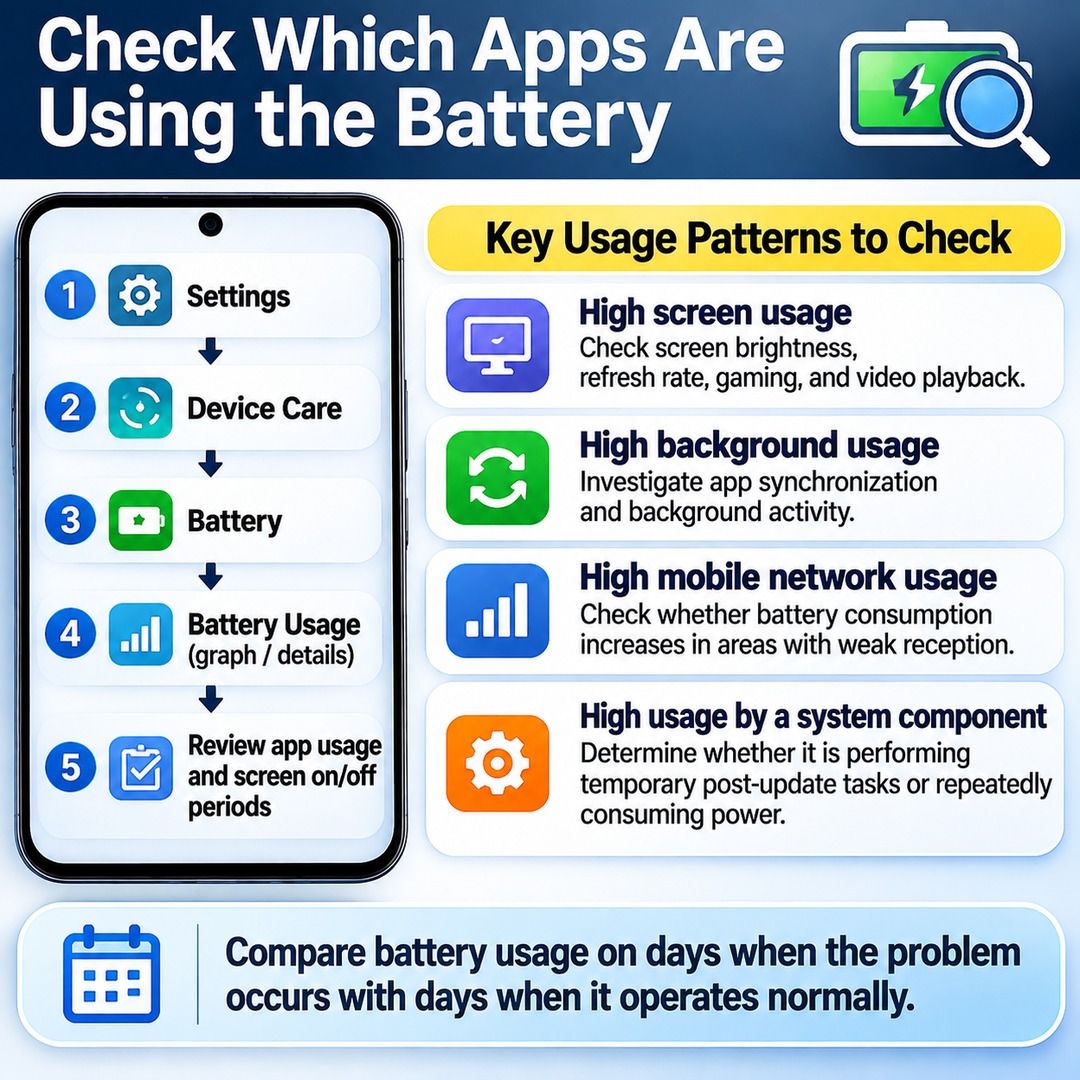
Before focusing on how quickly the battery percentage drops, find out which apps are actually consuming power. If an app shows unusually high background usage despite minimal screen activity, investigate its synchronization settings and background processes.
Follow these steps:
1. Open Settings on your phone.
2. Go to Device Care.
3. Select Battery.
4. Open the battery usage graph or detailed usage view.
5. Review individual app usage and the periods when the screen was on or off.
Do not focus solely on app names.
For example, Gallery, cloud storage, messaging, and email apps can perform synchronization and notification tasks even when they are not visible on the screen. If large numbers of photos and videos are being synchronized, check the battery usage of Gallery and related cloud services as well.
Distinguishing between the following usage patterns can make troubleshooting easier:
High screen usage: Check screen brightness, refresh rate, gaming, and video playback.
High background usage: Investigate app synchronization and background activity.
High mobile network usage: Check whether battery consumption increases in areas with weak cellular reception.
High usage by a particular system component: Determine whether it is performing temporary post-update tasks or consuming power repeatedly over an extended period.
Battery usage reports cover activity over a particular period, so a single screenshot is not enough to establish whether the battery is defective. Compare the usage pattern on days when the problem occurs with days when the phone operates normally.
What Order Should You Follow When Restricting Background Apps?
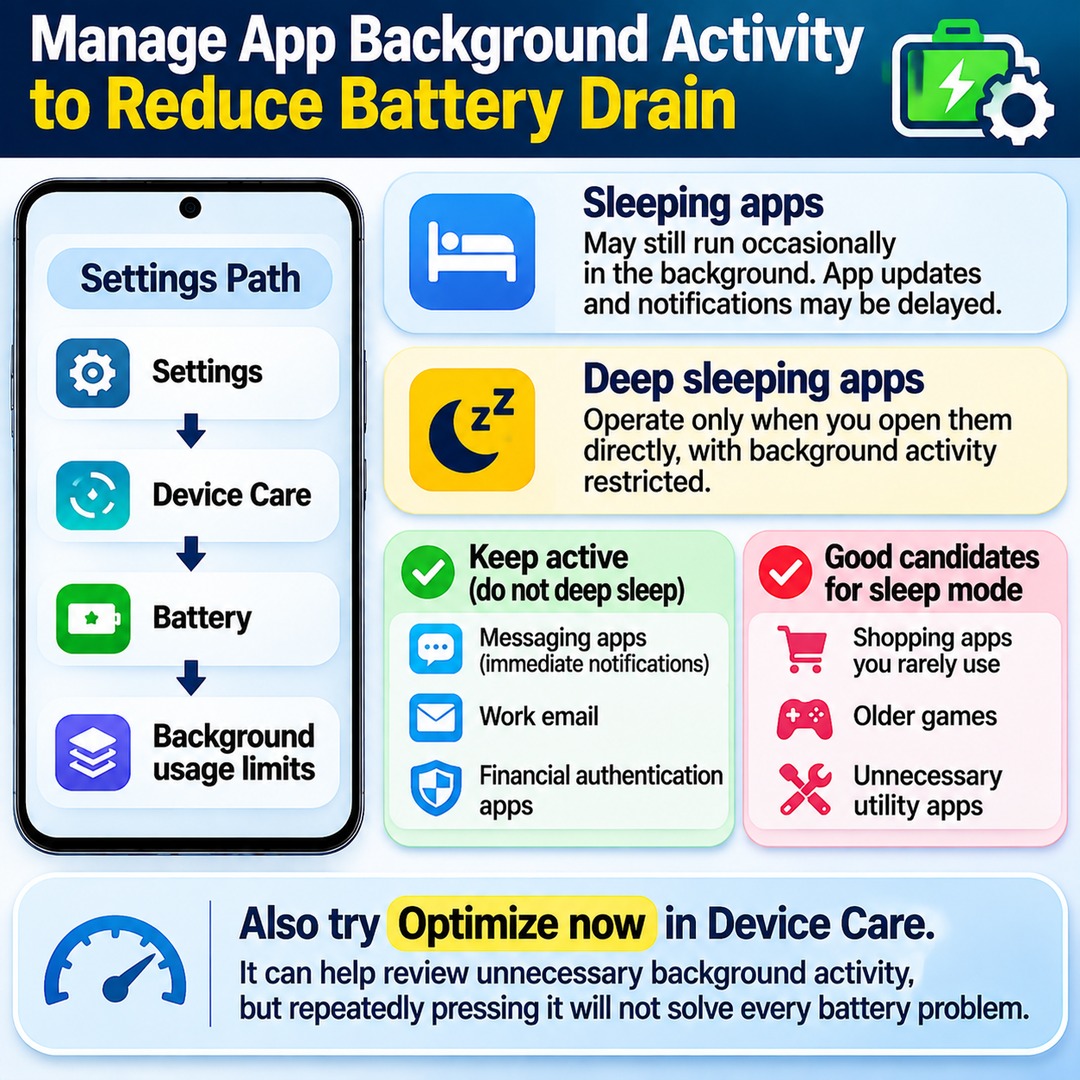
A good approach is to put unused apps into sleep mode first, then apply deep sleep only to apps that do not need background access. Restricting every app at once can delay messaging notifications and email delivery.
Samsung provides the following settings path:
Settings → Device Care → Battery → Background usage limits
There are two different features to understand:
Sleeping apps: These apps may still run occasionally in the background. App updates and notifications may be delayed.
Deep sleeping apps: These apps operate only when you open them directly, with background activity restricted.
It is generally better not to put apps that require immediate notifications, such as messaging apps, work email, and financial authentication apps, into deep sleep.
By contrast, shopping apps you rarely use, older games, and unnecessary utility apps can be moved into sleep mode according to how frequently you use them.
You can also try the Optimize now feature in Device Care. It can help review unnecessary background activity and other device management items.
However, repeatedly pressing the optimization button will not necessarily resolve every battery problem. If a particular app continues consuming excessive power, updating the app or uninstalling it if you no longer need it may be more appropriate.
What Should You Check If the Battery Drains Overnight?
You cannot identify the cause of overnight battery drain simply by knowing that you did not use the screen. Wi-Fi, mobile networks, cloud synchronization, and location services may still be operating.
Check the following:
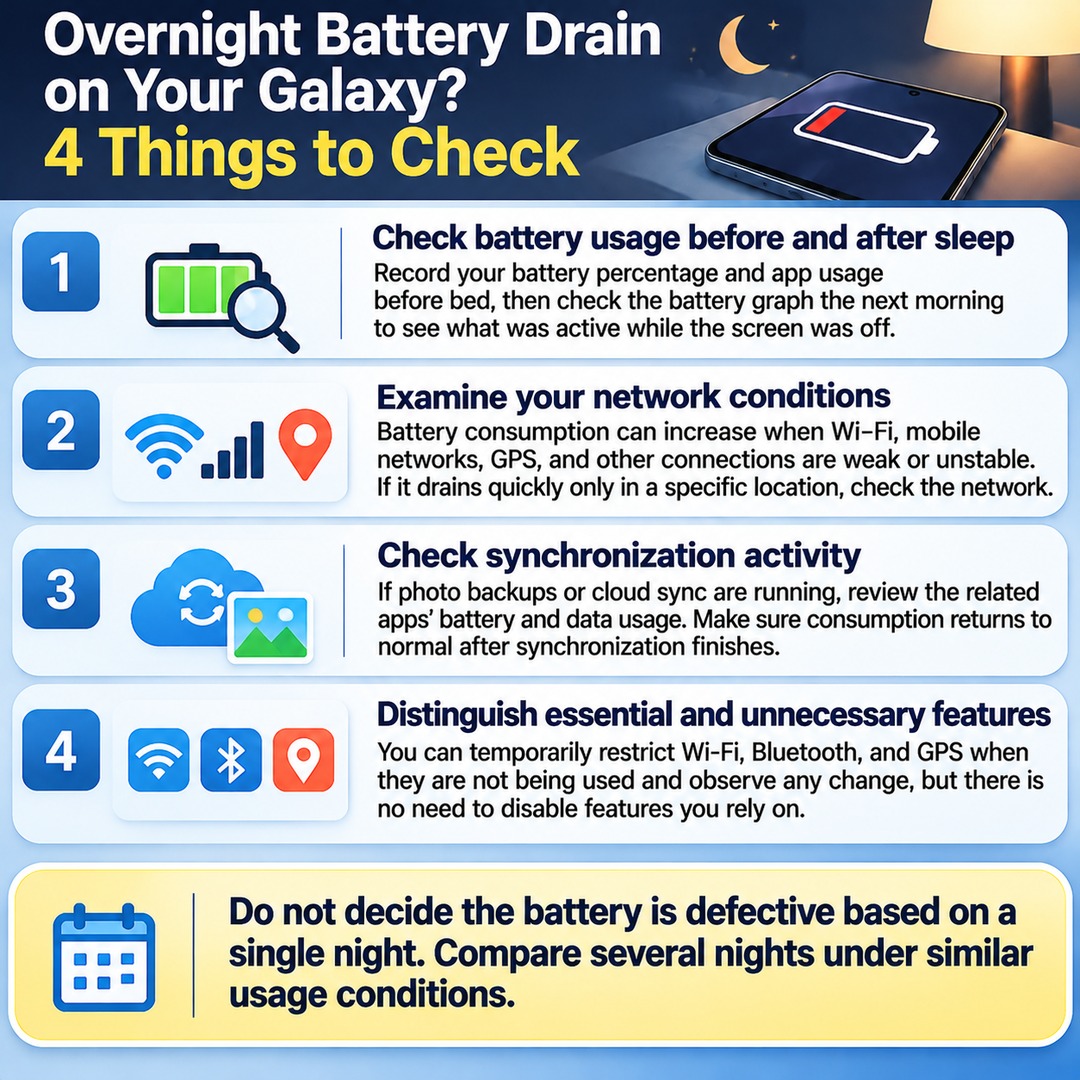
First, review battery usage before going to bed.
Record the battery percentage and individual app usage before you go to sleep. The next morning, open the battery graph again and check which components were active while the screen was off.
Second, examine your network conditions.
Samsung explains that battery consumption can increase when signals from Wi-Fi, GPS, mobile networks, and other connections are weak or unstable.
If the battery drains unusually quickly only in a particular location, network conditions should also be investigated.
Third, check synchronization activity.
If photo backups or cloud synchronization are running, review the relevant apps' battery and data usage. It is important to determine whether consumption remains unusually high after synchronization has finished.
Fourth, distinguish between essential and unnecessary features.
You can temporarily restrict Wi-Fi, Bluetooth, and GPS when they are not being used and observe whether battery consumption changes. However, there is no need to disable features that you rely on for connected devices or location-based services.
Do not conclude that the battery is defective based on a single night's battery loss. Compare several nights under similar usage conditions.
How Should You Evaluate Overheating After an Update?
Overheating immediately after an update should be considered alongside increased battery consumption, but heat alone does not establish that the software is defective.
In October 2026, a Galaxy S26 Ultra user reported that the device became warm even during light use after installing One UI 9. Other users shared different experiences, including changes in battery life after the update.
These reports demonstrate that individual experiences can vary. Community posts alone cannot establish that One UI 9 has a widespread battery problem.
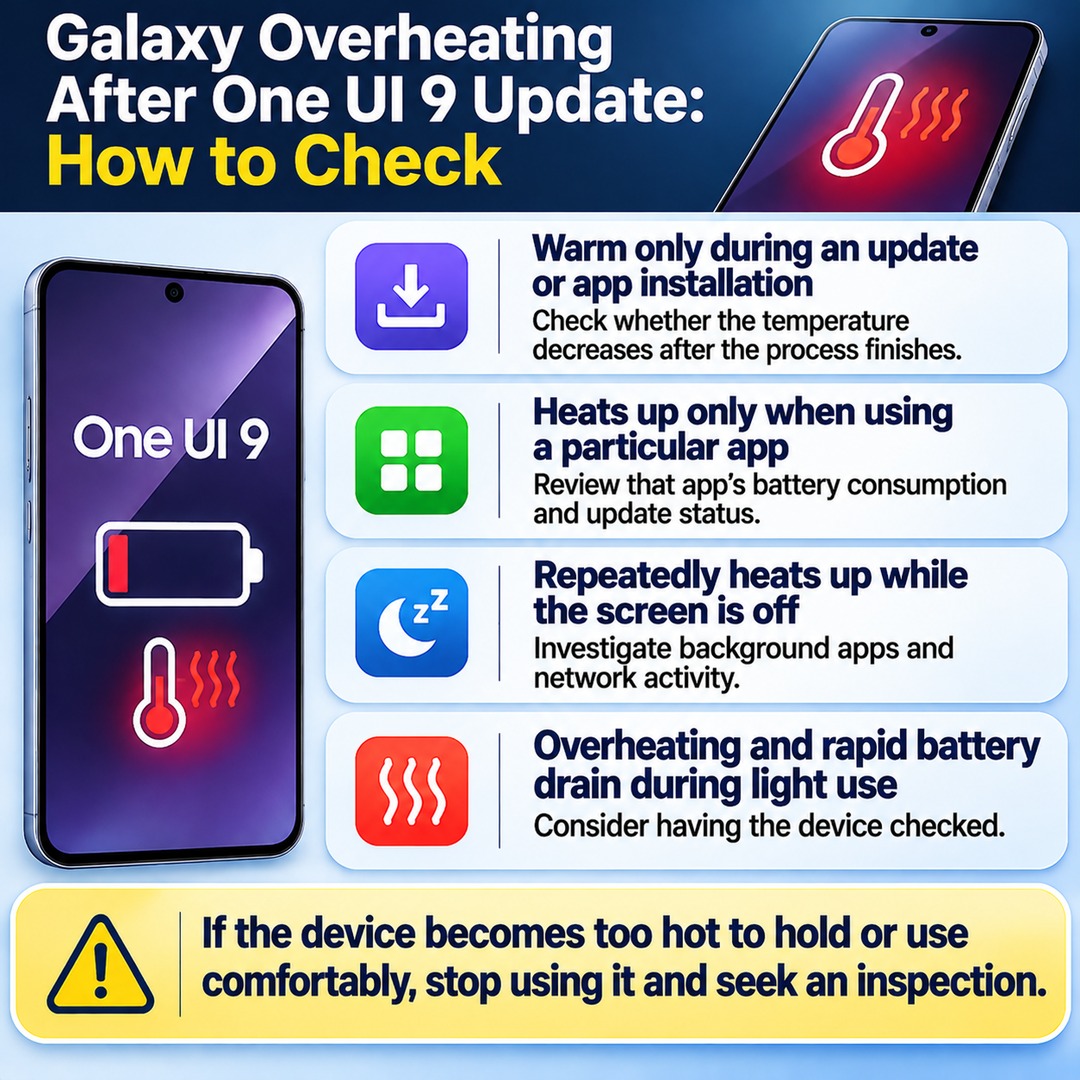
It is helpful to distinguish between the following situations:
The phone becomes warm only during an update or app installation: Check whether the temperature decreases after the process finishes.
The phone heats up only when using a particular app: Review that app's battery consumption and update status.
The phone repeatedly heats up while the screen is off: Investigate background apps and network activity.
Overheating and rapid battery drain continue during light use: Consider having the device inspected.
If the device becomes too hot to hold or use comfortably, stop using it and seek an inspection rather than simply waiting for optimization to finish.
What to Check Before Performing a Factory Reset
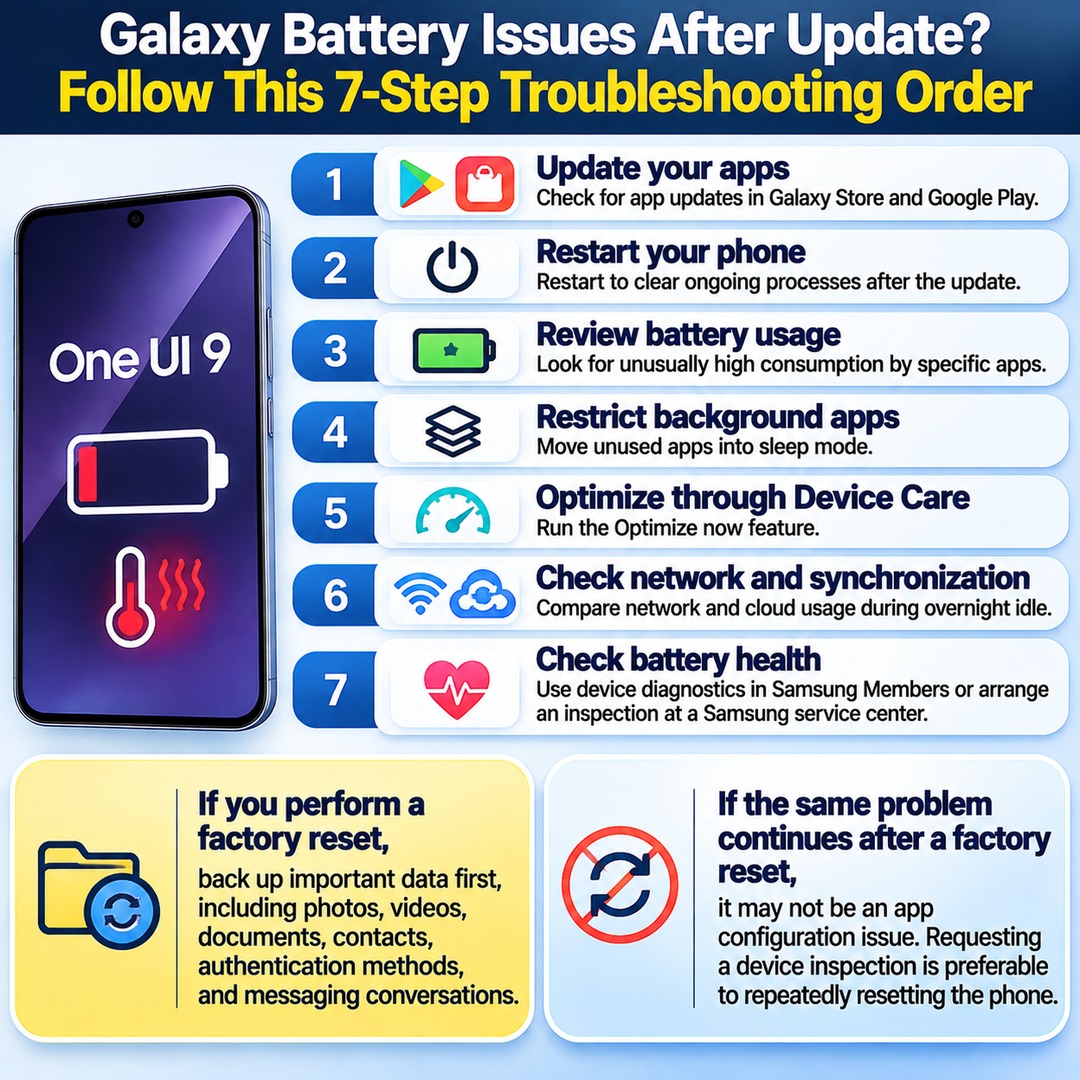
A factory reset is a major operation that requires you to configure your apps and settings again. It does not need to be your first troubleshooting step. Following this sequence can help avoid unnecessary data deletion and setup work.
1. Update your apps: Check for updates to installed apps through Galaxy Store and Google Play.
2. Restart your phone: Restart the device to clear ongoing processes following the update.
3. Review battery usage: Look for unusually high consumption by specific apps or system components.
4. Restrict background apps: Move unused apps into sleep mode.
5. Optimize through Device Care: Run the Optimize now feature.
6. Check network and synchronization activity: Compare network and cloud usage during overnight idle periods.
7. Check battery health: If the problem continues, use the device diagnostics feature in Samsung Members or arrange an inspection at a Samsung service center.
If you decide to perform a factory reset, back up important data first, including photos, videos, documents, contacts, authentication methods, and messaging conversations. Also check whether any data requires separate transfer, such as app login credentials and digital certificates.
If the same problem continues after a factory reset, it may not be simply an app configuration issue. In that situation, requesting a device inspection is preferable to repeatedly resetting the phone.
When Should You Visit a Samsung Service Center?
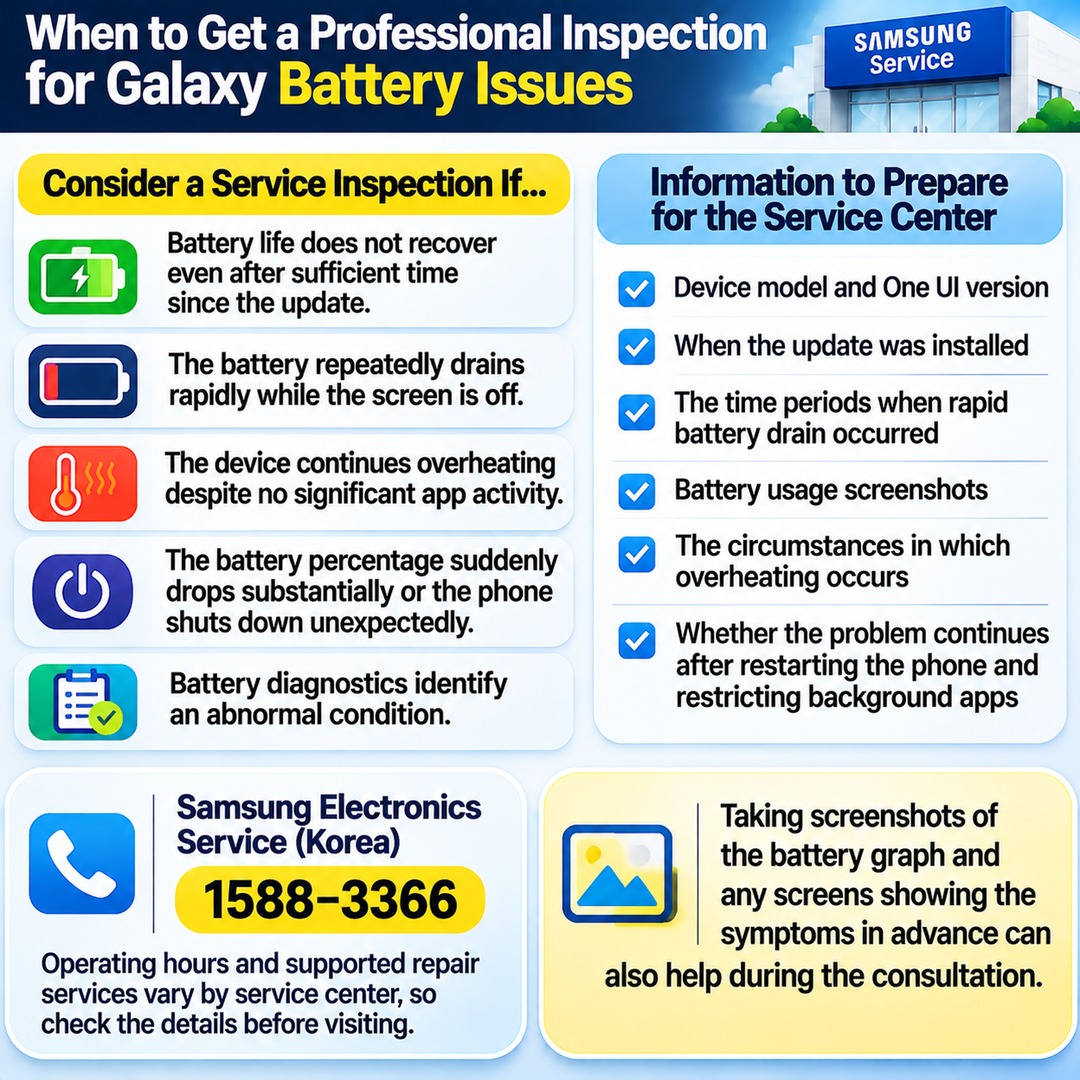
Consider professional inspection instead of repeatedly performing factory resets if you experience any of the following:
Battery life does not recover even after sufficient time has passed since the update.
The battery repeatedly drains rapidly while the screen is off.
The device continues overheating despite no significant app activity.
The battery percentage suddenly drops substantially or the phone shuts down unexpectedly.
Battery diagnostics identify an abnormal condition.
Samsung Electronics Service in South Korea can be reached at 1588-3366. Operating hours and supported repair services vary by service center, so check the details before visiting.
Preparing the following information can make it easier to explain the problem when requesting service:
Device model and One UI version
When the update was installed
The time periods when rapid battery drain occurred
Battery usage screenshots
The circumstances in which overheating occurs
Whether the problem continues after restarting the phone and restricting background apps
Taking screenshots of the battery graph and any screens showing the symptoms in advance can also help during the consultation.
Related Articles About Galaxy Battery Management
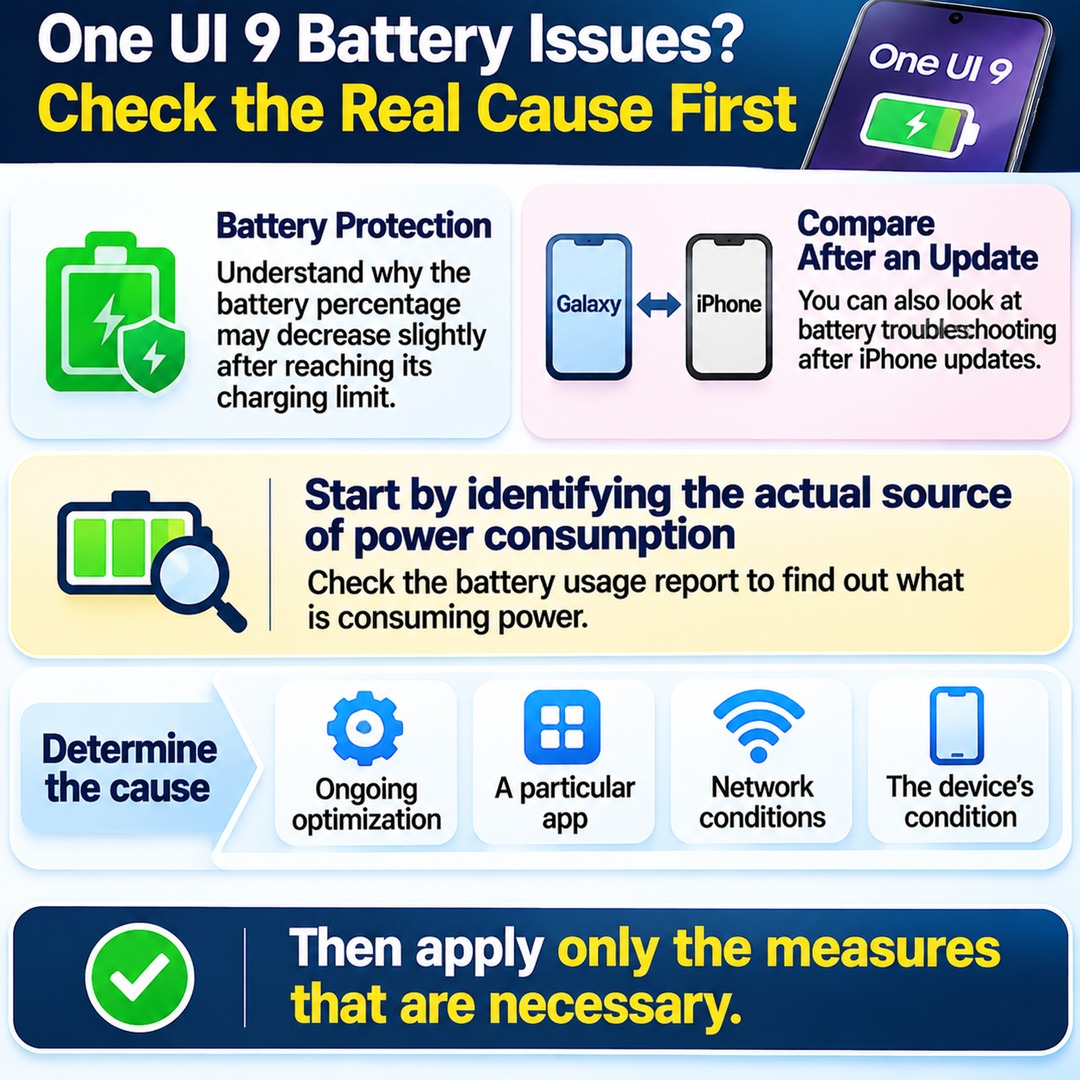
If you use Galaxy Battery Protection, it is also worth understanding why the battery percentage may decrease slightly after reaching its charging limit.
If you are interested in changes in battery life following an operating system update, you can also compare the situation with battery troubleshooting after iPhone updates.
If your Galaxy battery drains quickly after the One UI 9 update, start by identifying the actual source of power consumption in the battery usage report. Determine whether the cause is ongoing optimization, a particular app, network conditions, or the device's condition, and then apply only the measures that are necessary.