
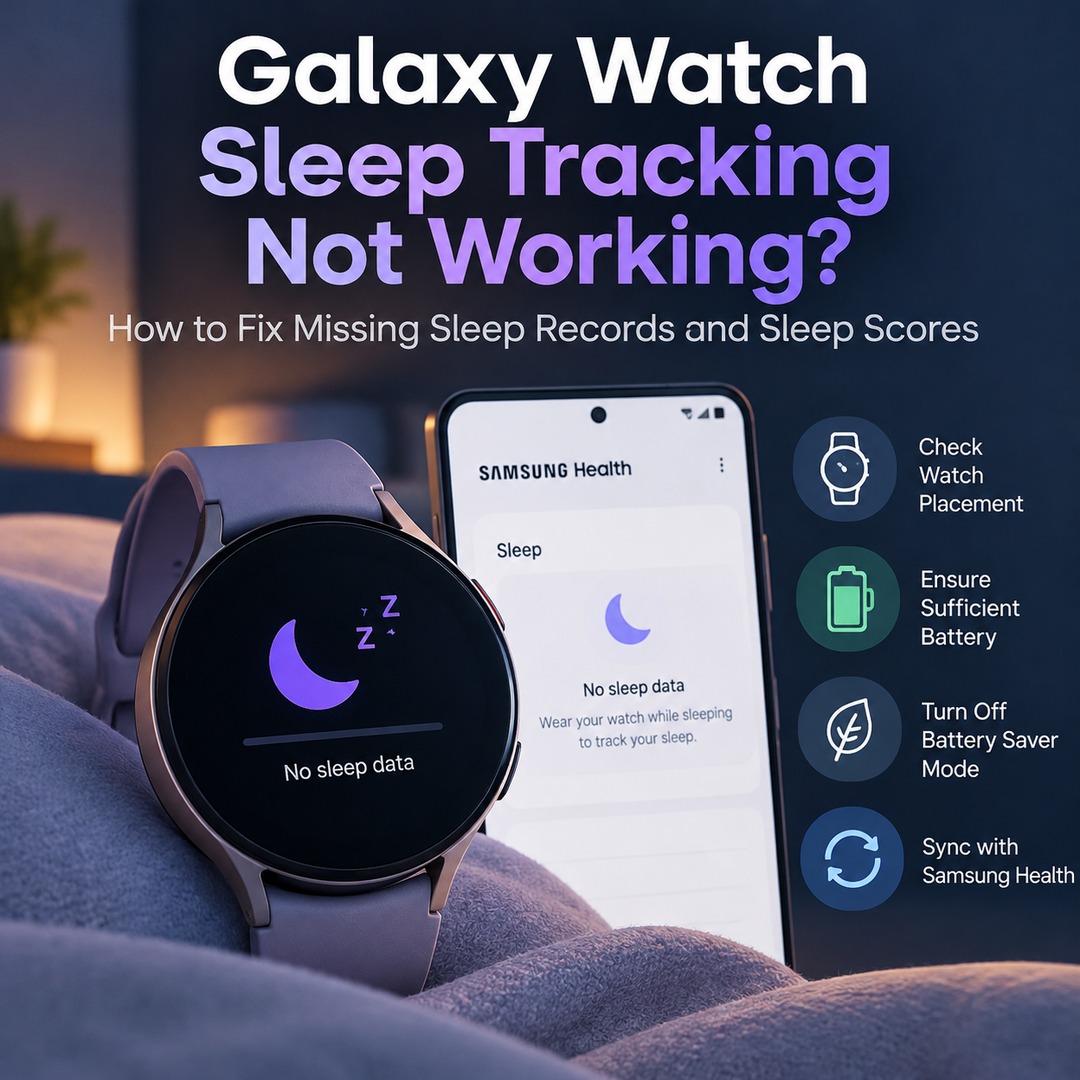
If you wear your Galaxy Watch to bed but find no sleep record in Samsung Health, start by checking how the watch is worn, its battery level, Battery Saver mode, and its connection to your phone. If your sleep duration is recorded but your sleep score or detailed sleep information is missing, you may be dealing with a separate issue. Identifying the difference between these symptoms can help you troubleshoot without performing a factory reset.
What to Do When No Sleep Record Appears at All
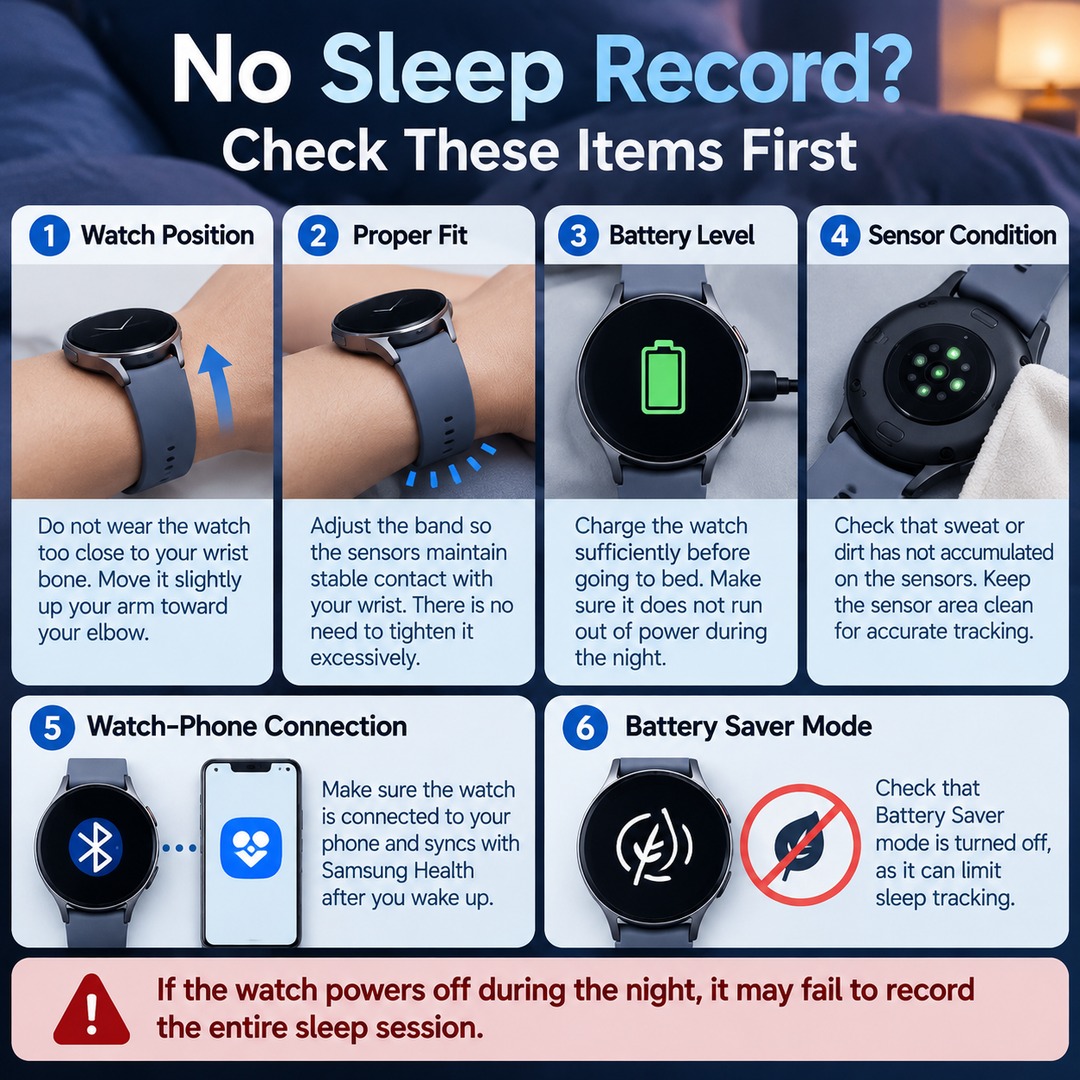
First, check whether your watch was properly positioned on your wrist while you slept. If the watch is too loose or its sensors do not make proper contact with your skin, tracking accuracy may decrease.
Check the following items in order:
Watch position: Do not wear the watch too close to your wrist bone. Move it slightly up your arm toward your elbow.
Fit: Adjust the band so the sensors maintain stable contact with your wrist. There is no need to tighten it excessively.
Battery: Charge the watch sufficiently before going to bed. Make sure it does not run out of power during the night.
Sensor condition: Check that sweat or dirt has not accumulated on the sensors on the back of the watch.
Sleep duration: Check your actual bedtime and wake-up time, then allow time for the sleep record to be generated.
In particular, if the watch powers off during the night, it may fail to record the entire sleep session.
Battery Saver Mode May Record Sleep Duration Without a Sleep Score
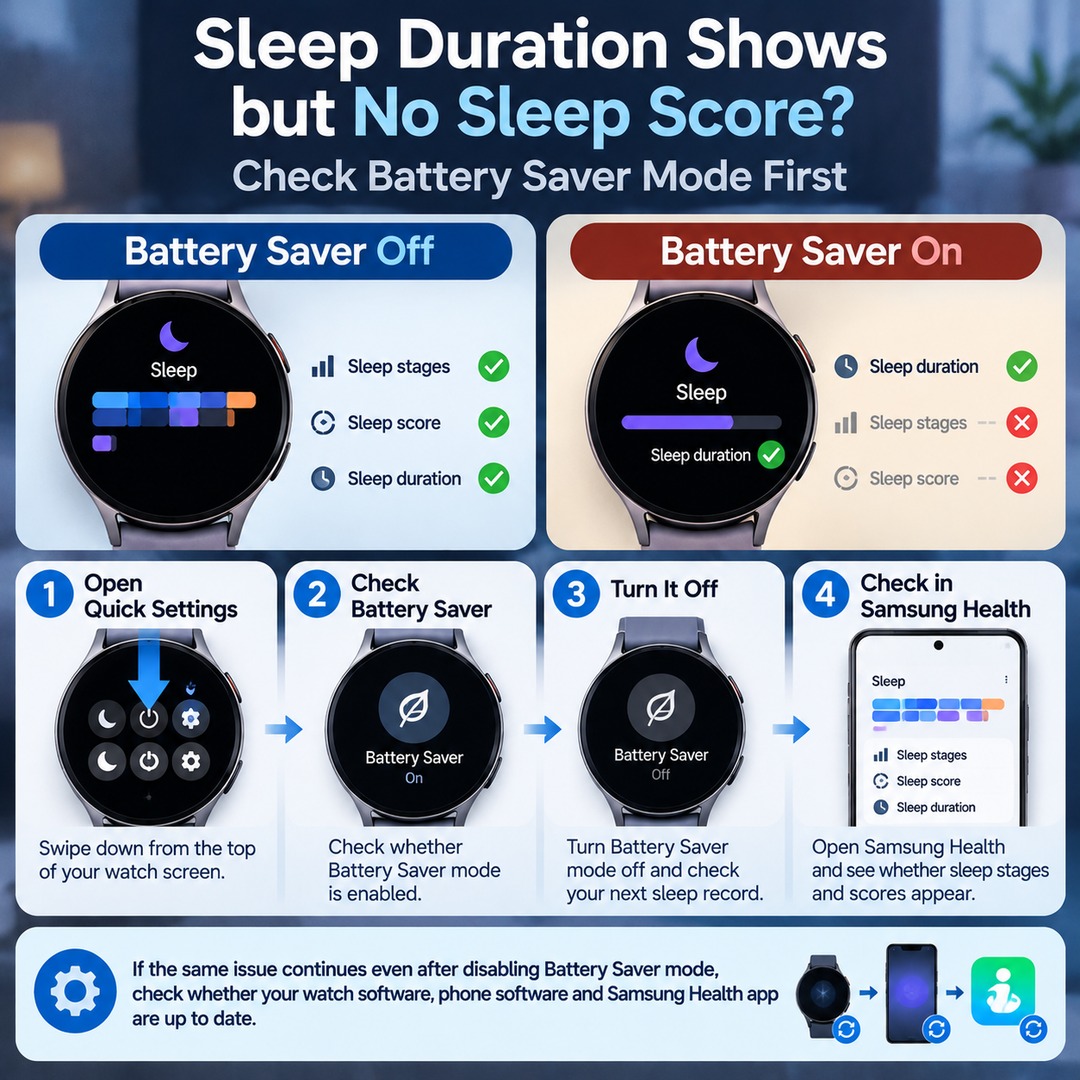
If your sleep duration appears but your sleep stages or sleep score are missing, check Battery Saver mode first.
Samsung Health analyzes sleep conditions using more than just sleep duration. It also considers factors such as movement and changes in heart rate. Some health-tracking functions may be restricted when Battery Saver mode is enabled.
Guidance provided by a Samsung Health representative regarding the Galaxy Watch7 illustrates this distinction. In Battery Saver mode, sleep duration may still be recorded, but sleep scores and detailed sleep information may not be supported.
Follow these steps:
1. Swipe down from the top of your watch screen to open Quick Settings.
2. Check whether Battery Saver mode is enabled.
3. Turn Battery Saver mode off and check your next sleep record.
4. Open Samsung Health and see whether sleep stages and scores appear.
If the same issue continues even after disabling Battery Saver mode, check whether your watch software, phone software, and Samsung Health app are up to date.
What to Do When Sleep Records Appear on Your Watch but Not Your Phone
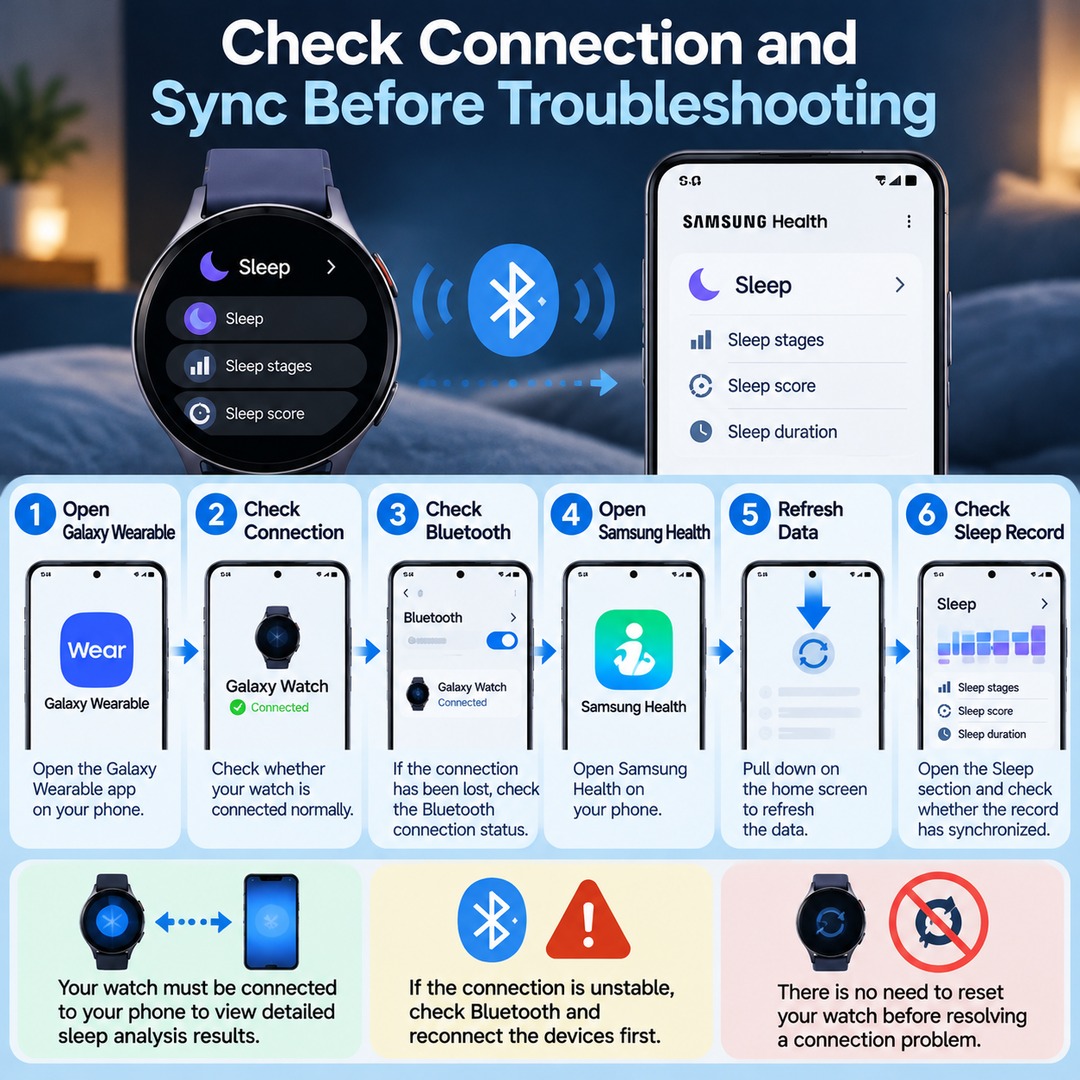
In this situation, check the device connection and data synchronization before assuming that sleep tracking itself has failed.
Open Samsung Health on your Galaxy Watch and check whether a record appears under Sleep. If the record is visible on your watch but not in the phone app, follow these steps:
1. Open the Galaxy Wearable app on your phone.
2. Check whether your watch is connected normally.
3. If the connection has been lost, check the Bluetooth connection status.
4. Open Samsung Health on your phone.
5. Pull down on the home screen to refresh the data.
6. Open the Sleep section and check whether the record has synchronized.
Your watch must be connected to your phone to view detailed sleep analysis results.
If the connection is unstable, check Bluetooth and reconnect the devices first. There is no need to reset your watch before resolving a connection problem.
Why Is My Sleep Score Missing Even Though My Sleep Record Is There?
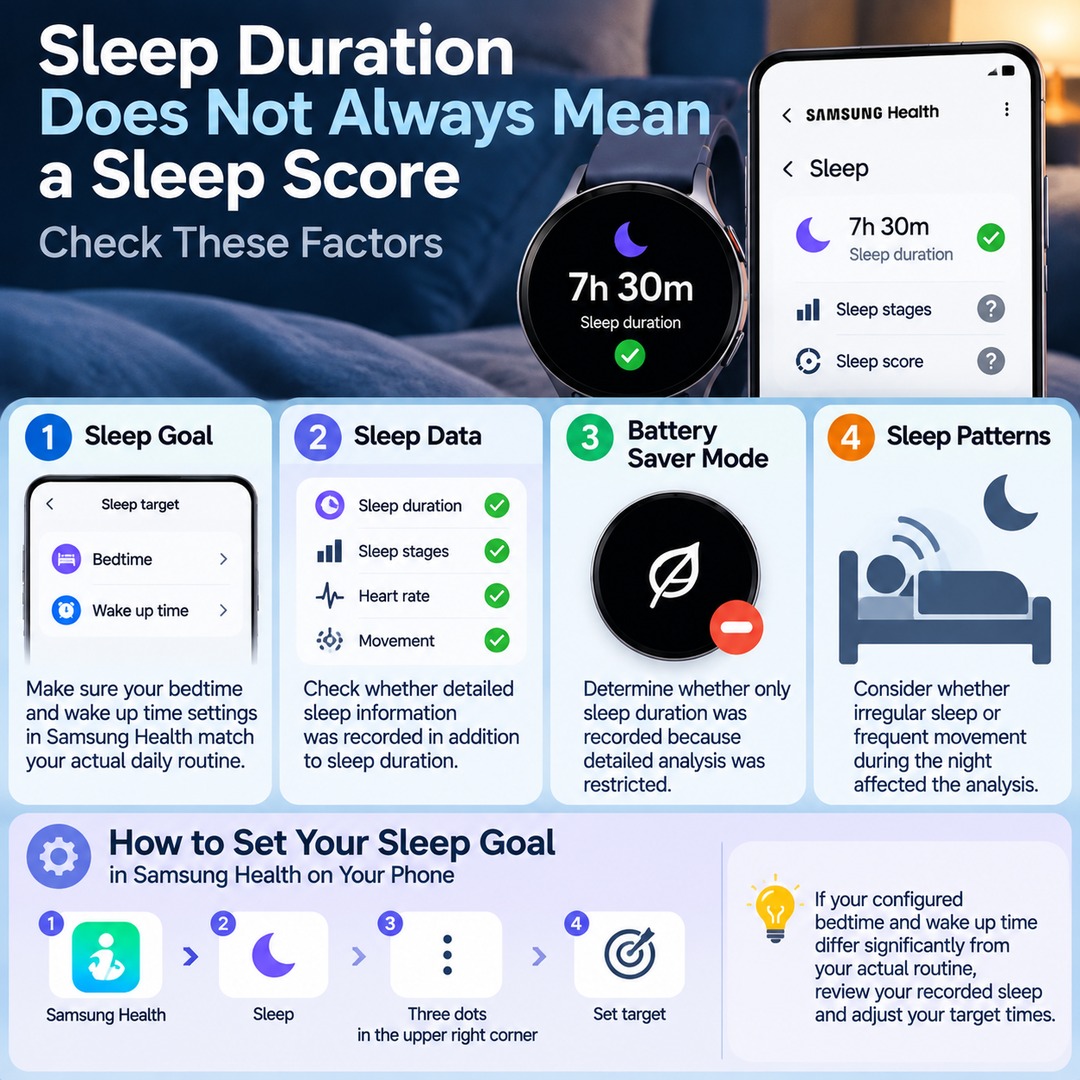
Sleep records and sleep scores are not the same data. Seeing your sleep duration does not guarantee that a score will also be generated.
Check the following:
Sleep goal: Make sure your bedtime and wake-up time settings in Samsung Health match your actual daily routine.
Sleep data: Check whether detailed sleep information was recorded in addition to sleep duration.
Battery Saver mode: Determine whether only sleep duration was recorded because detailed analysis was restricted.
Sleep patterns: Consider whether irregular sleep or frequent movement during the night affected the recorded data.
You can configure your sleep goal through the following path in Samsung Health on your phone:
Samsung Health → Sleep → Three dots in the upper-right corner → Set target
If your configured bedtime and wake-up time differ significantly from your actual routine, review your recorded sleep and adjust your target times.
Samsung's US support guidance also identifies whether the recorded data meets the sleep-goal requirements as a condition for displaying a sleep score.
Is the Seven-Day Requirement Still Necessary for Sleep Coaching?
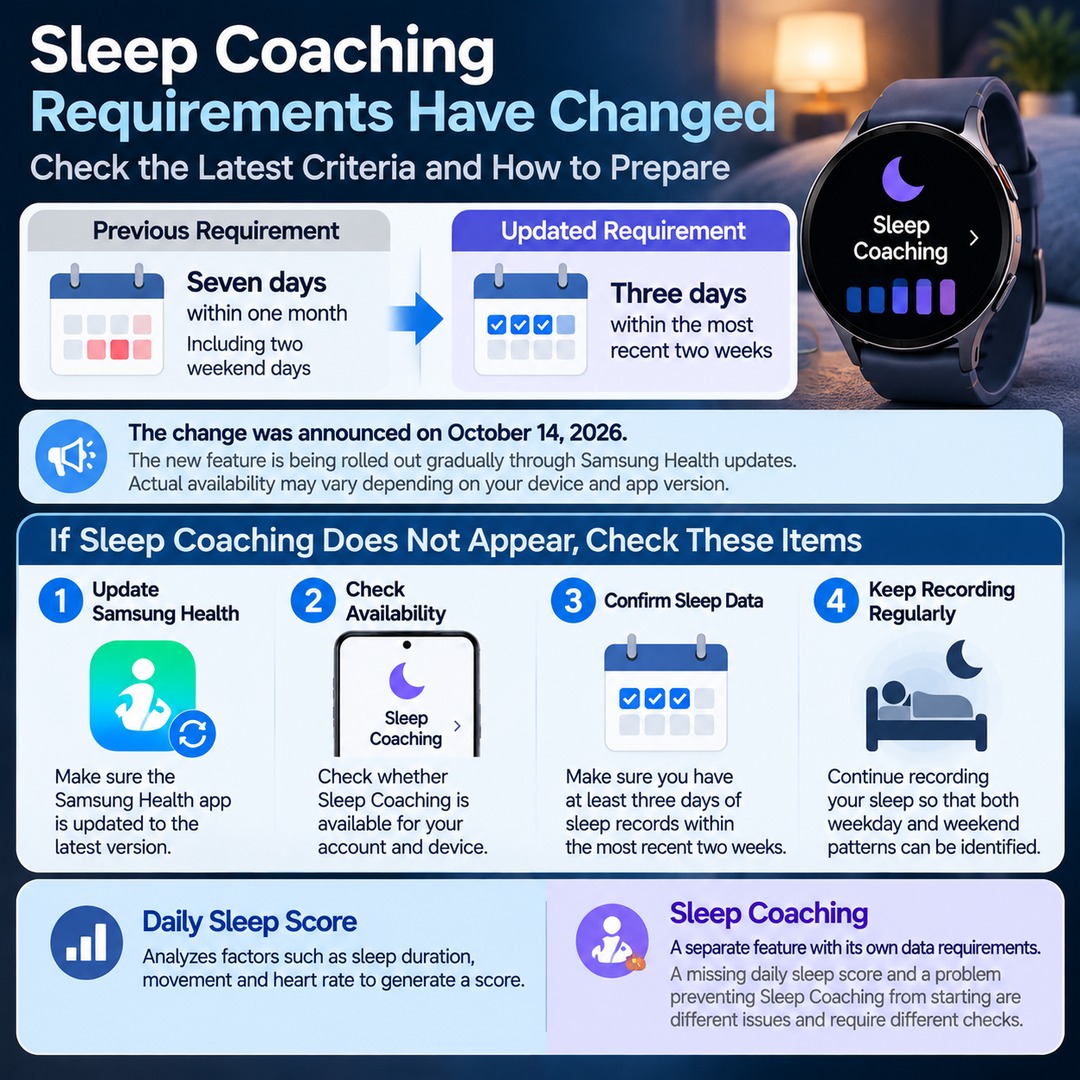
Sleep Coaching and the daily sleep score should be treated as separate features. In particular, the data requirements for Sleep Coaching have recently changed.
Samsung Electronics Service's previous guidance for sleep functions stated that at least seven days of sleep data, including two weekend days, were required. However, in a Samsung Health update announced on October 14, 2026, Samsung stated that it had relaxed the Sleep Coaching eligibility requirement from seven days within one month to three days within the most recent two weeks.
This means the previous seven-day requirement should not automatically be treated as the current rule for every user.
Changes to Sleep Coaching data requirements
Previous requirement
Seven days within one month
Updated requirement
Three days within the most recent two weeks
The change was announced on October 14, 2026. The new feature is being rolled out gradually through Samsung Health updates. Actual availability may vary depending on your device and app version.
If Sleep Coaching does not appear, check the following:
Make sure the Samsung Health app is updated to the latest version.
Check whether Sleep Coaching is currently available for your account and device.
Confirm that you have at least three days of sleep records within the most recent two weeks.
Continue recording your sleep so that both weekday and weekend patterns can be identified.
A problem preventing Sleep Coaching from starting and a missing daily sleep score are different issues and require different checks.
Additional Checks If Sleep Records Continue to Be Missing
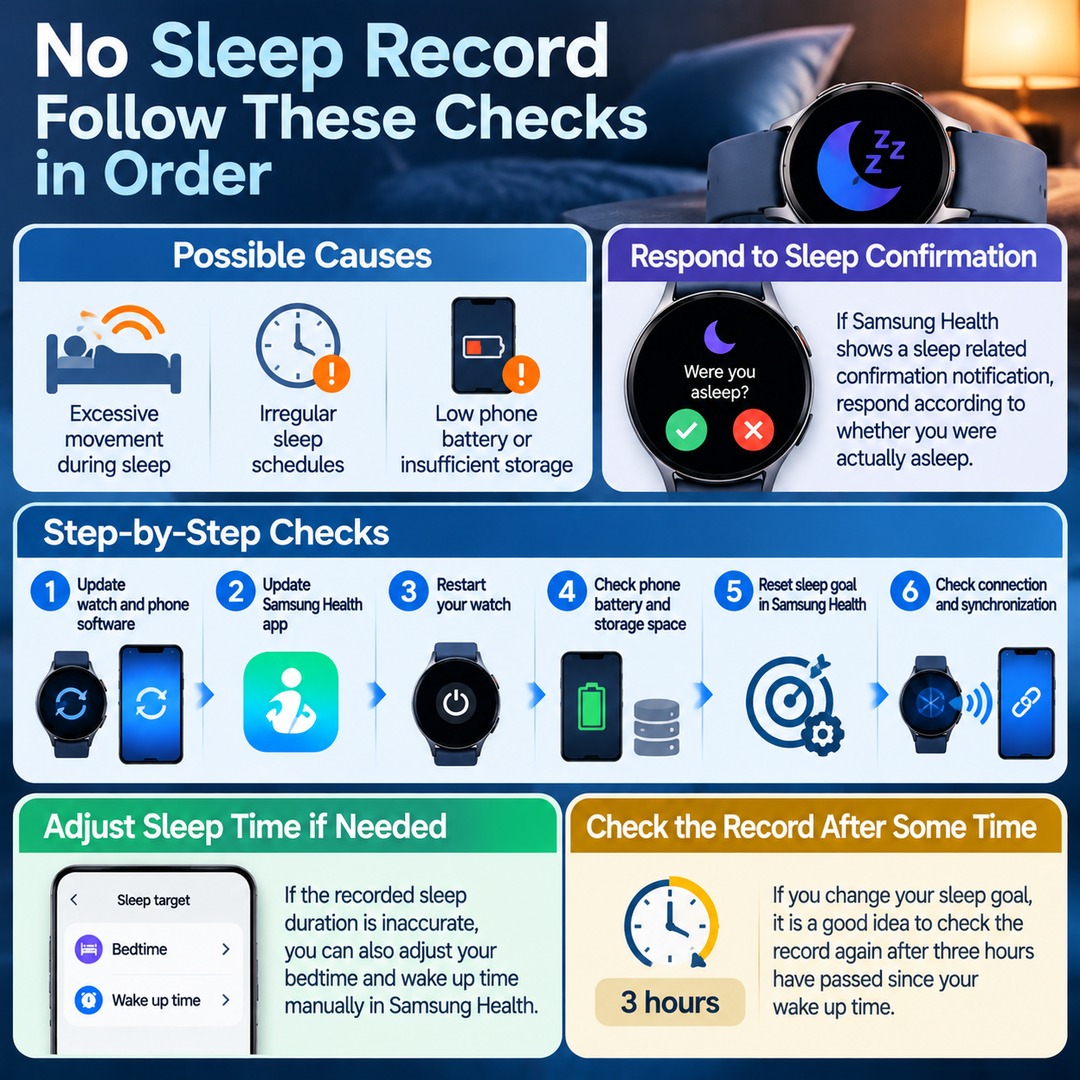
If you are wearing the watch correctly and have disabled Battery Saver mode but sleep records are still missing, check your sleep patterns and phone condition.
Samsung Health may have difficulty distinguishing sleep conditions accurately when there is excessive movement during sleep or when sleep schedules are irregular. Insufficient phone battery or memory may also affect health-data processing.
If Samsung Health displays a sleep-related confirmation notification, respond according to whether you were actually asleep. If the recorded sleep duration is inaccurate, you can also adjust your bedtime and wake-up time manually.
Work through the following checks in order:
Update the software on both your watch and phone.
Update the Samsung Health app.
Restart your watch.
Check your phone's battery level and available storage space.
Reset your sleep goal in Samsung Health.
Check the connection and synchronization between your watch and phone.
If you change your sleep goal, it is a good idea to check the record again after three hours have passed since your wake-up time.
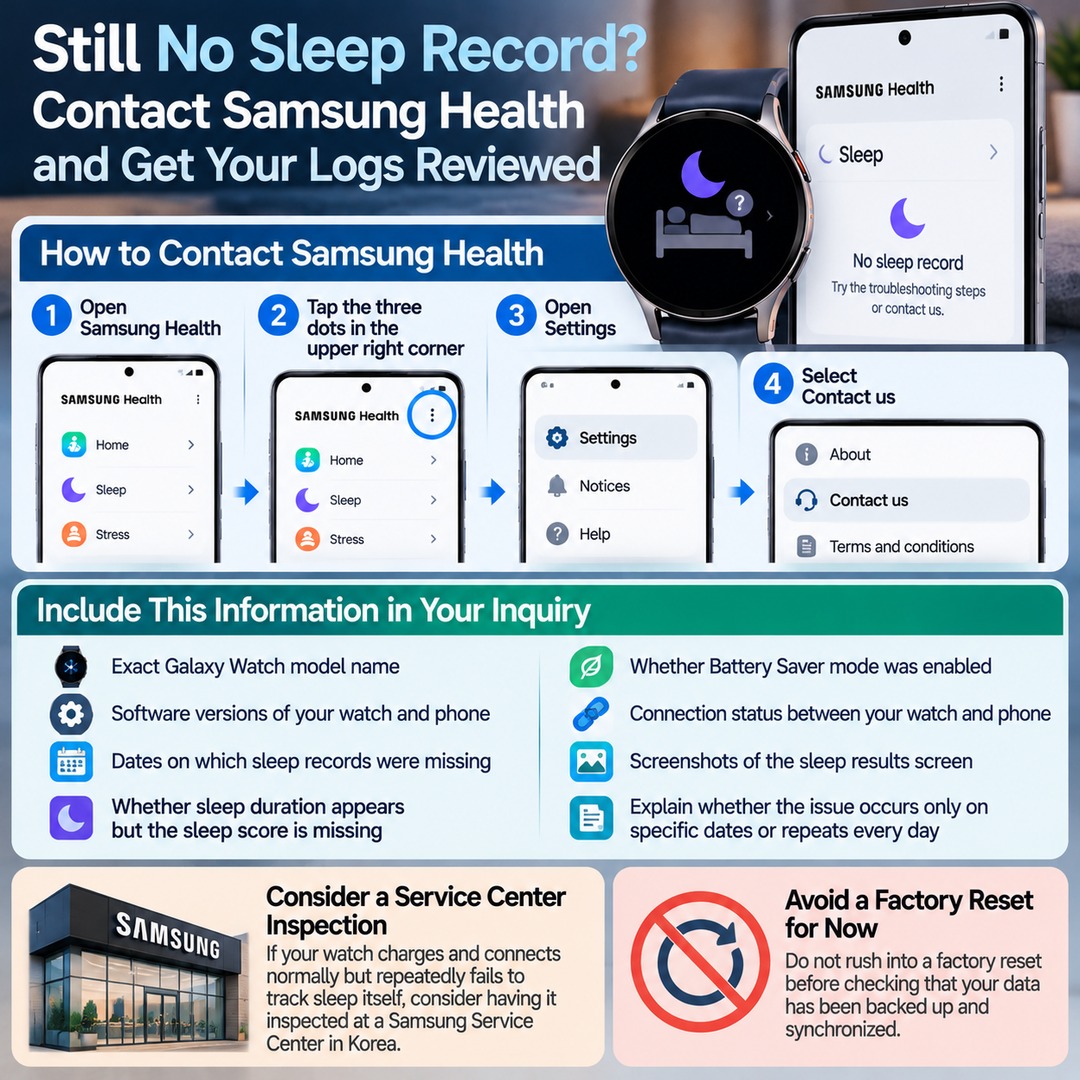
Contact Samsung Health Before Performing a Factory Reset
If sleep records continue to be missing after trying the methods above, it is best to have your device logs reviewed.
You can contact Samsung Health through the following menu:
Samsung Health → Three dots in the upper-right corner → Settings → Contact us
Include the following information in your inquiry:
Exact Galaxy Watch model name
Software versions of your watch and phone
Dates on which sleep records were missing
Whether sleep duration appears but the sleep score is missing
Whether Battery Saver mode was enabled
Connection status between your watch and phone
Screenshots of the sleep results screen
It is also helpful to explain whether the issue occurs only on specific dates or repeats every day.
If your watch charges and connects normally but repeatedly fails to track sleep itself, consider having it inspected at a Samsung Service Center in Korea. Avoid rushing into a factory reset before checking that your data has been backed up and synchronized.