
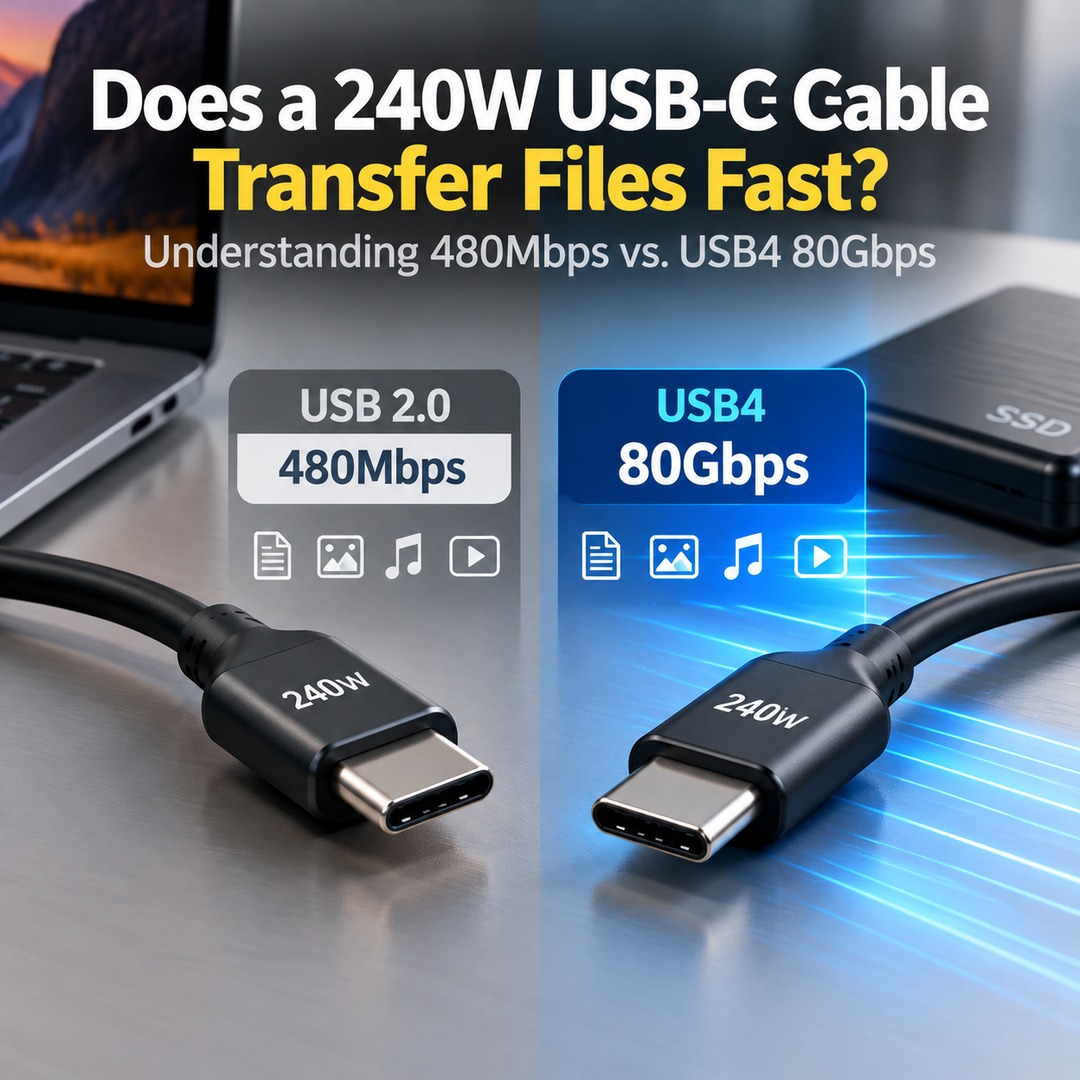
A 240W rating on a USB-C cable indicates its maximum charging power, not its file transfer speed. In fact, some cables support 240W charging while offering only USB 2.0 data transfer speeds of 480Mbps. If you want to charge a laptop and transfer large files, you need to check the power rating and data transfer standard separately.
USB-C refers to the connector shape, and not all USB-C cables offer the same performance. To achieve the performance you expect, you must consider not only the charger and connected devices but also the data transfer standard supported by the cable itself.
What Does 240W Mean for a USB-C Cable?
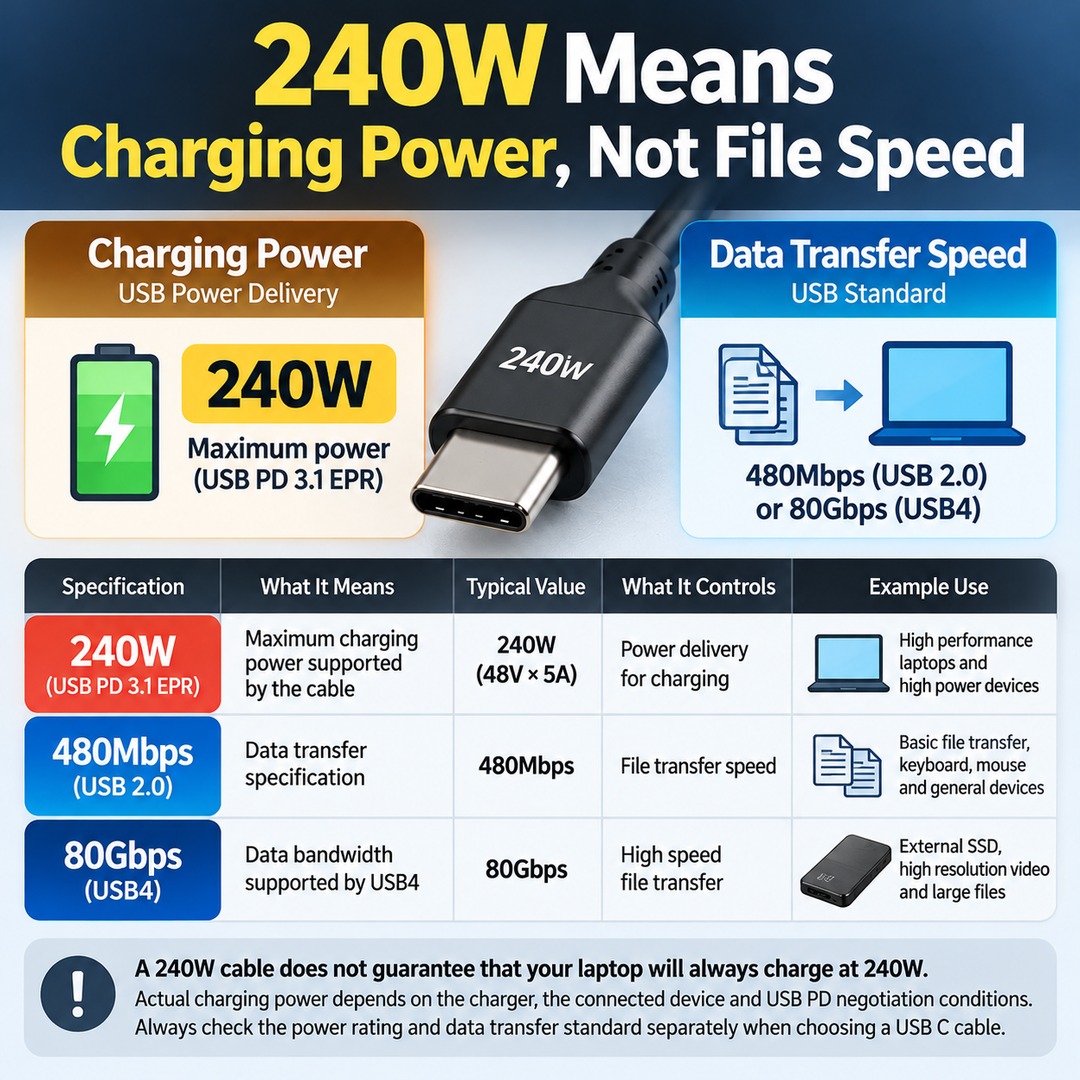
240W is the maximum power capacity of a cable that supports USB Power Delivery (USB PD) 3.1 Extended Power Range (EPR). It is a specification separate from data transfer speed.
USB PD 3.1 is designed to deliver up to 240W using a combination of 48V and 5A. This exceeds the previous USB PD maximum of 100W, making it suitable for devices with higher power requirements, including high-performance laptops.
The following specifications should be distinguished:
240W: The maximum charging power supported by the cable
480Mbps: The USB 2.0 data transfer specification
80Gbps: The data bandwidth supported by USB4
A 240W cable does not mean that a connected laptop will always receive 240W. Actual charging power depends on the power capabilities of the charger and connected device, as well as the USB PD negotiation conditions.
This is why charging power and data transfer performance should never be judged using a single number.
Can a 240W Charging Cable Still Have Slow File Transfer Speeds?
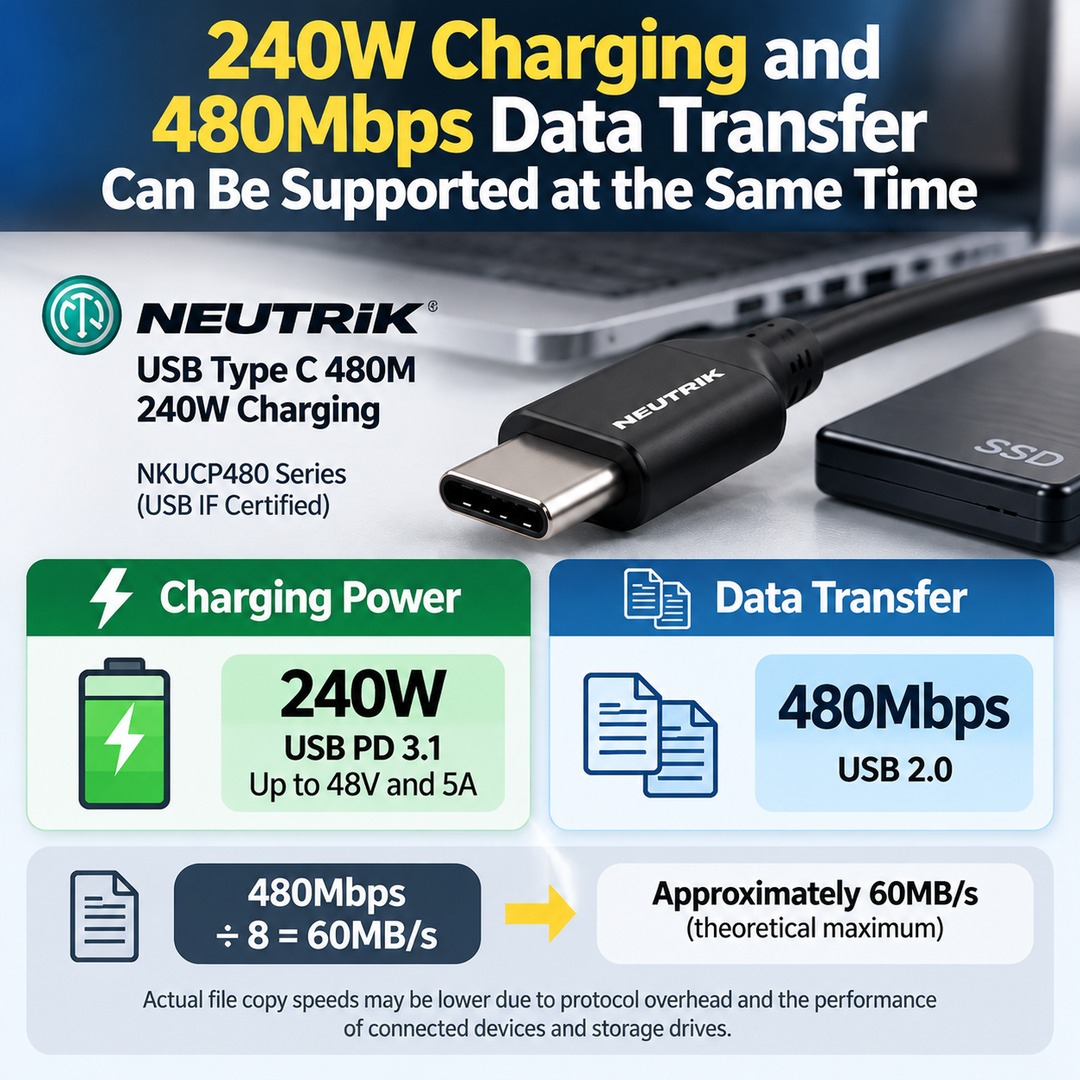
Yes. Actual manufacturer specifications include cables that support 240W charging and 480Mbps data transfer at the same time.
Real-world product specification example
NEUTRIK USB Type-C 480M
240W charging:
USB PD 3.1
Up to 48V and 5A
USB 2.0 data transfer
480Mbps
These are the technical specifications of the NKUCP480 product series published by the manufacturer.
This product series is USB-IF certified and explicitly specifies maximum power delivery of 240W and data transfer speeds of 480Mbps as separate capabilities.
In other words, cables that can charge a laptop at high power while transferring files to an external SSD relatively slowly do exist.
480Mbps is the theoretical data transfer bandwidth. Converted into bytes, this is approximately 60MB/s.
Author's calculation: 480Mbps ÷ 8 = 60MB/s. Actual file copy speeds may be lower because of protocol overhead and the performance of the connected devices and storage drives.
Therefore, even if a cable prominently advertises 240W, you should look for a separate speed specification if fast data transfer matters to you.
How Are USB-C Data Transfer Speeds Classified?
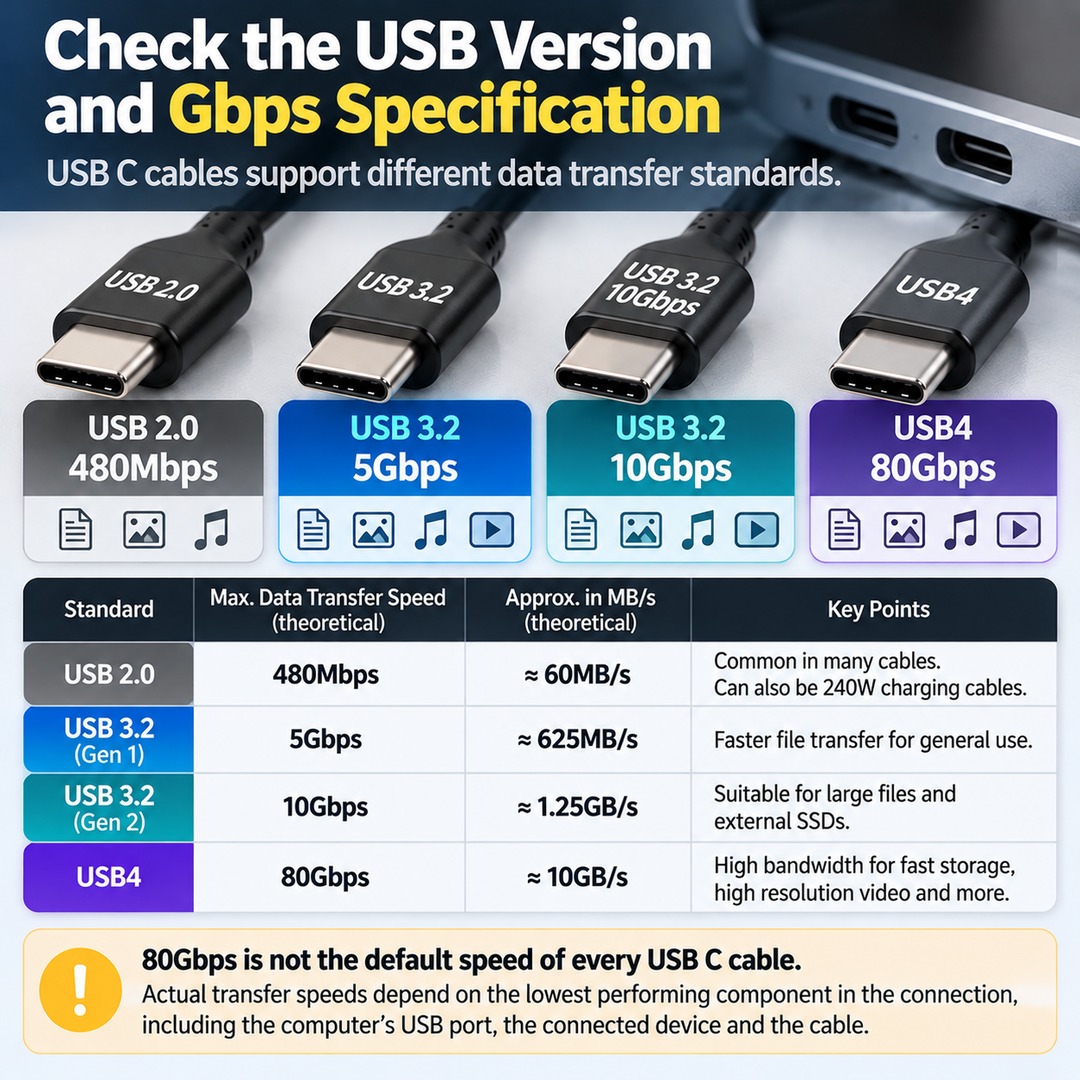
When purchasing a USB-C cable, check the USB version and Gbps specifications in the product description.
The following are some representative data transfer standards:
| Data Standard | Advertised Speed | Typical Uses |
|---|---|---|
| USB 2.0 | 480Mbps | General file transfers and peripherals |
| USB4 | Up to 80Gbps | High-performance external SSDs and high-bandwidth connections |
USB4 is a USB interface standard defined by the USB Implementers Forum (USB-IF). Certified 80Gbps cables support operation at speeds of up to 80Gbps.
The important point is that 80Gbps is not the default speed of every USB-C cable.
USB4 products can also differ in their specific performance capabilities. Rather than relying on the USB4 label alone, check the actual supported speed listed in the product specifications.
Theoretical bandwidth converted into bytes:
USB 2.0 · 480Mbps
Approximately 60MB/s
USB4 · 80Gbps
Approximately 10GB/s
These figures are theoretical conversions between bits and bytes. They do not represent actual file copy speeds. The bandwidth difference between the two standards is substantial. However, actual transfer speeds are affected by the lowest-performing component in the connection, including the computer's USB port, the connected device's interface, and the cable.
Even USB4 cannot improve the performance of a connected device that supports only USB 2.0 or another lower-tier standard.
What Should You Check If You Need Both Charging and Data Transfer?
If you want to charge a laptop while transferring large files to an external SSD, the product description should clearly specify both capabilities.
First, check whether it supports USB PD 3.1 and 240W charging. Second, check the data transfer standard, such as USB4, and its maximum Gbps rating.
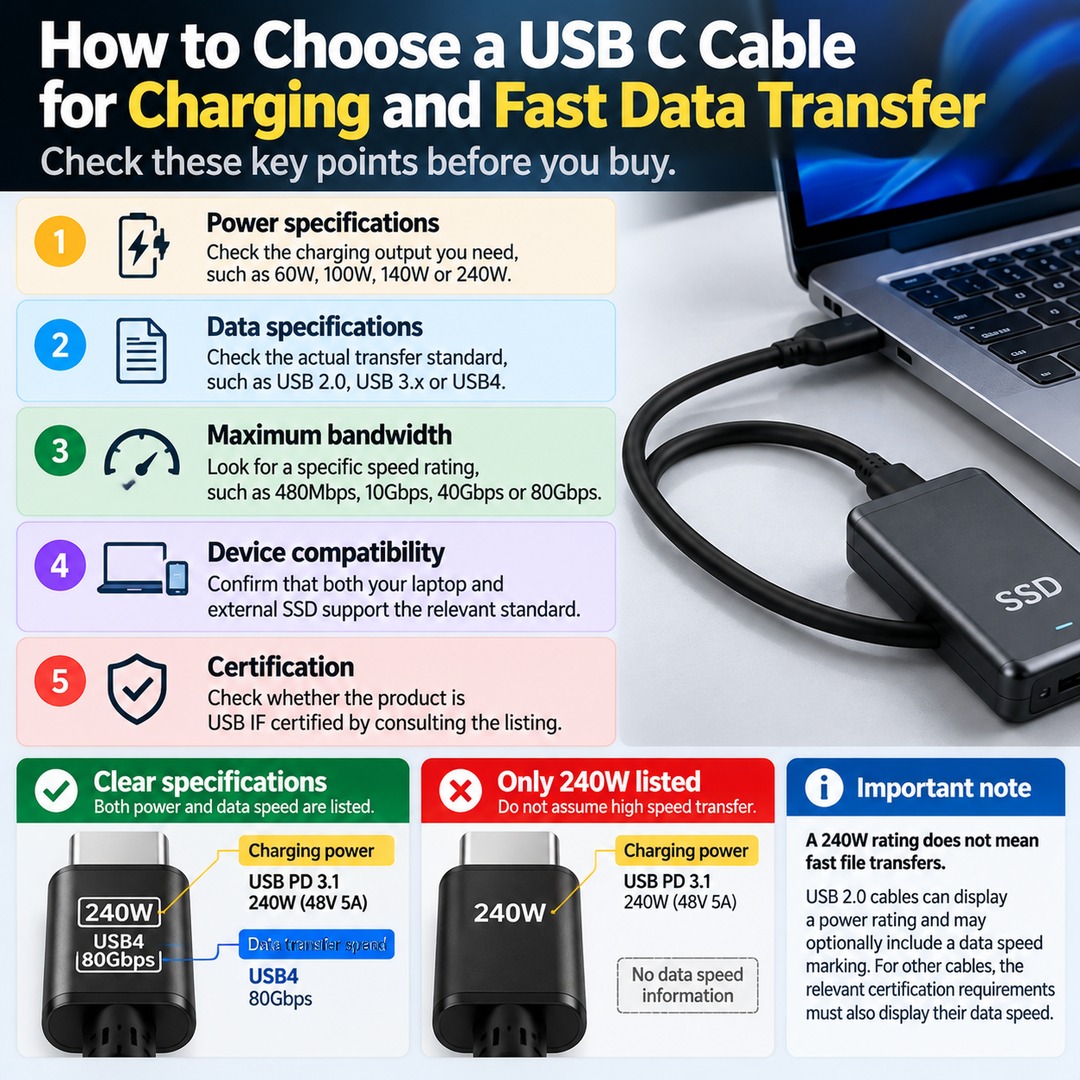
Follow these steps when purchasing a cable:
1. Power specifications: Check the charging output you need, such as 60W, 100W, 140W, or 240W.
2. Data specifications: Check the actual transfer standard, such as USB 2.0, USB 3.x, or USB4.
3. Maximum bandwidth: Look for a specific speed rating, such as 480Mbps, 10Gbps, 40Gbps, or 80Gbps.
4. Device compatibility: Confirm that both your laptop and external SSD support the relevant data transfer standard.
5. Certification: Check whether the product is USB-IF certified by consulting the official product listing.
In particular, if a product page lists only 240W without specifying data transfer speed, you should not assume that it supports high-speed file transfers.
The USB-IF distinguishes power capacity from data performance in USB-C cable certification markings. USB 2.0 cables can display a power rating and may optionally include a data speed marking. However, other cables covered by the applicable certification requirements must also display their data speed.
How Can You Check a USB-C Cable Before Buying It?
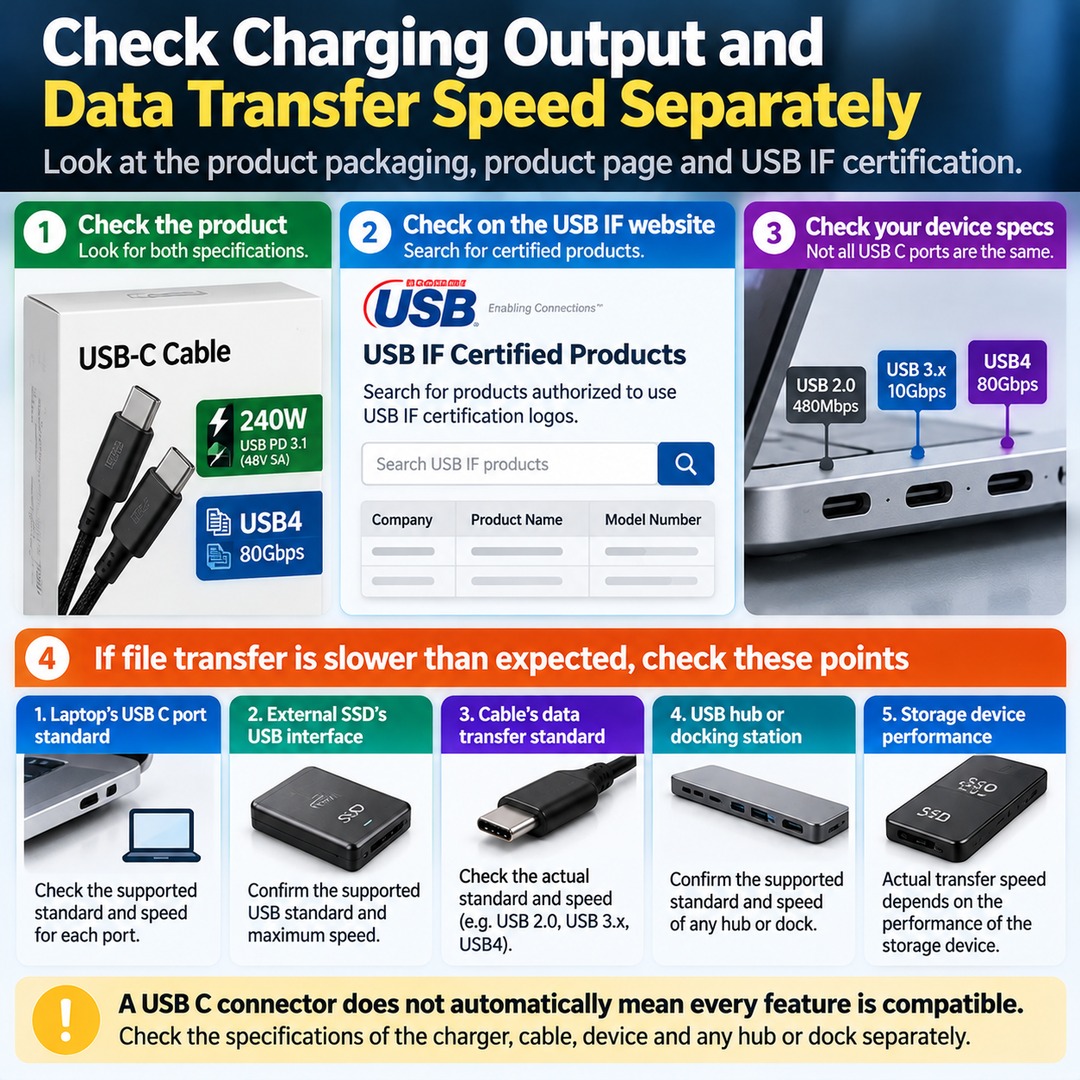
The simplest approach is to look for charging output and data transfer speed separately on the product packaging or product page.
The official USB-IF product search page allows you to look up products certified to use USB-IF certification logos. Check the manufacturer and model number, then see whether the exact product appears in the listing.
Check USB-IF Certified Products
USB-IF Product Search
Official page for searching products authorized to use USB-IF certification logos
Search USB-IF products
The product list is maintained by USB-IF members. However, the absence of a product from the list does not, by itself, prove that it is uncertified.
If you use a Windows laptop, you should also check the specifications of its USB ports. Even if a laptop has multiple USB-C ports, you should not assume that every port offers the same data transfer performance.
If your external SSD transfers files more slowly than expected, check the following:
The supported standard of the laptop's USB-C port
The USB interface of the external SSD
The cable's data transfer standard
The supported speed of any USB hub or docking station
The performance of the storage device used as the actual file transfer destination
Having a compatible USB-C connector does not automatically mean that every feature will be compatible.
Which USB-C Cable Should You Choose?
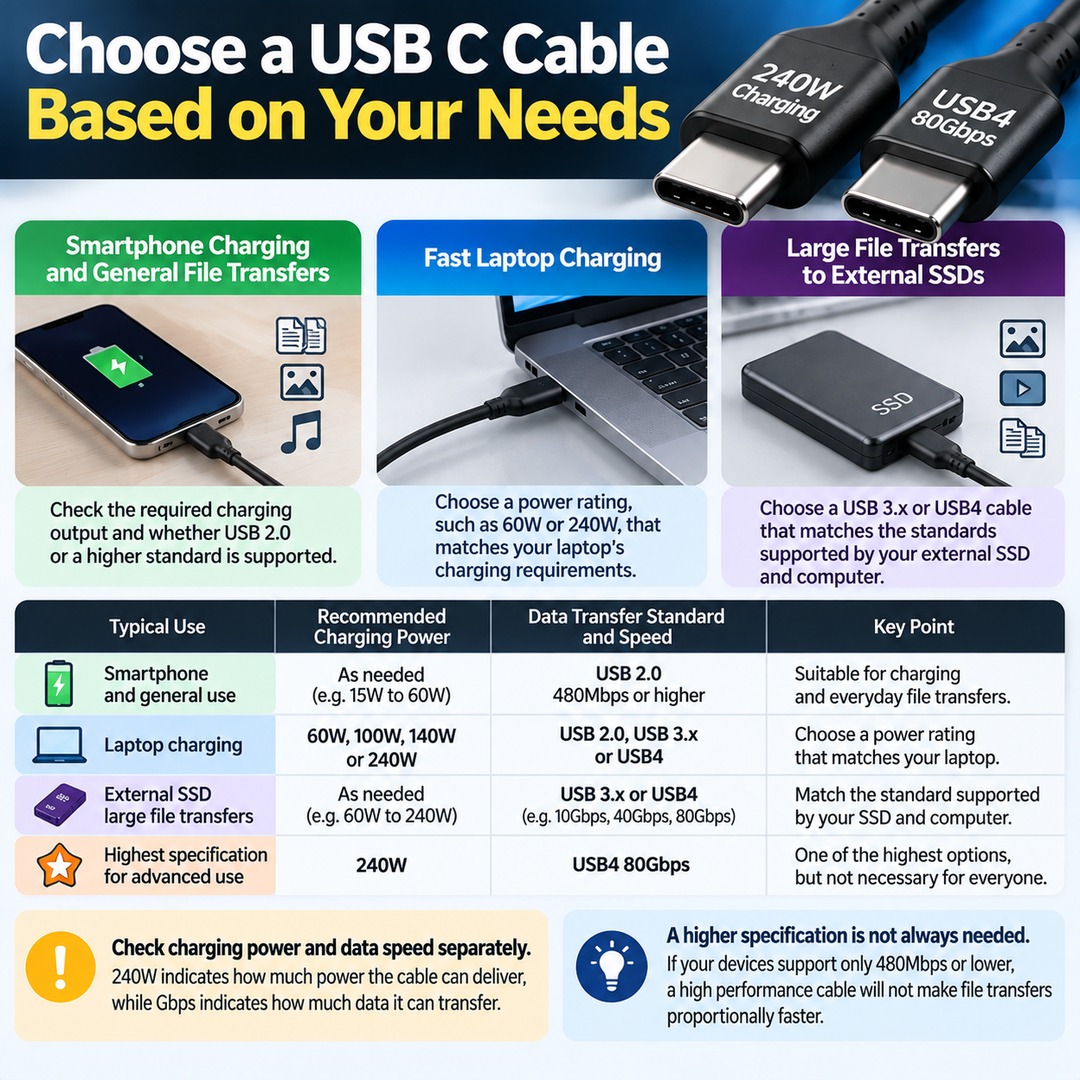
Choosing a cable based on the features you actually need can help you avoid paying unnecessarily for expensive specifications.
Smartphone charging and general file transfers: Check the required charging output and whether USB 2.0 or a higher data transfer standard is supported.
Fast laptop charging: Choose a power rating, such as 60W or 240W, that matches your laptop's charging requirements.
Large file transfers to external SSDs: Choose a USB 3.x or USB4 cable that matches the standards supported by your external SSD and computer.
Using a high-performance laptop and fast external devices simultaneously: Choose a cable that supports both the required USB4 data transfer speed and charging power.
A cable supporting both 240W charging and USB4 80Gbps is among the highest-specification options, but not everyone needs one. If the devices you actually use support only 480Mbps or lower data transfer performance, purchasing a high-performance cable will not make file transfers proportionally faster.
When choosing a USB-C cable, the accurate approach is to compare charging power and data transfer speed as two separate specifications. 240W indicates how much power the cable can deliver, while Gbps indicates how much data it can transfer. Checking both specifications separately will help you choose the right cable for charging and file transfers.