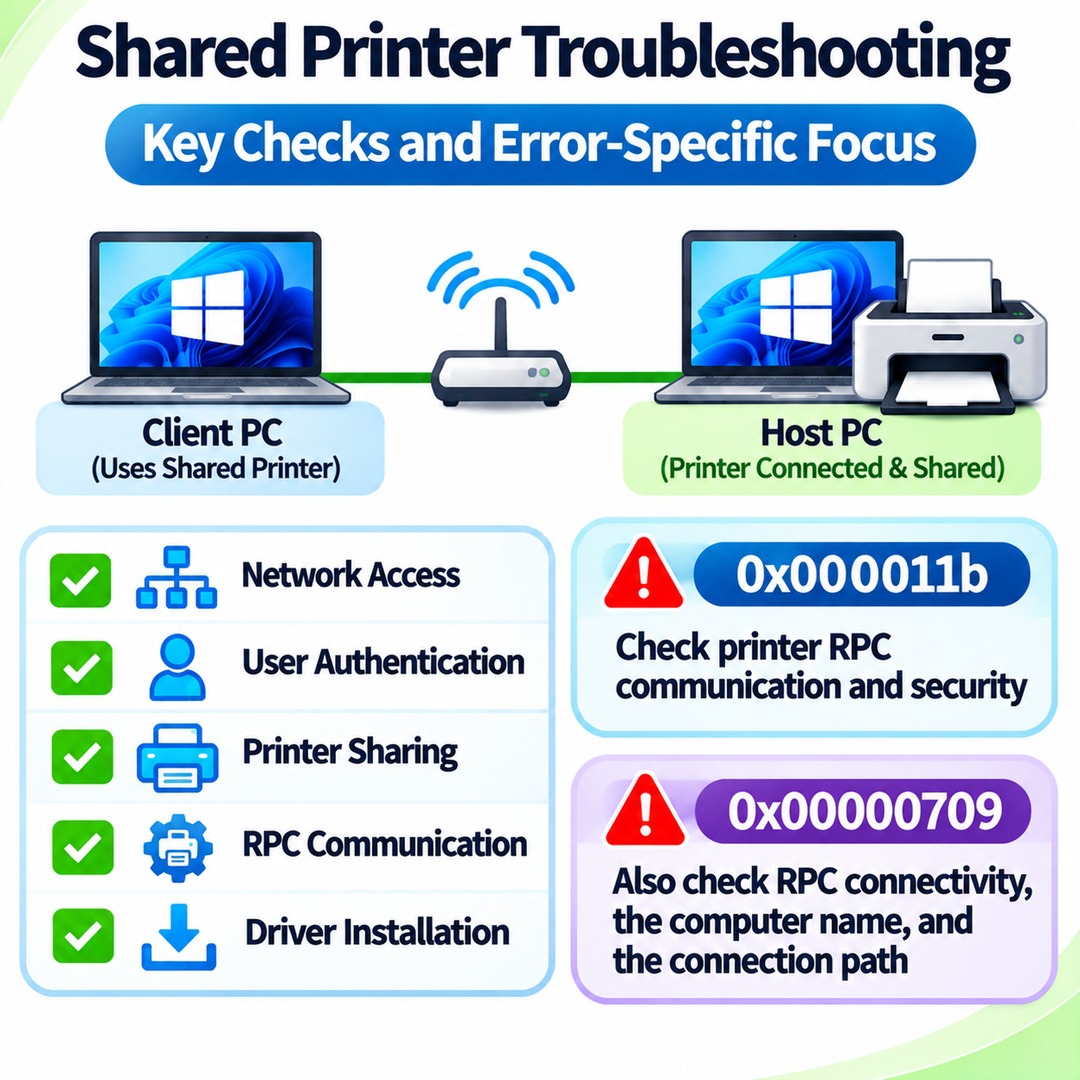

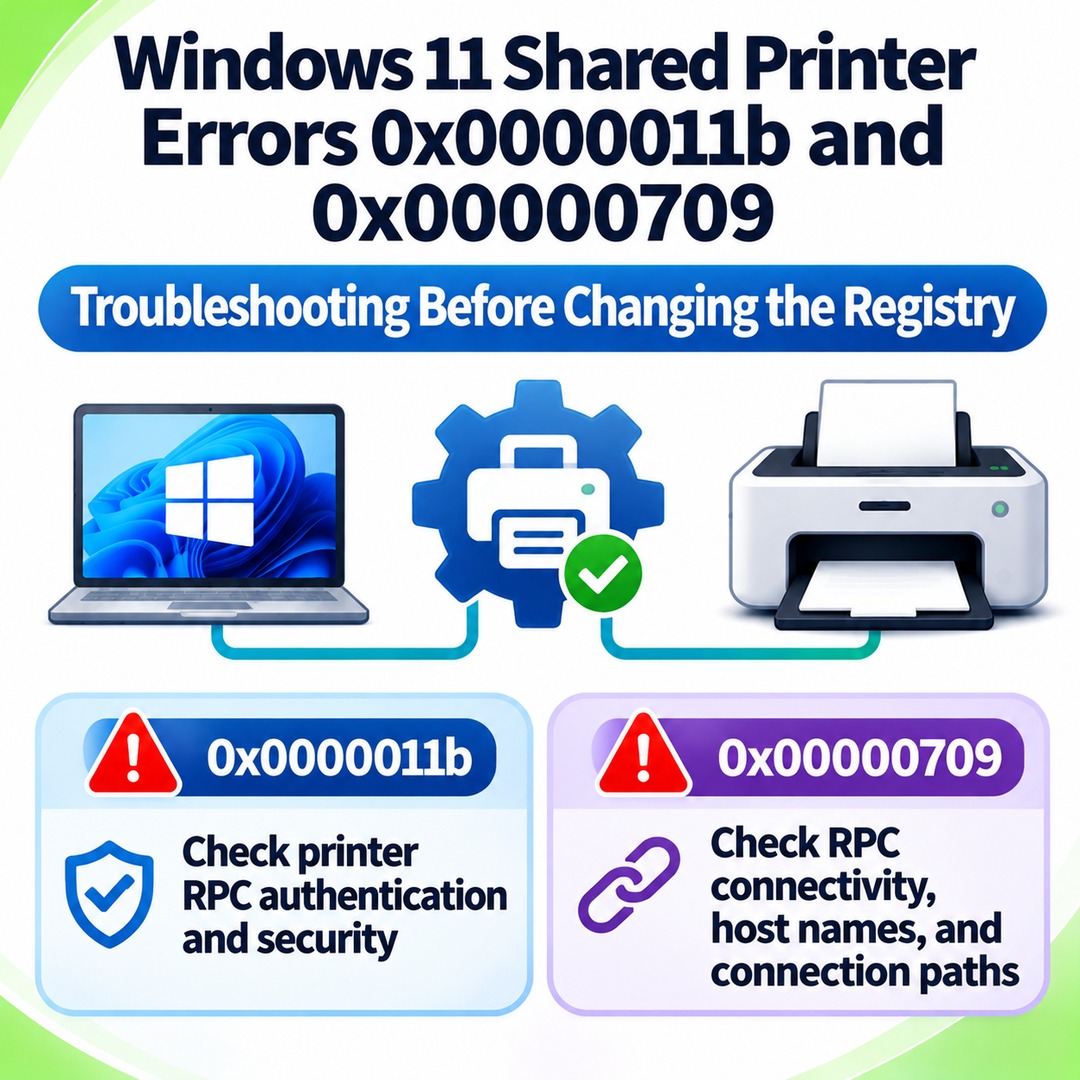
If a shared printer appears on your Windows 11 network but cannot connect, you do not need to start by uninstalling its driver. First check access to the host PC, account authentication, and printer sharing settings. For error 0x0000011b, investigate printer RPC communication and security settings. For error 0x00000709, additionally check RPC connectivity, the computer name, and the connection path.
This distinction is particularly important when a Windows 11 PC shares a printer with a Windows 10 PC or another Windows 11 computer. You need to identify the role of each computer separately. The fact that a shared folder opens does not mean the printer connection is working properly.
Why a Shared Printer Appears but Cannot Connect
A shared printer connection requires several components to work together in the correct sequence: network access, user authentication, printer sharing, RPC (Remote Procedure Call) communication, and driver installation.
The two computers have different roles:
Host PC: The computer directly connected to the printer, for example through a USB cable, and sharing it with other computers.
Client PC: The computer that accesses and uses the shared printer over the network.
If the printer works normally on the host PC but the client cannot connect, investigate the connection and authentication process between the two computers before assuming that the printer itself is faulty.
It is also important to distinguish between the error codes.
| Error code | Additional areas to investigate |
|---|---|
| 0x0000011b | Printer RPC communication, authentication, and security settings |
| 0x00000709 | RPC connectivity, host name, and alias usage |
An error code alone does not establish a single definitive cause. Even when the same code appears, the appropriate troubleshooting steps may differ depending on the network environment and computer configuration.
Common Connection Checks to Perform Before Troubleshooting Specific Error Codes
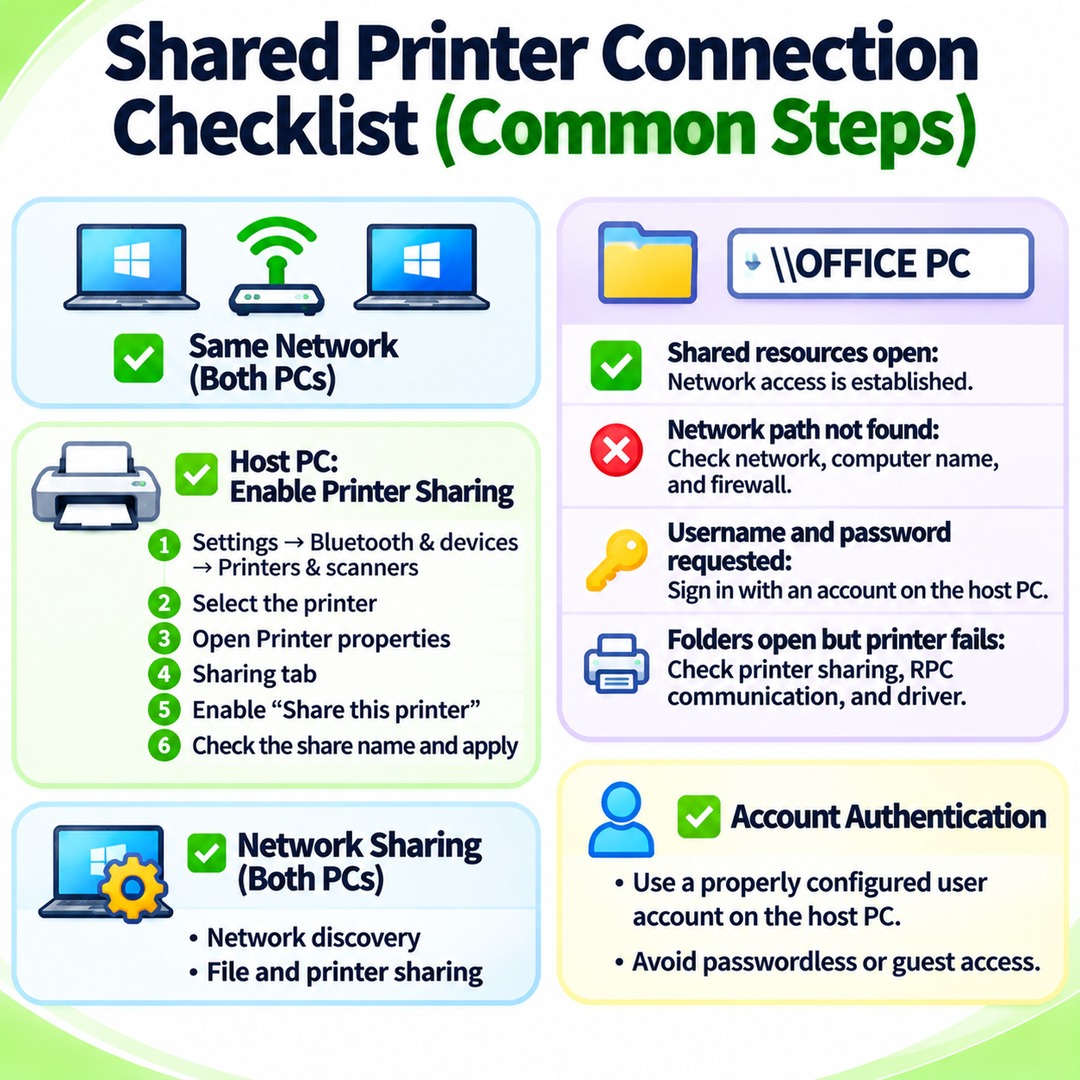
First, make sure both PCs are connected to the same network. Then check the host PC's sharing settings and the client's authentication status. If you find a problem at this stage, you may be able to resolve it without changing registry values or RPC policies.
1. Check Printer Sharing on the Host PC
On the host PC connected to the printer via USB, follow these steps:
1. Open `Settings → Bluetooth & devices → Printers & scanners`.
2. Select the printer you want to share.
3. Open Printer properties.
4. Select the Sharing tab.
5. Enable Share this printer.
6. Check the share name and apply the settings.
You will need this share name when manually adding the printer from the client PC.
2. Check Network Access Between the Two PCs
On the client PC, open File Explorer and enter the following in the address bar:
```text
\\HostPCName
```
For example, if the host computer is named `OFFICE-PC`, enter:
```text
\\OFFICE-PC
```
Interpret the result as follows:
The host PC's shared resources open: Network access using the computer name has been established.
Windows reports that the network path cannot be found: Check the network connection, computer name, and firewall first.
Windows requests a username and password: Authenticate using an account registered on the host PC.
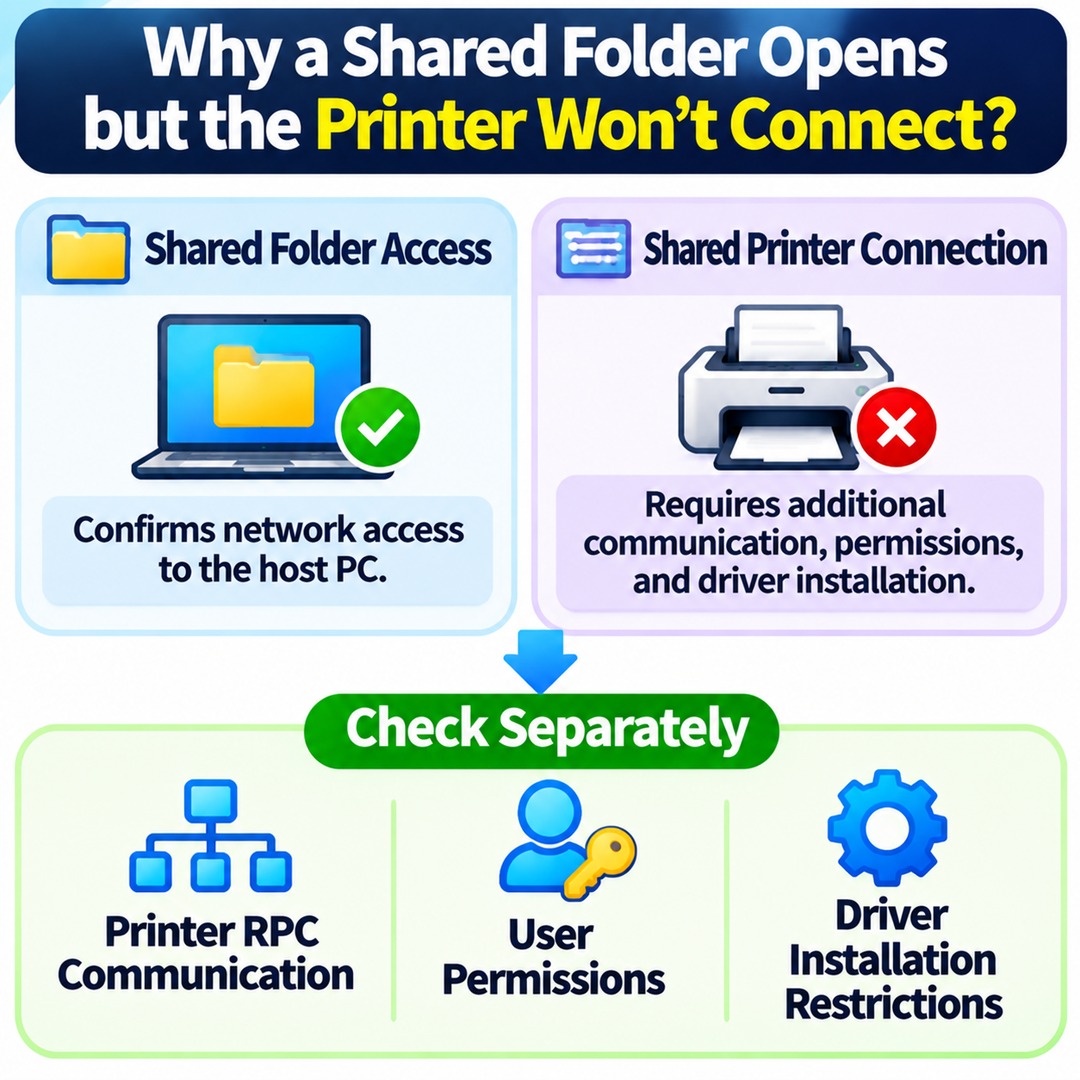
Shared folders open, but the printer connection fails: Further investigate printer sharing, RPC communication, and driver installation.
There is an important distinction here. Being able to open a shared folder confirms access to the host PC, but it does not confirm that printer RPC communication or driver installation is working.
3. Enable Network Discovery and Printer Sharing
Check the network sharing settings on both computers.
`Settings → Network & internet → Advanced network settings → Advanced sharing settings`
Under the private network profile, enable:
Network discovery
File and printer sharing
Avoid enabling unnecessary sharing on public networks. Use printer sharing only on trusted internal networks at home or in the office.
4. Authenticate Using an Account on the Host PC
Account authentication also needs attention when a Windows 11 host is connected to a Windows 10 client.
If a sign-in window appears when the client accesses the host PC's shared resources, enter a username and password belonging to an actual account on the host PC.
Rather than trying to solve authentication problems by using accounts without passwords or enabling guest access, it is safer to create a properly configured user account on the computer sharing the printer and authenticate with that account.
For Error 0x0000011b, Check RPC Authentication Security First
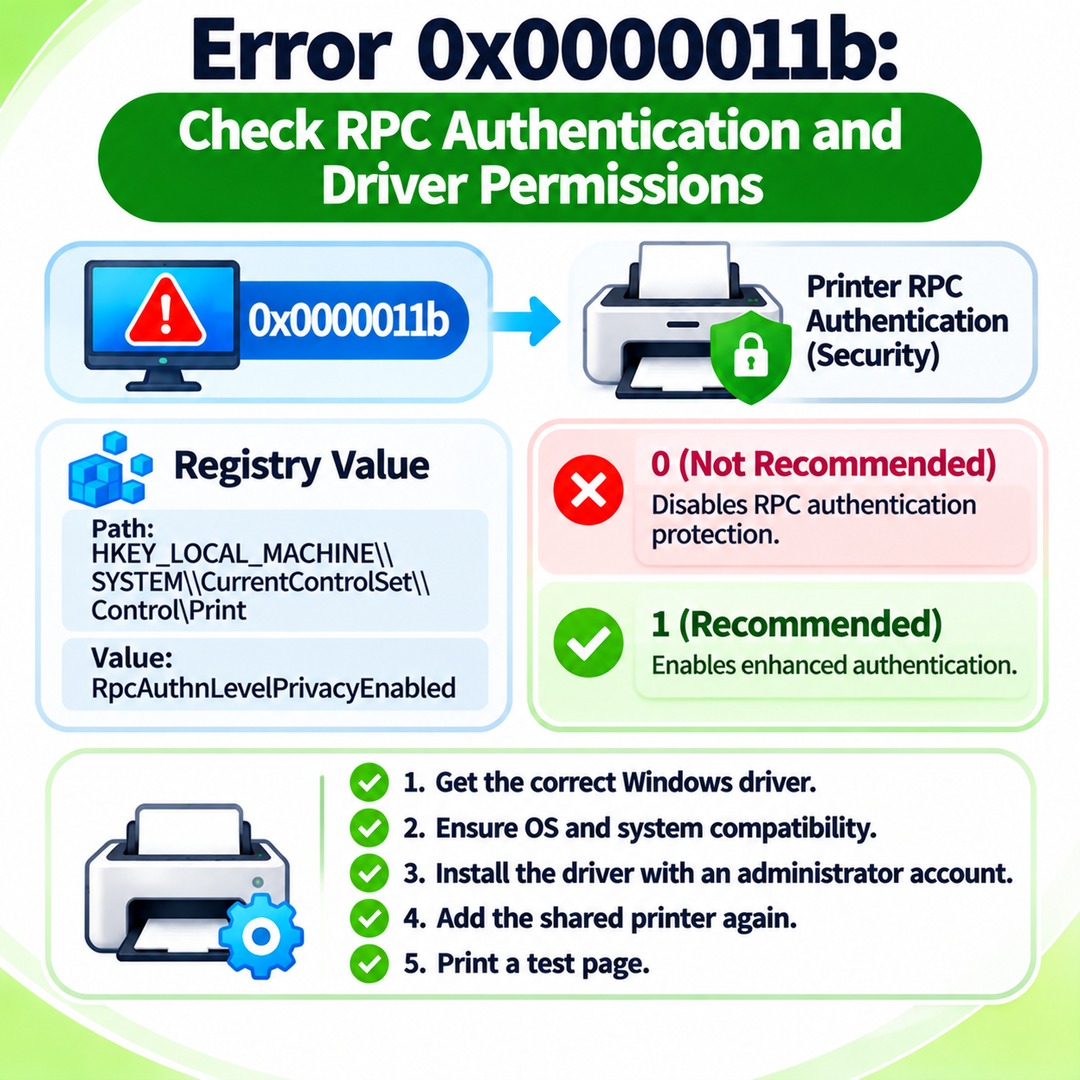
If error 0x0000011b appears while connecting to a shared printer, investigate printer RPC authentication and communication between the host and client PCs. In particular, avoid immediately applying older online instructions that recommend changing a registry value to 0.
Windows printer RPC authentication is related to security vulnerability mitigation. Microsoft introduced changes that strengthen authentication for remote printer calls and explains that lowering the authentication level can reduce device protection.
Why You Should Not Set RpcAuthnLevelPrivacyEnabled to 0
Older troubleshooting guides on the internet sometimes recommend modifying the following registry location:
```text
HKEY_LOCAL_MACHINE\SYSTEM\CurrentControlSet\Control\Print
```
The value to look for is:
```text
RpcAuthnLevelPrivacyEnabled
```
Setting this value to 0 disables the protection that strengthens authentication for the printer RPC interface. Microsoft's documentation also states that 0 is not recommended and leaves the device unprotected.
By contrast, 1 enables enhanced authentication. On systems with recent Windows updates, the default security behavior may already be applied even if this value does not exist separately. Therefore, you do not need to create or modify the value automatically.
For this reason, changing the value to 0 is not a recommended response to error 0x0000011b. First check the update status of both PCs, RPC communication, and printer driver installation permissions.
Check Printer Driver Installation Permissions
Windows may request administrator privileges when a shared printer is connected for the first time or when its driver is retrieved from the host PC.
This does not necessarily indicate an error.
Windows changed its security behavior to require administrator privileges by default when installing or updating printer drivers from remote computers.
Follow these steps:
1. Find the correct Windows driver for your exact printer model on the manufacturer's website.
2. Confirm that the driver matches the operating systems and system environments of both the host and client PCs.
3. Install the driver using an administrator account.
4. Add the shared printer again on the client PC.
5. Print a test page.
Avoid changing `RestrictDriverInstallationToAdministrators` to 0 or disabling driver installation restrictions simply to remove the administrator permission requirement.
For Error 0x00000709, Check the Host Name and RPC Connection Separately
First determine whether error 0x00000709 appears when adding a shared printer or when setting a default printer. If it occurs during shared printer connection, prioritize checking the actual host computer name and RPC communication status.
1. Reconnect Using the Actual Computer Name
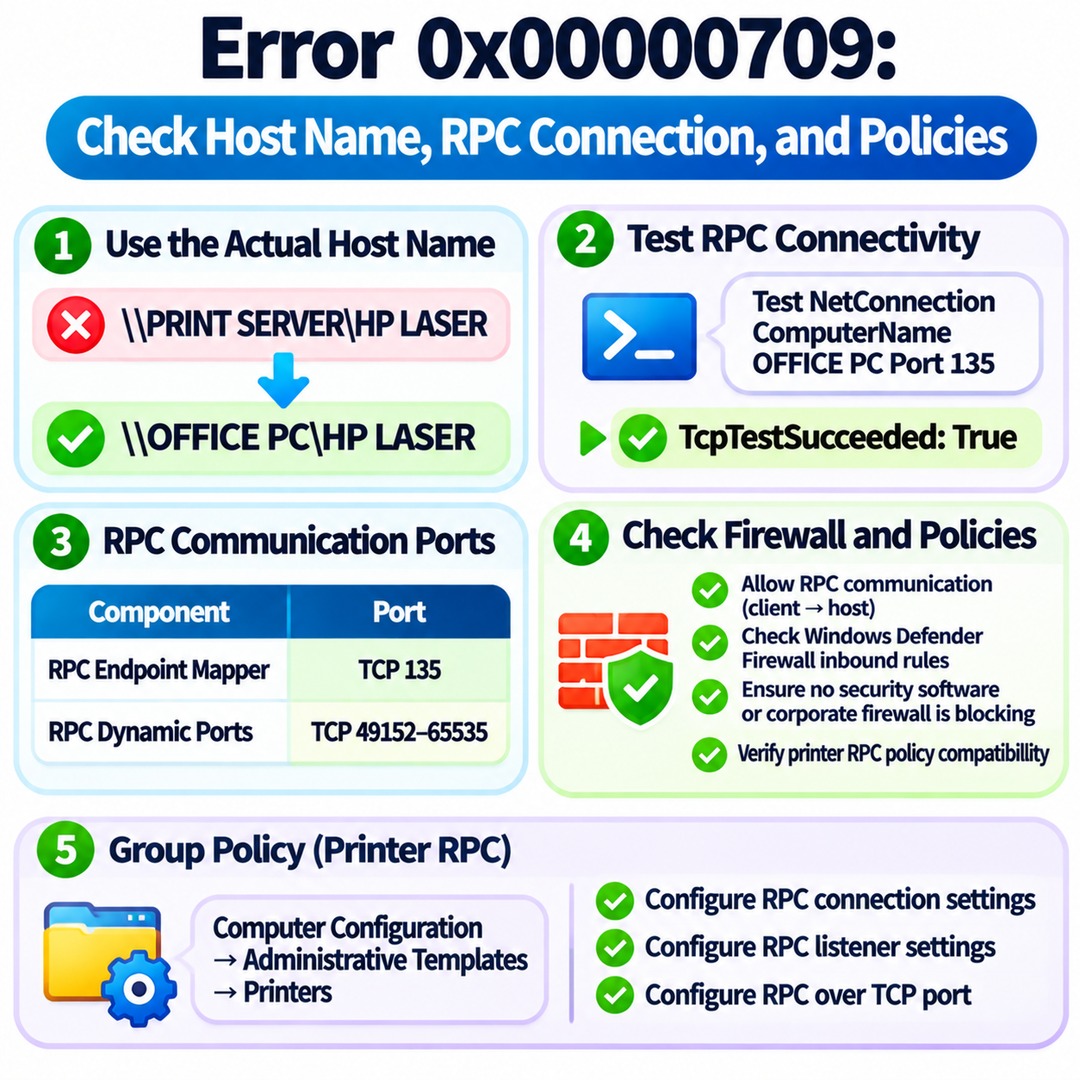
If the client uses an alias or DNS CNAME similar to the following, try replacing it with the actual host PC name.
Existing connection example:
```text
\\PRINT-SERVER\HP-LASER
```
Example using the actual host computer name:
```text
\\OFFICE-PC\HP-LASER
```
Even if both names point to the same computer, printer connection results can differ depending on how the name is resolved.
Microsoft has a separate technical document describing error 0x00000709 when connecting to a printer server through a DNS CNAME. However, the documented reproduction environment is Windows Server 2008 R2. Its findings should not be treated as a universally applicable solution for every Windows 11 environment.
2. Test RPC Communication on Port 135
If the basic sharing configuration and host access are working, open PowerShell on the client PC.
Enter the following command:
```powershell
Test-NetConnection -ComputerName OFFICE-PC -Port 135
```
Replace `OFFICE-PC` with the actual name of the host PC.
Check the following item in the output:
```text
TcpTestSucceeded: True
```
| Result | Meaning and next step |
|---|---|
| True | TCP 135 connection succeeded. Check other RPC communication and authentication settings. |
| False | TCP 135 connection failed. Check the host firewall and network path. |
TCP port 135 is used by the RPC Endpoint Mapper. If this port is blocked, RPC communication between the client and host may encounter problems.
However, a `True` result does not mean the entire printer connection is working. Actual printer RPC communication may use additional ports.
3. Check RPC Dynamic Ports and Firewall Settings
Windows 11 printer communication uses RPC over TCP by default.
The main communication ranges described in Microsoft's RPC technical documentation include:
| Component | Port |
|---|---|
| RPC Endpoint Mapper | TCP 135 |
| RPC dynamic ports | TCP 49152–65535 |
If TCP 135 is reachable but the printer still cannot be added, check whether the host PC's firewall is blocking dynamic RPC port communication.
Review the following:
Whether RPC communication from the client to the host is allowed.
Whether the inbound rules in Windows Defender Firewall on the host PC are configured appropriately.
Whether separate security software or a corporate firewall is blocking the connection.
Whether the printer RPC policies on both PCs are compatible.
Do not automatically open the entire port range across the whole network. Allow only the communication required on trusted internal networks. Exposing these ports to the internet through port forwarding is not a safe approach.
4. Check Printer RPC Policies
Printer RPC communication in Windows 11 can be configured through Group Policy.
To open the Group Policy Editor, run:
```text
gpedit.msc
```
Navigate to:
```text
Computer Configuration
→ Administrative Templates
→ Printers
```
The main policies include:
Configure RPC connection settings: Controls the client's printer RPC connection method.
Configure RPC listener settings: Controls the host's RPC listener behavior.
Configure RPC over TCP port: Specifies the port used for RPC over TCP.
Check that the client's outgoing connection method is compatible with the host's listening configuration.
RPC over Named Pipes is also supported, but it is not the default configuration, and Microsoft does not recommend prioritizing it for general environments. Avoid changing registry values or RPC policies on both computers simultaneously without first identifying a compatibility problem.
How to Remove and Manually Reconnect a Shared Printer
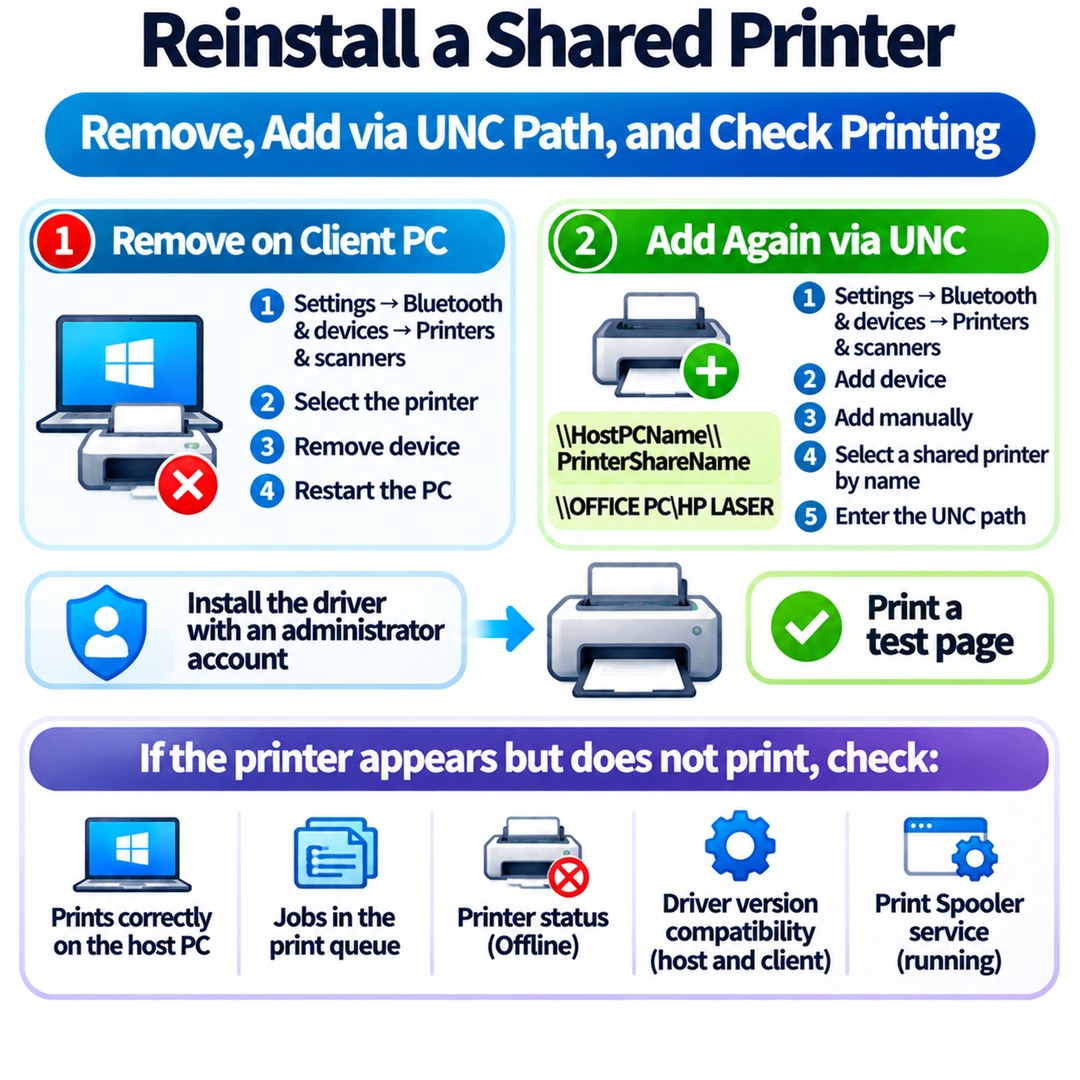
If the basic settings and network communication are working, remove the shared printer registered on the client PC and add it again using its UNC path.
1. Remove the Existing Printer
On the client PC, follow these steps:
1. Open `Settings → Bluetooth & devices → Printers & scanners`.
2. Select the shared printer experiencing the problem.
3. Select Remove device.
4. Restart the PC.
You do not need to delete the printer installed on the host PC. Leave the host's printer configuration unchanged so it can continue providing the shared printer.
2. Add the Printer Directly Using Its Share Name
Add the printer again on the client PC:
1. Open `Settings → Bluetooth & devices → Printers & scanners`.
2. Select Add device.
3. If the desired printer does not appear in the list, select Add manually.
4. Choose the option to select a shared printer by name.
5. Enter the shared printer path.
Use the following format:
```text
\\HostPCName\PrinterShareName
```
For example:
```text
\\OFFICE-PC\HP-LASER
```
Follow the on-screen installation instructions. If administrator privileges are requested, complete the driver installation using an authorized administrator account.
Finally, print a test page to confirm that the printer produces an actual output.
3. What to Do If the Printer Is Added but Does Not Print
If the printer appears in the list but produces no output, distinguish a connection problem from a print processing problem.
Check the following:
Whether the printer prints directly from the host PC.
Whether jobs remain in the client PC's print queue.
Whether the printer status shows Offline.
Whether the driver versions on the host and client are compatible.
Whether the Print Spooler service is running.
If a print job remains stuck in the queue, the problem may be different from a connection error. Check the Print Spooler service and, if necessary, clear pending jobs before restarting the service.
How to Choose the Troubleshooting Steps for Each Error
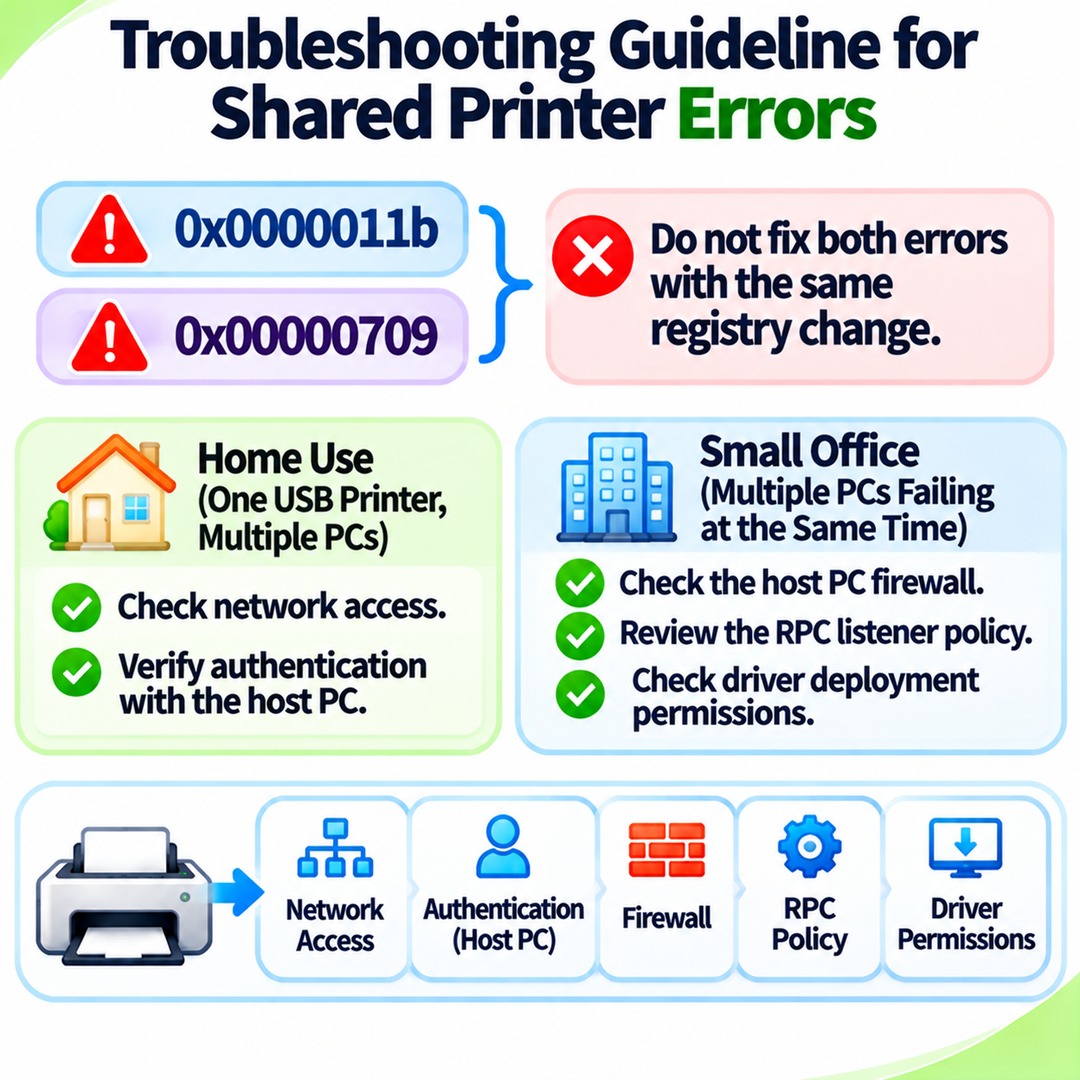
Even if both errors appear, they should not be handled by applying the same registry modification.
| Check | 0x0000011b | 0x00000709 |
|---|---|---|
| Network access | Check | Check |
| Host sharing settings | Check | Check |
| User authentication | Check | Check |
| Driver installation permissions | Important | Important |
| RPC 135 and dynamic ports | Check | Prioritize checking |
| Actual host name | Check | Particularly important |
| RPC authentication security | Particularly important | Check policy compatibility |
| Weakening registry security | Not recommended | Do not change automatically |
In a home environment where several PCs share a single USB printer, it is efficient to start by checking network access and authentication with the host PC.
If multiple computers in a small office fail simultaneously, it is difficult to attribute the problem solely to an individual client's printer driver. Also inspect the host PC's firewall, RPC listener policy, and driver deployment permissions.
Frequently Asked Questions
Why Can I Open Shared Folders but Not Connect to the Printer?
Shared folder access and printer connections use different communication and installation procedures. You need to check printer RPC communication, user permissions, and driver installation restrictions separately.
Can a Windows 10 PC Connect to a Windows 11 Host?