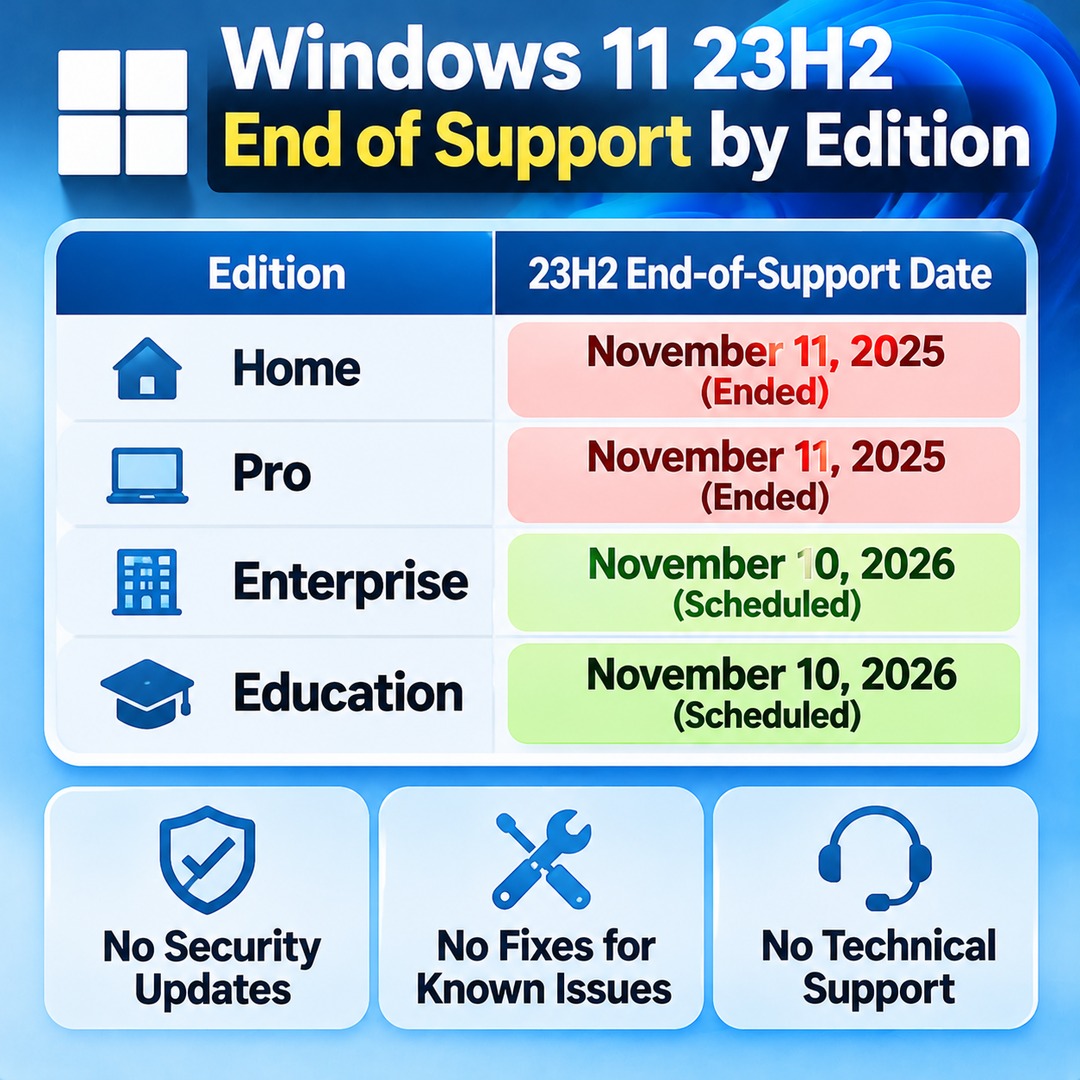

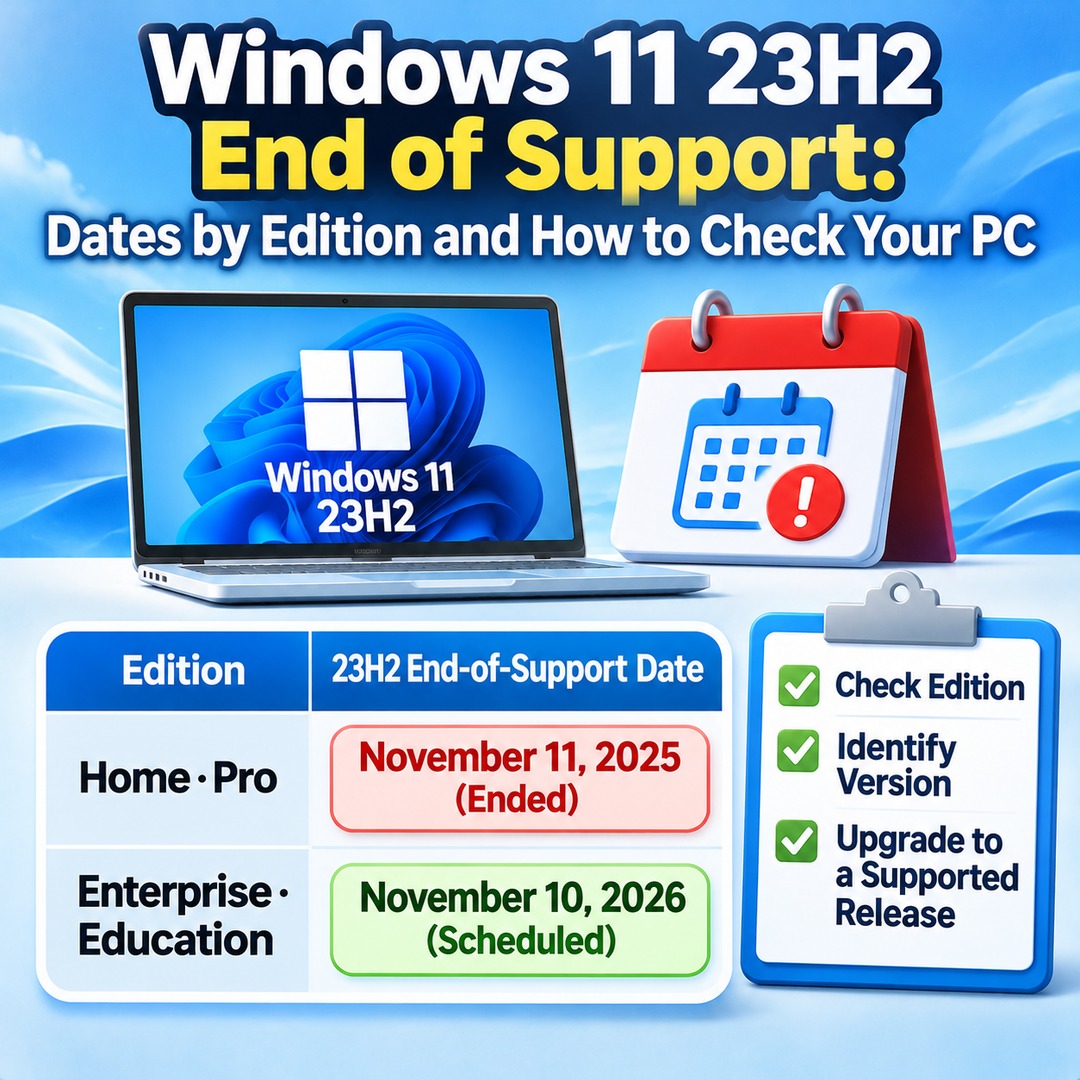
Windows 11 23H2 has different end-of-support dates depending on the edition. Support for Home and Pro ended on November 11, 2025, while Enterprise and Education are scheduled to reach end of support on November 10, 2026. Do not assume that your PC's support status can be determined from the 23H2 version number alone. You also need to check which Windows edition is installed.
PCs provided by an employer or school may follow different support schedules from ordinary home computers. Check both your Windows version and edition, then see whether a newer release is available through Windows Update.
When Does Windows 11 23H2 Reach End of Support for Each Edition?
Windows 11 23H2 Enterprise and Education are scheduled to reach end of support on November 10, 2026. Home and Pro reached end of support one year earlier, on November 11, 2025.
| Windows 11 Edition | 23H2 End-of-Support Date | Current Status |
|---|---|---|
| Home | November 11, 2025 | Ended |
| Pro | November 11, 2025 | Ended |
| Enterprise | November 10, 2026 | Scheduled to end |
| Education | November 10, 2026 | Scheduled to end |
| Enterprise multi-session | November 10, 2026 | Scheduled to end |
End of support means more than simply stopping the release of new features. Once support ends, the affected version no longer receives monthly security updates, fixes for known issues, or technical support.
November 10 is not the end-of-support date for all Windows 11 versions. It is the version-specific deadline for Windows 11 23H2 Enterprise and Education editions.
How to Check Whether Your PC Runs 23H2 and Which Edition Is Installed
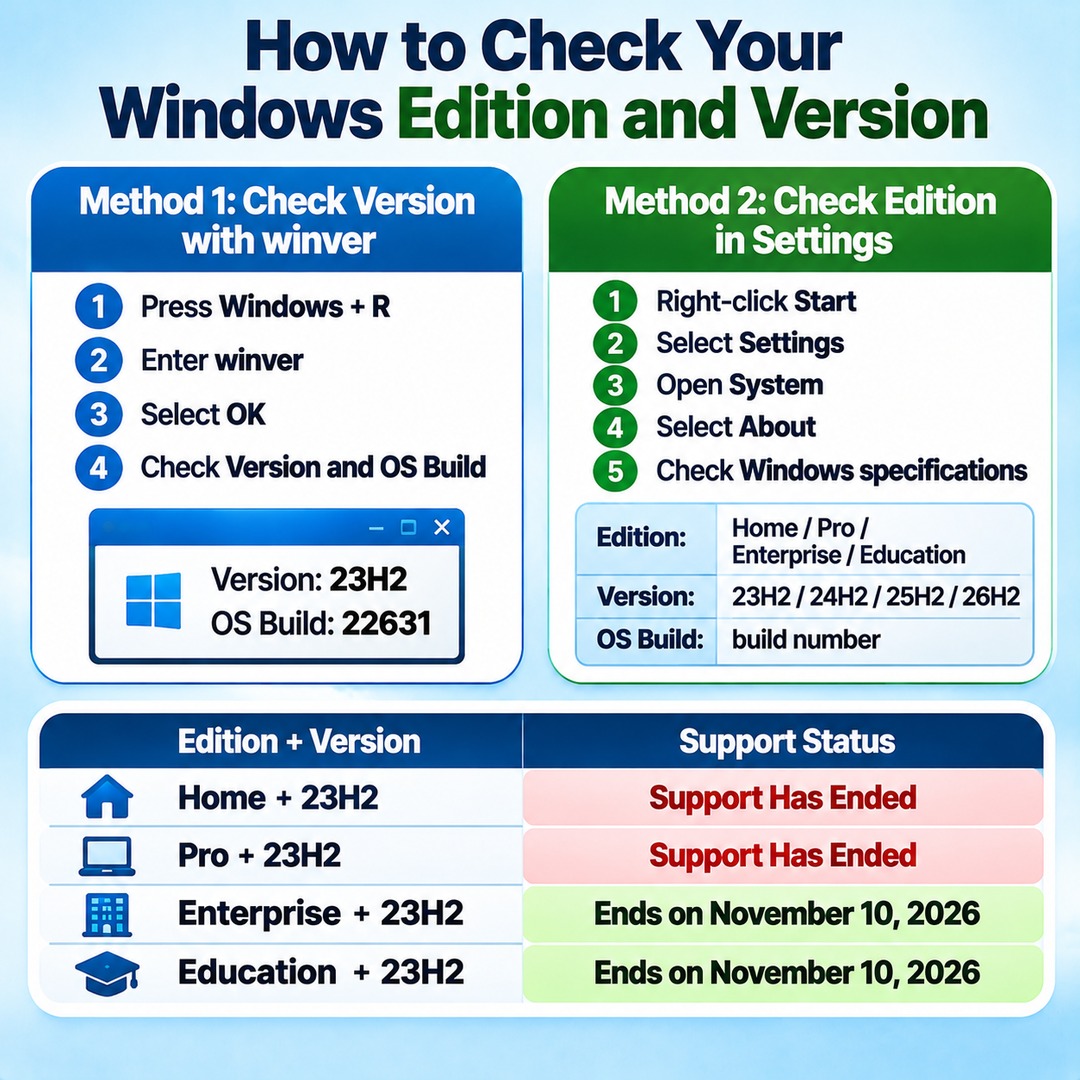
The most reliable approach is to check both the Windows edition and version in your Windows specifications. The `winver` command is useful for quickly checking your version and OS build, while the Settings app shows which edition you have installed.
Method 1: Check your version using winver
1. Press `Windows + R` on your keyboard.
2. Enter `winver` in the Run dialog box.
3. Select OK.
4. Check the version and OS build in the About Windows window.
If your PC is running 23H2, the version field will display `23H2`. For the General Availability Channel, the OS build belongs to the 22631 series.
Method 2: Check your edition in Settings
1. Right-click the Start button.
2. Select Settings.
3. Open System.
4. Select About.
5. Scroll down to Windows specifications.
Check the following information:
Edition: Windows 11 Home, Pro, Enterprise, Education, and other editions.
Version: 23H2, 24H2, 25H2, 26H2, and other releases.
OS build: The build number of the currently installed operating system.
The important point is to check the edition and version separately.
For example, the following combinations have different support statuses:
Windows 11 Home + 23H2: Support has already ended.
Windows 11 Pro + 23H2: Support has already ended.
Windows 11 Enterprise + 23H2: Scheduled to reach end of support on November 10, 2026.
Windows 11 Education + 23H2: Scheduled to reach end of support on November 10, 2026.
Which Windows Version Should You Upgrade to After 23H2?
You should move to a Windows 11 version that is still supported. However, the availability of a newer version number does not mean that the same update will immediately be offered to every PC.
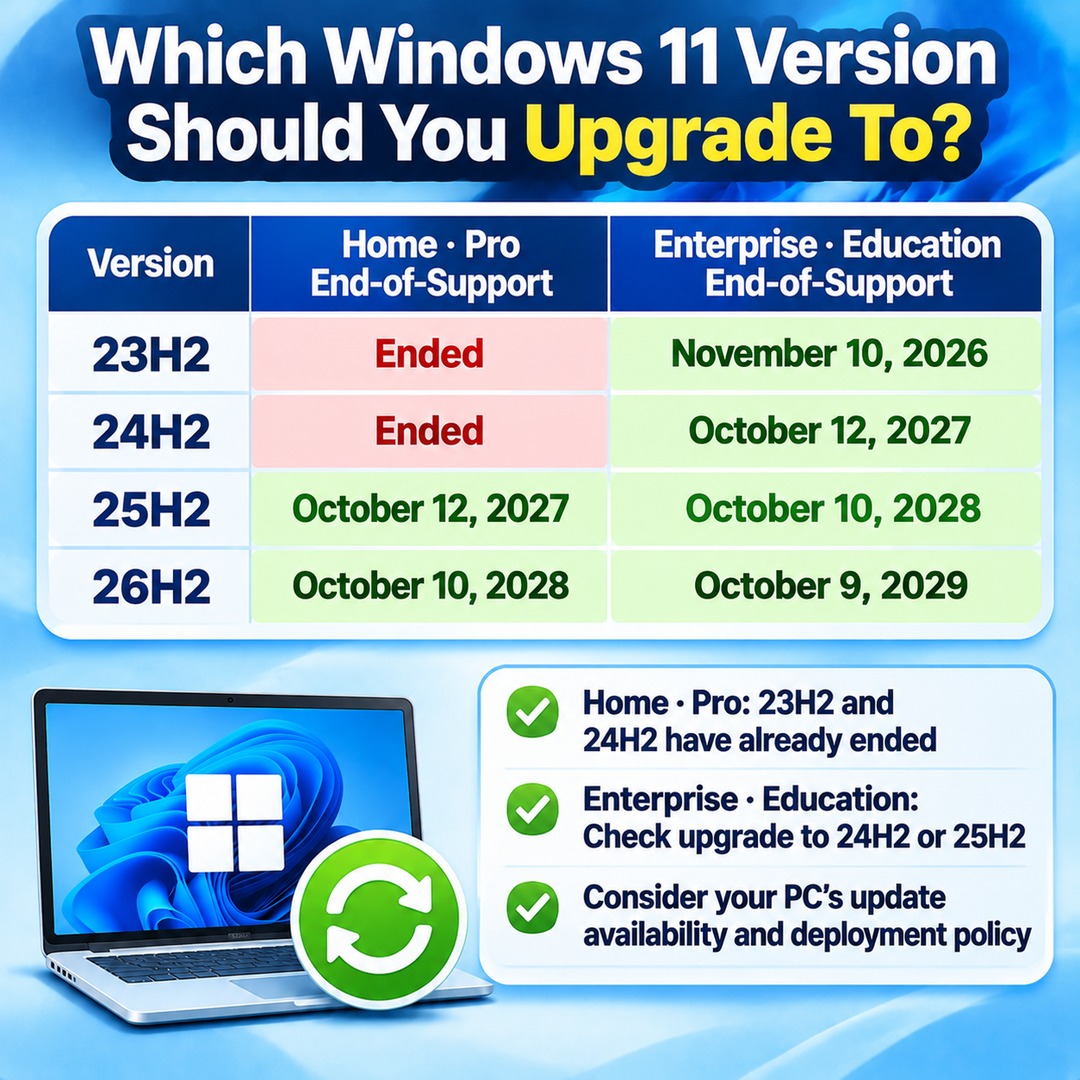
The Windows support schedule lists the following end-of-support dates:
| Version | Home and Pro End-of-Support Date | Enterprise and Education End-of-Support Date |
|---|---|---|
| 23H2 | Ended | November 10, 2026 |
| 24H2 | Ended | October 12, 2027 |
| 25H2 | October 12, 2027 | October 10, 2028 |
| 26H2 | October 10, 2028 | October 9, 2029 |
Home and Pro users should be aware that support has already ended not only for 23H2 but also for 24H2.
Enterprise and Education users should check whether they can move from 23H2 to a newer release, such as 24H2 or 25H2. When choosing a version for long-term use, consider both the updates actually offered to your PC and your organization's deployment policies.
The end-of-support dates for 25H2 and 26H2 also differ by edition. The same version number does not necessarily have the same support period for business and home users.
How to Check for a Newer Version Through Windows Update
You can check directly in Windows Update to see whether a supported version is available for your device.
1. Open Settings from the Start menu.
2. Go to Windows Update.
3. Select Check for updates.
4. Look for an available feature update.
5. If a supported version is available and ready to install, select Download and install.
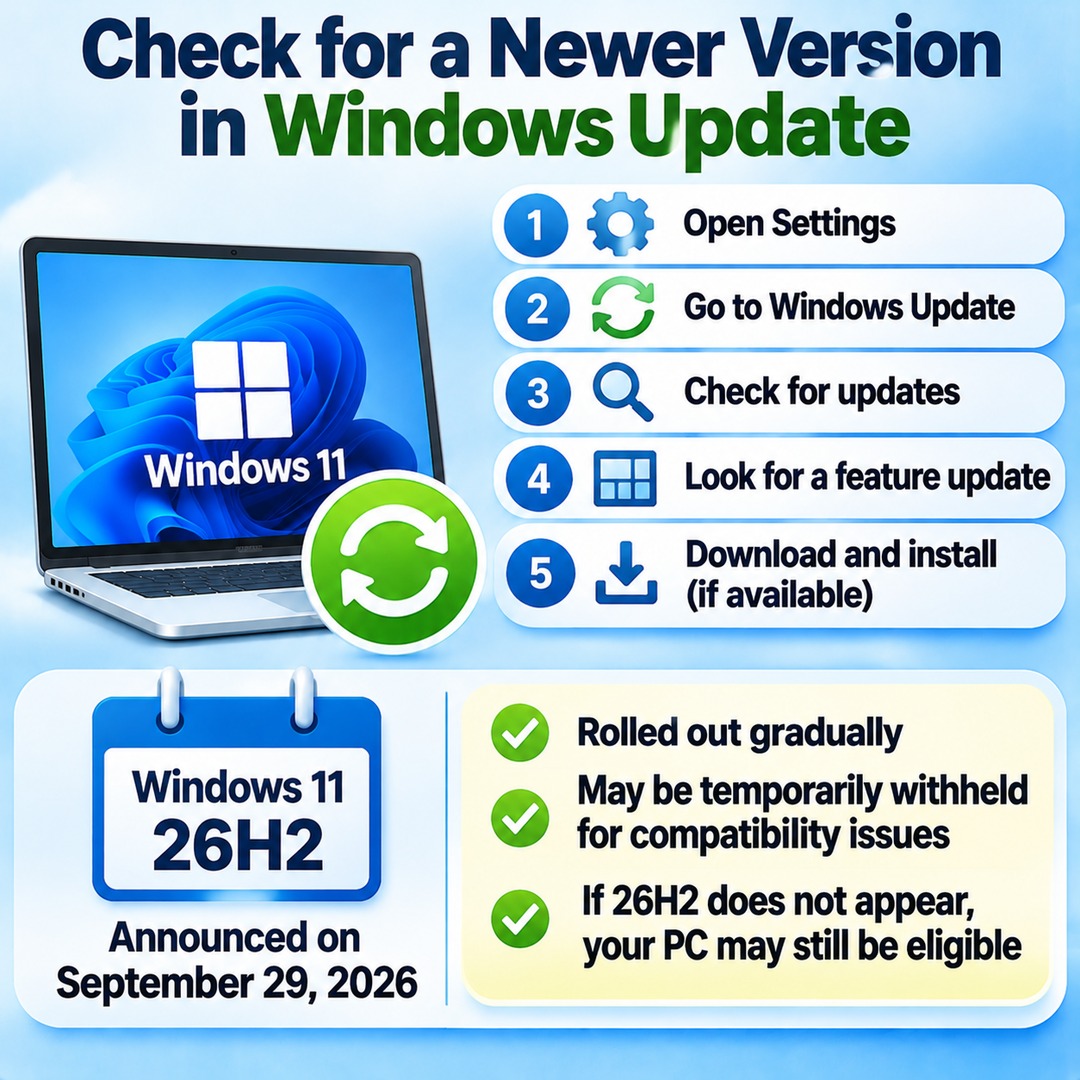
Update availability can vary depending on device eligibility and rollout status.
Windows 11 26H2, announced on September 29, 2026, is not being distributed to every PC simultaneously. Microsoft has explained that availability is being expanded gradually and that updates may temporarily be withheld from certain devices when compatibility issues are identified.
Therefore, if 26H2 does not appear after you select Check for updates, that does not necessarily mean your PC is ineligible for the update.
You may also find the following related article useful:
How Are Company and School PCs Different from Personal Computers?
Users may not be able to decide independently when to update PCs managed by their employer or school. Organizational update deployment policies and device management settings can delay an update or change when it becomes available.
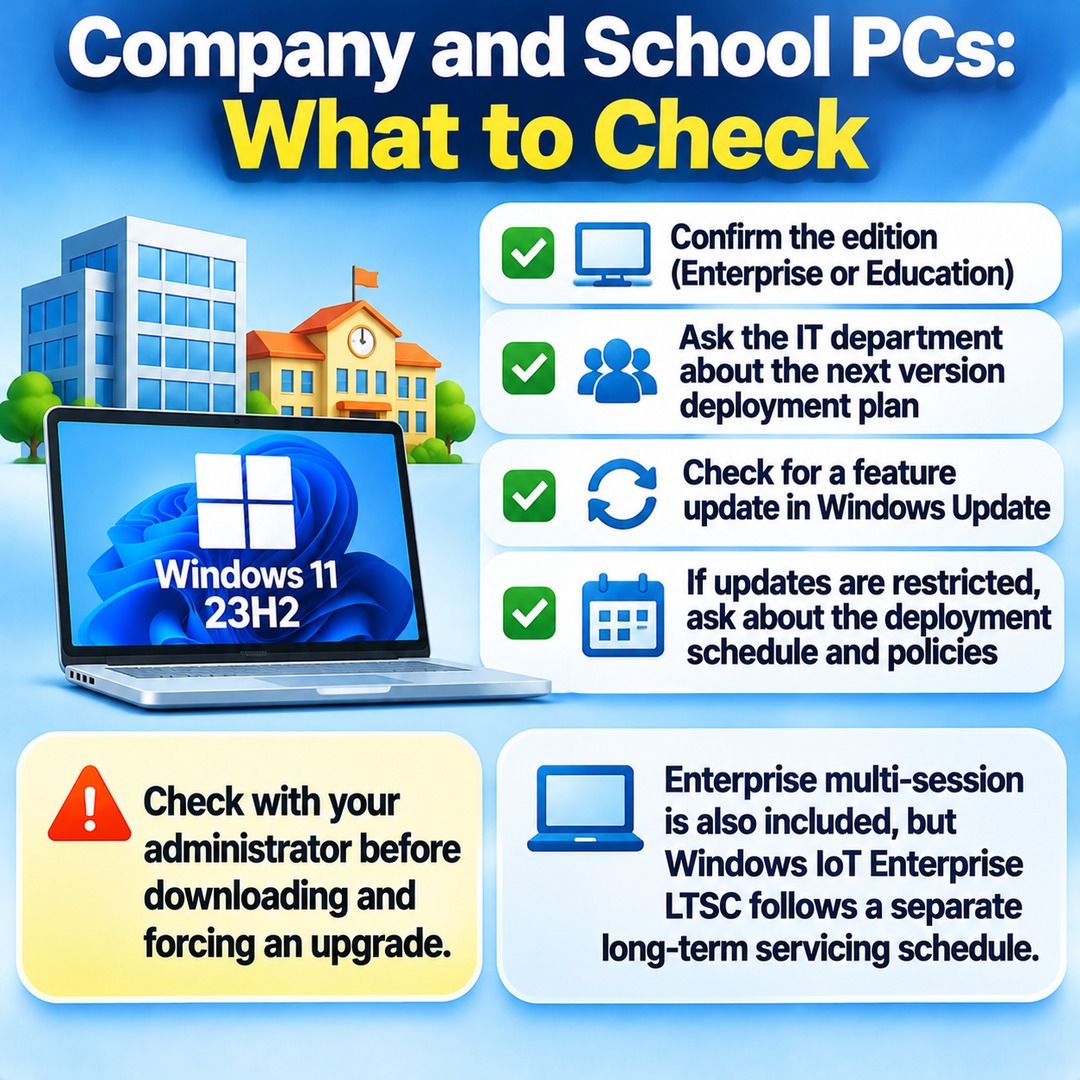
If you use Windows 11 23H2 Enterprise or Education, check the following:
Confirm whether your installed edition is Enterprise or Education.
Ask your organization's IT department about its plans for deploying a newer version.
Check whether a feature update is available through Windows Update.
If updates are restricted, ask your organization's IT administrator about the deployment schedule and applicable policies.
If you use a laptop provided by your school or a computer supplied by your employer, check with the administrator before downloading installation files and attempting to force an upgrade yourself.
Enterprise multi-session is also included in the Windows 11 23H2 end-of-support schedule. However, products such as Windows IoT Enterprise LTSC, which use a separate Long-Term Servicing Channel, should be distinguished from the standard General Availability Channel schedule.
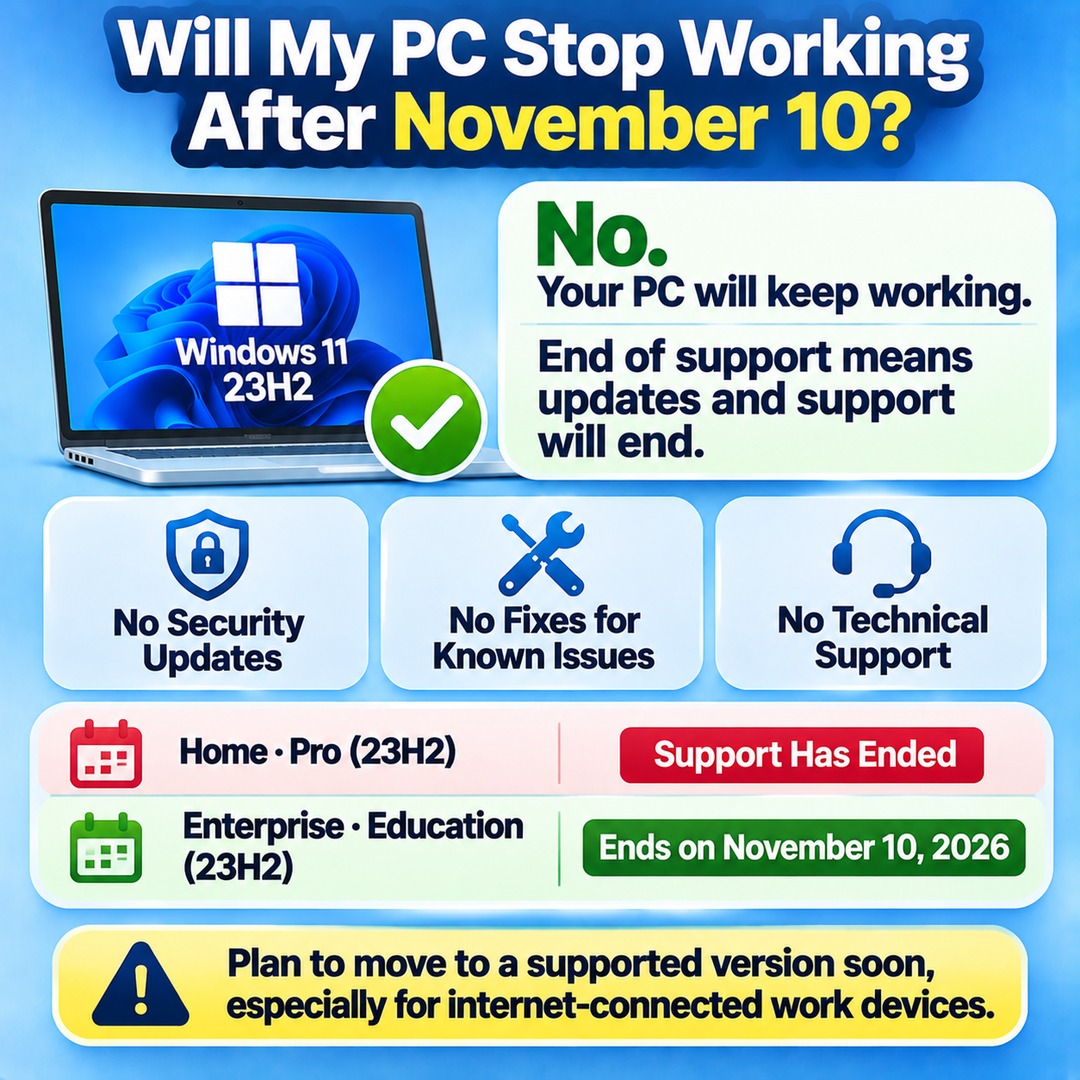
Will My PC Stop Working After November 10?
No. End of support does not mean that your PC will stop working. It means that updates and support for the affected Windows version will end.
Windows 11 23H2 Enterprise and Education will no longer receive monthly security updates after November 10, 2026. Fixes for known issues and technical support are also included in the support services that will end.
Avoid continuing to use work computers for extended periods without security updates. If your device is connected to the internet, plan to move to a supported version before its support period ends.
The same applies to personal computers. If you are running Windows 11 Home or Pro 23H2, support has already ended, so you should not postpone moving to a supported version.
Final Checklist: Determine Your PC's Support Status
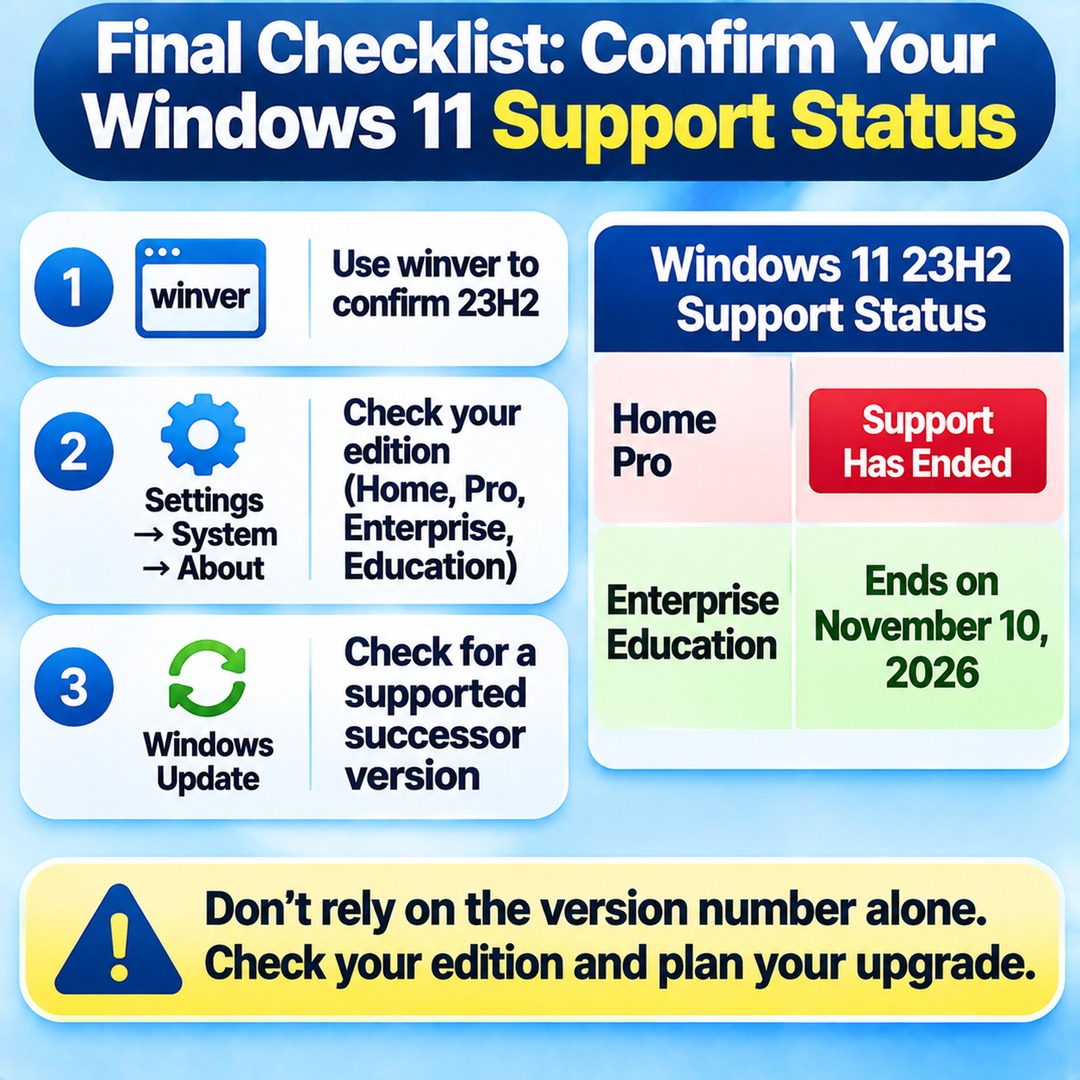
Check these three things:
1. Use `winver` to confirm whether your PC is running 23H2.
2. Go to Settings > System > About and identify whether your edition is Home, Pro, Enterprise, or Education.
3. Open Windows Update and check whether a supported successor version is available.
The most important distinction is that support for Windows 11 23H2 Home and Pro has already ended, while Enterprise and Education are scheduled to reach end of support on November 10, 2026.
Do not rely on the version number alone or postpone updates without checking. Confirm the support schedule for your specific edition and plan your upgrade accordingly.