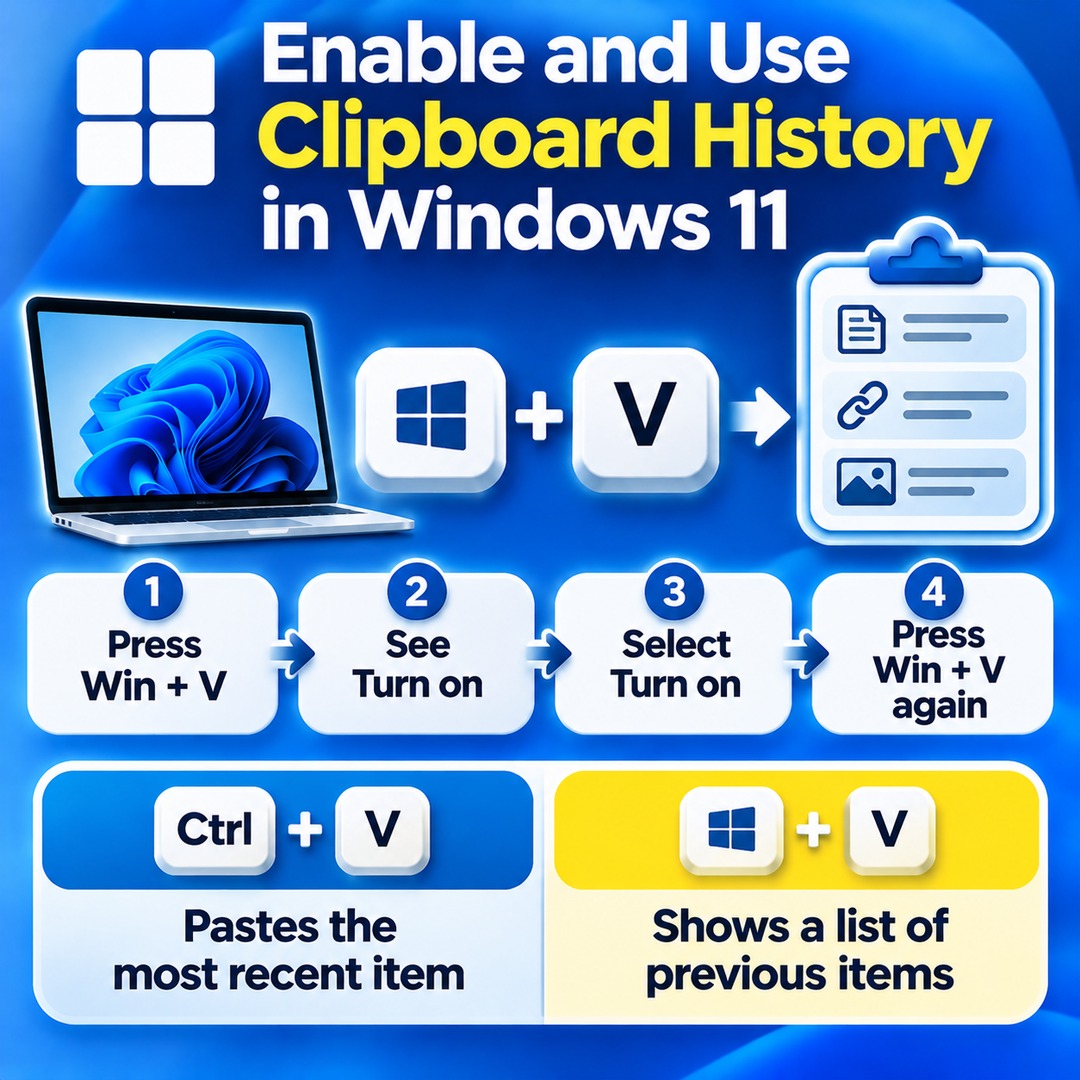

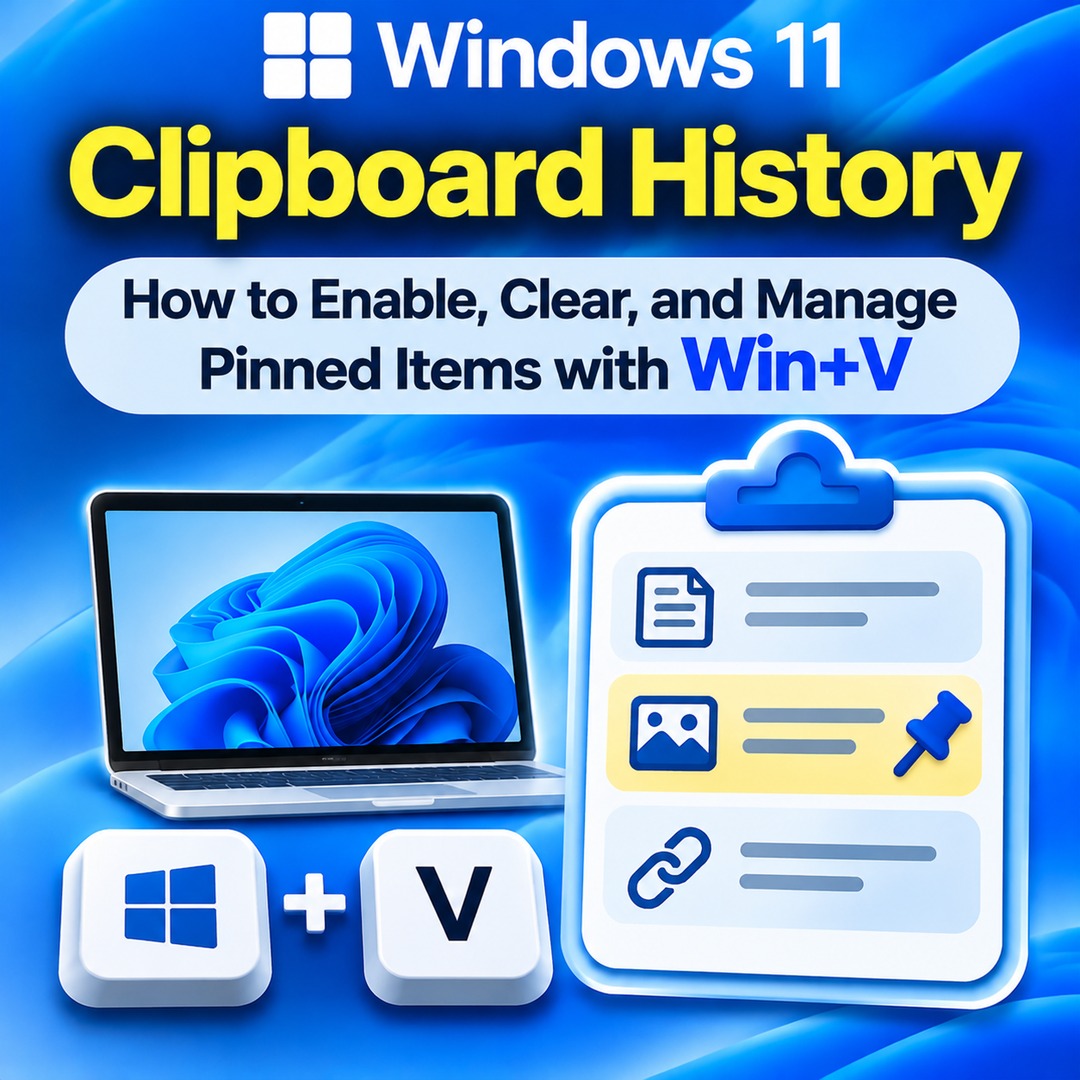
In Windows 11, pressing `Win + V` lets you select and paste previously copied text, links, and images. Clipboard history stores up to 25 items. Regular entries are removed when you clear the history or restart your PC, while pinned items must be managed separately.
If previously copied content remains visible after selecting Clear all, check whether those entries are pinned. This guide explains how to enable clipboard history, delete individual entries, and understand what happens to clipboard data when you restart your PC.
How to Enable Clipboard History for the First Time in Windows 11
Clipboard history must be enabled separately from the standard copy-and-paste feature to retain multiple copied items. The quickest way to access it is to press `Windows key + V`.
1. Press `Win + V` on your keyboard.
2. If you have never used clipboard history, a Turn on option will appear.
3. Select Turn on.
4. Press `Win + V` again to view your clipboard history.
You can also enable the feature through Settings:
Open Settings from the Start menu.
Select System.
Go to Clipboard.
Turn on Clipboard history.
You can now copy multiple items in sequence using `Ctrl + C`, then press `Win + V` to choose which one to paste.
The two keyboard shortcuts serve different purposes. `Ctrl + V` pastes the most recently copied item, while `Win + V` displays a list that includes previously copied items.
What Is the Difference Between Regular and Pinned Items in Win+V?
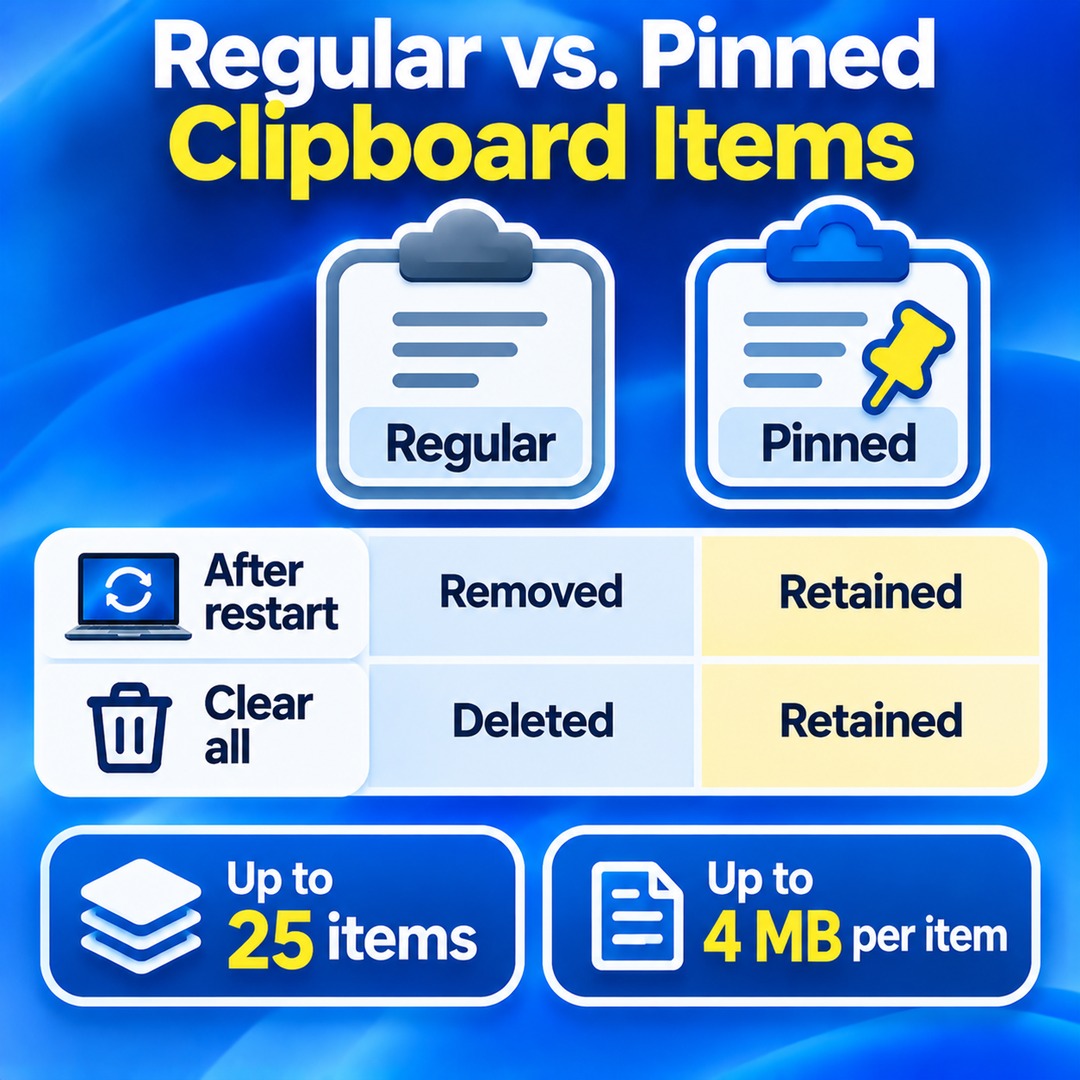
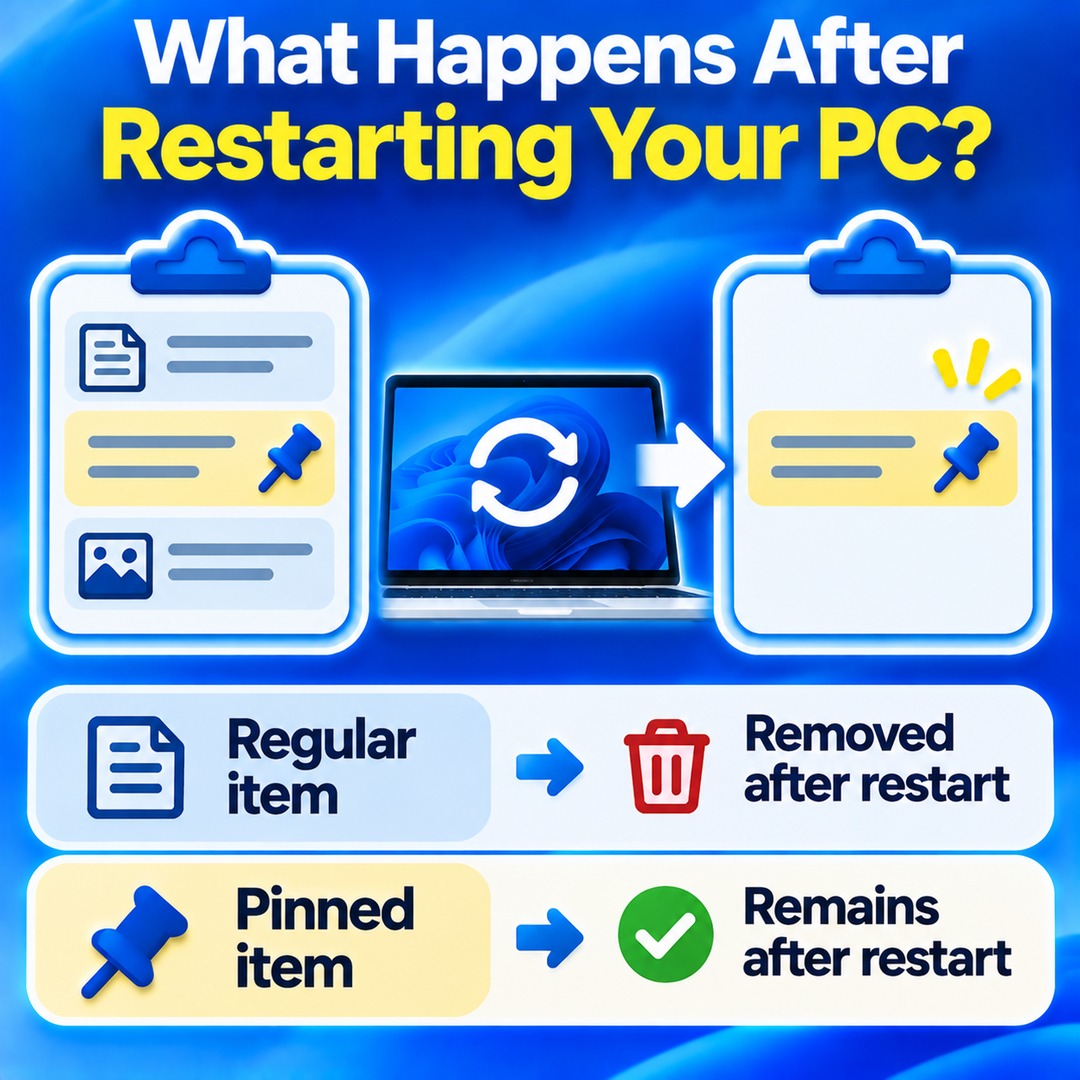
The main differences are how long items are retained and how they are deleted. Regular entries are temporary clipboard records, whereas pinned entries are stored separately so they remain available even after you restart your PC.
| Feature | Regular Item | Pinned Item |
|---|---|---|
| Stored after copying | Yes | Yes |
| After restarting the PC | Removed | Retained |
| After clearing all history | Removed | Retained |
| Automatic cleanup | Older entries are removed first | Remains pinned |
| Manual management | Can be deleted | Must be unpinned or deleted |
For example, if you regularly use a particular email phrase, you can pin it in clipboard history and access it again after turning on your PC the next day.
By contrast, temporary content such as website addresses or one-time verification messages is generally easier to manage as regular entries.
Clipboard history stores up to 25 copied items. When a new item is added, older unpinned entries are removed first to make room. The maximum size for an individual item is 4 MB.
How to Delete a Single Item from Clipboard History
You do not have to clear your entire clipboard history to remove unwanted content. Windows 11 lets you delete individual entries.
To remove an item:
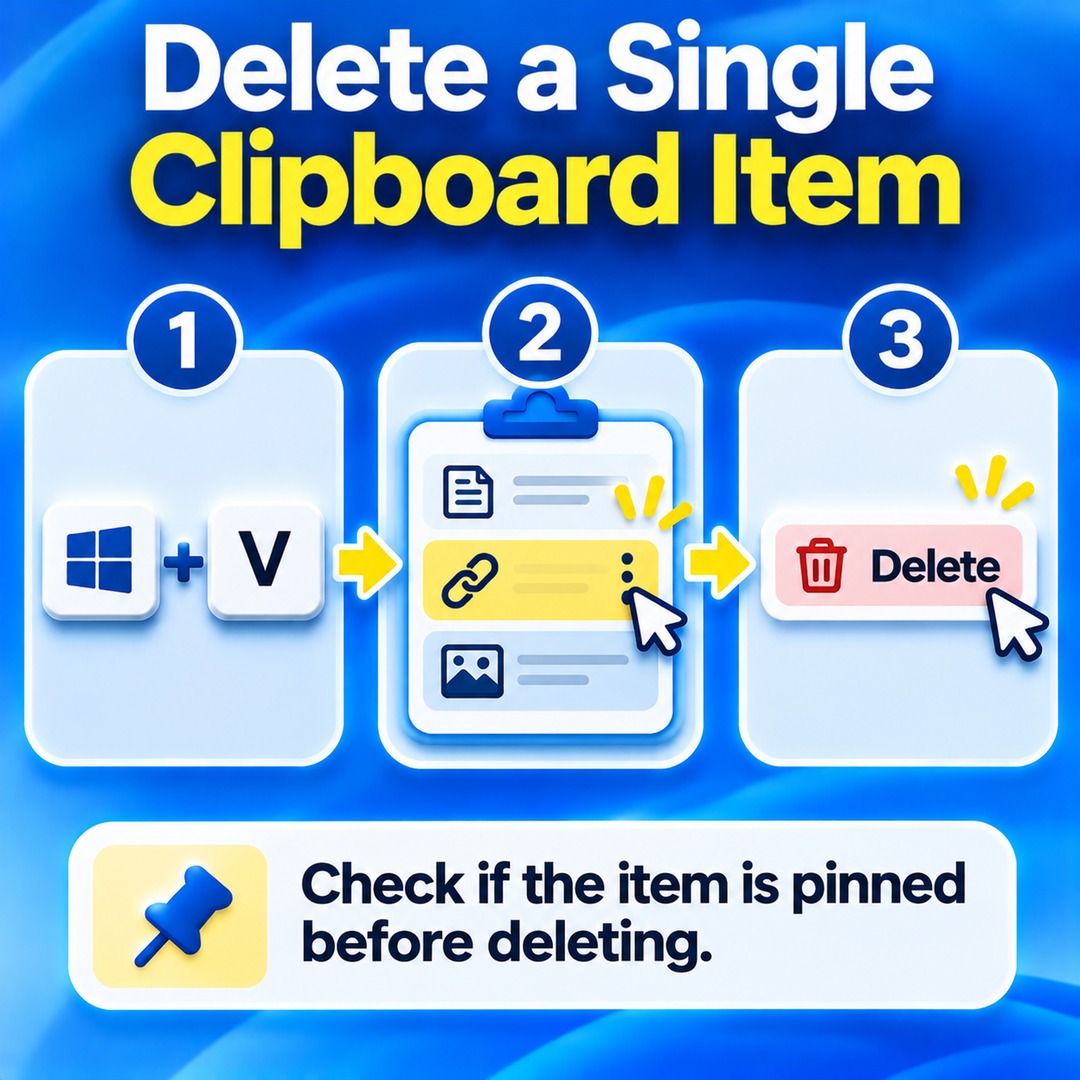
1. Press `Win + V` to open clipboard history.
2. Select the three-dot menu next to the item you want to remove.
3. Select Delete.
Only the selected entry will be removed from the history.
This is useful when you have copied several pieces of text and links but want to remove only one of them.
Check whether an item is pinned before deleting it, especially if it contains a frequently used phrase that you want to keep.
Why Do Pinned Items Remain After Selecting Clear All in Win+V?
Selecting Clear all in clipboard history removes regular entries, but it does not automatically remove pinned items.
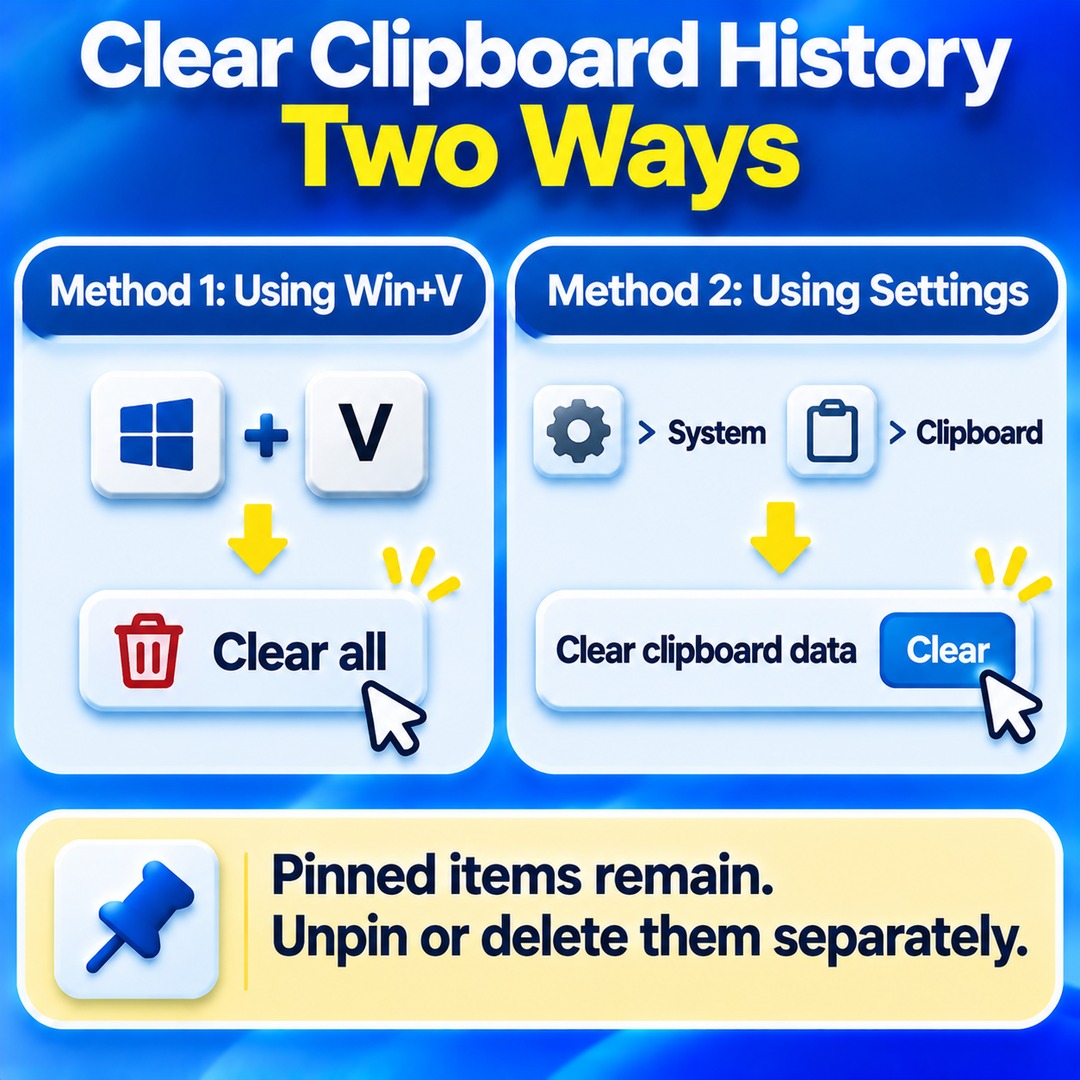
There are two ways to clear your clipboard history.
Method 1: Clear history using Win+V
1. Press `Win + V`.
2. Select Clear all at the top of the list.
3. Check that the regular entries have disappeared.
Method 2: Clear history through Windows Settings
1. Open Settings.
2. Go to System.
3. Select Clipboard.
4. Under Clear clipboard data, select Clear.
Pinned items remain separately stored with either method.
To remove all unwanted clipboard entries, review your pinned items as well. You can unpin them or use the individual deletion option to remove them.
What Happens to Clipboard History When You Restart Your PC?
Windows 11 removes unpinned clipboard history entries when you restart your PC. Pinned items remain available after the restart.
This distinction makes it possible to retain frequently used content without having to preserve every temporary item.
However, regular entries may remain accessible until you restart your computer. If you share your PC with other people, manually delete sensitive copied information rather than relying on a future restart to remove it.
Can You Sync Clipboard History Across Different PCs?
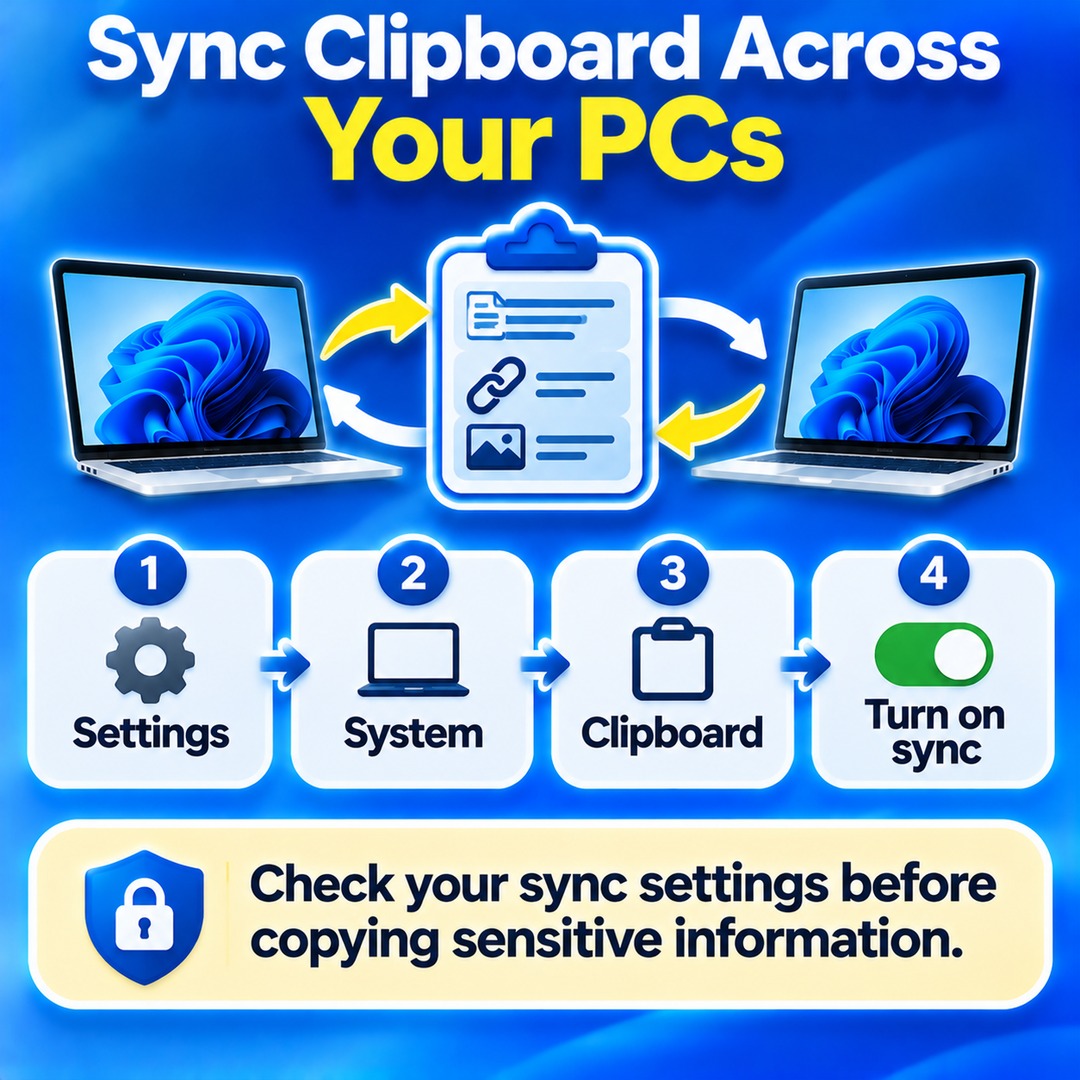
Windows 11 supports clipboard synchronization across devices in supported environments. This feature must be configured separately from basic clipboard history, and you need to sign in with the same Microsoft account or work account on the participating devices.
To configure synchronization:
1. Open Settings and select System.
2. Go to Clipboard.
3. Enable clipboard history across your devices.
4. Select the option to automatically sync text that you copy.
You can also choose to sync individual items manually instead of enabling automatic synchronization.
This can be convenient when you use the same text on multiple PCs. However, check your synchronization settings before copying sensitive information such as personal data or passwords.
What to Check When Win+V Does Not Work
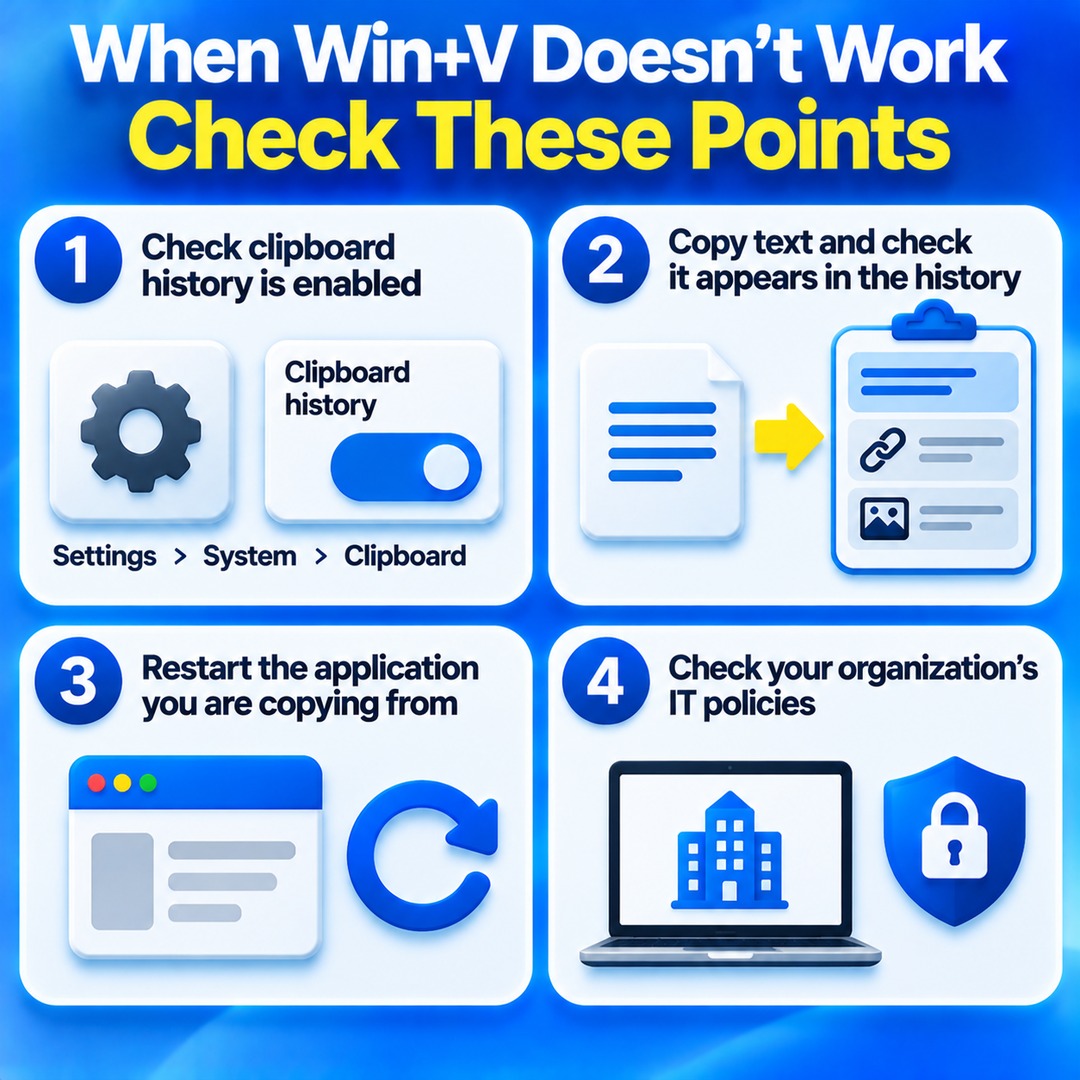
If pressing `Win + V` does not open clipboard history, first check whether clipboard history is enabled.
Go to Settings → System → Clipboard and confirm that clipboard history is turned on.
Copy some ordinary text and check whether it appears in the history.
Restart the application you are copying from and try again.
If your PC is managed by a company or school, check the organization's IT policies.
Some clipboard features may be restricted on organization-managed computers.