
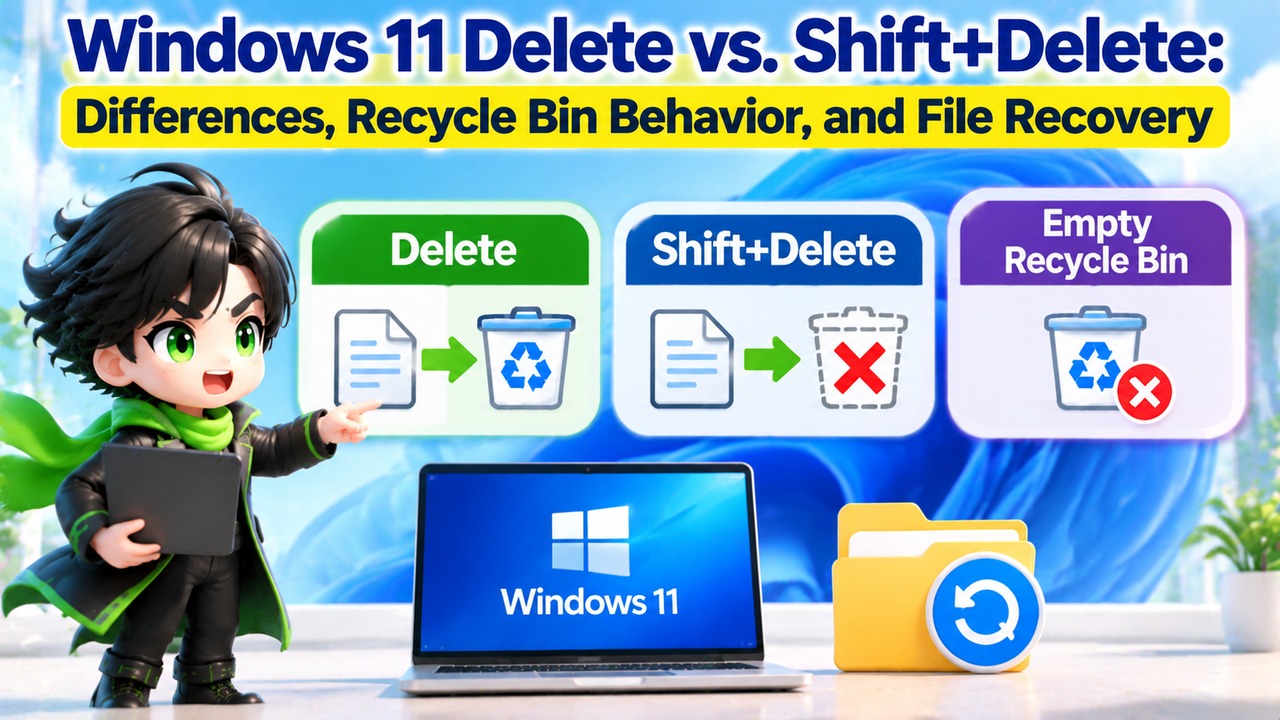
In Windows 11, pressing `Delete` generally moves a file to the Recycle Bin, while `Shift+Delete` removes it without sending it to the Recycle Bin. Emptying the Recycle Bin also prevents files from being restored through its normal recovery feature. However, neither method securely erases all data from a storage device.
If you accidentally delete a file, the recovery procedure depends on how it was deleted. In particular, minimizing PC activity immediately after using Shift+Delete is important.
What Is the Difference Between Delete and Shift+Delete?
The biggest difference is whether the deleted file remains in the Recycle Bin.
In Windows 11 File Explorer, pressing the regular Delete key generally moves the selected file to the Recycle Bin. By contrast, pressing Shift+Delete removes the file without sending it there.
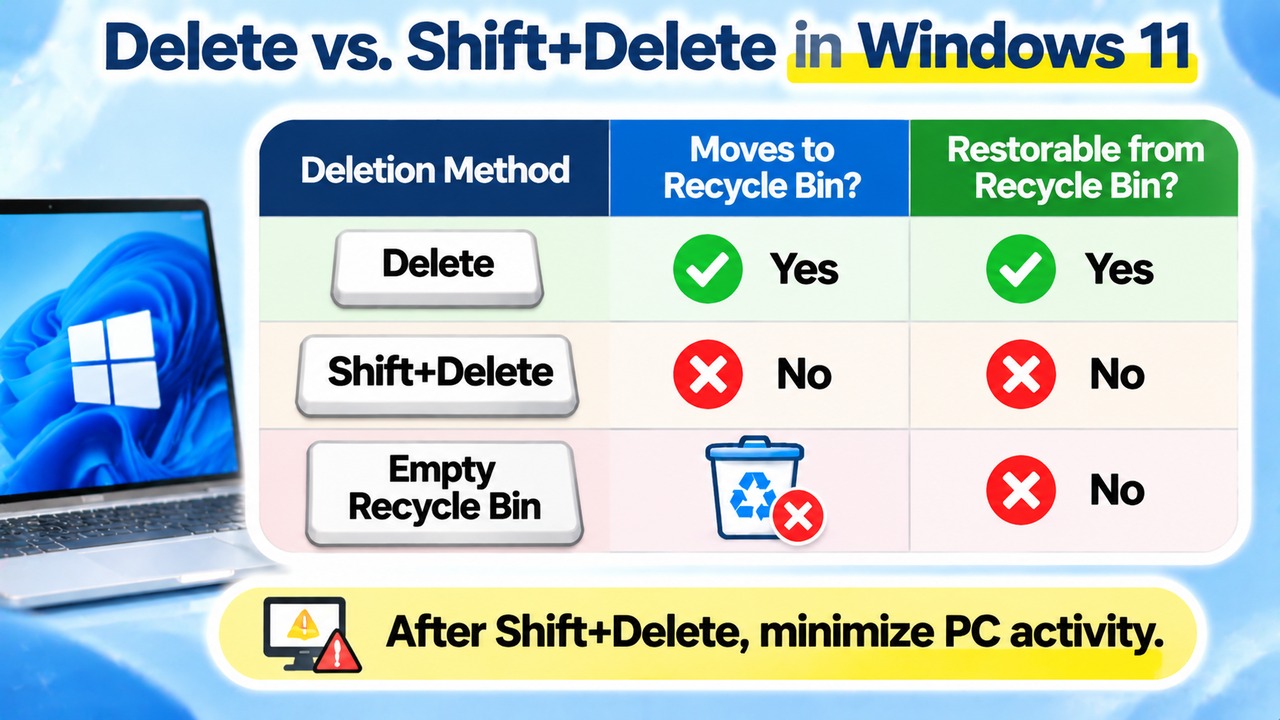
| Deletion Method | Moved to Recycle Bin | Recoverable from Recycle Bin |
|---|---|---|
| Delete | Generally yes | Yes |
| Shift+Delete | No | No |
| Empty Recycle Bin | Removes existing items | No |
Regular deletion gives you an opportunity to restore a file if you remove it by mistake. Shift+Delete skips this recovery step, so you should be particularly careful when deleting important files.
Is Emptying the Recycle Bin Exactly the Same as Using Shift+Delete?
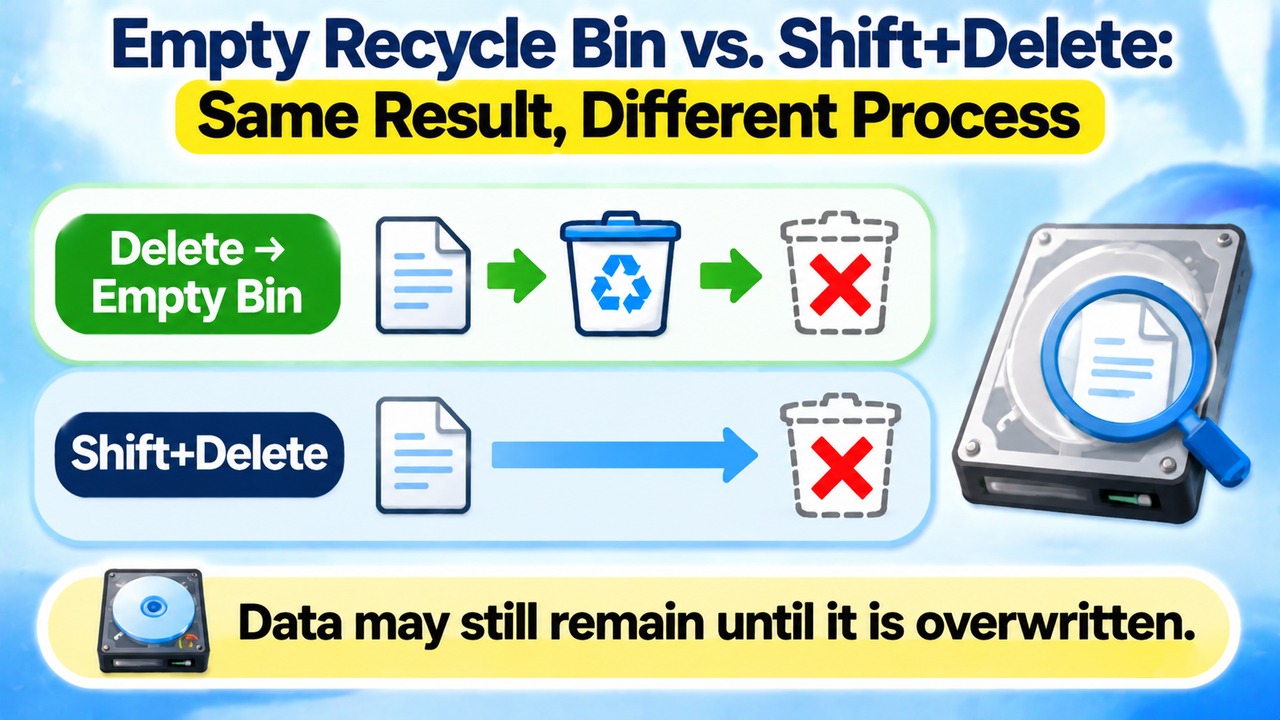
In both cases, the standard Recycle Bin restoration feature is no longer available. However, the two deletion processes start differently.
Regular deletion first moves a file into the Recycle Bin. Emptying the Recycle Bin removes the items stored there. Shift+Delete bypasses the Recycle Bin from the beginning.
One important point is that a file disappearing from the Recycle Bin does not necessarily mean its actual data has been immediately and completely erased from the storage device.
The file system marks the space occupied by a deleted file as available for reuse. Some of the original file data may remain until other data overwrites that storage space.
Therefore, being unable to restore a file through the Recycle Bin is not the same as the data being absolutely unrecoverable, even with specialized recovery software.
How Can You Recover Files Deleted with Shift+Delete?
If you have deleted a file using Shift+Delete, your first priority should be to minimize additional data being written to the storage device.
Saving new files or installing programs on the drive where the deleted file was stored may overwrite existing data. To improve your chances of recovery, minimize PC activity and check your backups first.
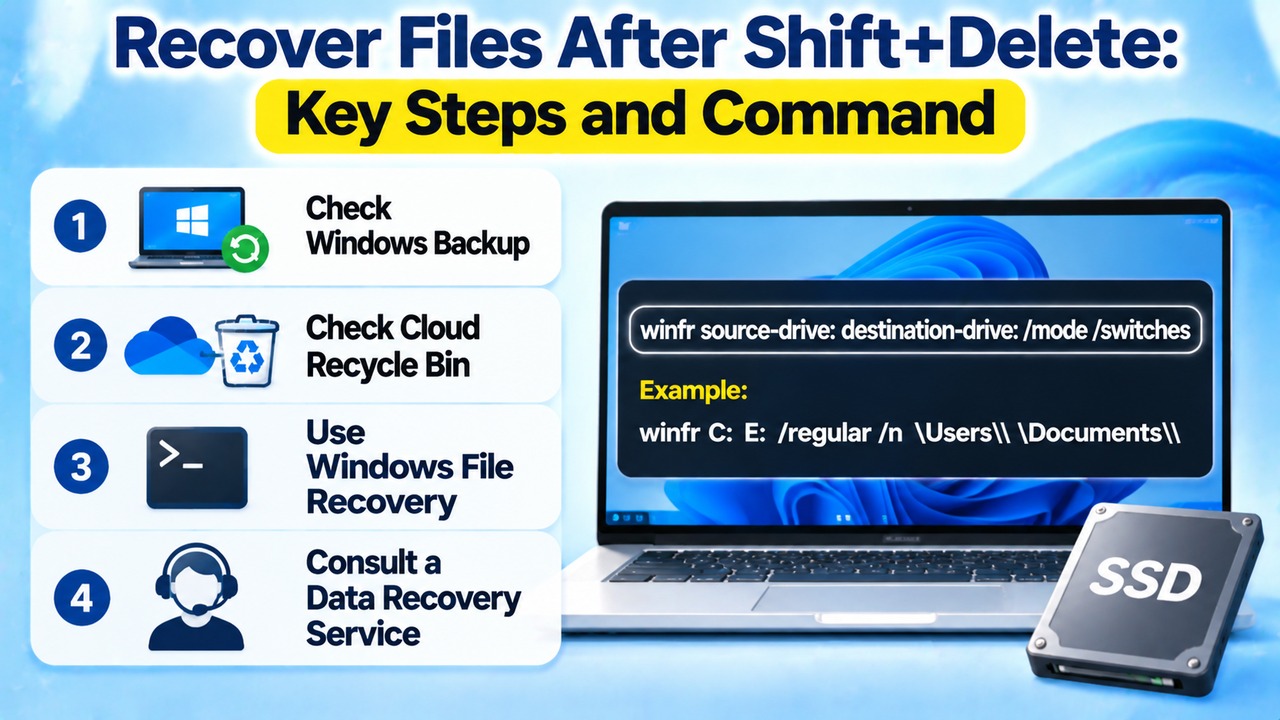
Follow this order:
1. Check Windows Backup and any separately stored backup files.
2. If you use OneDrive or another cloud storage service, check that service's Recycle Bin.
3. Consider attempting recovery with Windows File Recovery.
4. If the data is important, stop further activity and consult a professional data recovery service.
Windows File Recovery, provided by Microsoft, is a command-line utility that can be used to attempt to recover files from local storage devices when they cannot be restored through the Recycle Bin.
You can install it from the Microsoft Store. The general command syntax is:
```text
winfr source-drive: destination-drive: [/mode] [/switches]
```
For example, to attempt to recover documents deleted from the C: drive and save them to the E: drive, use:
```text
winfr C: E: /regular /n \Users\<username>\Documents\
```
Here, C: is the source drive, and E: is the destination drive where recovered files will be saved. The source and destination must be different drives.
For recently deleted files on an NTFS file system, you can start with Regular mode (`/regular`). If the files were deleted some time ago or the disk was formatted, you can consider Extensive mode (`/extensive`).
However, running a recovery command does not guarantee that your files will be restored. Recovery can be particularly difficult on SSDs, depending on how the storage device processes deleted data and whether available storage space has been overwritten.
Does Shift+Delete Permanently Erase Data?
No. It is important to distinguish ordinary file deletion from secure data erasure and personal information protection.
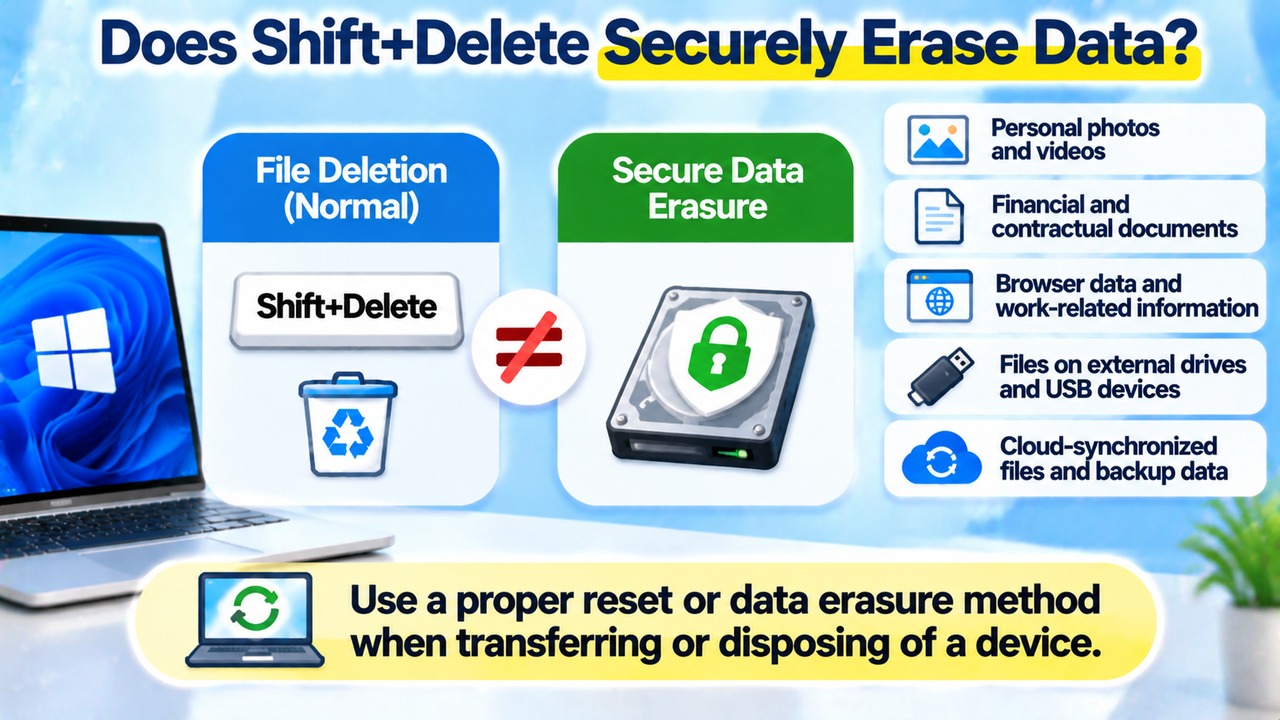
Shift+Delete and emptying the Recycle Bin are standard Windows file management operations. They are different from dedicated secure erasure methods designed to make data remaining on a storage device unrecoverable.
If you plan to give your computer to someone else or sell it secondhand, you should not assume that using Shift+Delete is enough to securely remove your personal information.
Pay particular attention to the following:
Personal photos and videos
Financial and contractual documents
Browser data and work-related information
Files stored on external drives and USB devices
Cloud-synchronized files and backup data
When disposing of a storage device or transferring it to someone else, choose an appropriate reset or data erasure method based on the device type and the manufacturer's data deletion instructions.
How Can You Change Windows Settings to Reduce Accidental Deletion?
For everyday file management, using the regular Delete key is generally safer than using Shift+Delete.
You can also check the Recycle Bin properties to see whether Windows is configured to bypass the Recycle Bin and remove files immediately.
Follow these steps:
1. Right-click the Recycle Bin on your desktop.
2. Select Properties.
3. Review the Recycle Bin settings.
4. Check whether the option labeled 'Don't move files to the Recycle Bin. Remove files immediately when deleted' is selected.
If this option is enabled, regular deletion may also bypass the Recycle Bin.
If you frequently work with important files, setting up regular backups is also recommended. The Recycle Bin is useful for restoring accidentally deleted files, but it cannot replace a backup.
Frequently Asked Questions
Q. Why doesn't a file deleted with Shift+Delete appear in the Recycle Bin?
Because Shift+Delete removes a file without moving it to the Recycle Bin. If you cannot find the file there, check your backups or consider another recovery method.
Q. Can files be recovered after emptying the Recycle Bin?
Depending on the circumstances, recovery may be possible. If the original data remains on the storage device and has not been overwritten, you can attempt recovery using Windows File Recovery or similar tools. However, success is not guaranteed.
Q. Can files deleted with Shift+Delete be recovered from an SSD?
Recovery may be possible in some situations, but you should not expect SSD recovery to work in the same way as HDD recovery. On SSDs, recovery chances may decrease depending on whether available storage space has been overwritten and how the device processes deleted data.
Q. Which is safer: emptying the Recycle Bin or using Shift+Delete?
From the perspective of preventing accidental file loss, using the regular Delete key and checking the Recycle Bin before emptying it is safer. Neither method should be considered a secure data erasure method that completely removes personal information.