
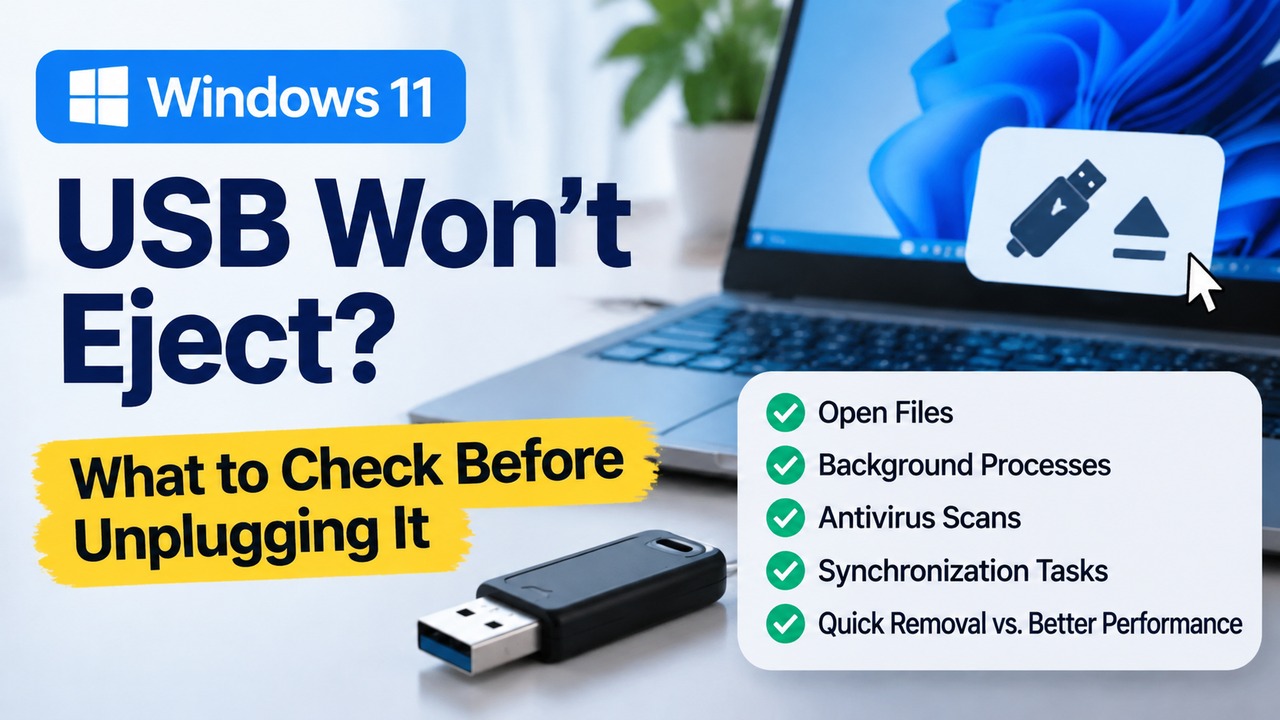
If a USB flash drive or external hard drive will not eject safely in Windows 11, first make sure all file copying and saving operations have finished. Then close File Explorer and any background applications that may be accessing the device. If Windows displays a message saying that the device is currently in use, a file or program may still be accessing the drive, so avoid unplugging it immediately.
USB ejection errors do not necessarily mean that a file is visibly open on the screen. Antivirus scans, backup applications, synchronization software, and storage management utilities can also access the drive. Rather than forcing the device to disconnect, finish active tasks and check whether Windows is ready to release it safely.
Common Situations That Prevent USB Ejection
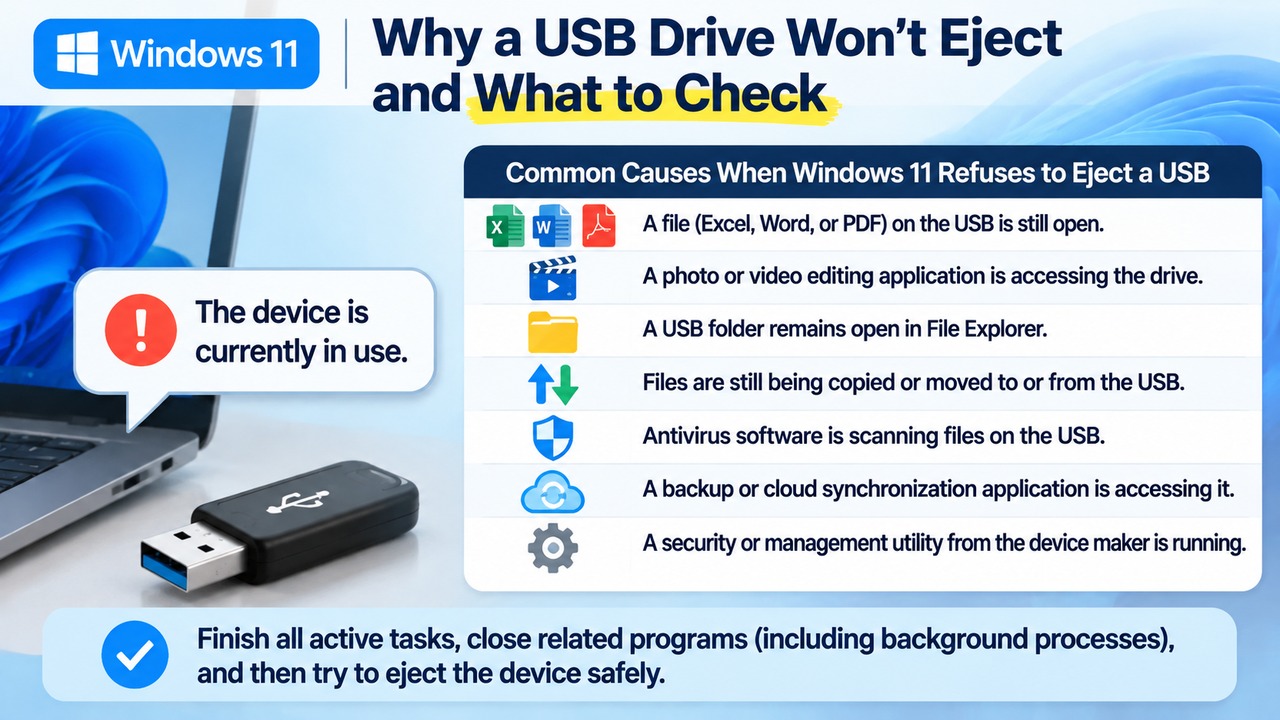
When Windows 11 refuses to disconnect a USB device, check whether a storage access or write operation is still in progress.
The problem can occur in situations such as these:
An Excel, Word, or PDF file stored on the USB drive is still open in an application.
A photo or video editing application is accessing files on the USB drive.
A USB folder remains open in File Explorer.
Files are still being copied or moved to or from the USB drive.
Antivirus software is scanning files stored on the USB drive.
A backup or cloud synchronization application is accessing the drive.
Security or management software provided by the USB device manufacturer is running.
Background tasks may continue even after all visible application windows have been closed. Simply closing program windows from the taskbar may therefore not resolve the problem.
What Should You Check Before Removing a USB Drive?
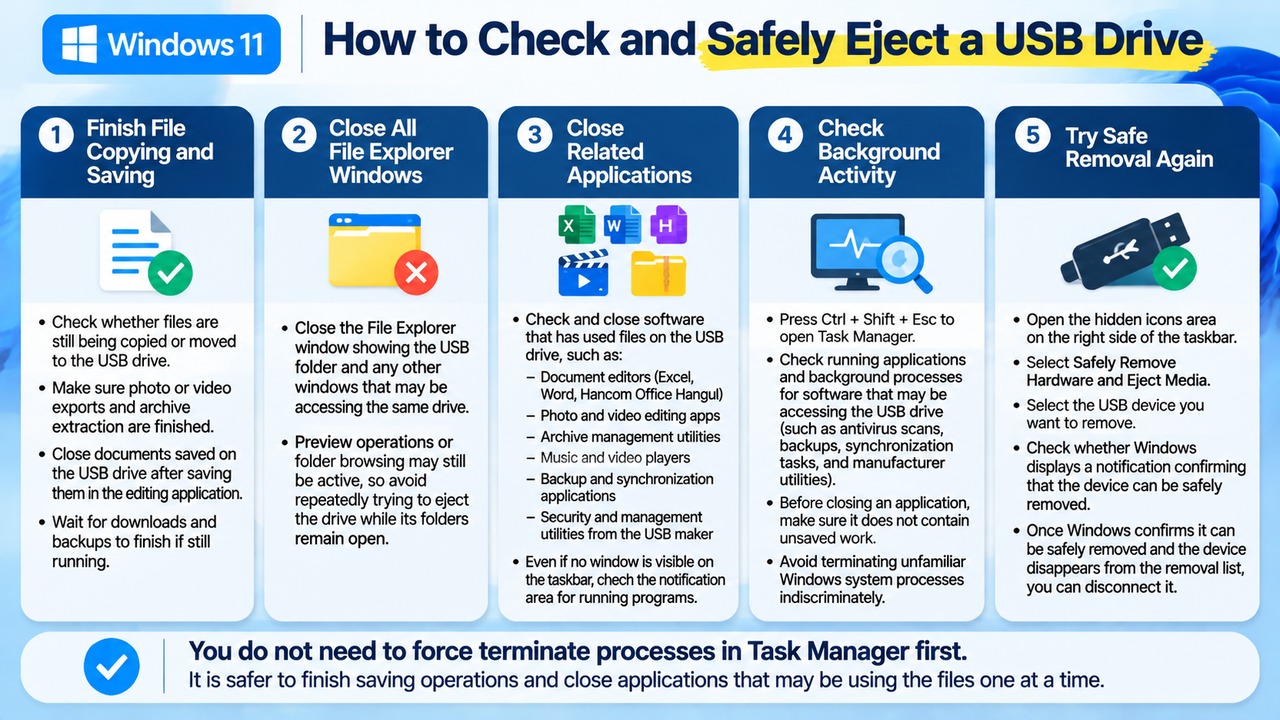
There is no need to force-terminate processes in Task Manager as the first step. It is safer to finish saving operations and close applications that may be using the files one at a time.
Follow these steps.
1. Check that file copying and saving have finished.
Check whether files are still being copied or moved to the USB drive.
Make sure photo or video exports and archive extraction operations have finished.
Close documents saved on the USB drive after saving them in the editing application.
Wait for downloads and backups to finish if they are still running.
2. Close all File Explorer windows.
Close not only the File Explorer window displaying the USB folder but also other windows that may be accessing files on the same storage device. Preview operations or folder browsing may still be active, so avoid repeatedly attempting to eject the drive while its folders remain open.
3. Close applications that have used files on the USB drive.
Check the following types of software:
Document editors such as Excel, Word, and Hancom Office Hangul, a Korean word-processing application
Photo and video editing applications
Archive management utilities
Music and video players
Backup and synchronization applications
Security and management utilities supplied by the USB manufacturer
Even if no application window is visible on the taskbar, check the notification area for programs that may still be running.
4. Check for remaining background activity.
Press `Ctrl + Shift + Esc` to open Task Manager.
Look through running applications and background processes for software that may be accessing the USB drive. Pay particular attention to antivirus scans, backups, synchronization tasks, and manufacturer management utilities.
Before closing an application, make sure it does not contain unsaved work. Avoid terminating unfamiliar Windows system processes indiscriminately.
5. Try the safe removal procedure again.
Open the hidden icons area on the right side of the taskbar and use the USB removal menu.
1. Open the hidden icons area on the right side of the taskbar.
2. Select Safely Remove Hardware and Eject Media.
3. Select the USB device you want to remove.
4. Check whether Windows displays a notification confirming that the device can be safely removed.
Once Windows confirms that the device can be safely removed and it disappears from the removal list, you can disconnect it.
What If the Safely Remove Hardware Icon Is Missing?
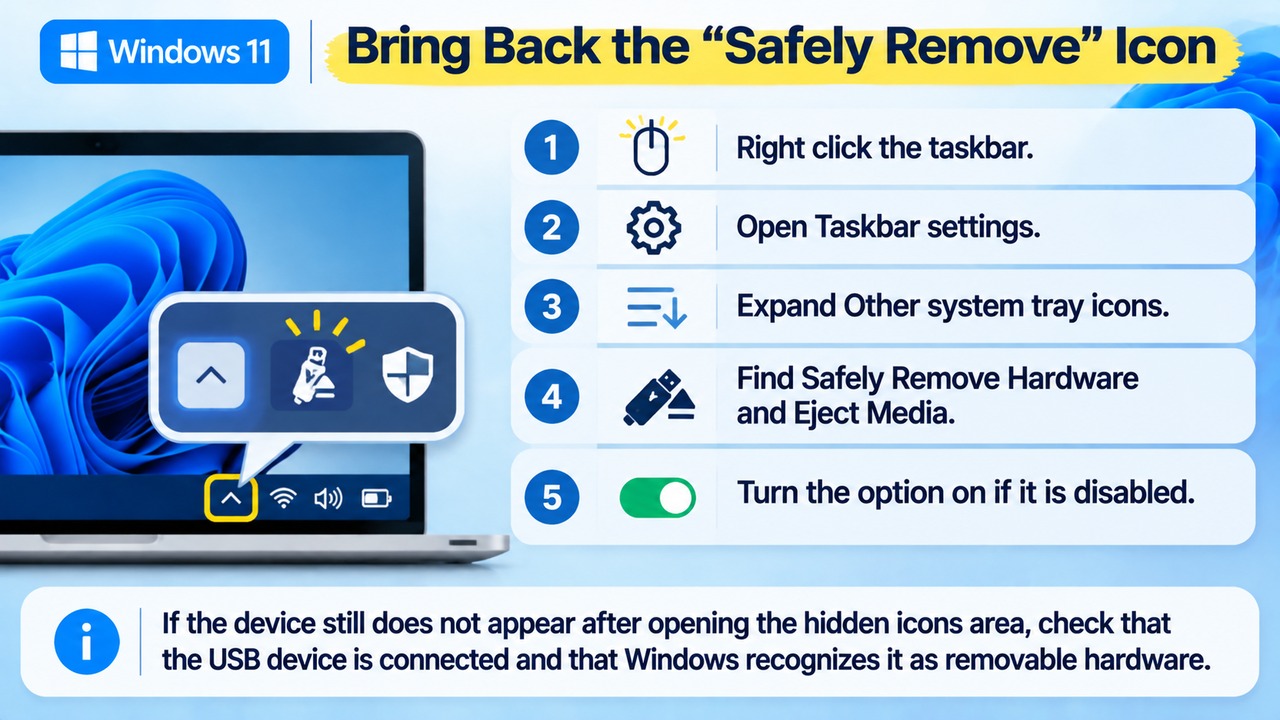
A missing icon does not necessarily mean that Windows cannot recognize the USB device. The icon may be inside the hidden icons area or disabled in the taskbar settings.
In Windows 11, check the following settings:
1. Right-click the taskbar.
2. Open Taskbar settings.
3. Expand Other system tray icons.
4. Find Safely Remove Hardware and Eject Media.
5. Turn the option on if it is disabled.
If the device still does not appear after opening the hidden icons area, check that the USB device is connected and that Windows recognizes it as removable hardware.
Quick Removal vs. Better Performance: What Is the Difference?
Windows provides two removal policies for external storage devices: Quick Removal and Better Performance. These settings affect how data is written to a USB device and whether the standard safe removal procedure is required.
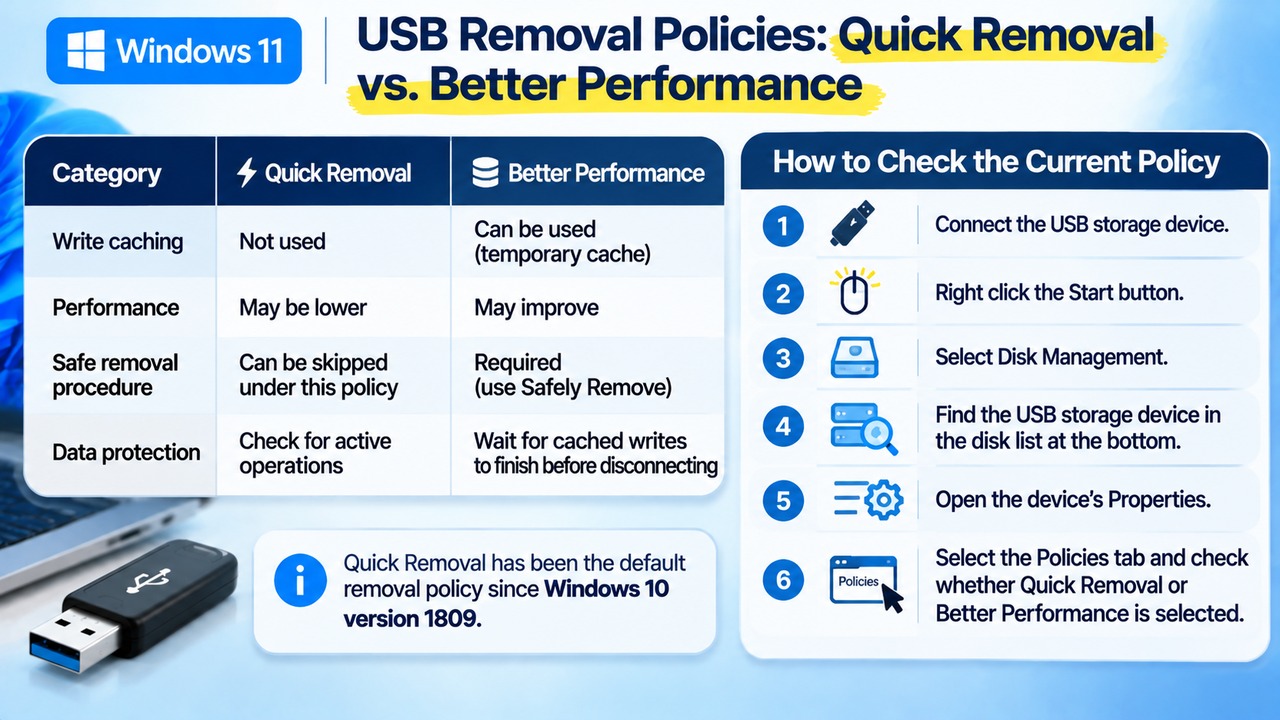
| Category | Quick Removal | Better Performance |
|---|---|---|
| Write caching | Not used | Can be used |
| Performance | May be relatively lower | May improve |
| Safe removal | Can be skipped under this policy | Required |
| Data protection | Check for active operations | Wait for cached writes to finish before disconnecting |
Quick Removal has been the default removal policy since Windows 10 version 1809. Windows 11 also allows these policies to be configured separately for external storage devices.
With Better Performance enabled, Windows can temporarily hold write operations in a cache before writing the data to the USB device. Consequently, disconnecting the drive before those writes are completed can result in data loss, even if the copying process appears to have finished on screen.
You do not need to switch every USB device to Quick Removal just to resolve an ejection error. Check the existing policy first. If Better Performance is enabled, continue using the normal safe removal procedure.
How to Check the USB Removal Policy
1. Connect the USB storage device.
2. Right-click the Start button.
3. Select Disk Management.
4. Find the USB storage device in the disk list at the bottom.
5. Open the device's Properties.
6. Select the Policies tab and check whether Quick Removal or Better Performance is selected.
The layout of the Properties window may vary depending on the Windows version. If the Policies tab is not visible, open the Hardware tab, select the relevant removable drive, and open its Properties again.
If you do not intend to change the setting, simply checking the current policy is sufficient.
What If Windows Continues to Say the USB Device Is in Use?
If the problem persists after closing ordinary applications, check antivirus software, file backup services, indexing operations, and manufacturer utilities.
Seagate's external drive troubleshooting guidance also identifies File Explorer, antivirus applications, open files, media library folder monitoring, indexing operations, and drive management utilities as potential sources of ongoing access.
You can narrow down what to investigate based on the symptoms:
Only one USB device is affected: Check the storage device's management software and possible file system issues.
All USB devices are affected: Investigate backup, security, and synchronization software running in Windows.
The problem frequently occurs with an external hard drive: Check whether the manufacturer's dedicated management utility is running.
The problem occurs immediately after copying files to USB: Wait until copying and all write operations have completely finished.
The device ejects normally on another PC: Investigate the applications or Windows environment on the original computer.
If these steps do not resolve the problem, you can shut down the computer before disconnecting the USB device.
If you have important files on the drive, finish saving them and close the relevant applications first. Make sure the computer has completely powered off before disconnecting the external drive. Disconnecting a drive after shutdown is also presented as a safe alternative in manufacturer support guidance.
Do not confuse a computer restarting or entering sleep mode with a complete shutdown. Avoid unplugging the cable while Windows is restarting or the computer is in sleep mode.
What If Clicking the USB Safe Removal Icon Does Nothing?
An icon display problem and an error indicating that the USB device is in use are two different issues. If clicking the icon does not open a menu, check the taskbar settings and the state of Windows Explorer.
If File Explorer is unresponsive, you can select Windows Explorer in Task Manager and restart it. This reloads the File Explorer interface; it does not complete any pending write operations to the USB drive.
After restarting Explorer, make sure no file copying or saving operation is in progress, then try the safe removal procedure again.
When Is It Safe to Unplug a USB Device Without Ejecting It?
If Windows continues to display a message that the device cannot be safely removed, shutting down the computer normally is safer than forcibly disconnecting the drive.
Avoid unplugging the USB device immediately in these situations:
The file copying progress indicator is still moving.
The activity light on an external hard drive continues to blink.
A backup or synchronization operation is still running.
The storage device displays an error message.
You have just saved important files to the USB drive.
Devices using the Quick Removal policy are designed to be disconnected without the standard safe removal procedure under that policy. However, if files are still being written or an application is accessing the device, you should still wait before disconnecting it.
USB flash drives, external SSDs, and external HDDs can differ in their storage technology and device design. For external drives containing important data, it is preferable to use the safe removal procedure.
Windows 11 USB Safe Removal: Frequently Asked Questions
Why does Windows say a USB drive is in use when no files are open?
Even when no documents are visibly open, antivirus scans, file indexing, backups, synchronization services, or USB management software may still be accessing the storage device. Check recently used applications and background tasks.
Is it okay to click the USB removal option several times?
If the same error keeps appearing, do not repeatedly click the button without checking what is happening. First check file operations and applications using the device. Close active tasks and try again.
What should I do if the USB safe removal icon disappears?
Check the hidden icons area on the taskbar and the Other system tray icons settings. The icon may also be missing because the USB device is disconnected or Windows has not recognized it.
Does Quick Removal mean I never need to use Safely Remove Hardware again?
The Quick Removal policy does not use write caching, so the separate safe removal procedure can be skipped under this policy. However, you should not disconnect the device while file writes are still in progress. For important data, using the safe removal procedure as a regular habit is preferable.
Can I shut down my computer before unplugging the USB drive?
Yes. Save all files, close applications normally, and wait until Windows has completely shut down before disconnecting the USB device. A computer that is restarting or in sleep mode is not the same as one that has fully powered off.