
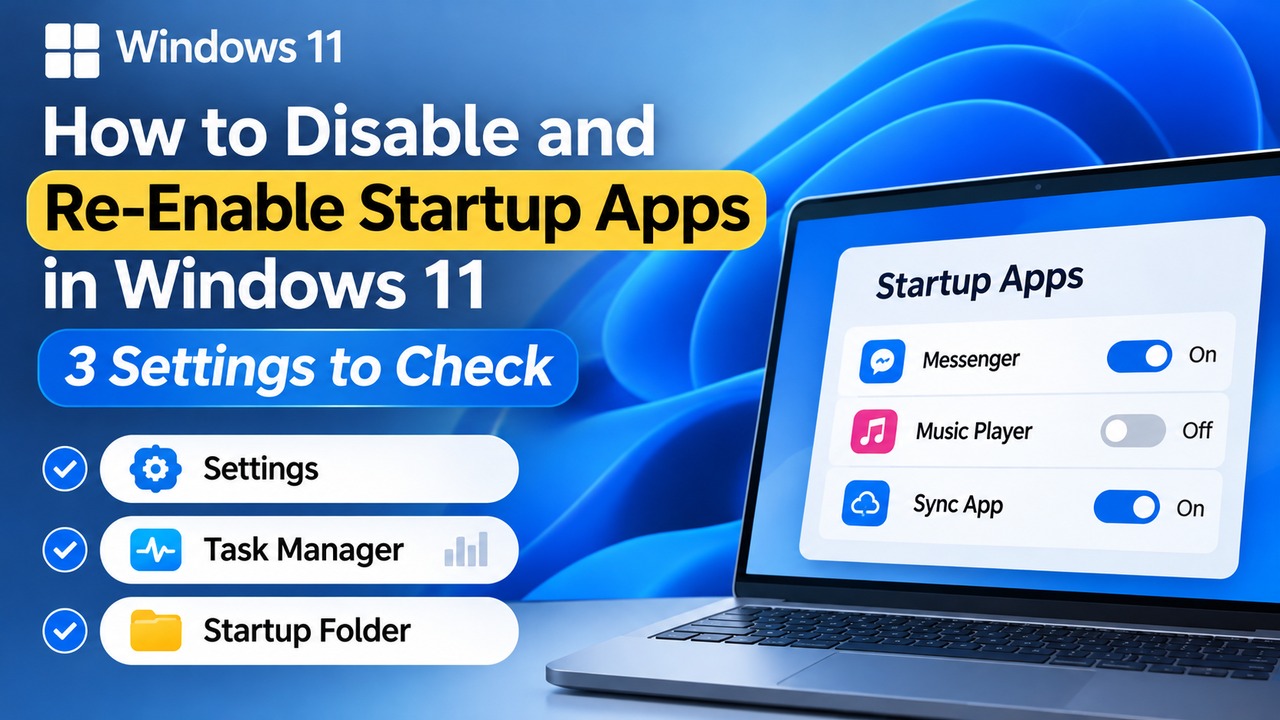
To disable startup apps in Windows 11, go to Settings → Apps → Startup and switch unnecessary apps to Off. To make an app launch automatically again, change its switch to On. You can also manage startup apps through Task Manager. If a program is missing from the list, check the Startup folder.
Startup apps are applications configured to launch automatically when you sign in to Windows. If programs you do not use also open automatically, they can place additional demands on system resources during startup and while running in the background.
However, disabling a startup app does not uninstall it. Only automatic startup is disabled, so you can still launch the program manually whenever you need it and re-enable automatic startup later.
How to Disable and Re-Enable Startup Apps in Windows 11 Settings
The simplest method is to change the startup switch in Windows Settings. You do not need to uninstall the program or install a separate optimization tool.
Follow these steps:
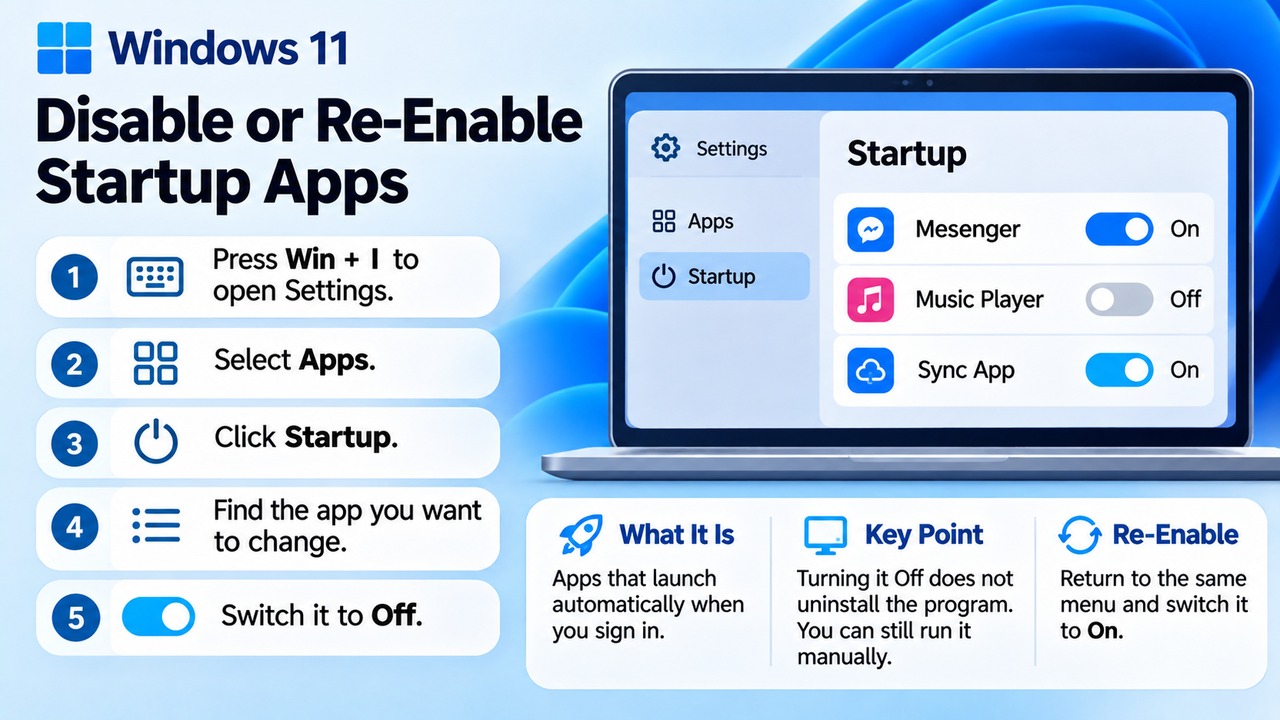
1. Press `Win + I` on your keyboard to open Settings.
2. Select Apps from the left sidebar.
3. Click Startup.
4. Find the app you want to prevent from launching automatically.
5. Change the switch on the right to Off.
Example Startup App Settings
The following example illustrates startup app settings in Windows 11.
| App | Automatic startup status |
|---|---|
| Messaging app | On |
| Music player | Off |
| Work synchronization app | On |
This is an illustrative interface. You can use its controls to see the difference between On and Off, but interacting with the example does not change your actual PC settings.
If you want a program to launch automatically again, return to the same menu and change its switch to On.
For example, if you find it inconvenient when a music player opens automatically every time you start your computer, you can disable that app alone. On the other hand, you can keep automatic startup enabled for work applications you need immediately after signing in.
Startup settings control whether a program launches automatically; they do not close applications that are already running. After changing a setting, sign out of Windows and sign back in, or restart your PC, to check whether the application launches automatically.
How to Manage Startup Apps Using Task Manager
Task Manager can be more useful when investigating slow startup performance. It lets you manage the same startup apps available through Settings while also showing each application's startup impact.
The quickest keyboard shortcut for opening Task Manager is `Ctrl + Shift + Esc`.
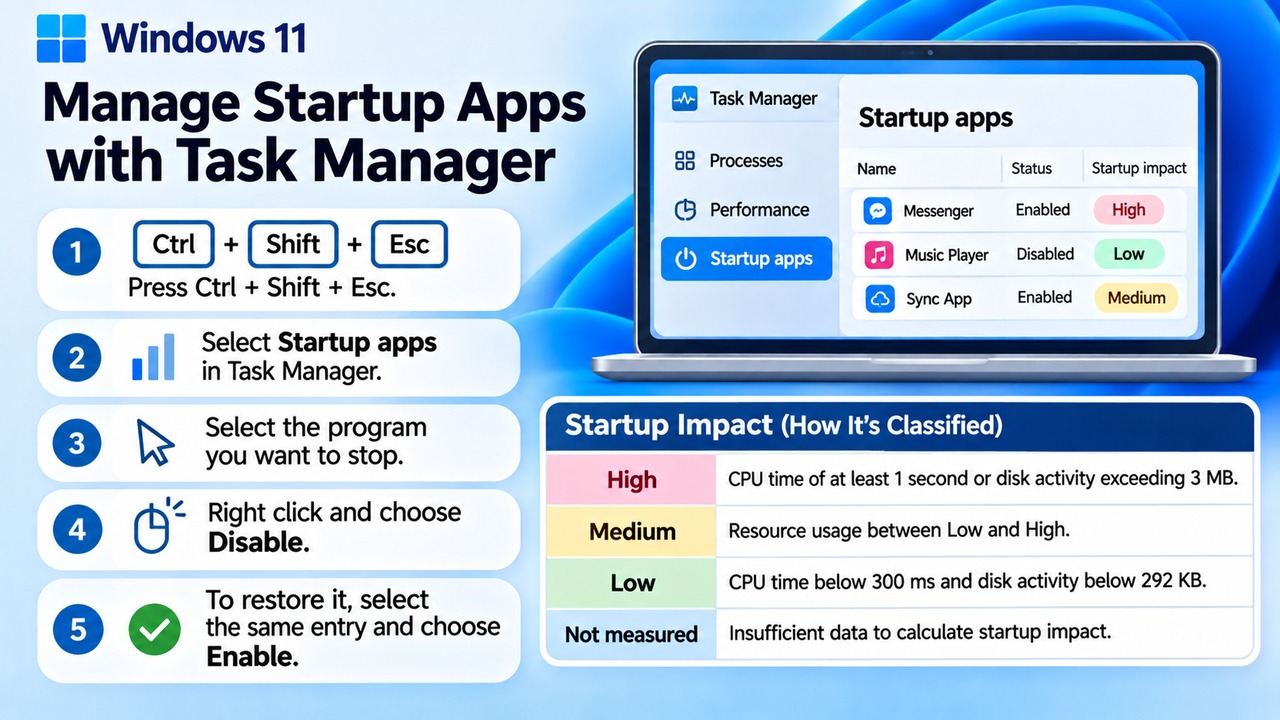
1. Press `Ctrl + Shift + Esc`.
2. Select Startup apps from the left sidebar in Task Manager.
3. Select the program you want to stop launching automatically.
4. Right-click the program and select Disable.
5. To restore automatic startup, select the same entry and choose Enable.
Task Manager displays each program's name, status, and startup impact.
Startup impact is classified according to the CPU time and disk resources an application uses during Windows startup.
| Startup impact | Meaning |
|---|---|
| High | CPU usage time of at least 1 second or disk activity exceeding 3 MB |
| Medium | Startup resource usage between the Low and High categories |
| Low | CPU usage time below 300 ms and disk activity below 292 KB |
| Not measured | No data available to determine startup impact |
Apps marked High are worth examining when investigating startup performance.
However, disabling every program with a High startup impact is not necessarily appropriate. You should also consider what each application does and whether you need it.
For example, if a program is essential immediately after signing in, keeping automatic startup enabled may be more convenient even if its startup impact is high.
Conversely, if you use a program only occasionally, disabling automatic startup and opening it manually when needed may be more practical.
What If an App Is Missing from the Startup Apps List?
Apps that do not appear in the Windows 11 startup list may be managed through the Startup folder. Depending on how an application is registered with Windows, it may not appear in Settings or Task Manager.
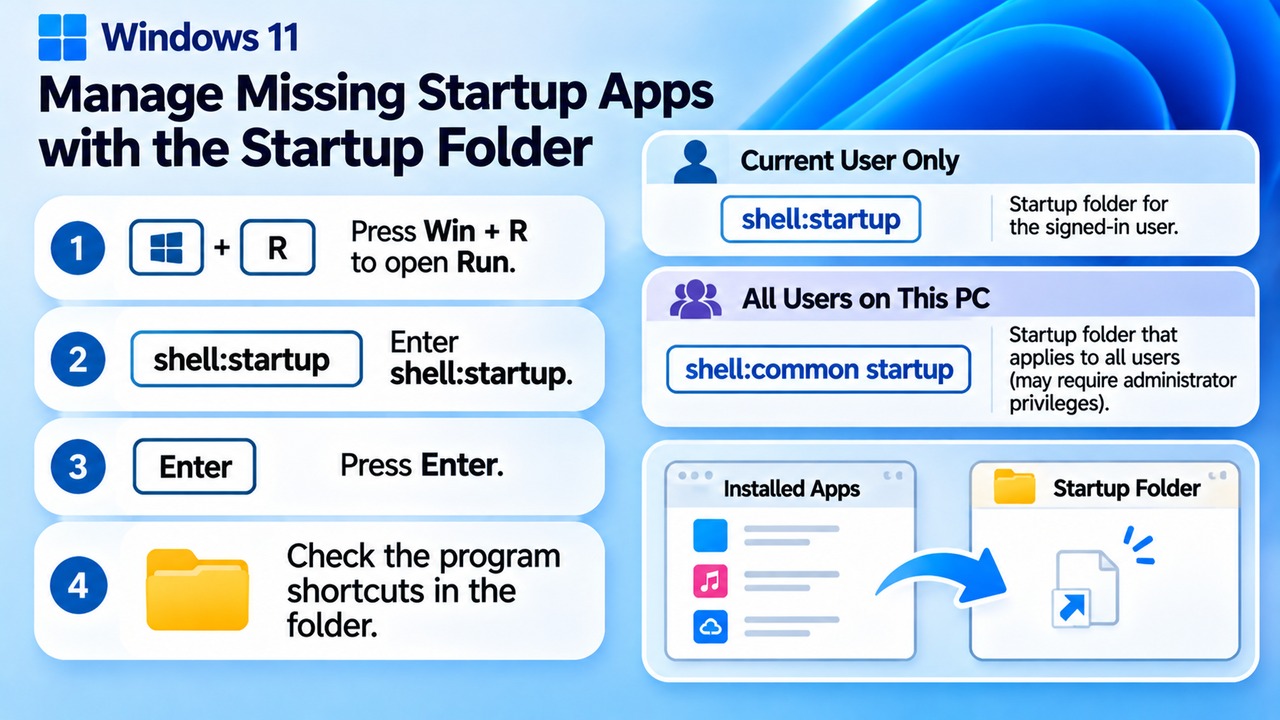
You can open the Startup folder for the currently signed-in user with the following command:
`shell:startup`
Follow these steps:
1. Press `Win + R` to open the Run dialog.
2. Enter `shell:startup`.
3. Press Enter.
4. Check the program shortcuts registered in the folder that opens.
To stop an application from launching automatically, remove its unnecessary shortcut from this folder. Make sure you delete the shortcut in the Startup folder, not the program's actual installation file.
How Do You Add a Program That Is Missing from the Startup List?
To make a program launch automatically, add its shortcut to the Startup folder.
Press `Win + R` and enter `shell:appsfolder` to open a folder displaying installed applications.
Find the app you want in this window, then drag it into the Startup folder to create a shortcut.
Windows also has a separate Startup folder that applies to all users of the computer.
`shell:common startup`
Choose the appropriate folder depending on whether automatic startup should apply only to the current user or to everyone using the PC. Modifying the all-users Startup folder may require administrator privileges.
What If a Program Still Launches Automatically After You Disable It?
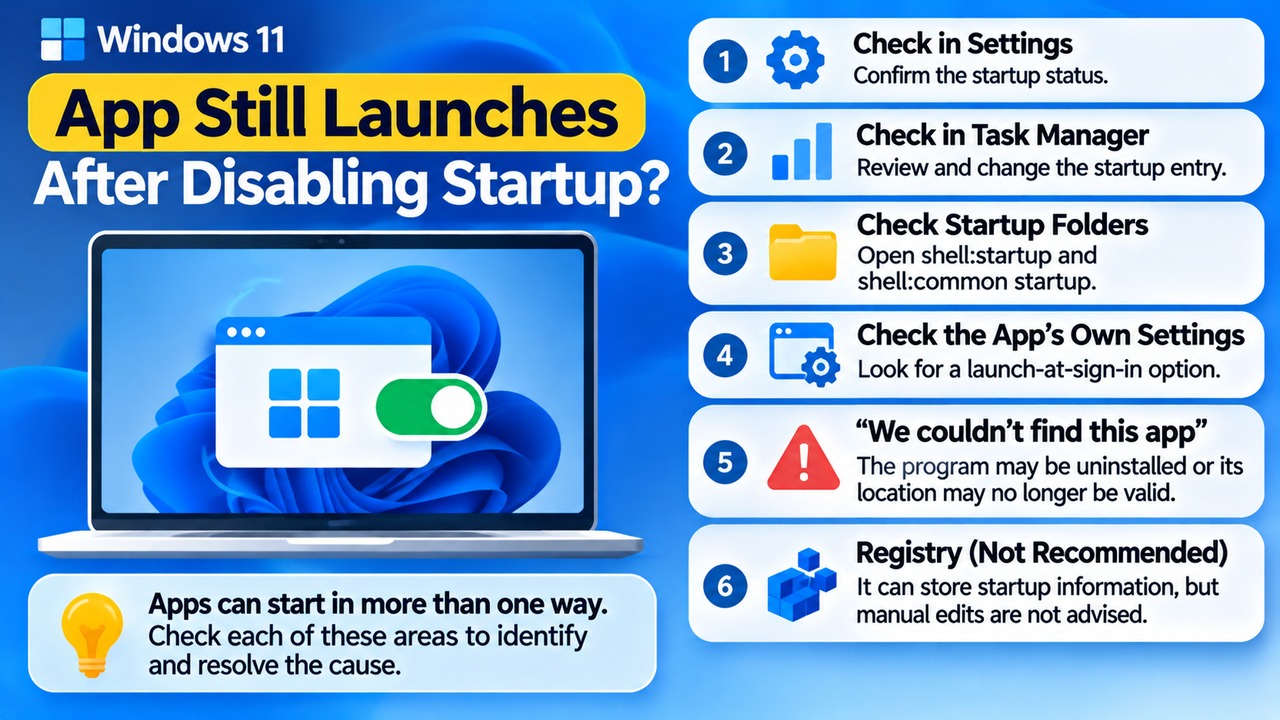
If a program continues opening after you disable automatic startup in Settings, first check the Startup folders and the application's own settings.
This is because Windows programs can be configured to launch automatically in more than one way.
Start by checking the app's startup status in Settings and Task Manager. Next, inspect the `shell:startup` and `shell:common startup` folders for any remaining shortcuts.
If the application has its own option to launch when you sign in, check that setting as well.
You may also encounter an entry displaying We couldn't find this app in the startup list. This problem can occur when a program has been uninstalled or when its startup entry points to a removable drive, network drive, or file path that no longer exists.
For such entries, first check whether the application is still installed.
Windows can also store startup program information in the Registry. However, manually deleting Registry entries is not recommended for general users. Incorrect changes can interfere with other applications or system behavior.
Which Startup Apps Should You Disable First to Improve Boot Performance?
A reasonable starting point is to review apps with a High startup impact that you do not need immediately after signing in. However, the performance improvement from reducing startup apps depends on your PC's hardware and the applications installed.
You can evaluate programs according to how you use them:
Occasionally used programs: Disable automatic startup and launch them manually when needed.
Programs used immediately after signing in every day: Decide whether to keep automatic startup enabled based on convenience.
File synchronization programs: Check whether continuous synchronization is necessary before disabling automatic startup.
Security and device management programs: Do not disable them without first understanding their functions and purpose.
A slow Windows startup does not mean you need to disable every startup application at once.
Instead, adjust unnecessary entries one at a time. After restarting, compare which applications launch automatically and how the changes affect your normal workflow. This makes it easier to decide which startup settings to keep.
If your PC remains slow after reducing startup apps, consider other factors, including insufficient free storage space, background processes, and Windows Update status.
What Is the Difference Between Disabling a Startup App and Uninstalling It?
Disabling a startup app prevents it from launching automatically, while uninstalling a program removes the installed application from your computer.
For example, if you disable a messaging app in Startup settings, the messaging app remains installed. You can still launch it from the desktop or Start menu and re-enable automatic startup whenever necessary.
To remove a program completely, go to Settings → Apps → Installed apps and use the uninstall option for that application.
If you plan to keep using a program, consider disabling automatic startup before uninstalling it.
Managing automatic startup is also different from managing background execution permissions. Disabling an app's startup entry does not necessarily prevent all of its background activity.
To manage Windows 11 startup performance and automatically launched applications, begin by disabling unnecessary entries in Settings. Then use Task Manager to review startup impact, and check the Startup folder for applications missing from the standard startup lists.