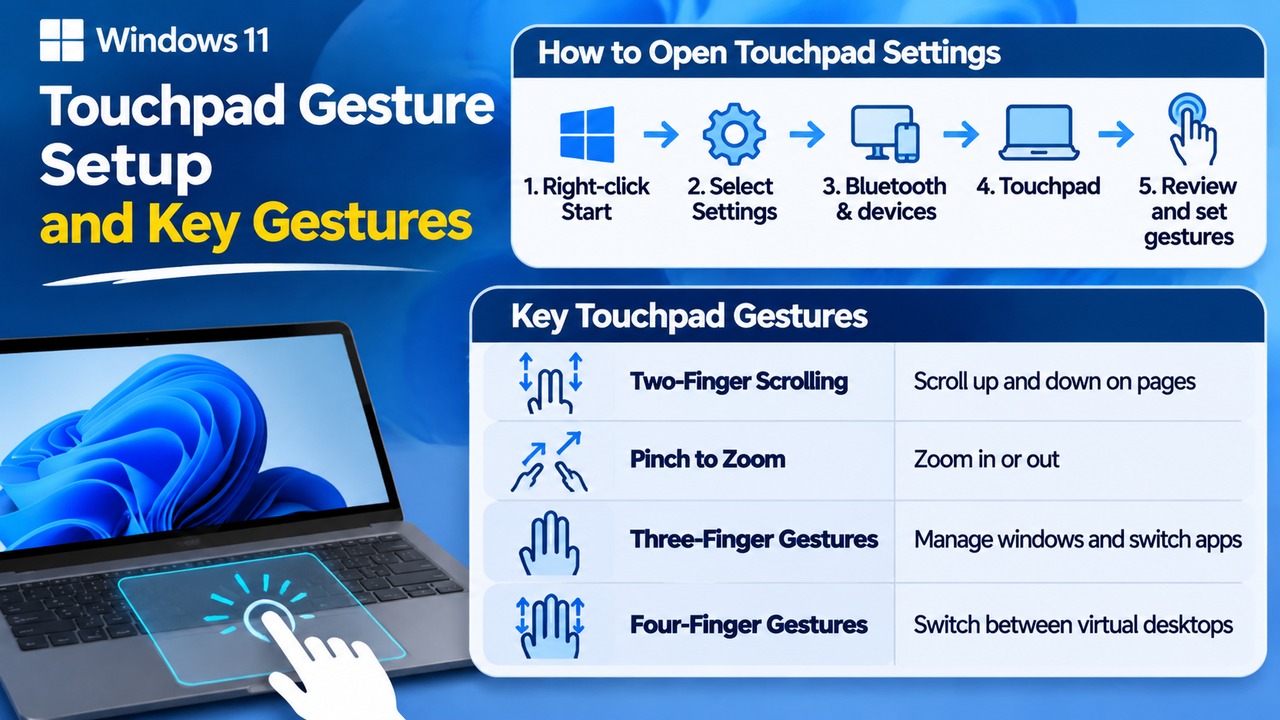

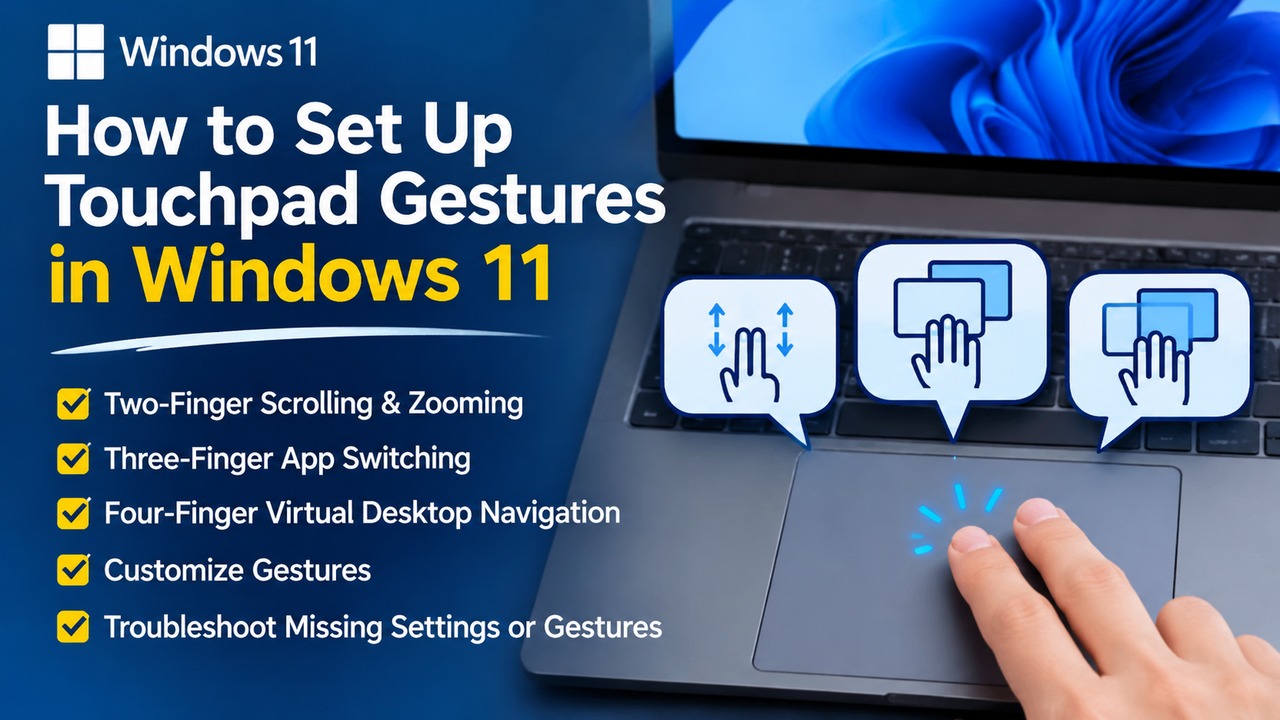
In Windows 11, you can customize three-finger and four-finger touchpad gestures under Settings → Bluetooth & devices → Touchpad. You can also use two-finger scrolling and pinch-to-zoom. However, some advanced features are supported only on laptops equipped with a Precision Touchpad.
When using a laptop, learning touchpad gestures makes it easier to navigate the screen and switch between multiple windows without a mouse. In particular, three-finger gestures for managing windows and four-finger gestures for switching virtual desktops can help you move quickly between different work environments.
How to Open Touchpad Gesture Settings in Windows 11
You can customize touchpad gestures directly in Windows Settings. Before installing additional software, check whether the built-in settings already provide the features you need.
1. Right-click the Start button on the taskbar.
2. Select Settings.
3. Select Bluetooth & devices from the left-hand menu.
4. Click Touchpad in the right-hand pane.
5. On the Touchpad settings screen, review the Scrolling, Zooming, Three-finger gestures, and Four-finger gestures sections.
You can also check whether the touchpad is enabled and adjust the cursor speed on this screen. To customize three-finger and four-finger gestures, expand the corresponding sections and select your preferred actions from the drop-down menus.
However, not all laptops provide the same settings. The available menus and gesture options may vary depending on the touchpad manufacturer, driver, and hardware capabilities.
How to Scroll and Zoom Using Two Fingers
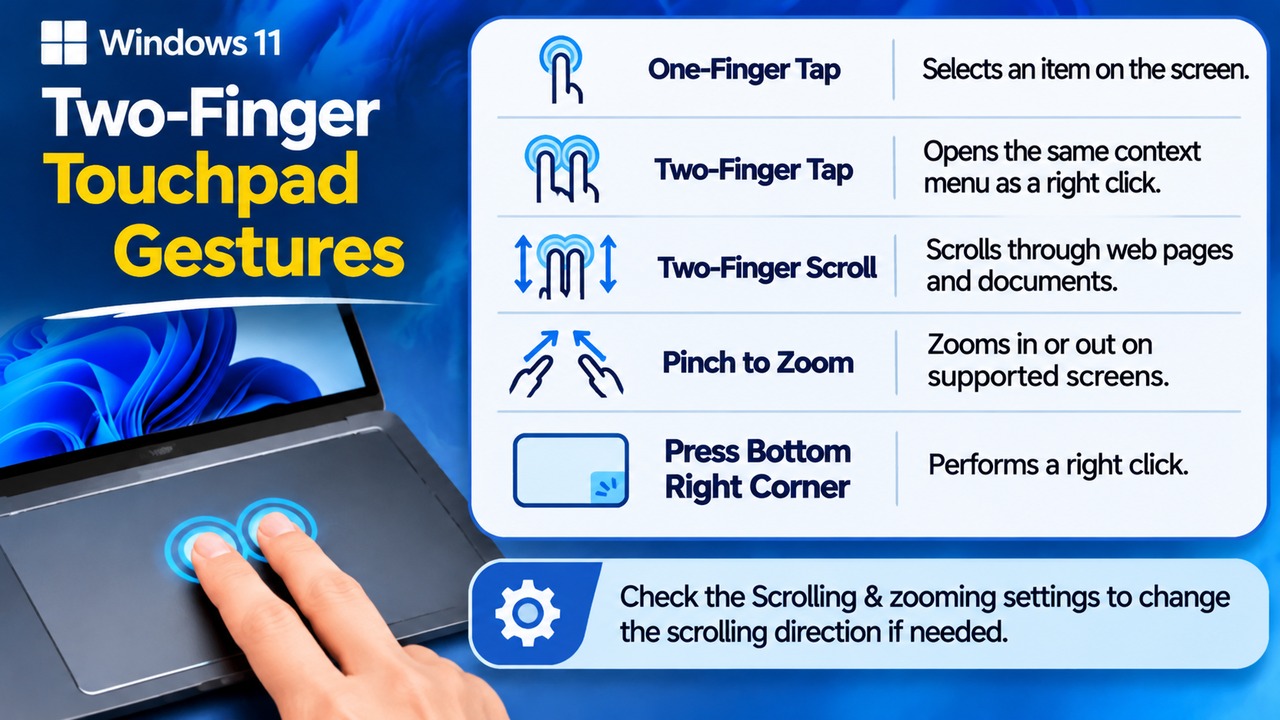
Two-finger gestures are among the most frequently used touchpad features on laptops. They let you scroll through web pages and adjust the size of photos and documents.
Common gestures include:
One-finger tap: Selects an item on the screen.
Two-finger tap: Opens the same context menu as a right-click.
Two-finger movement up or down: Scrolls through web pages and documents.
Pinching or spreading two fingers: Zooms in or out on supported screens.
Pressing the lower-right corner: Performs a right-click.
If the two-finger scrolling direction feels unfamiliar, check the Scrolling & zooming section in Touchpad settings. Depending on your device, you may have an option to change the scrolling direction.
In particular, pay attention to which way the screen moves when you slide your fingers downward on the touchpad. You can then choose the setting that best matches your usual scrolling habits.
How to Customize Three-Finger Gestures
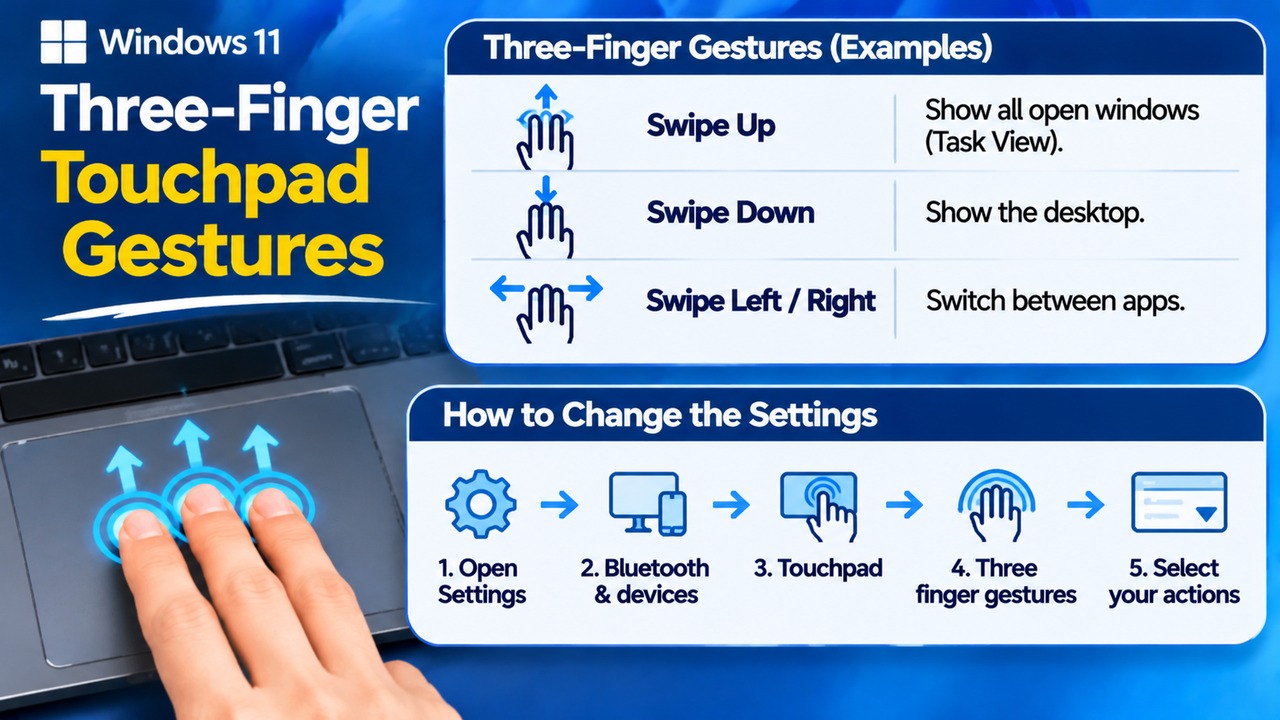
Three-finger gestures are useful when you work with multiple applications at the same time. You can assign different actions to upward, downward, and sideways swipes.
The standard three-finger gestures in Windows 11 include the following:
| Finger movement | Default action |
|---|---|
| Swipe up | Show all open windows |
| Swipe down | Show the desktop |
| Swipe left or right | Switch between open apps or windows |
Follow these steps to change the settings:
1. Open Settings and go to Bluetooth & devices.
2. Select Touchpad.
3. Expand the Three-finger gestures section.
4. Review the Swipe and Tap options.
5. Select your preferred actions from the drop-down menus.
For example, if you frequently move between different work windows, you can use left and right swipes to switch between apps. If you often need to organize open windows, learning to swipe up to display all open windows can be particularly useful.
How to Switch Virtual Desktops with Four-Finger Gestures
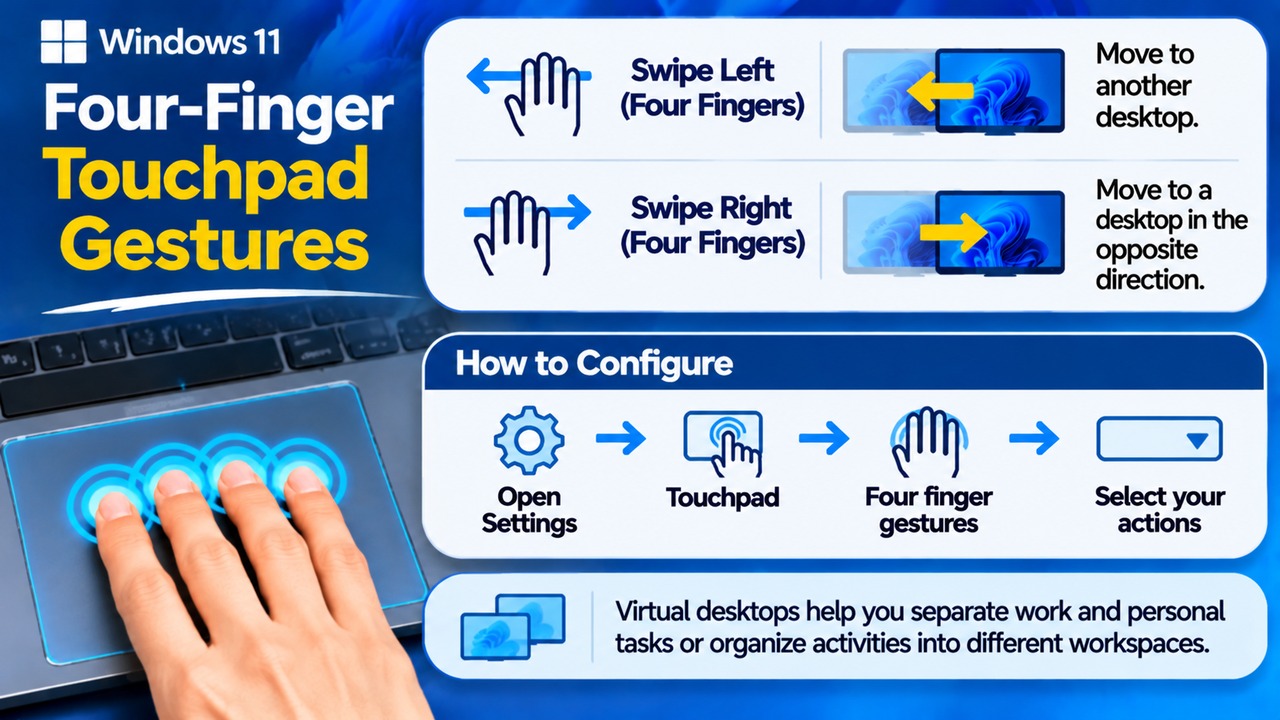
Four-finger gestures are especially useful when you work with multiple virtual desktops. You can swipe left or right to move between separate desktops.
The standard supported actions in Windows 11 include:
Swipe left with four fingers: Move to another desktop.
Swipe right with four fingers: Move to a desktop in the opposite direction.
To configure these gestures, first expand the Four-finger gestures section in Touchpad settings. Review the available actions under the Swipe menu and assign the functions you want.
Virtual desktops are useful for separating work-related windows from personal tasks or organizing different activities into distinct workspaces. However, four-finger gestures will work only if your touchpad supports the relevant functionality.
What to Check When Touchpad Gesture Settings Are Missing
If the three-finger or four-finger settings do not appear, you do not necessarily have a Windows error. The range of advanced gestures supported can vary depending on the touchpad hardware and driver.
Check the following items in order.
1. Check Whether Touchpad Settings Are Available
Go to Settings → Bluetooth & devices → Touchpad.
If the Touchpad option itself is missing, you may need to check whether Windows recognizes the device correctly and whether its driver is functioning properly.
2. Check for Precision Touchpad Support
Some advanced gestures provided by Windows are available only on Precision Touchpads.
Standard touchpads and Precision Touchpads may differ in the settings and customization options they support. Therefore, the absence of three-finger gestures does not mean you need to reinstall Windows.
3. Check for Driver Updates
If the touchpad is not working correctly or its settings are displayed abnormally, start by checking Windows Update.
Go to Settings → Windows Update.
Select Check for updates.
Check whether any touchpad-related drivers are listed under Optional updates.
You can also use Device Manager. Look under Human Interface Devices or Mice and other pointing devices to check the touchpad driver status.
4. Check the Laptop Manufacturer's Driver
If the Windows default driver does not resolve the problem, visit your laptop manufacturer's official support website and look for the touchpad driver designed for your specific model.
Even when running the same version of Windows 11, laptops from manufacturers such as Samsung, LG, HP, Lenovo, and ASUS may use different touchpad hardware and manufacturer-specific support software.
Frequently Asked Questions
Why doesn't swiping up with three fingers open Task View?
First, check the Swipe settings under Three-finger gestures in Touchpad settings. The action may have been assigned to a different function, or your touchpad may not support this gesture.
Why isn't two-finger scrolling working?
Check the scrolling and zooming options under Bluetooth & devices → Touchpad. If the problem persists, check for driver updates and confirm whether your laptop manufacturer supports the feature.
Are four-finger gestures available on every laptop?
No. Some touchpad gestures work only on Precision Touchpads. The available features depend on the laptop model and its hardware capabilities.
Can I restore touchpad gestures to their default settings?
You can open Touchpad settings and use the drop-down menus for each gesture to reassign the default actions. The available settings and default values may vary depending on your device.