
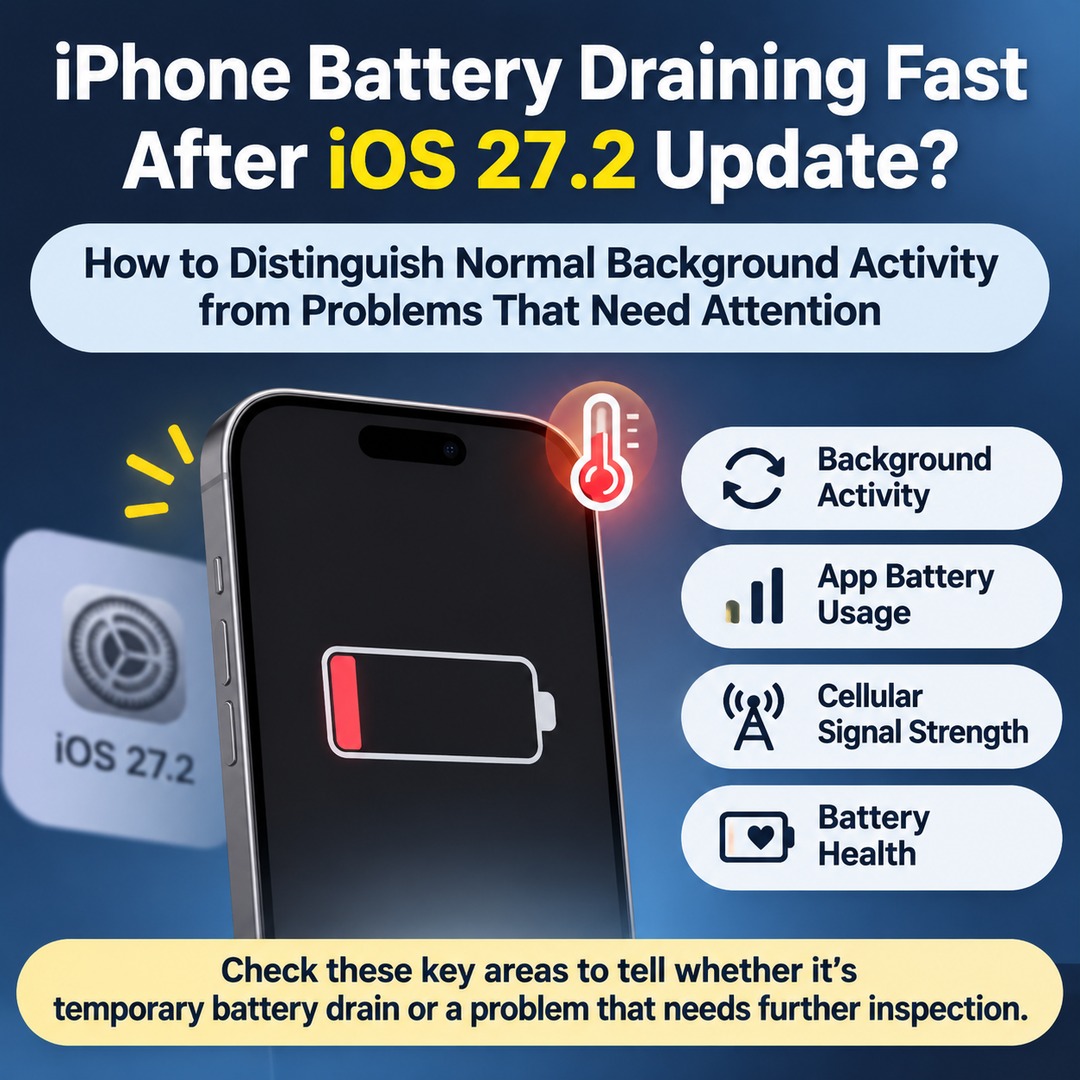
If your iPhone battery starts draining faster than usual immediately after installing iOS 27.2, the first step is to check background activity and battery usage by app over the next few days. System processes may continue running after an update, temporarily increasing battery consumption and device temperature. However, if battery usage remains unusually high or your iPhone repeatedly shuts down unexpectedly, you should also check battery health and possible app issues.
Apple released iOS 27.2 on October 26, 2026. Supported devices include the iPhone 11 and later models. A drop in battery life immediately after an update does not, by itself, establish that your device is defective or that the operating system has a problem.
Why Does iPhone Battery Life Suddenly Drop After Installing iOS 27.2?
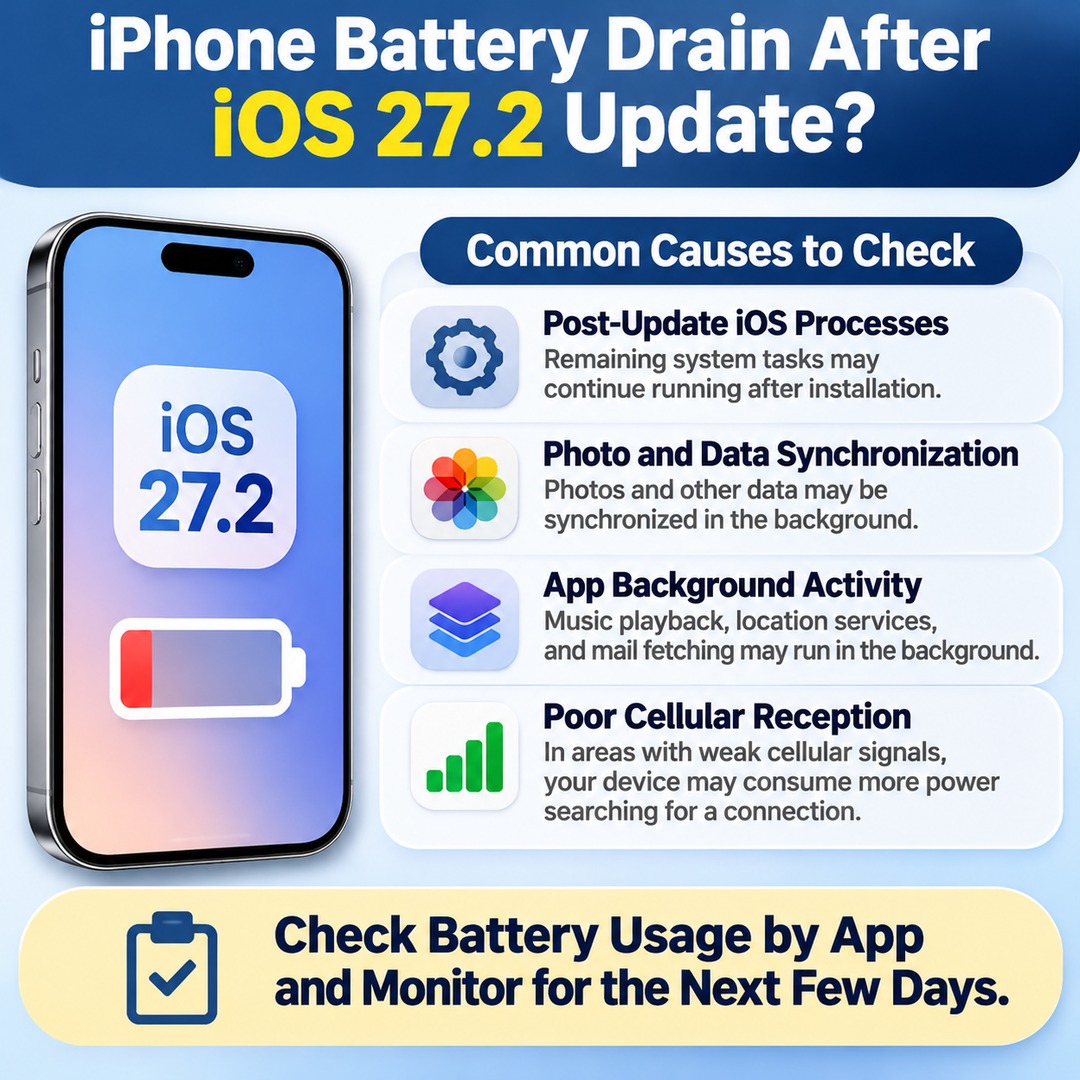
Some system processes may continue running in the background even after an update has finished installing. During this period, battery consumption and device temperature may differ from normal levels.
Here are some common causes you can investigate on your iPhone:
Post-update iOS processes: Remaining system tasks may continue running after installation.
Photo and data synchronization: Photos and other data may be synchronized in the background.
App background activity: Music playback, location services, and mail fetching may continue working even when the screen is off.
Poor cellular reception: In areas with weak cellular signals, your device may consume additional power searching for or maintaining a connection.
Increased screen usage: Exploring new features or spending more time in apps after an update can also cause faster battery drain.
None of these factors explains every case of battery drain on every iPhone. You need to check the Battery Usage screen to identify what is actually happening on your device.
How Many Days Should You Wait for iPhone Battery Life to Stabilize?
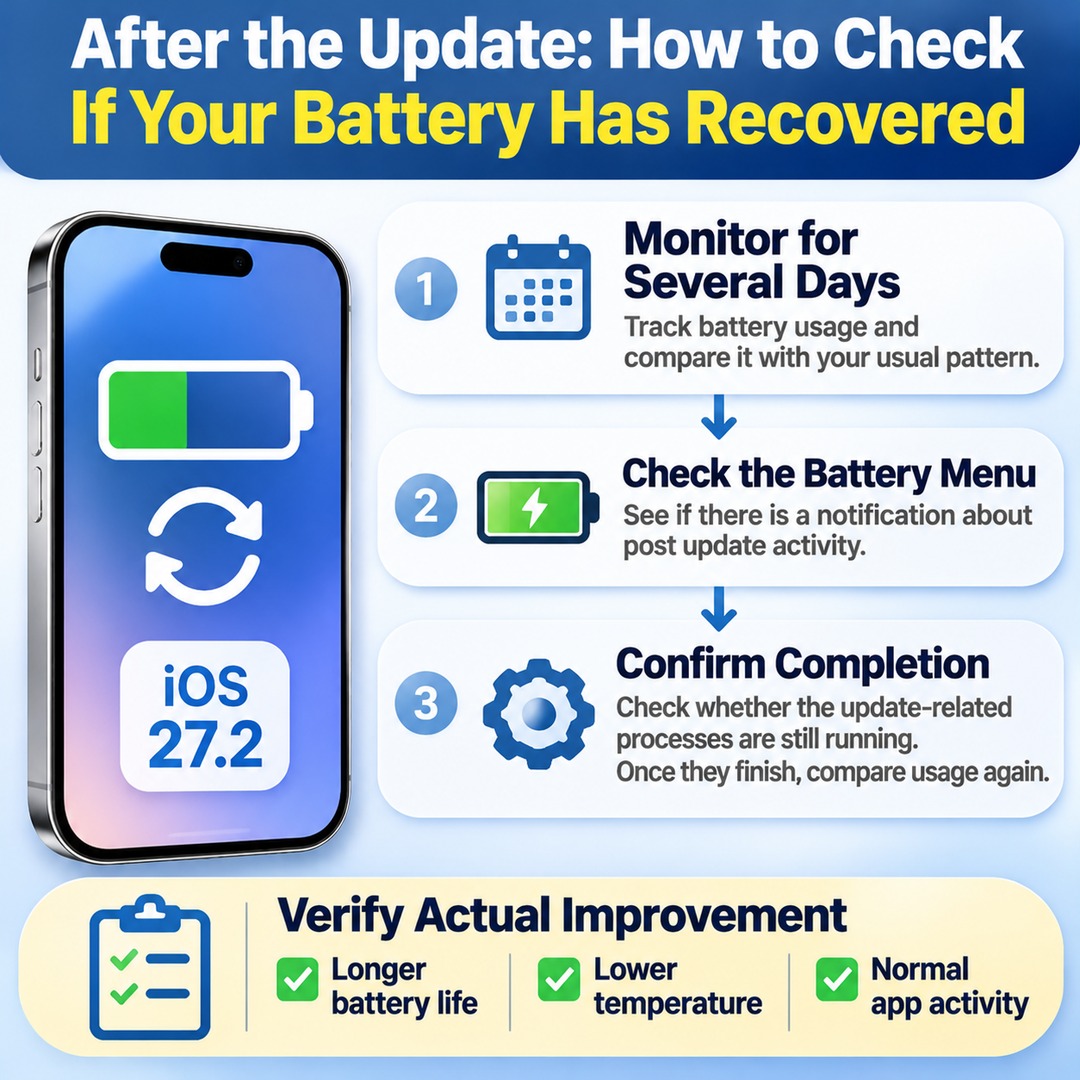
There is no fixed recovery period that applies to every iPhone. A practical approach is to monitor battery usage for several days after the update and compare it with your usual pattern.
In particular, check whether the Battery menu displays any insights related to ongoing update activity.
Settings → Battery
zeerawireless.com
If the Battery screen displays a notification about post-update activity, check whether those processes are still running. Once they finish, compare your battery usage again.
You should not automatically assume that the problem has been resolved simply because several days have passed. Check whether actual battery life has improved, the device is running cooler, and app activity has returned to normal.
How to Check Whether Your iPhone Battery Drain Is Normal
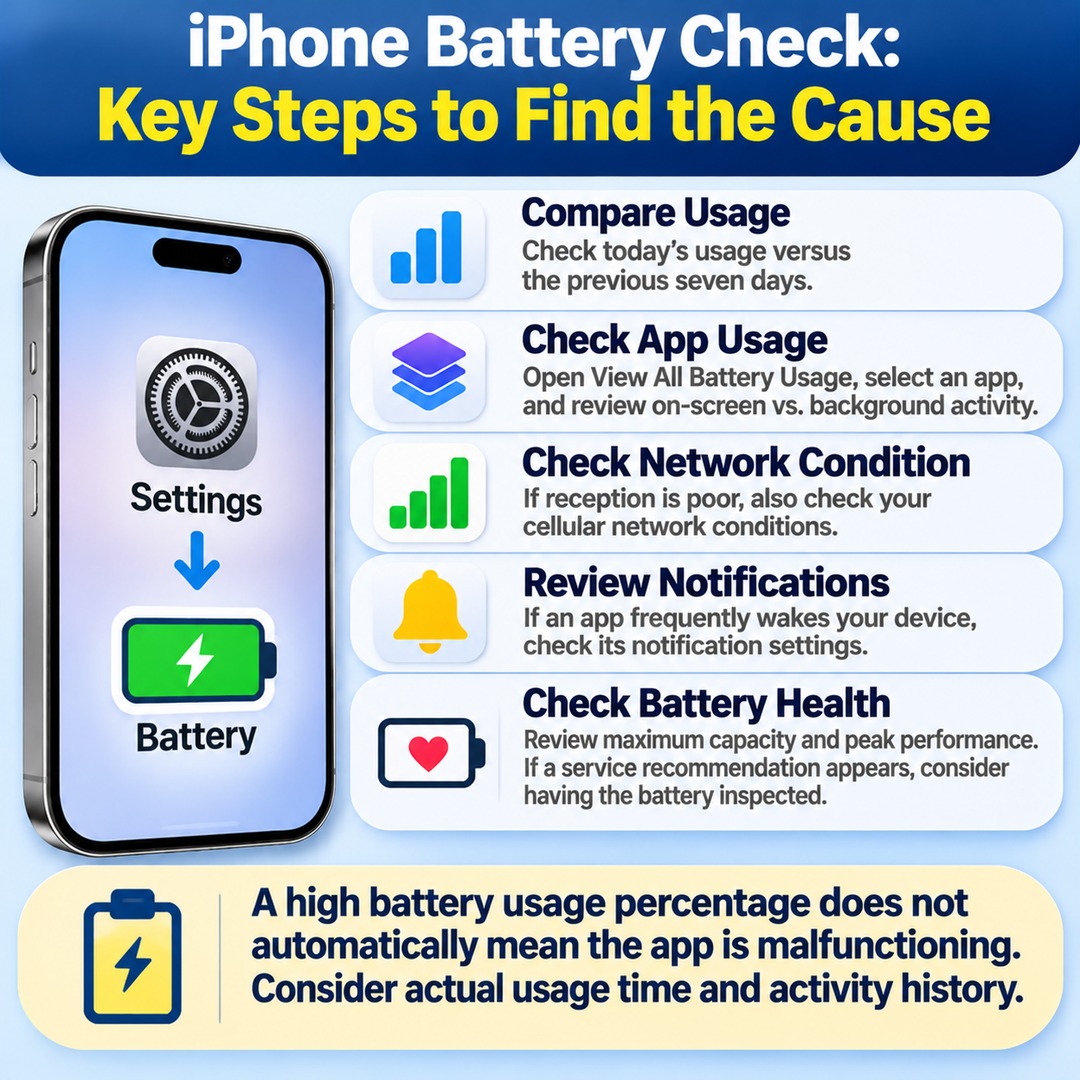
The first place to look is the Battery menu in Settings. Compare today's usage with the previous seven days and identify which apps or system activities are consuming the most power.
1. Compare Recent Battery Usage
Go to Settings → Battery and review the daily usage graph.
Check whether today's battery consumption is higher than usual and compare it with previous days.
2. Check Battery Usage by App
Select View All Battery Usage to review usage records for individual dates.
computeradvantage.us
Select a specific app to distinguish between on-screen usage and background activity.
If screen usage is high, check whether you have actually been spending more time in the app.
If background activity is high, investigate what the app has been doing while it was not actively displayed.
If the screen indicates poor cellular reception, check your network conditions as well.
If an app frequently wakes your device through notifications, review its notification settings.
A high battery usage percentage for an app does not automatically mean the app is malfunctioning. You need to consider its actual usage time and activity history together.
3. Check Battery Health
Battery aging is another possibility that should not be overlooked.
| iPhone Model | Where to Check |
|---|---|
| iPhone 15 and later | Settings → Battery → Battery Health |
| iPhone 14 and earlier | Settings → Battery → Battery Health & Charging |
The Battery Health screen provides information about maximum capacity and peak performance.
If a service recommendation appears, do not assume the issue is simply related to post-update background activity. Consider having the battery inspected.
What If Severe Battery Drain and Excessive Heat Continue?
Some symptoms require attention beyond temporary battery consumption after an update.
gizmodo.com
Use the following distinctions to avoid unnecessary factory resets or changes to your settings.
| Observed Symptom | What to Check First |
|---|---|
| Battery drains quickly immediately after an update | Background processes related to the update |
| Device heats up while using a specific app | App-specific battery usage and activity time |
| Battery drains even when the screen is off | Background activity and cellular signal strength |
| Temperature rises while charging | Ambient temperature and charging conditions |
| Repeated unexpected shutdowns | Battery health and service recommendations |
| Charging temporarily stops | Temperature-related charging protection features |
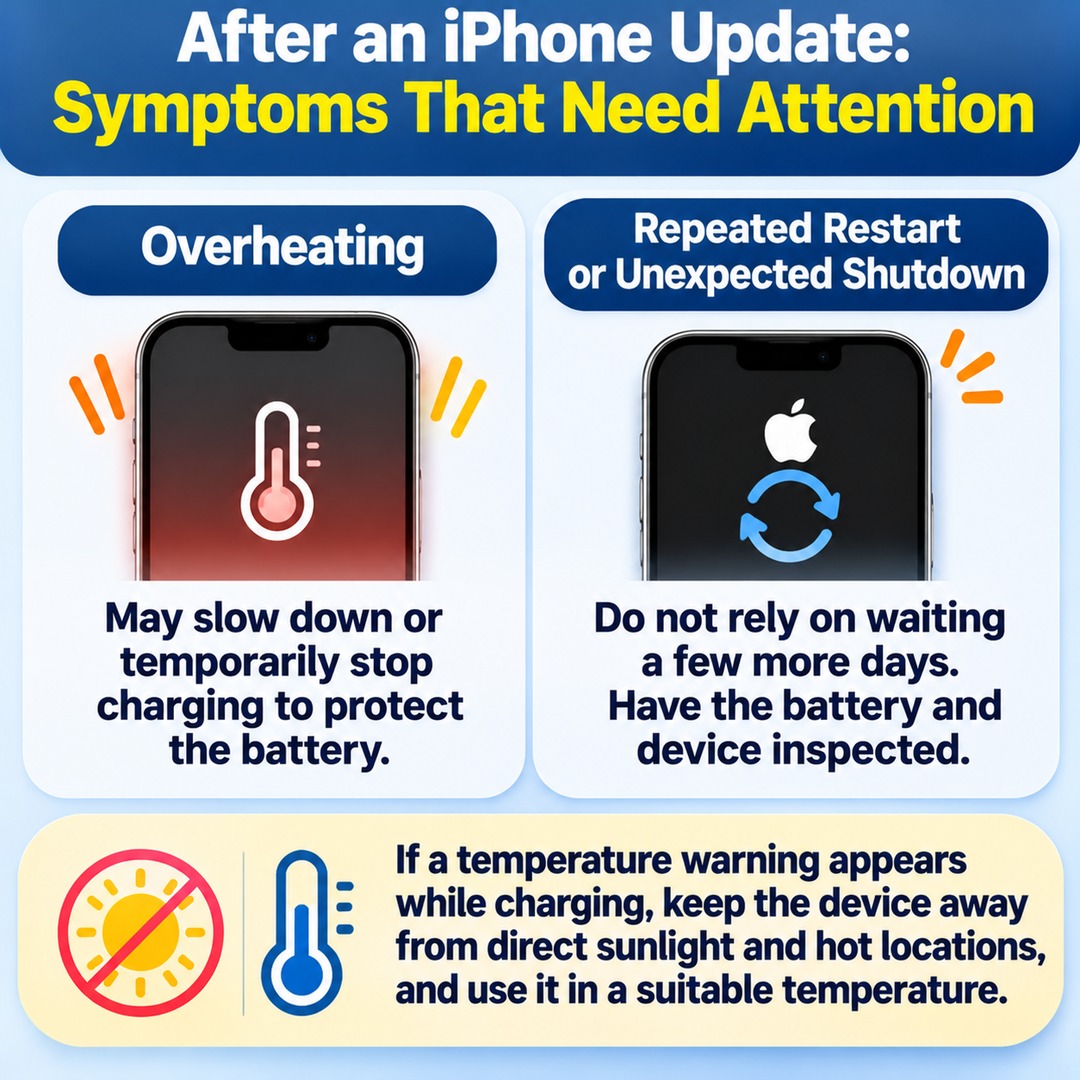
When an iPhone becomes too hot, it may slow down charging or temporarily stop it to protect the battery.
If a temperature warning appears while charging, keep the device away from direct sunlight and hot locations, and move it to an environment with a suitable temperature.
If your iPhone repeatedly restarts or shuts down unexpectedly, do not rely on waiting a few more days to resolve the issue. It is better to have the battery and device inspected.
Steps to Try Before Resetting Your iPhone
If the Battery Usage screen identifies unusually high activity from a particular app, start by investigating that app.
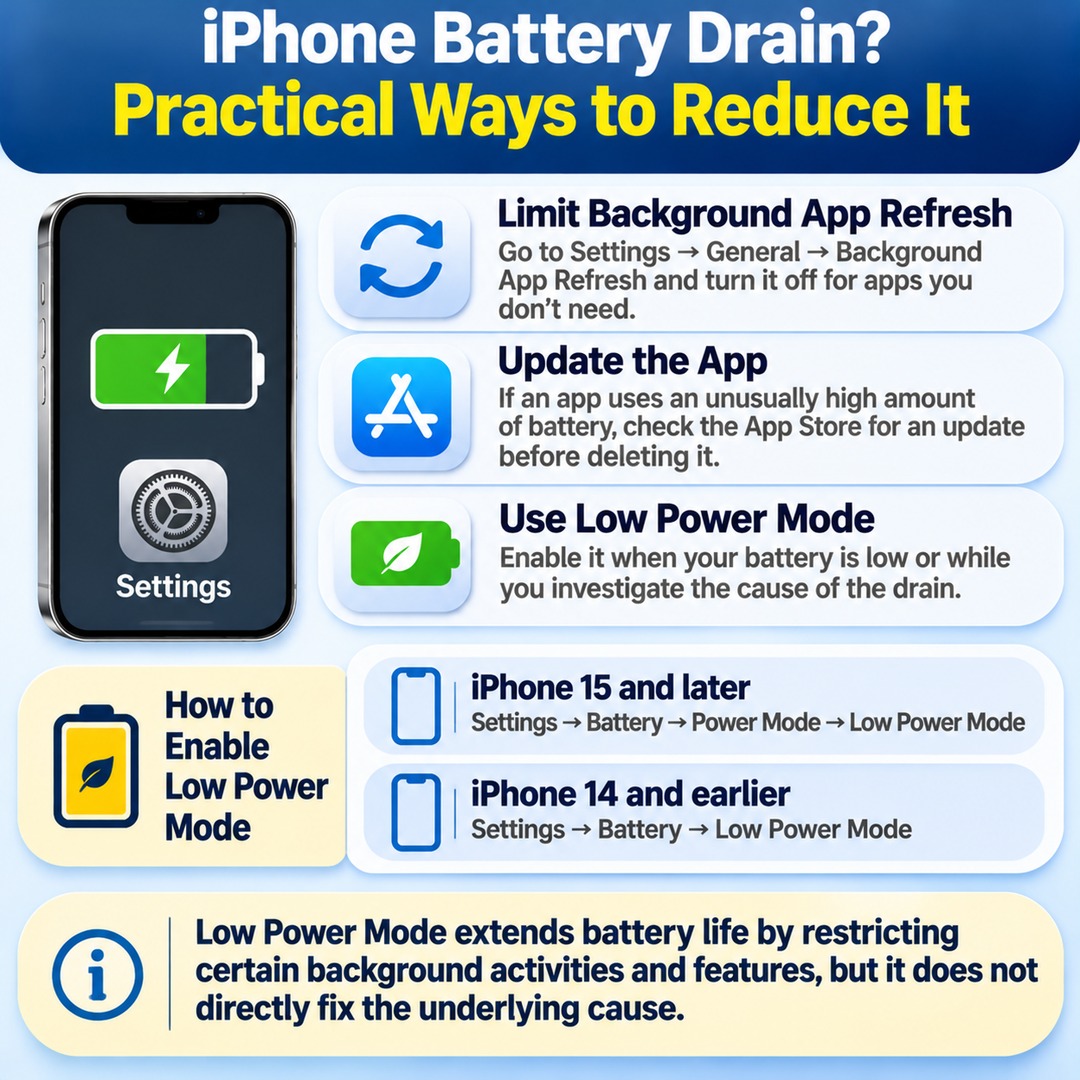
Adjust Background App Refresh
Go to Settings → General → Background App Refresh to individually restrict background refreshing for apps that do not need it.
Rather than disabling the feature for every app at once, start with the apps that actually consume significant battery power.
Check for App Updates
If a particular app shows unusually high battery usage, check the App Store for an available update. Instead of immediately deleting the app, first review its activity history and update status.
Use Low Power Mode
You can enable Low Power Mode when your battery is running low or while you investigate the cause of the drain.
iPhone 15 and later: Settings → Battery → Power Mode → Low Power Mode
iPhone 14 and earlier: Settings → Battery → Low Power Mode
Low Power Mode extends battery life by restricting certain background activities and features. However, it does not directly fix the underlying cause, so you should continue checking battery usage as well.
iOS 27.2 Battery Problems: Should You Reset Your iPhone or Replace the Battery First?
You do not need to perform a factory reset or replace your battery simply because battery life has decreased immediately after an update.
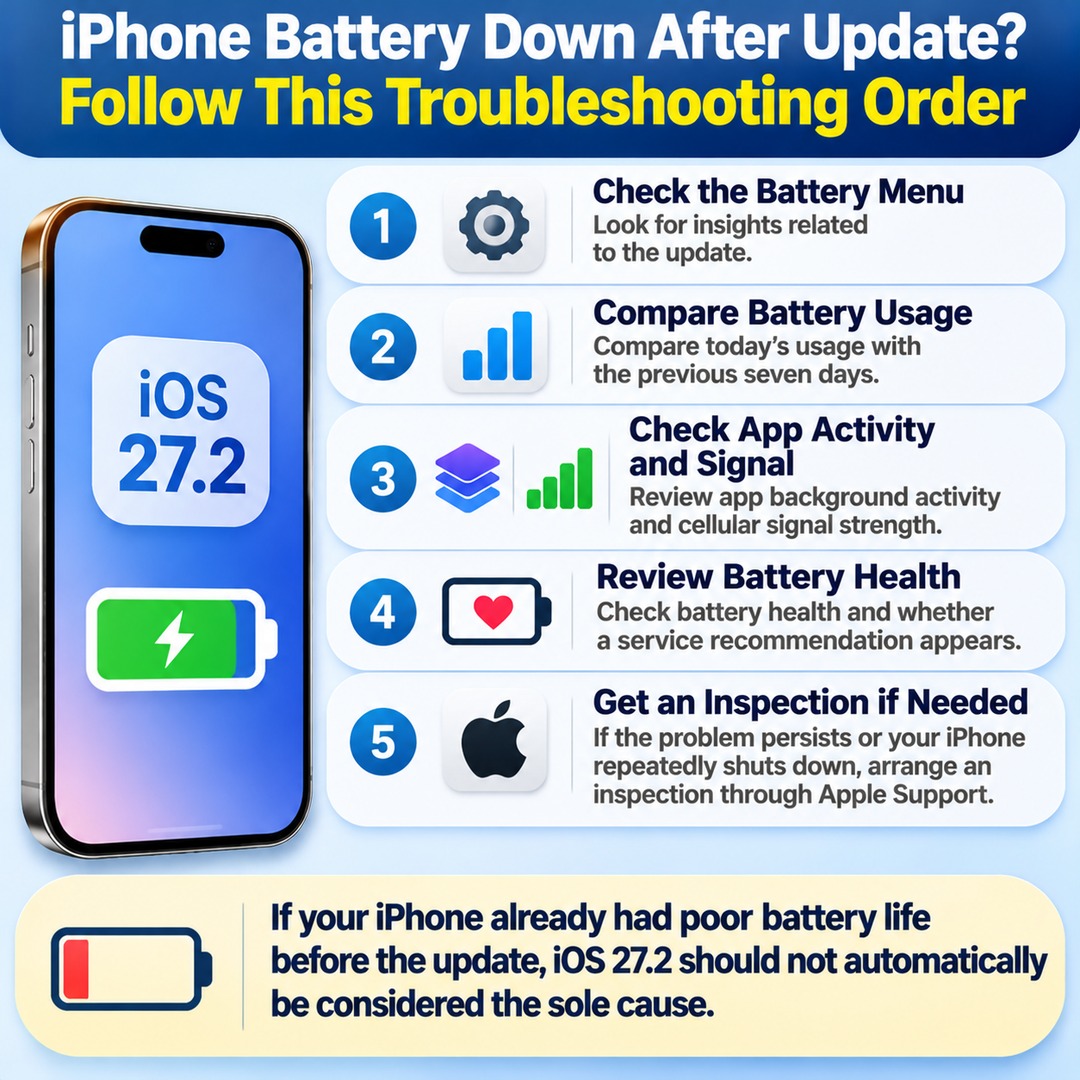
Follow this order when troubleshooting:
1. Check the Battery menu for insights related to the update.
2. Compare today's battery usage with the previous seven days.
3. Check app-specific background activity and cellular signal strength.
4. Review battery health and check whether a service recommendation appears.
5. If the problem persists or your iPhone repeatedly shuts down unexpectedly, arrange an inspection through Apple Support.
In particular, if you have an older iPhone with a degraded battery, you should distinguish between reduced battery life following the update and the effects of battery aging.
If your iPhone already had poor battery life before the update, iOS 27.2 should not automatically be considered the sole cause.