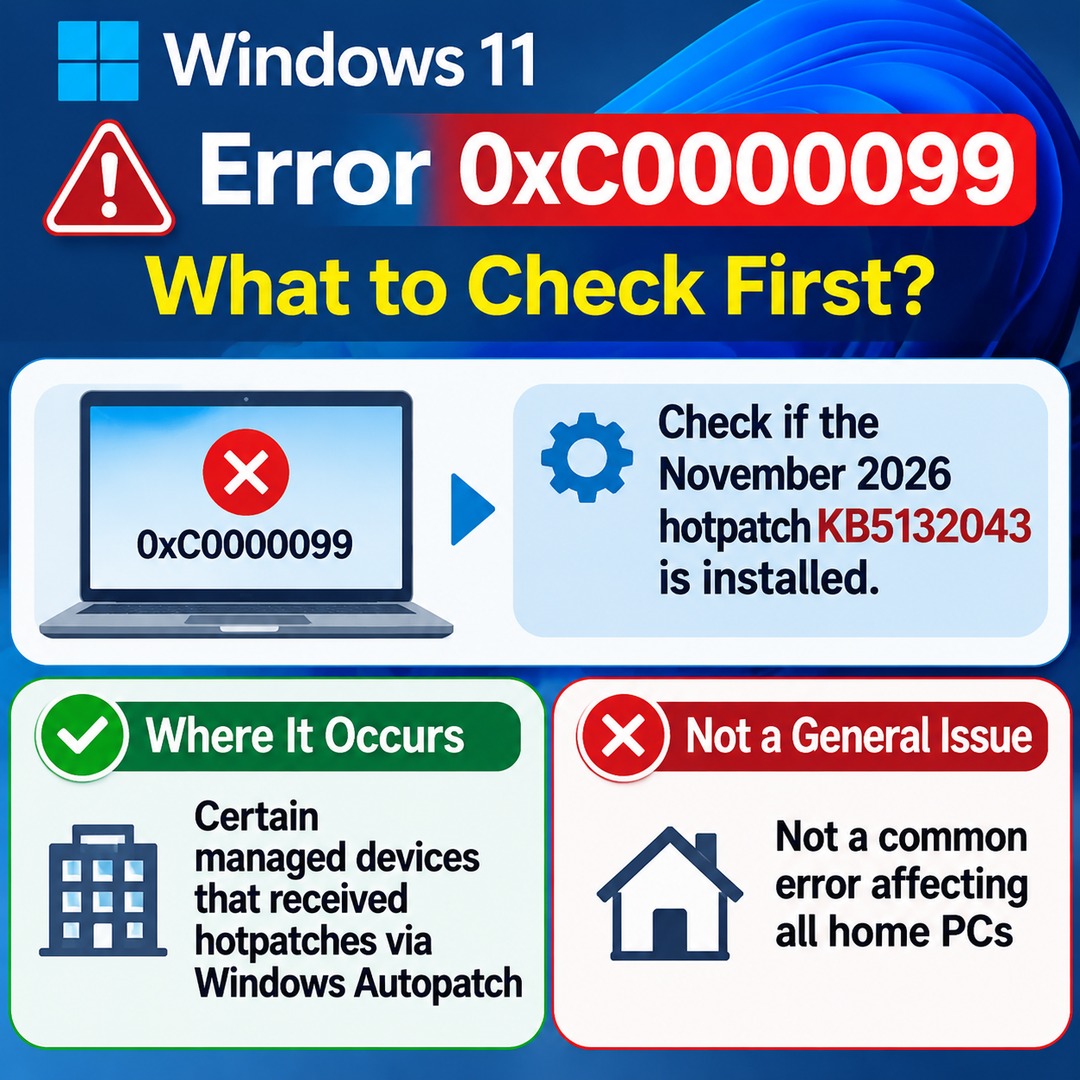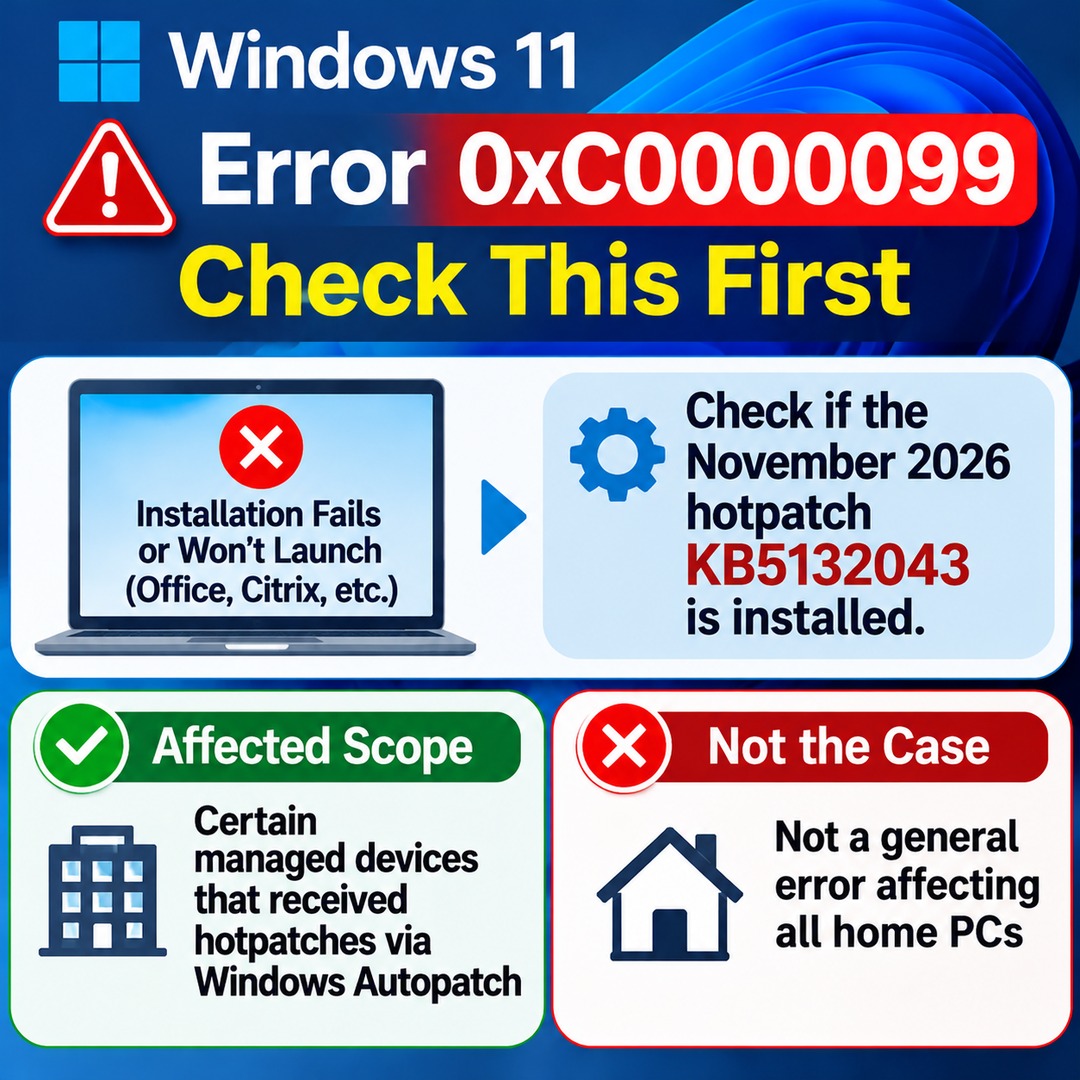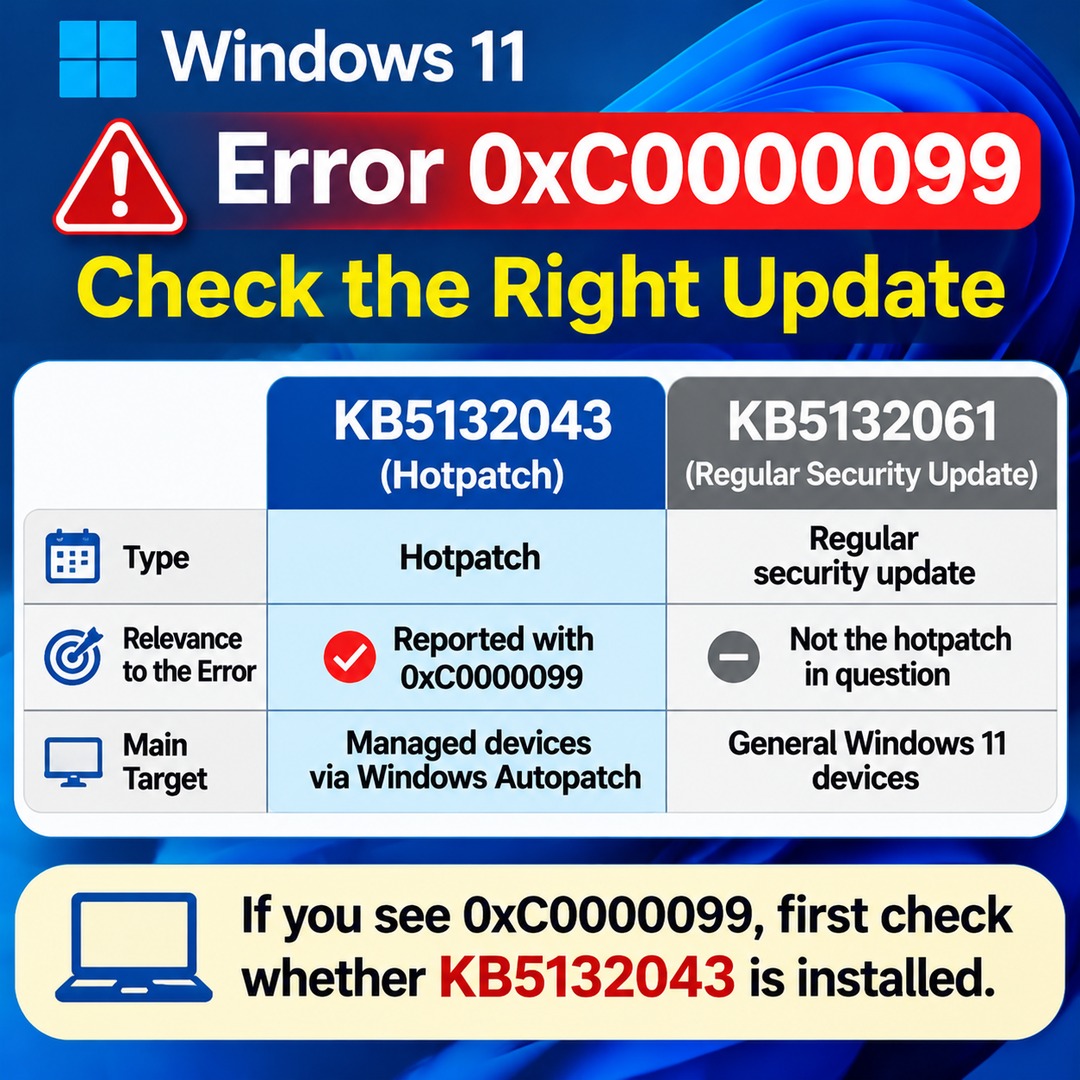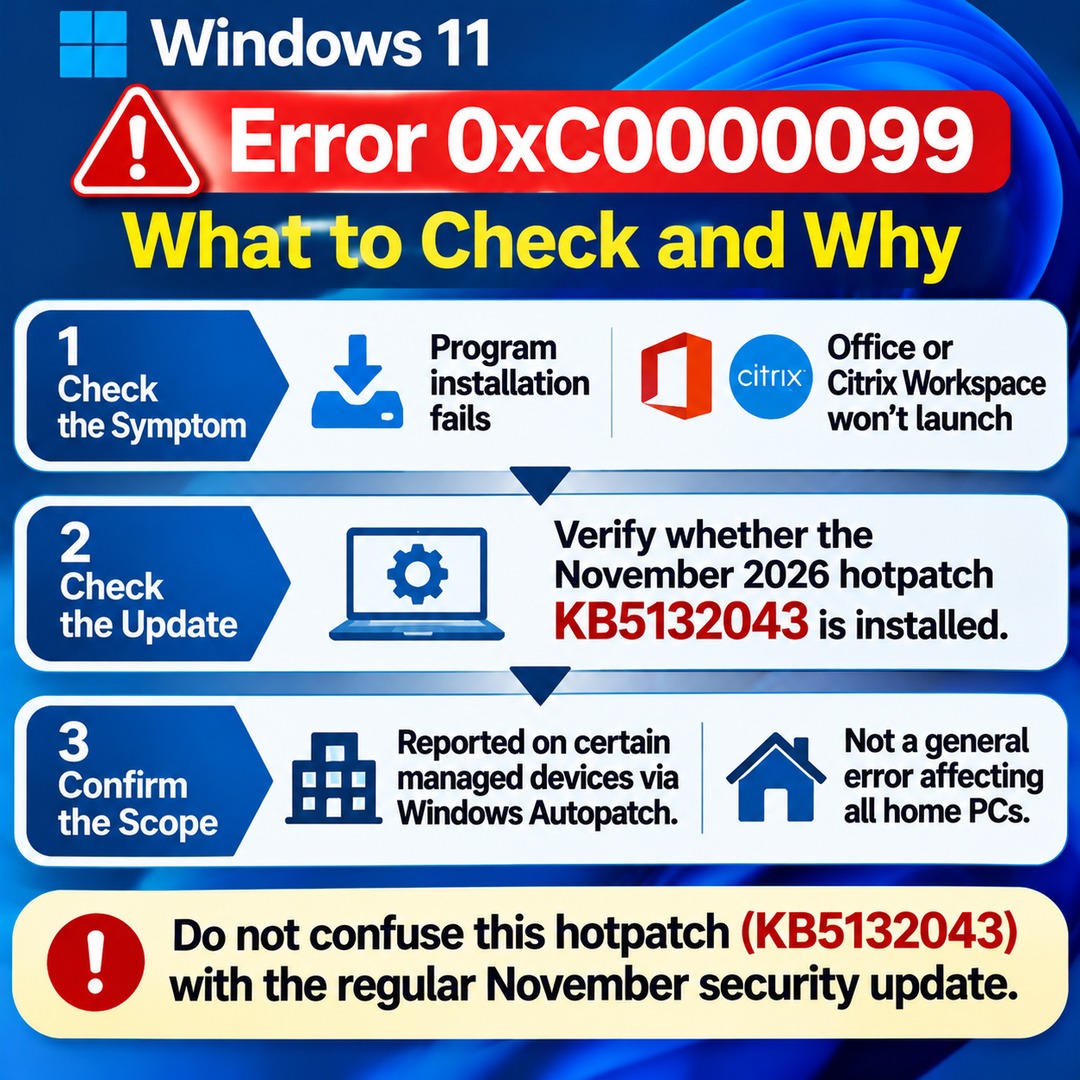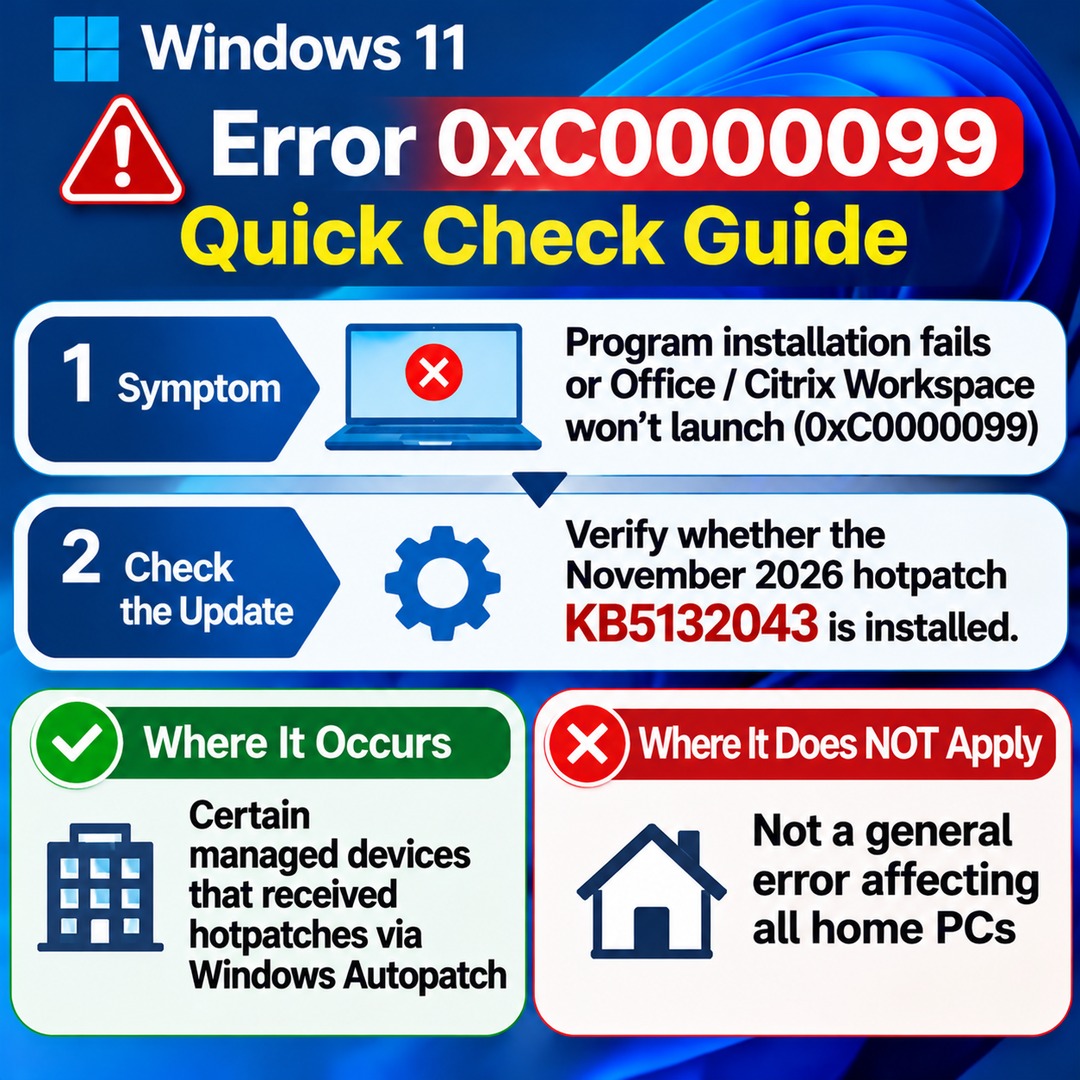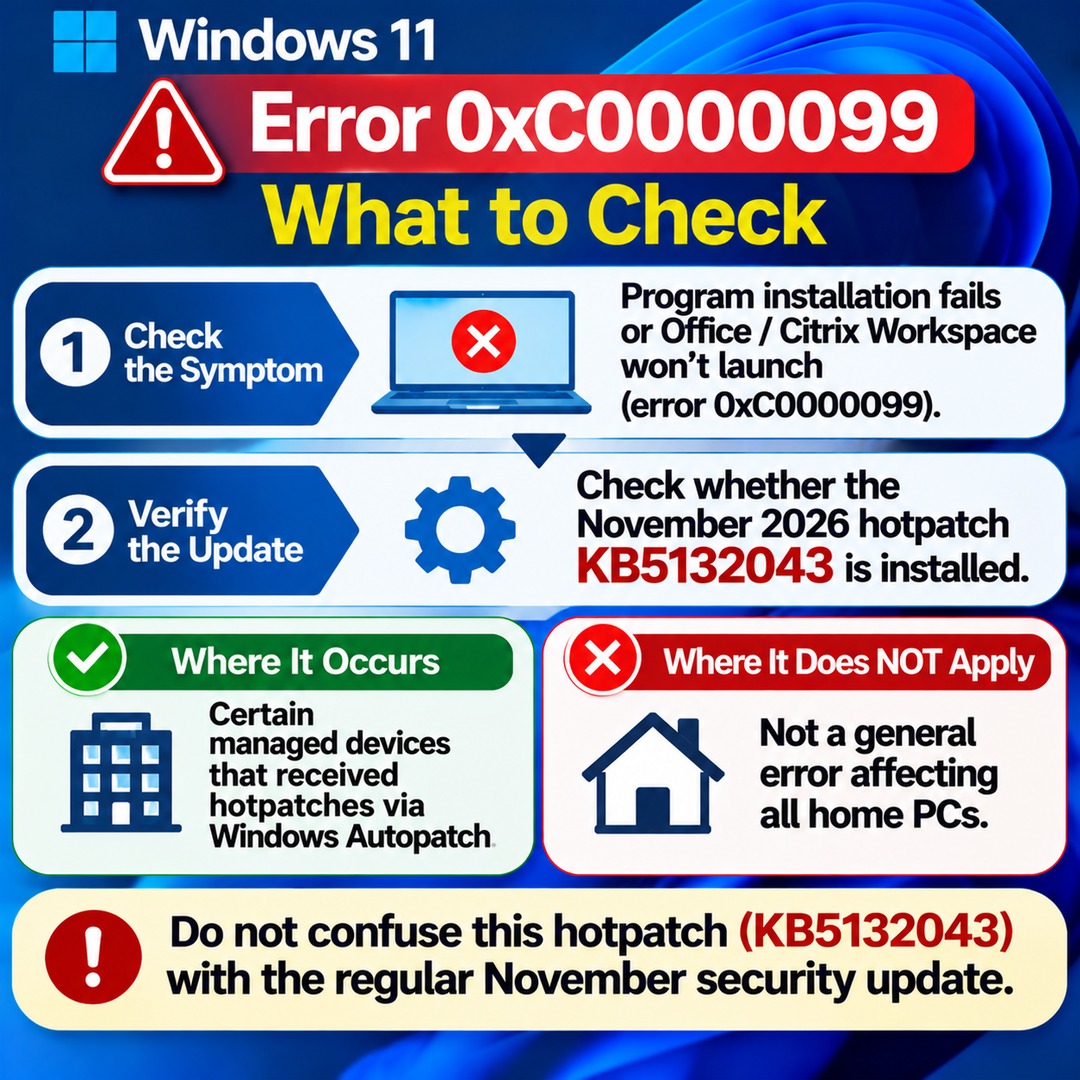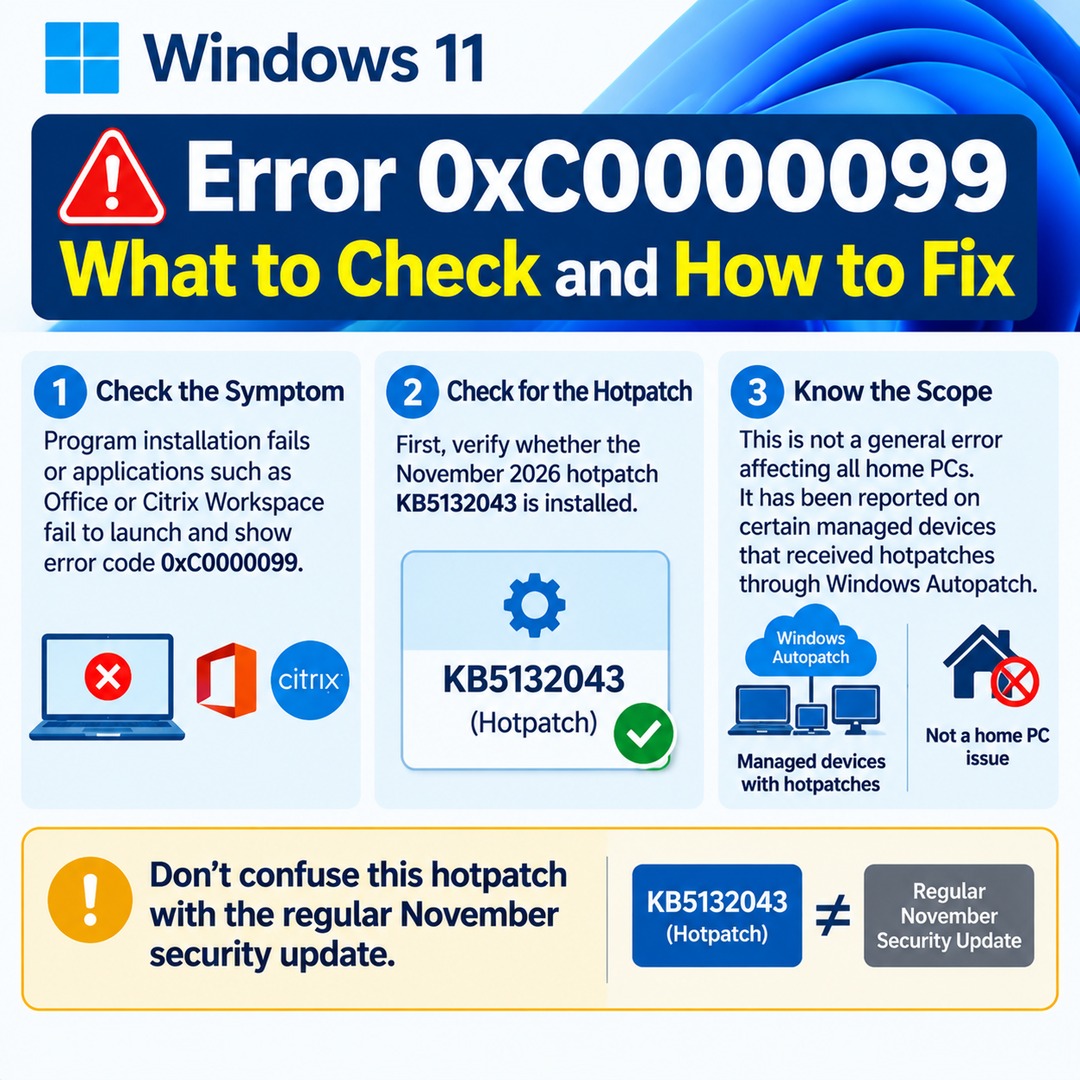

If a program installation fails on Windows 11, or applications such as Office or Citrix Workspace fail to launch and display error code `0xC0000099`, first check whether the November 2026 hotpatch KB5132043 is installed. This issue is not a general error affecting all home PCs. It has been reported on certain managed devices that received hotpatches through Windows Autopatch.\n\nConfusing the regular November security update with the hotpatch can lead to unnecessary update removals or repeated application reinstalls. It is important to check both the error code and the installed KB number.\n\n## Why Does Error 0xC0000099 Occur?\n\nThe error identified by Microsoft in this issue is `ERROR_ALLOTTED_SPACE_EXCEEDED`. One of the key conditions under investigation involves applications loading the 32-bit Windows Installer DLL, `msi.dll`. The issue appears more frequently with 32-bit applications, but 64-bit applications can also be affected under certain conditions.\n\nReported scenarios include:\n\n- Installation failures involving Office and certain third-party applications\n- Errors when launching existing applications\n- Applications that launch but cannot be used normally\n- Failures involving Citrix Workspace and Windows Installer operations\n\nTherefore, an error does not automatically mean that the installation file is corrupted or that the application's license is invalid.\n\n## What Is the Difference Between KB5132043 and KB5132061?\n\nBoth updates were released in November, but they use different installation channels and deployment methods. When investigating this application issue, check not only the update name but also whether it was installed through Windows Autopatch.\n\n| Category | KB5132043 | KB5132061 |\n| --- | --- | --- |\n| Update type | November hotpatch | Regular cumulative security update |\n| Release date | November 10, 2026 | November 10, 2026 |\n| Main deployment method | Managed deployment, including Windows Autopatch | Standard Windows Update channels |\n| Main builds | 26100.9911 / 26200.9911 / 26300.9911 | 26100.9974 / 26200.9974 / 26300.9974 |\n| Relevance to this issue | Included among the affected updates | Not identified as a cause of the reported issue |\n\nA hotpatch applies security fixes through a mechanism that differs from a conventional baseline update. Under the Windows 11 hotpatch schedule, security changes are applied in certain months without requiring a restart after the baseline update has been installed.\n\nThe presence of KB5132043 alone does not mean that every PC will experience this error. You must also check whether the device is managed through Windows Autopatch and whether the affected application's configuration meets the relevant conditions.\n\n## How to Check Whether KB5132043 Is Installed on Your PC\n\nYou can check your update history in Windows Settings. You do not need administrator privileges to view basic update history and your Windows version.\n\n1. Press `Win + I` on your keyboard to open Settings.\n2. Select Windows Update from the left-hand menu.\n3. Open Update history.\n4. Search the list of installed updates for `KB5132043`.\n5. If `KB5132061` is also installed, make sure you distinguish between the two updates.\n\nIt is also useful to check your Windows build number.\n\nHow to check:\n\n`Win + R` → Enter `winver` → Press Enter\n\nCheck the Windows version and OS build displayed.\n\nThe main builds associated with this hotpatch are:\n\n- Windows 11 24H2: 26100.9911\n- Windows 11 25H2: 26200.9911\n- Windows 11 26H2: 26300.9911\n\nHowever, the build number alone cannot establish which deployment channel was used. You should also check the update history and your organization's Intune or Windows Autopatch deployment records.\n\n## Temporary Workaround for Error 0xC0000099\n\nFor devices affected by this hotpatch issue, a temporary mitigation has been documented: change the `HotPatchTableSize` registry value to `2000`. This is not a universal fix for ordinary application errors. It should only be considered for devices that fall within the scope of this specific hotpatch issue.\n\nThe registry is where Windows stores system configuration settings. Incorrect changes can cause problems with the operating system or applications. If you are using a company or school PC, it is safer to contact your IT administrator before making any changes.\n\nSteps for an administrator\n\n1. Search for `regedit` in the Start menu and open Registry Editor.\n2. Navigate to the following path:\n\n```text\nHKEY_LOCAL_MACHINE\\SYSTEM\\CurrentControlSet\\Control\\Session Manager\\Memory Management\n```\n\n3. Find `HotPatchTableSize` in the right-hand pane.\n4. Open the entry and change its data value to `2000`.\n5. Click OK and close Registry Editor.\n6. Restart the PC.\n\nBefore changing the registry, export the relevant key as a backup and make sure it can be restored. Do not arbitrarily change the existing value or data type. Also, avoid creating a new entry with an unverified value simply because the expected entry is missing.\n\nAfter restarting, launch the affected application again and separately check whether installation, startup, and normal operation work correctly. A successful installation alone does not necessarily mean the issue has been fully resolved.\n\n## What If KB5132043 Is Not Installed?\n\nIf KB5132043 does not appear in your update history and your PC is not managed through Windows Autopatch, you should not assume that the problem has the same cause as this hotpatch issue.\n\nRather than changing registry settings, follow these checks:\n\n- Only one application fails: Check the application's installation files, version, installation permissions, and compatibility.\n- Several applications fail at the same time: Compare Windows Update history with when the errors started occurring.\n- Failures occur only during installation: Check Windows Installer-related errors and installation logs.\n- Failures also occur during startup: Check application error records and the faulting module in Event Viewer.\n\nIn particular, checking the Application section under Windows Logs in Event Viewer can help identify the affected application and module.\n\nDo not arbitrarily uninstall KB5132061 or other security updates on a PC that is unrelated to this issue. Any decision to remove an update should be based on the device's actual installation history and the relationship between the update and the error.\n\n## What Information Should You Give Your IT Administrator for a Company or School PC?\n\nIf the error occurs on a managed PC, provide more than a general report that an application will not open. Include the following information:\n\n- Windows version and OS build number\n- Installed update KB numbers\n- Whether the device is managed through Windows Autopatch or Intune\n- Name and version of the affected application\n- Error code `0xC0000099`\n- When the error occurs: during installation, startup, or normal use\n- When the error first appeared\n\nWith this information, the administrator can compare the hotpatch deployment history with whether the application uses `msi.dll`.\n\nAccording to the publicly available guidance, the registry change is a temporary mitigation. The release date of a permanent fix has not been confirmed. Administrators should therefore continue monitoring Microsoft's follow-up announcements even after applying the temporary workaround.\n\n## Frequently Asked Questions\n\n### Can This Error Occur on Windows 11 Home?\n\nThe reported issue concerns managed devices that received hotpatches through Windows Autopatch. There is no basis for treating it as an issue affecting all ordinary Windows 11 Home users.\n\n### Can 64-Bit Applications Also Experience This Error?\n\nYes. The relevant factor is not simply whether the application itself is 32-bit. It also matters whether the application loads the 32-bit Windows Installer DLL, `msi.dll`. Under certain conditions, 64-bit applications can also be affected.\n\n### Will Uninstalling and Reinstalling Office Fix the Problem?\n\nIf the issue is caused by the hotpatch, reinstalling Office alone is not guaranteed to resolve it. The error may occur again when the same installation components are used. It is better to check whether the relevant update is installed first.\n\n### Should I Also Uninstall KB5132061?\n\nNo. The reported issue is associated with the hotpatch distributed through Windows Autopatch, not the regular November cumulative security update. Do not uninstall security updates without first checking their KB numbers.\n\n### What Should I Do If the Error Persists After Changing the Registry Value?\n\nAn administrator should verify that the change was applied and that the PC was restarted. They should then investigate the error logs, application version, and update deployment history. The temporary mitigation is not guaranteed to resolve errors in every application.