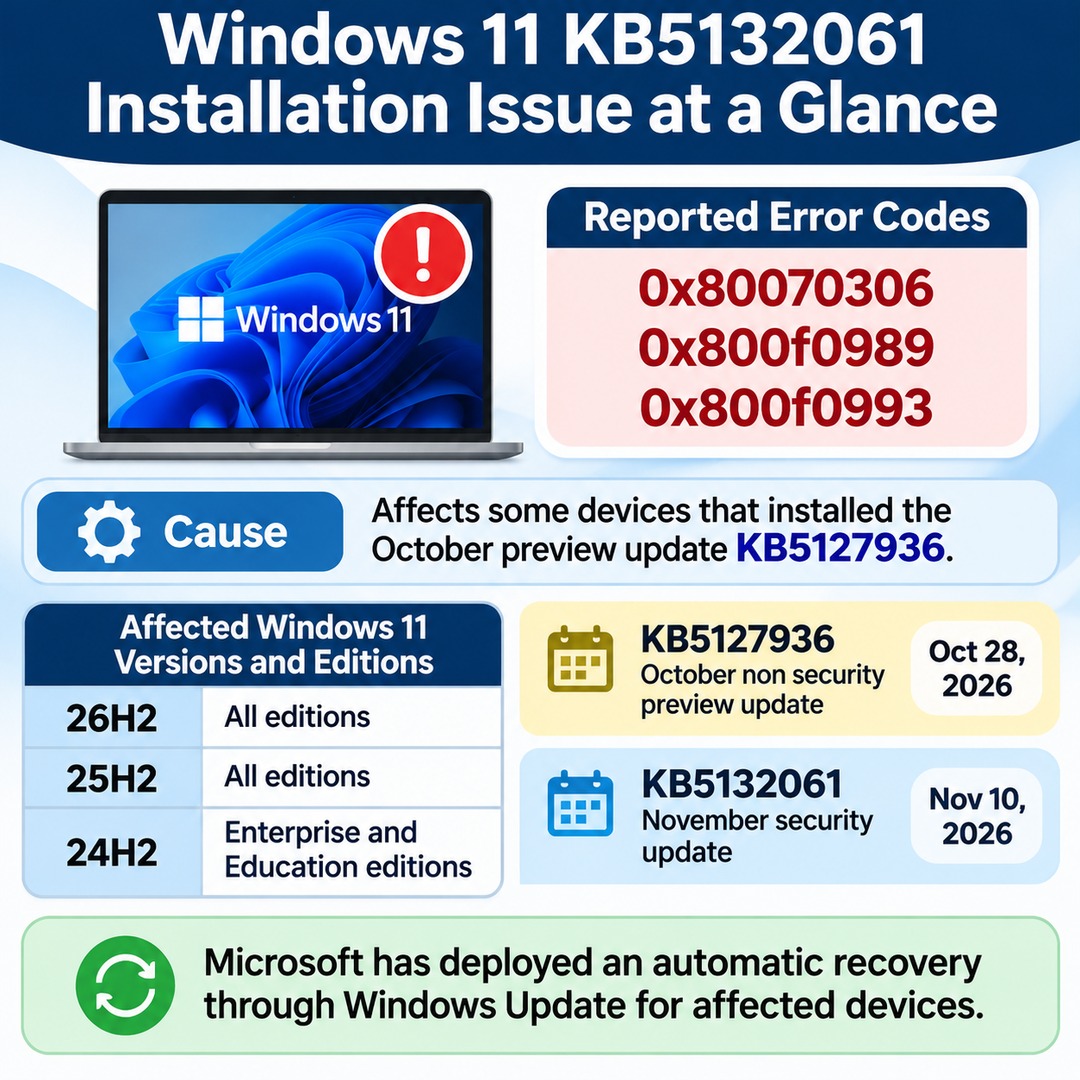

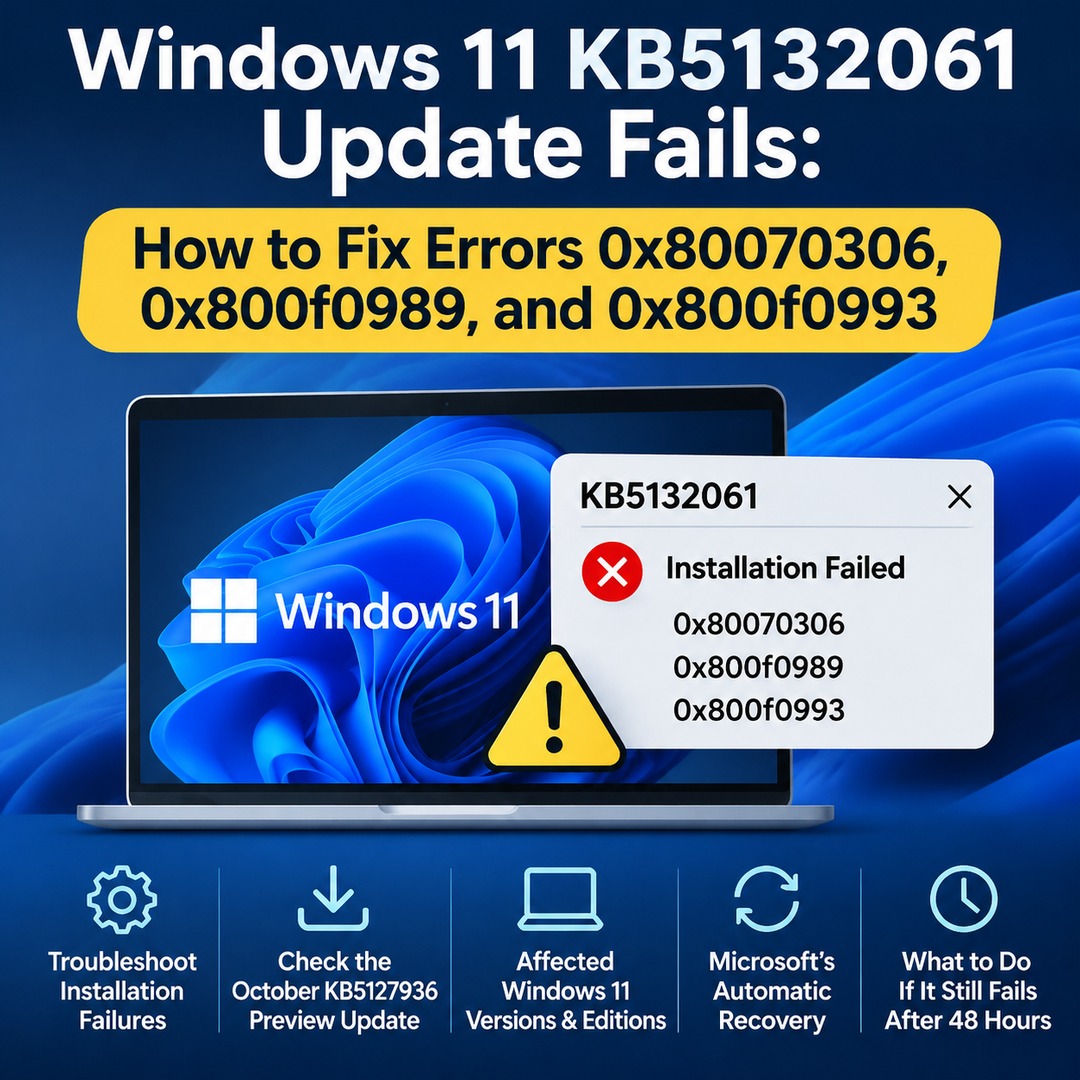
Some PCs are experiencing repeated installation failures with the November 2026 Windows 11 security update, KB5132061. The reported error codes are 0x80070306, 0x800f0989, and 0x800f0993. Some devices that installed the October preview update KB5127936 are affected. Microsoft has deployed an automatic recovery process through Windows Update for affected devices with an internet connection. However, if the problem continues after 48 hours, users should seek additional support.
Does the KB5132061 Installation Failure Affect All Windows 11 PCs?
No. This is not a general Windows Update error affecting every Windows 11 device. It is a known issue identified on certain devices with a specific update history.
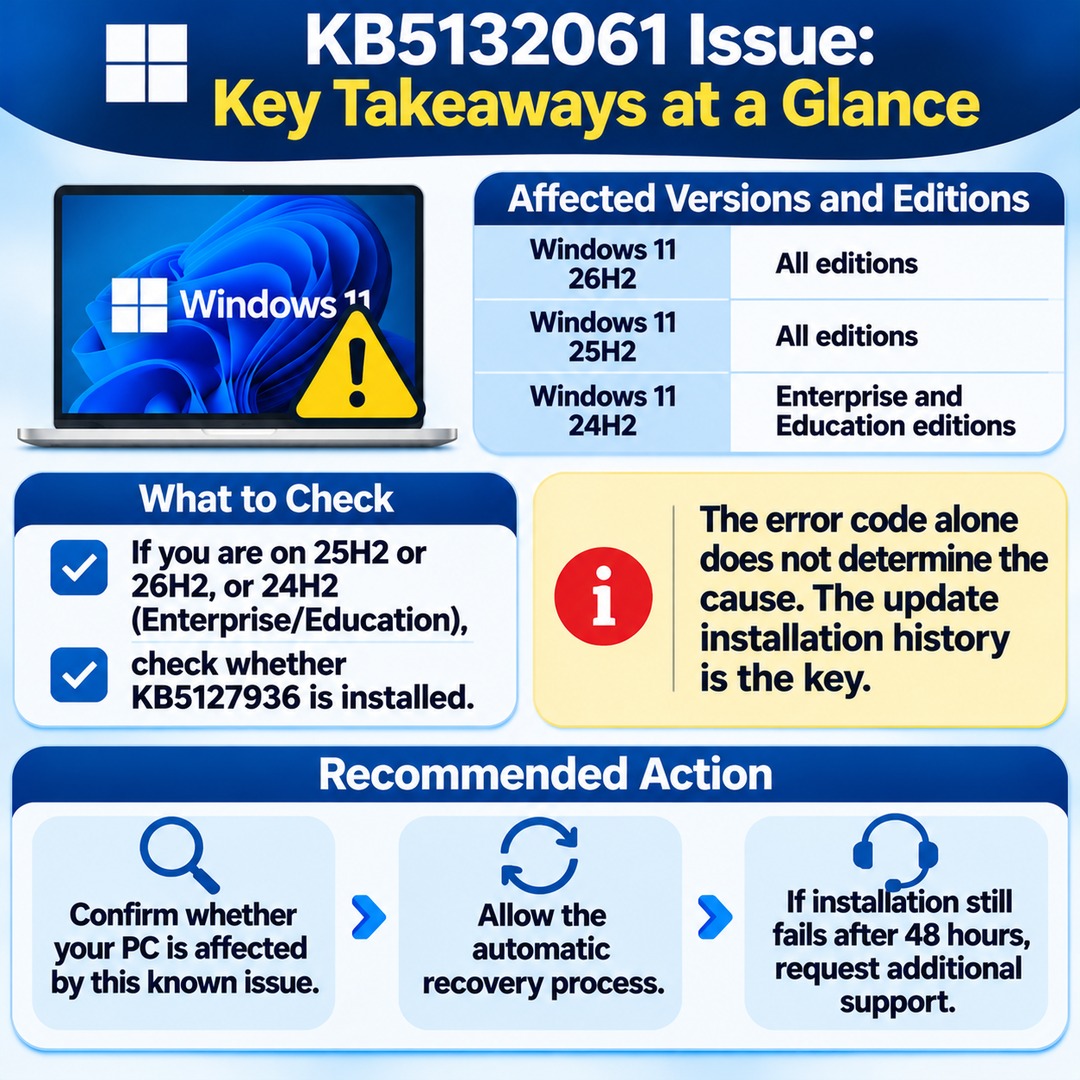
The affected versions and editions are as follows:
Windows 11 26H2: All editions
Windows 11 25H2: All editions
Windows 11 24H2: Enterprise and Education editions
The update that requires particular attention is KB5127936, released on October 28, 2026.
KB5127936 is an October non-security preview update, while KB5132061 is the November security update released on November 10. These are separate update packages, so make sure you do not confuse their installation histories.
Microsoft identified an issue in which some devices that installed KB5127936 cannot complete the installation of the November security update.
Therefore, simply using Windows 11 does not mean your PC is affected by this particular issue.
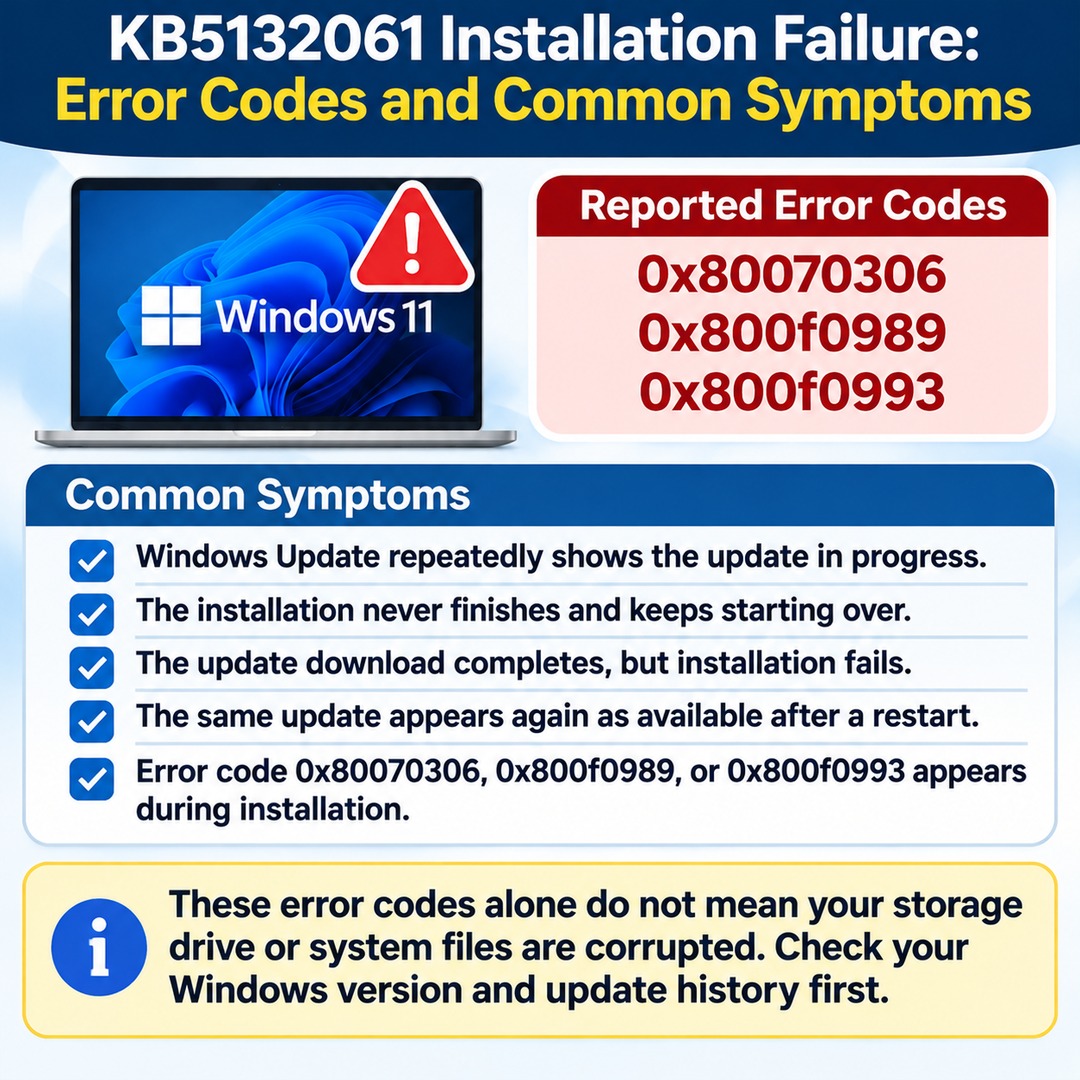
What Do Errors 0x80070306, 0x800f0989, and 0x800f0993 Look Like?
These three error codes were publicly identified by Microsoft in connection with the November update installation failure.
Common symptoms include:
Windows Update repeatedly displays the update as being in progress.
The installation never finishes and repeatedly starts over.
The update download completes, but installation fails.
The same update appears again as an available installation after restarting the PC.
Error code 0x80070306, 0x800f0989, or 0x800f0993 appears during installation.
An important point is that these error codes alone do not prove that your PC's storage drive or system files are corrupted.
Microsoft has identified this issue as a known problem associated with a specific combination of updates. Rather than immediately applying general Windows Update troubleshooting methods, it is more accurate to check your Windows version and update history first.
How to Check Whether Your PC Is Affected
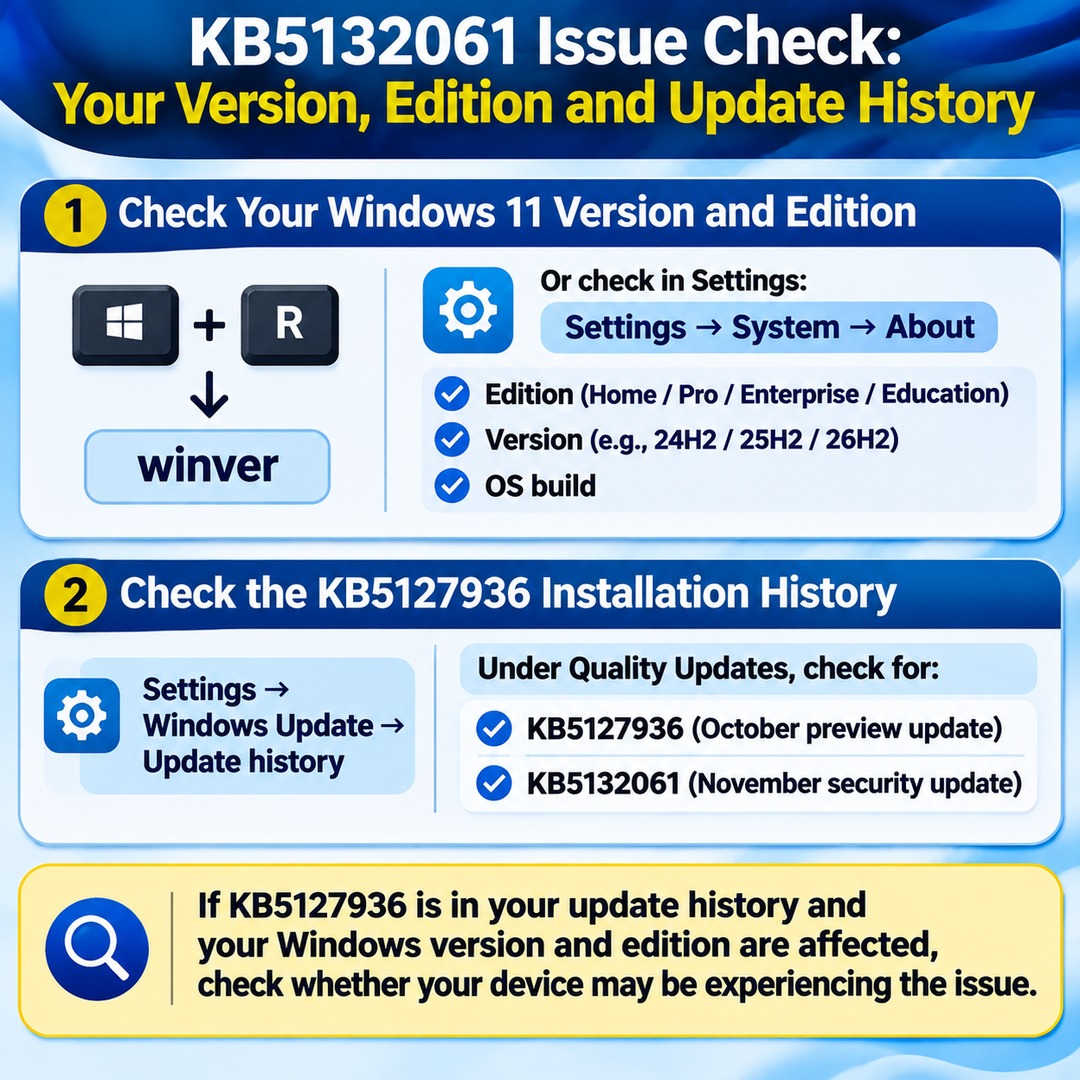
First, check your Windows 11 version and edition. Then determine whether KB5127936 is listed in your update history.
1. Check Your Windows 11 Version and Edition
Press `Windows key + R` on your keyboard and enter the following command:
```text
winver
```
The window that opens displays your Windows version and OS build.
You can also check your edition in Settings:
Settings → System → About → Windows specifications
Check the following details:
Edition
Version
OS build
If you are running version 24H2, you also need to determine whether your edition is Home, Pro, Enterprise, or Education. The issue specifically affects the Enterprise and Education editions of 24H2.
2. Check the KB5127936 Installation History
Navigate to:
Settings → Windows Update → Update history
Under Quality Updates, check whether KB5127936 appears in the installation history.
Also check the installation status of the November security update, KB5132061.
It is important to distinguish between the two update numbers:
| Update | Type | Release date |
|---|---|---|
| KB5127936 | October non-security preview update | October 28, 2026 |
| KB5132061 | November security update | November 10, 2026 |
If KB5127936 appears in your installation history and your PC uses one of the affected Windows versions and editions, check whether your device may be experiencing the reported issue.
How Did Microsoft's Automatic Recovery Process Work?
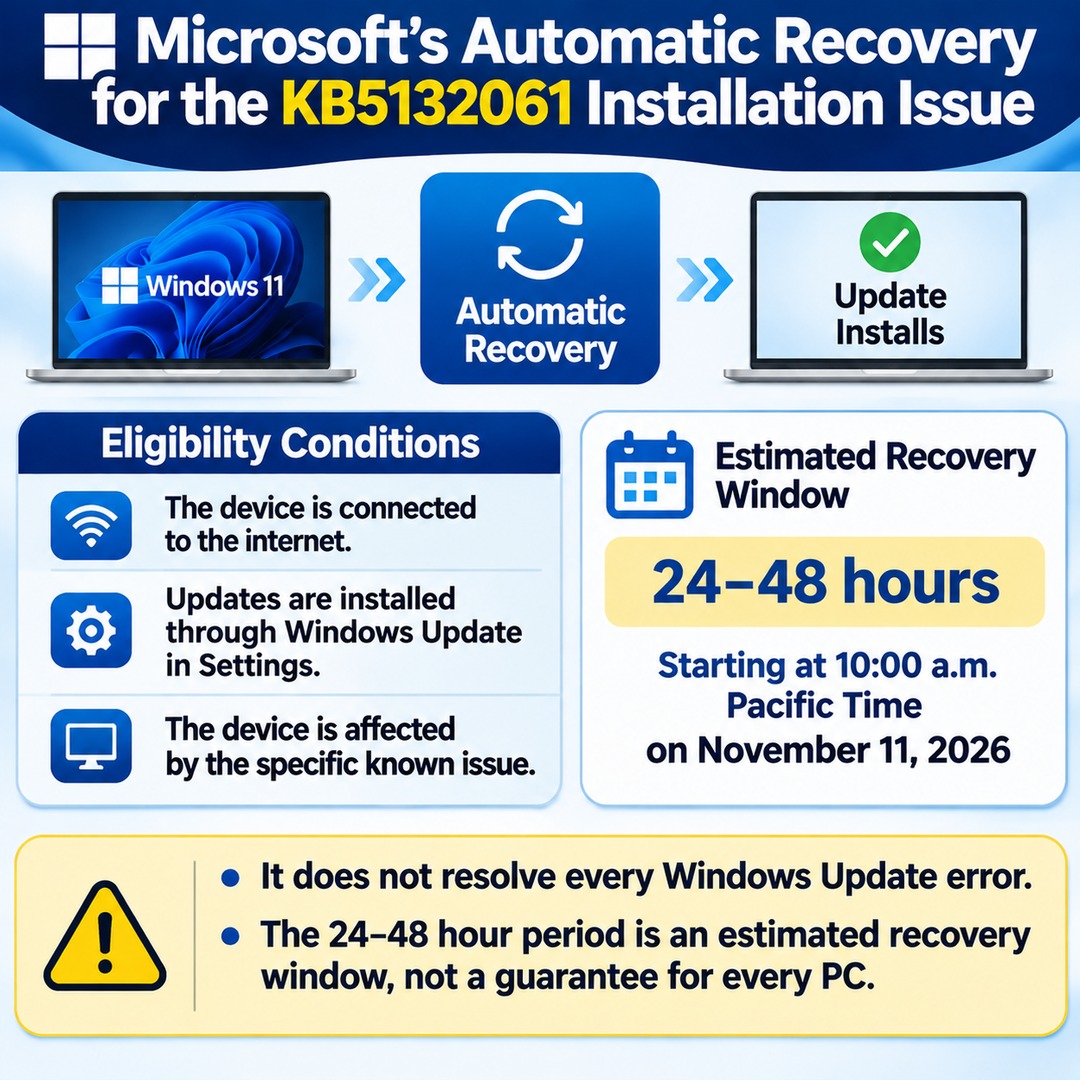
Microsoft deployed an automatic recovery process for devices affected by this installation failure.
The recovery process applies under the following conditions:
The device is connected to the internet.
Updates are installed through Windows Update in Settings.
The device is affected by the specific known issue.
Microsoft estimated that the recovery process would take place within 24–48 hours, starting at 10:00 a.m. Pacific Time on November 11, 2026.
Once recovery is applied, Windows Update should download and install the November security update without requiring users to perform separate repair procedures.
There are several important distinctions to understand.
Automatic recovery does not resolve every Windows Update error. It addresses this particular known installation issue and has specific eligibility conditions, including internet connectivity and the update installation method.
Also, the 24–48-hour period is Microsoft's estimated recovery window, not a guarantee that the process will finish within that time on every PC.
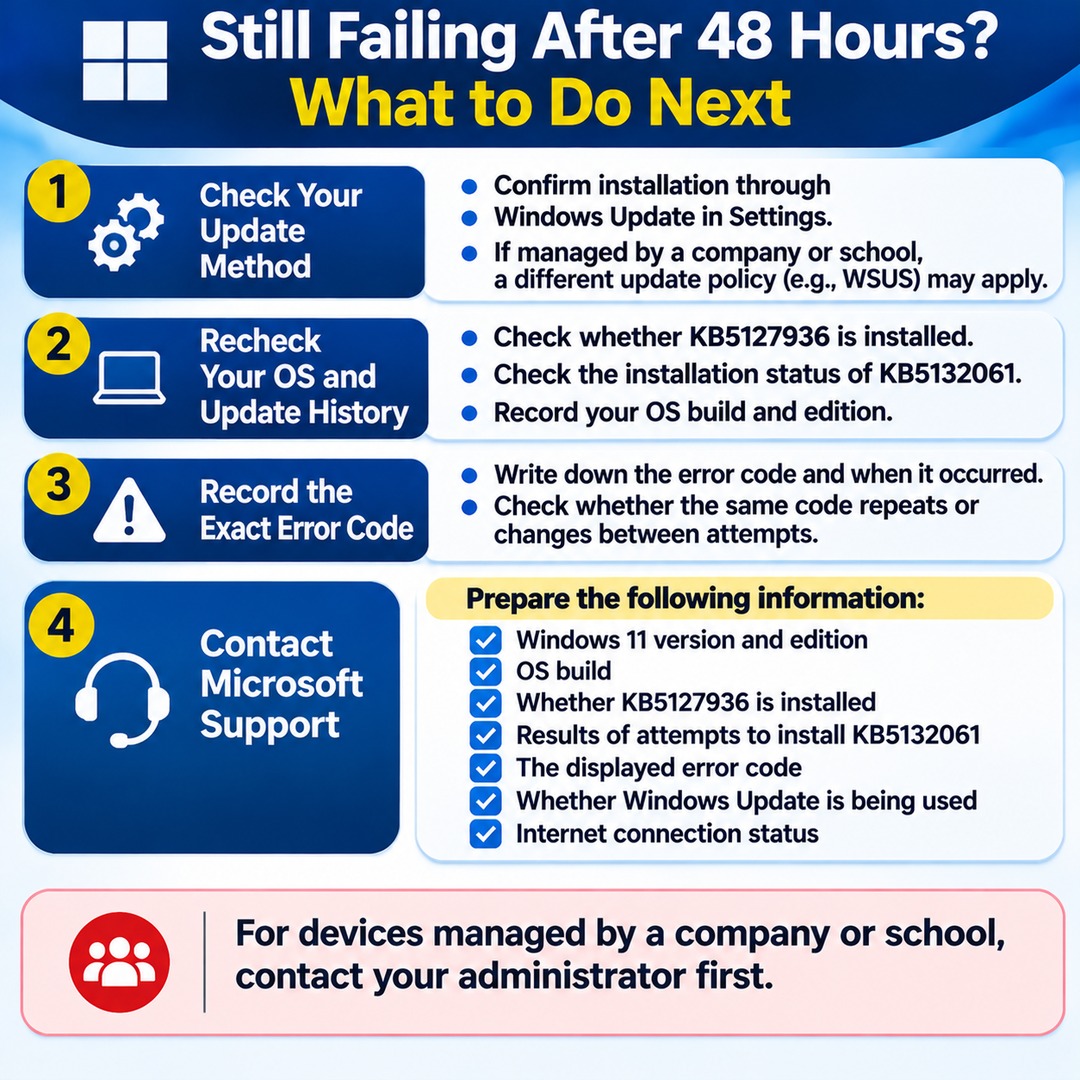
What Should You Do If the Update Still Fails After 48 Hours?
The initial recovery deployment began more than 48 hours ago, so if the same installation error continues to occur, it is better to investigate the issue rather than simply keep waiting.
Follow these steps:
First, check your Windows Update installation method.
Confirm whether you are installing updates through Windows Update in Settings.
If your PC is managed by a company or school, a separate update deployment policy, such as Windows Server Update Services (WSUS), may apply. Do not assume that a managed device follows the same update process as a personal home PC.
Second, recheck your operating system version and update history.
Record whether KB5127936 is installed, the installation status of KB5132061, and your OS build and edition.
Third, record the exact error code.
Write down the error code displayed on the installation failure screen and when the failure occurred. Check whether the same code appears repeatedly or whether it changes between attempts.
Fourth, contact Microsoft Support.
Microsoft advises users whose installation problems continue after 48 hours to use Windows Help and Learning or contact Microsoft Support.
Providing the following information will make it easier to explain the problem:
Windows 11 version and edition
OS build
Whether KB5127936 is installed
Results of attempts to install KB5132061
The displayed error code
Whether Windows Update is being used
Internet connection status
For devices managed by a company or school, contact the administrator first rather than independently changing update configurations or management policies.
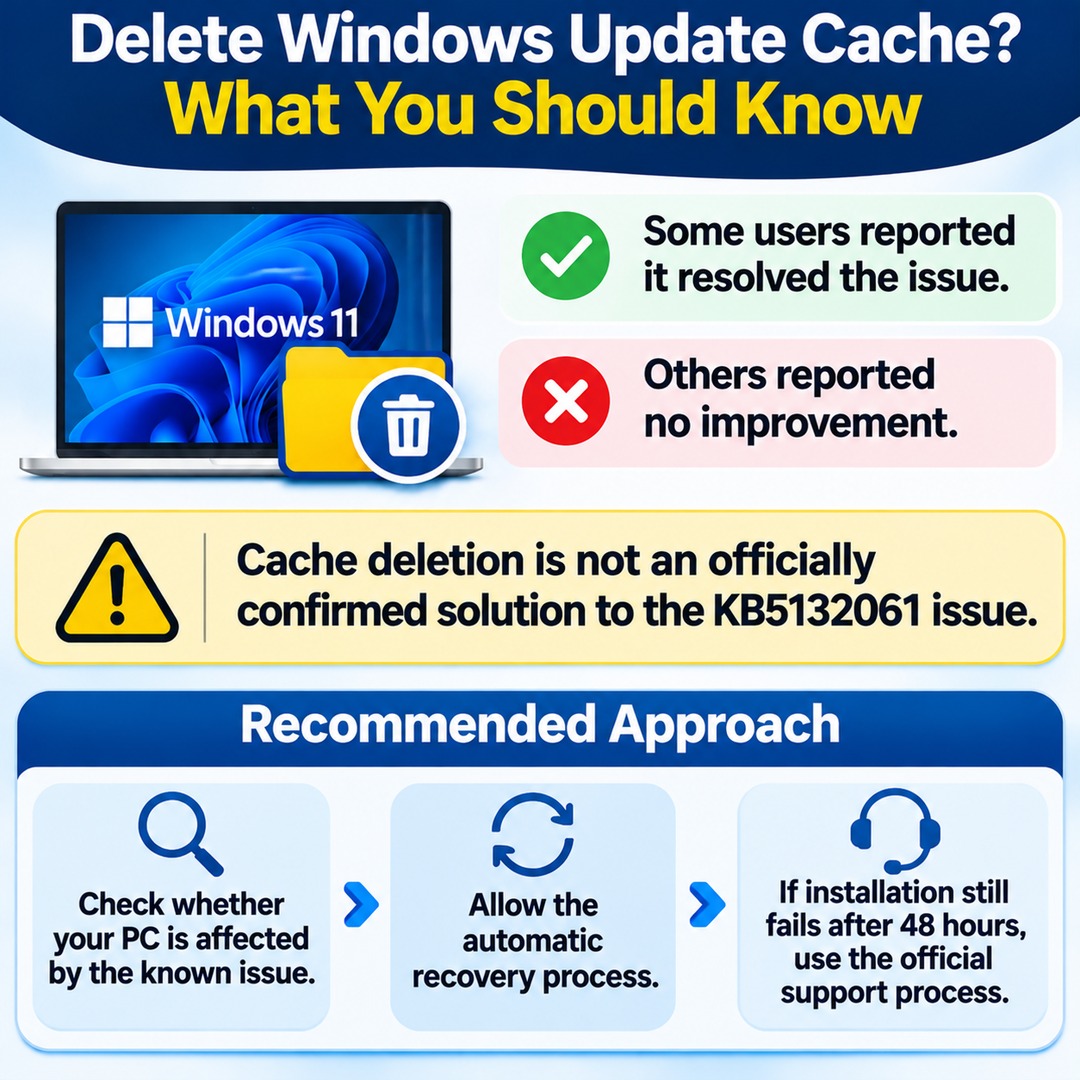
Should You Delete the SoftwareDistribution Folder When an Update Fails?
Deleting the Windows Update cache is a troubleshooting method frequently discussed online.
Some users on Microsoft Q&A have reported resolving problems after cleaning up the downloaded files in the SoftwareDistribution folder. Others have reported that trying the same method did not resolve their issues.
Therefore, cache deletion cannot be considered an officially confirmed solution to the KB5132061 problem.
In particular, when Microsoft has already announced an automatic recovery process for a specific known issue, there is no need to automatically delete the update cache or modify the registry.
First determine whether your PC is affected by the known issue. If installation still fails after 48 hours, use the official support process.
Distinguish the KB5132061 Installation Failure from General Windows Update Errors
The most important distinction in this issue is not the error code itself, but the update installation history.
Users running Windows 11 25H2 or 26H2, as well as users running Windows 11 24H2 Enterprise or Education, should check whether KB5127936 is installed.
However, if the same error code appears on a different Windows version or edition, that does not necessarily mean the cause is the same as the issue described here.
Furthermore, even if your device qualifies for Microsoft's automatic recovery process, you should request additional support if installation continues to fail after 48 hours.
Before repeatedly attempting the update or running several repair commands at once, first confirm whether your PC is actually affected by this specific known issue.