
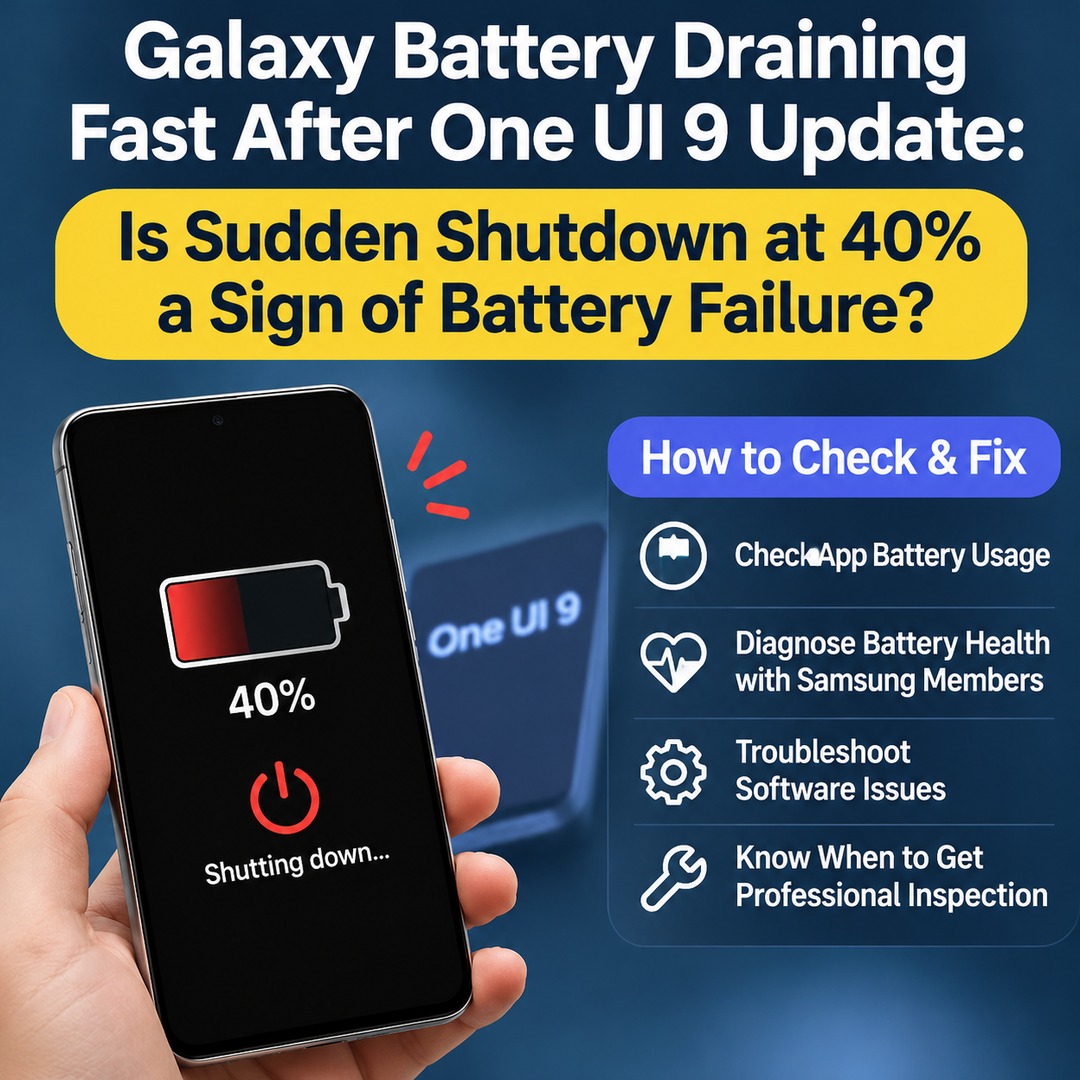
If your Galaxy phone loses battery power unusually quickly after the One UI 9 update, or shuts down while showing 15–40% battery remaining, it is important to distinguish a software-related issue from battery deterioration. Check battery usage to identify apps consuming excessive power. If the phone repeatedly shuts down despite having charge remaining, use Samsung Members battery diagnostics and consider an inspection at a Samsung service center. An update alone is not enough to conclude that the battery is defective.
Why Is Your Galaxy Battery Draining So Quickly After the One UI 9 Update?
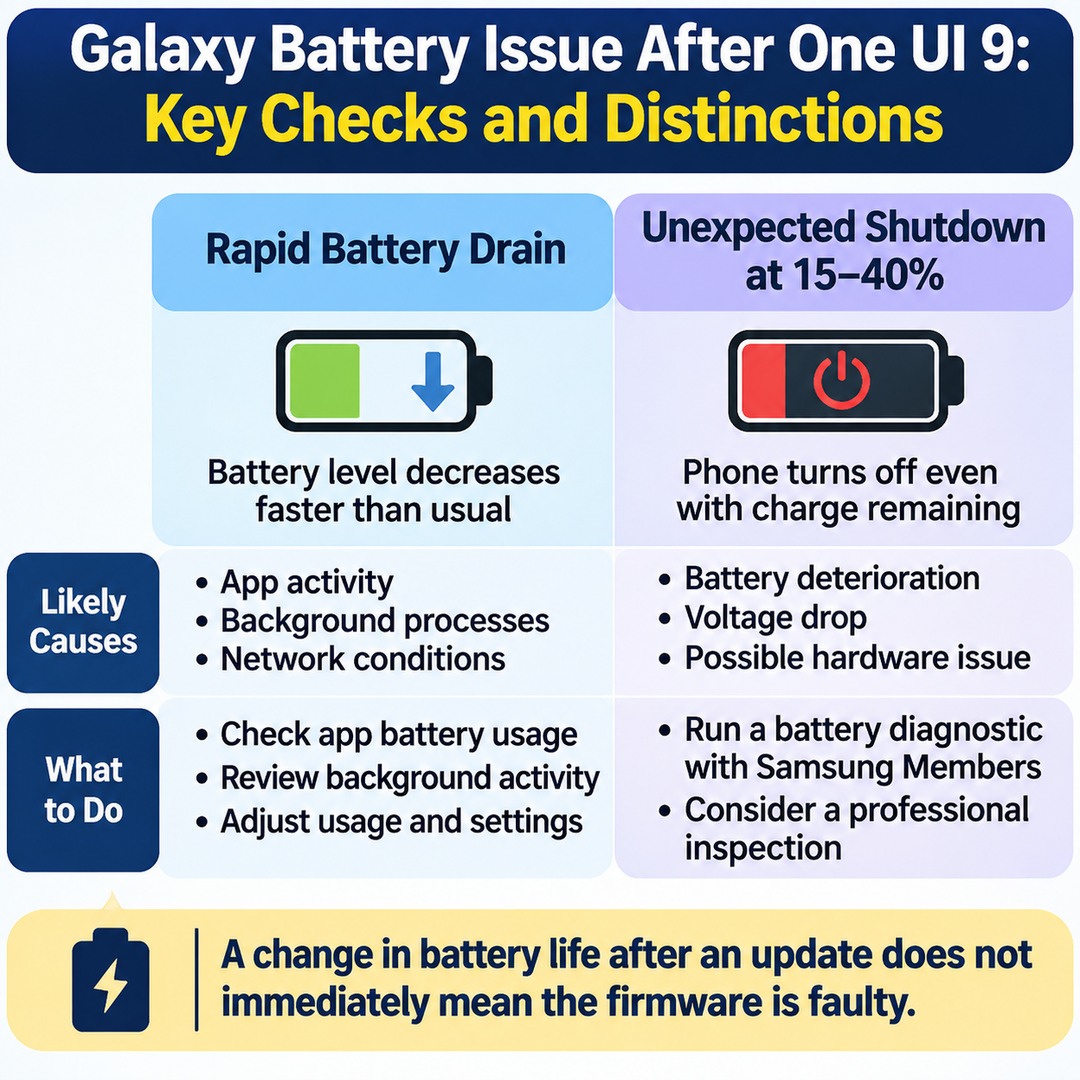
Even if battery life changes after an update, you should not immediately assume that the firmware is faulty. Several factors can contribute to rapid battery drain, including app activity, background processes, network conditions, and deterioration of the battery itself.
In November 2026, a Galaxy S24 Ultra user reported on Samsung Members that after updating to One UI 9.0, the battery drained rapidly while using Netflix and games. The user also reported that the phone shut down with 15–40% battery remaining.
On November 25, a Galaxy S25 Ultra user also shared an experience of reduced battery life following the update. The post mentioned that excessive battery drain continued even after a factory reset.
However, individual user reports do not establish that One UI 9 has a widespread defect affecting all Galaxy devices. Samsung's official battery guidance also identifies several possible causes of rapid battery drain, including usage conditions, running apps, and battery health.
The important distinction is between a battery that drains quickly and a phone that shuts down unexpectedly while the battery indicator still shows charge remaining.
How Can You Distinguish an Update-Related Issue from Battery Deterioration?
These problems can produce overlapping symptoms, but they require different checks.
| Category | Possible software or app-related issue | Possible battery deterioration |
|---|---|---|
| When it occurs | Sudden change after an update | Gradual worsening over an extended period of use |
| Battery consumption | Increases when using specific apps or features | Overall battery life decreases |
| When the phone is idle | Drain may depend on background apps | Battery life may also become shorter during standby |
| Battery percentage | Rapid percentage decline is the main symptom | Phone may shut down even with charge remaining |
| High-performance tasks | Consumption varies depending on the app | Voltage may drop during gaming or camera use |
| Diagnostic results | Battery diagnostics may show normal | May show Weak or Bad |
One important point deserves attention: a Normal battery diagnostic result does not prove that a software error is responsible. Likewise, the fact that a problem started after an update does not rule out battery deterioration.
Why Does a Phone Suddenly Shut Down at 40%?
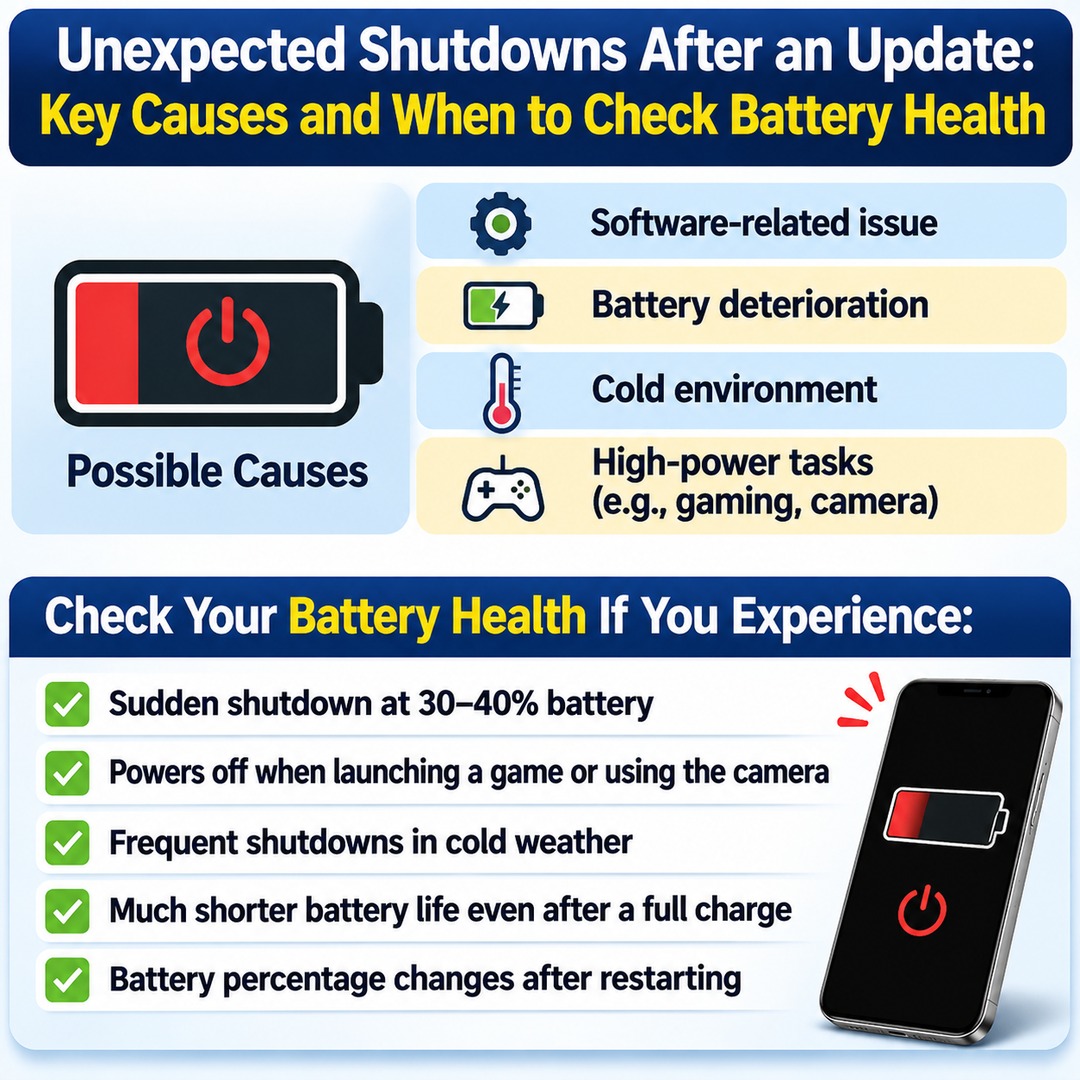
As a battery ages, its internal resistance can increase, making it harder to supply the power required during sudden increases in demand.
When a smartphone performs tasks that require substantial power, such as gaming or using the camera, battery voltage can drop. If the voltage falls below the level required for operation, the device may shut down even though the battery indicator still shows remaining charge.
A similar issue can occur in cold environments because low temperatures can temporarily increase a battery's internal resistance.
You should consider checking battery health if you experience any of the following:
The phone suddenly shuts down with 30–40% battery remaining.
The phone powers off when you launch a game or use the camera.
Unexpected shutdowns occur frequently when using the phone outdoors in cold weather.
Battery life has become significantly shorter even after a full charge.
The displayed battery percentage changes after restarting the phone.
In particular, repeated shutdowns while the battery still has charge remaining should not be dismissed as ordinary battery consumption.
How to Identify Apps That Consume Too Much Power in Battery Usage Settings
When your battery drains quickly, the first step is to identify which apps are actually consuming the most power.
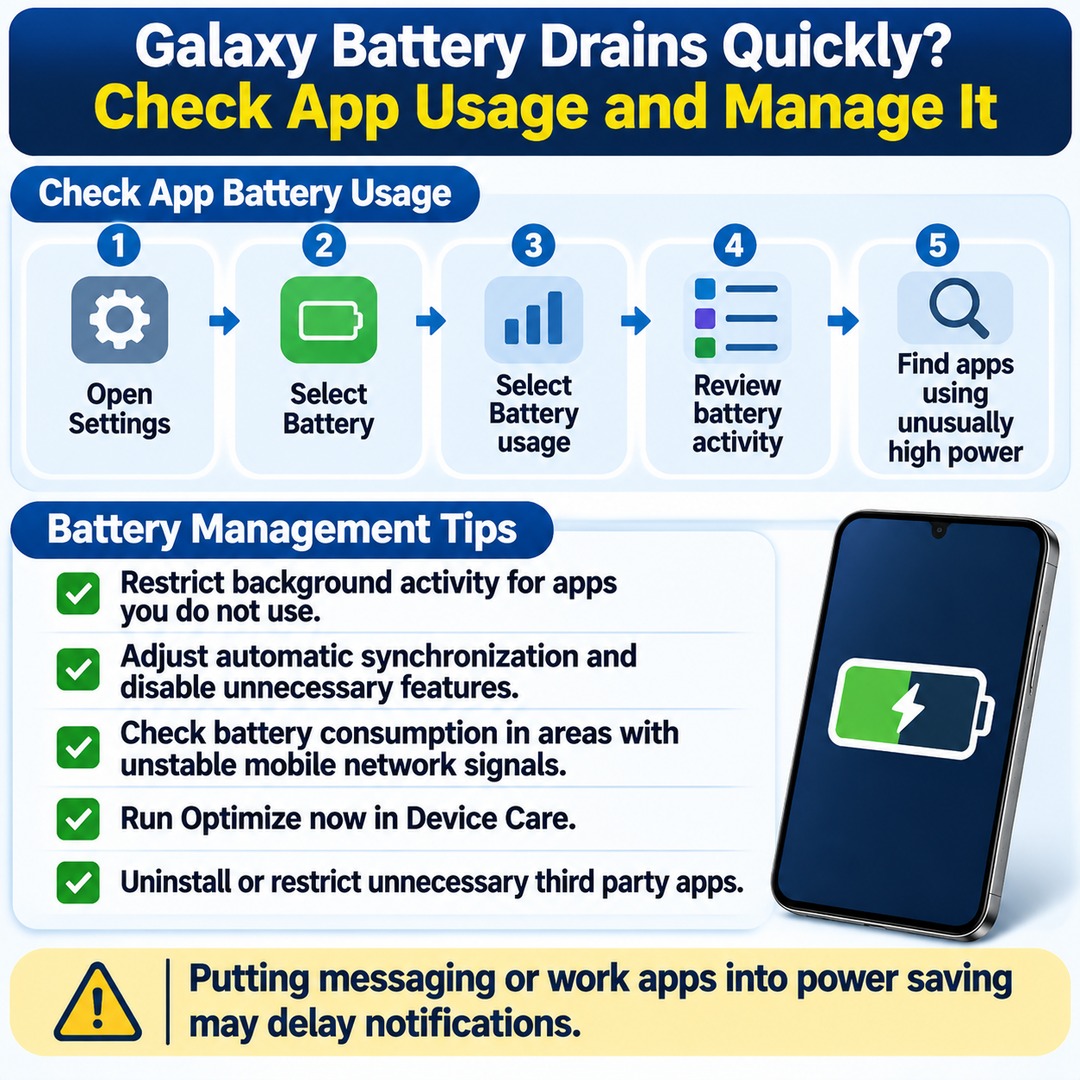
On a Galaxy phone, follow these steps:
1. Open Settings.
2. Select Battery.
3. Select Battery usage or the detailed usage view.
4. Review battery activity for individual apps.
5. Look for apps consuming unusually large amounts of power relative to how frequently you use them.
If a particular app appears near the top of the usage list, investigate that app first.
For example, extended gaming or video streaming sessions can account for significant power consumption from screen activity and app usage. Conversely, if an app shows unusually high battery activity during periods when you are not using it, check whether it is running in the background.
Samsung Electronics Service recommends the following battery management practices:
Restrict background activity for apps you do not use.
Adjust automatic synchronization and disable unnecessary features.
Check battery consumption in areas with unstable mobile network signals.
Run Optimize now in Device Care.
Uninstall or restrict unnecessary third-party apps.
However, putting messaging or work-related apps into power-saving or restricted states may delay notifications. Avoid placing apps that require real-time notifications into the most restrictive power-saving mode without considering the consequences.
How to Diagnose Battery Health Using Samsung Members
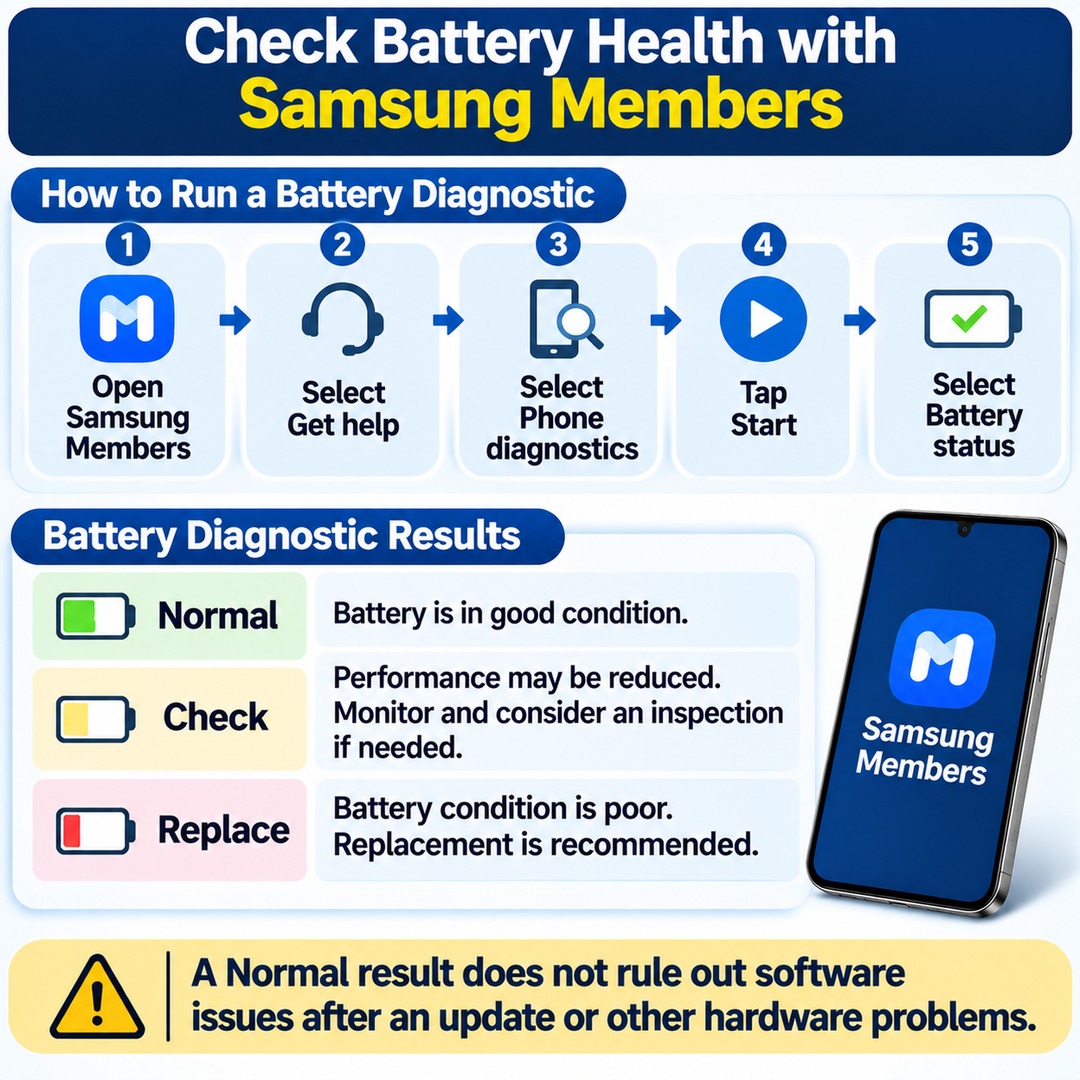
To check the condition of the battery itself, you can use the phone diagnostics feature in Samsung Members.
Follow these steps:
1. Open the Samsung Members app.
2. Select Get help at the bottom of the screen.
3. Select Phone diagnostics or Mobile phone diagnostics.
4. Tap Start.
5. Select Battery status from the diagnostic options.
Samsung Electronics Service generally classifies battery diagnostic results into three categories.
| Diagnostic result | Meaning | Recommended action |
|---|---|---|
| Normal | No battery performance problem detected | Check app activity and software usage patterns |
| Weak | Battery efficiency may have declined depending on usage period or conditions | Monitor battery life and unexpected shutdowns |
| Bad | Battery service life has deteriorated | Request a detailed inspection at a service center |
Menu names and screen layouts may vary depending on the device model and software version.
The important point is not to judge every problem solely by the diagnostic result. Even if the battery is reported as Normal, that does not mean software issues following an update or other hardware problems have been ruled out.
What Should You Try Before Replacing the Battery?
If battery diagnostics show Normal and a particular app has unusually high usage, start by checking the app and system rather than immediately replacing the battery.
Following these steps can help you avoid unnecessary factory resets or premature battery replacement.
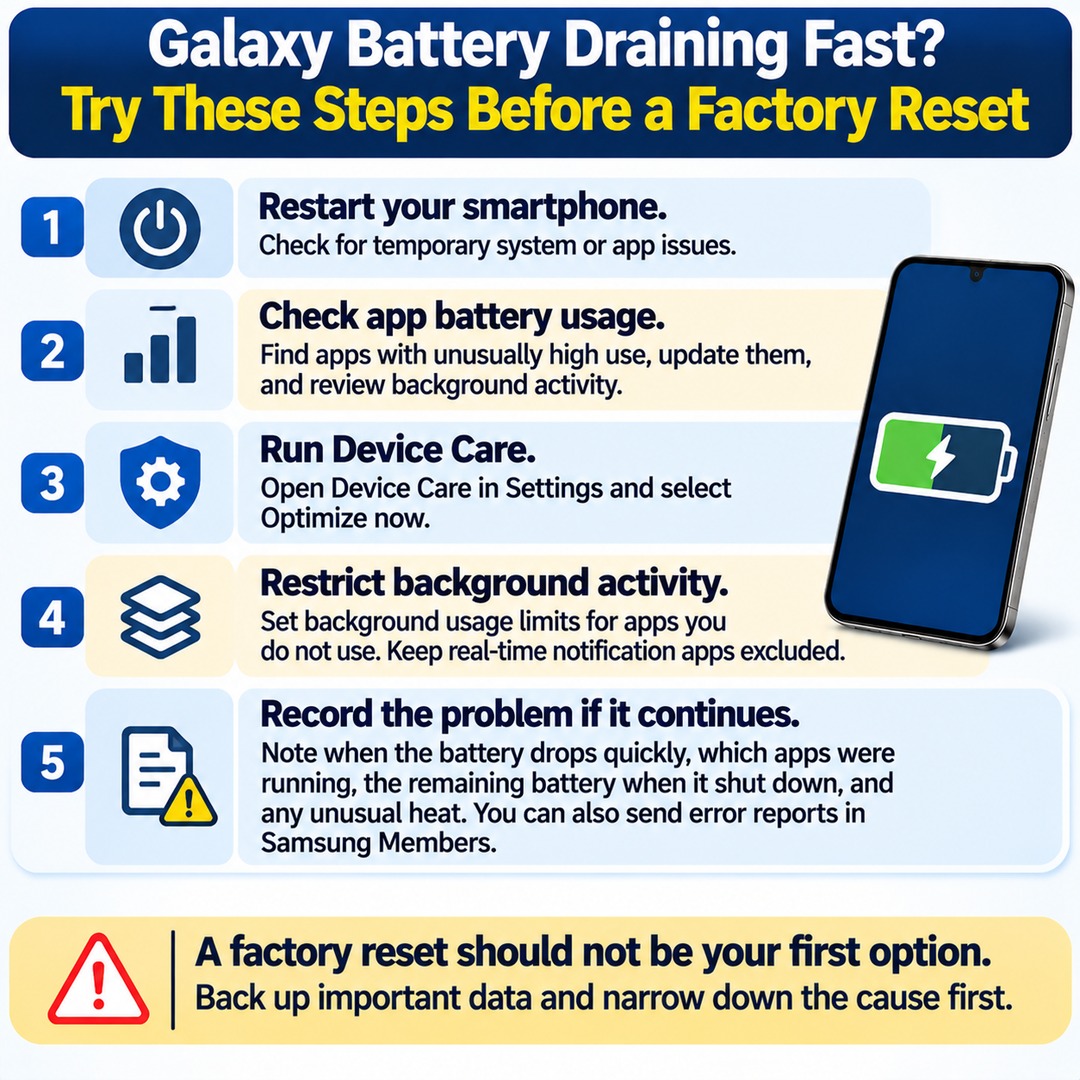
First, restart your smartphone.
This is a basic troubleshooting step for identifying temporary system problems or issues involving running apps.
Second, check which apps are consuming the most battery power.
If a particular app has unusually high battery usage, check whether it needs an update and review its background activity.
Third, run Device Care.
Open Device Care in Settings and select Optimize now. This may help manage apps that are running unnecessarily.
Fourth, restrict background activity for apps you do not use.
Open the background usage limits menu under Battery in Settings. However, exclude apps that need to deliver important notifications in real time.
Fifth, record the problem if the symptoms continue.
Record when the battery percentage drops rapidly, which apps were running, the remaining battery percentage when the phone shut down, and whether the device became unusually hot. You can also use the Send error reports feature in Samsung Members to provide information that may help identify a software-related issue.
A factory reset should not be your first troubleshooting option. Because resetting the phone can affect stored data and settings, it is better to back up important information and narrow down the cause before proceeding.
When Should You Visit a Samsung Service Center?
If battery diagnostics show Bad, or your phone repeatedly shuts down despite having charge remaining, it is advisable to have the device inspected at a service center.
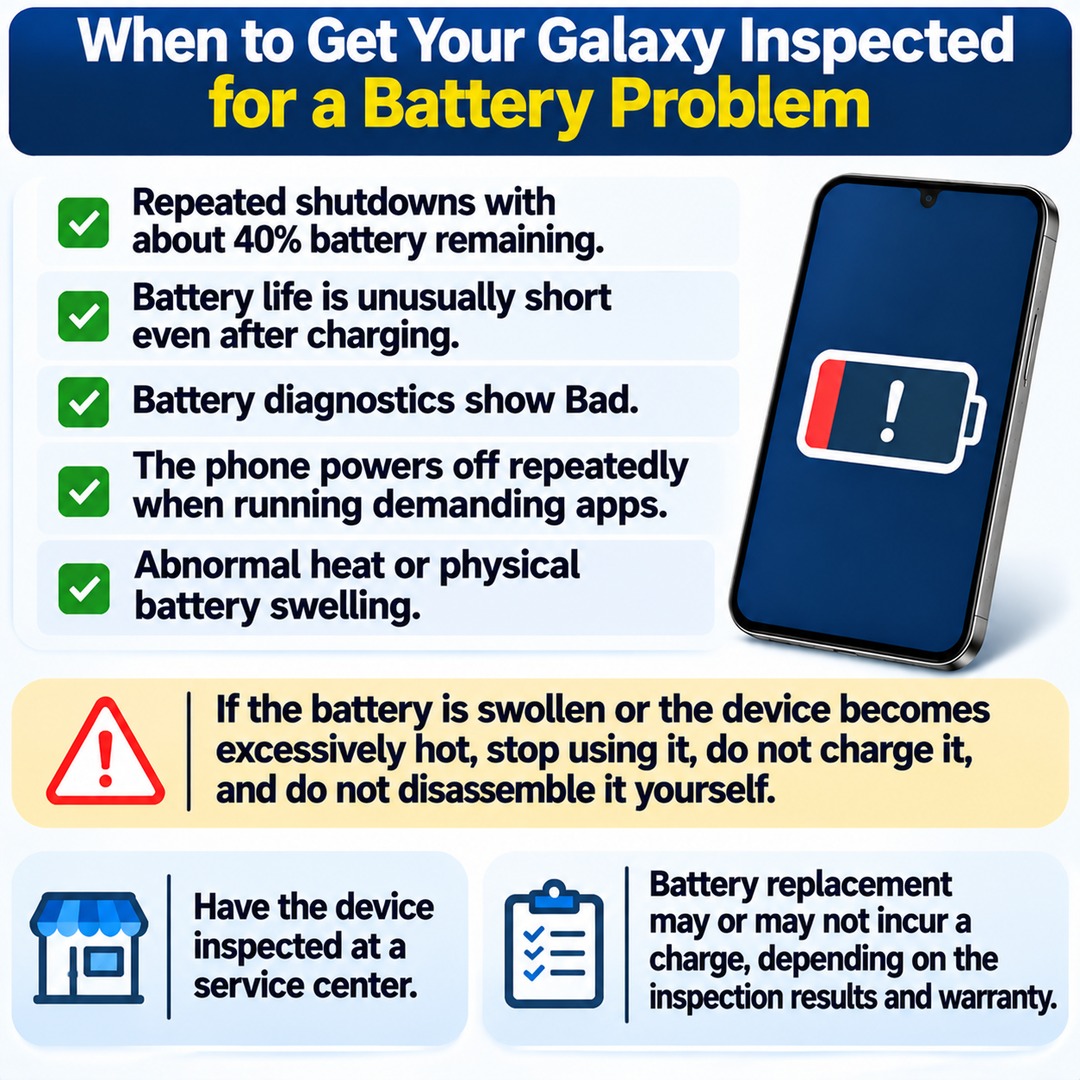
In particular, do not delay an inspection if you experience any of the following:
The phone repeatedly shuts down with approximately 40% battery remaining.
Battery life is unusually short even immediately after charging.
Battery diagnostics show Bad.
The phone repeatedly powers off when running demanding apps.
You notice abnormal heat or physical battery swelling.
If the battery is swollen or the device becomes excessively hot, stop using it and seek professional inspection. Do not continue charging the device or attempt to disassemble it yourself.
Samsung explains that a battery's remaining service life decreases depending on its age and usage conditions. The company recommends having the battery inspected at a service center if you experience sudden shutdowns or a significant reduction in operating time.
Whether battery replacement involves a charge depends on the inspection results and the product's warranty conditions. Suspecting a battery problem does not automatically mean that you must pay for a replacement.
Galaxy Battery Draining Fast After One UI 9: What Should You Check First?
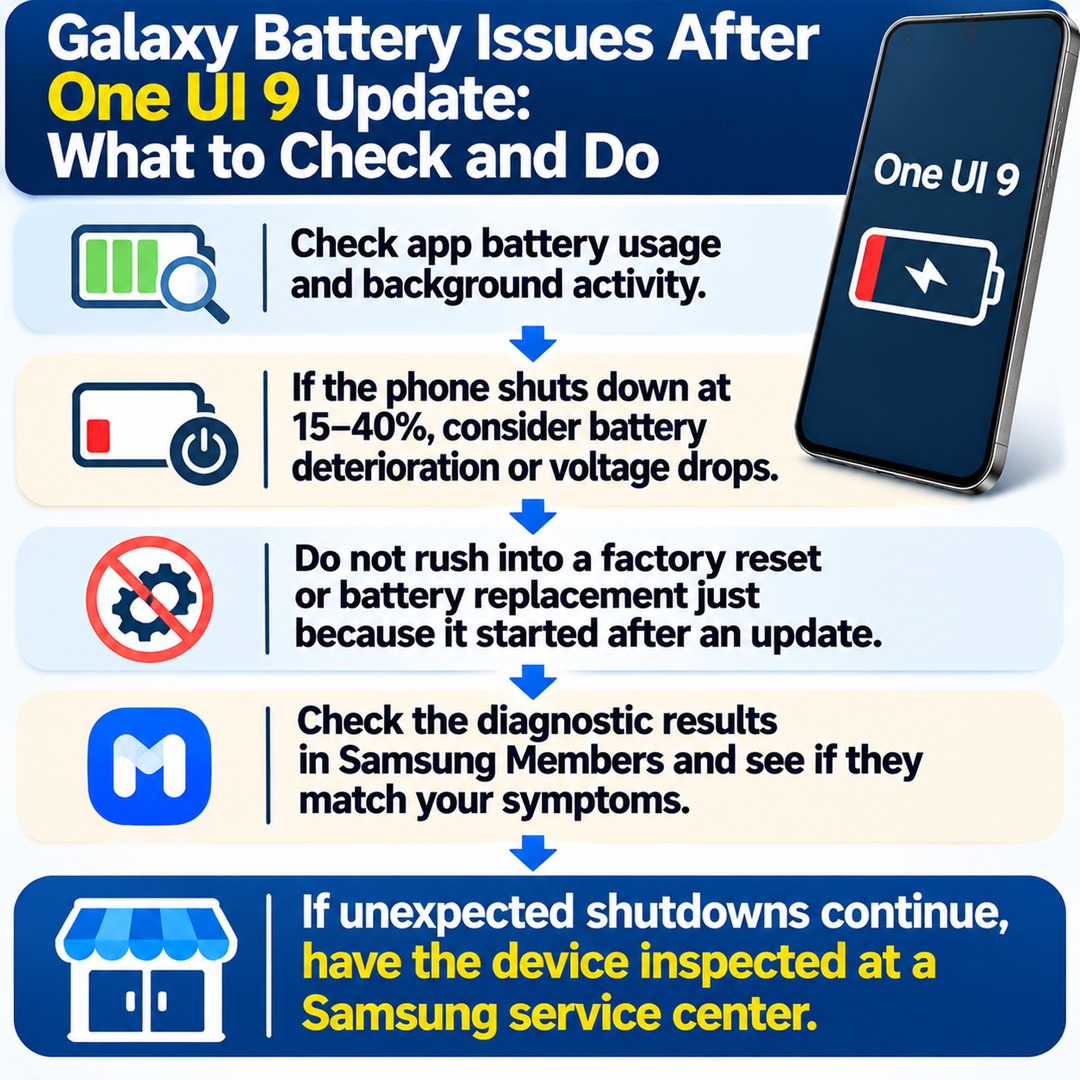
If your Galaxy battery drains quickly after the One UI 9 update, start by checking app-specific battery usage and background activity. However, if the phone repeatedly shuts down with 15–40% battery remaining, you should also consider battery deterioration or voltage drops.
Most importantly, do not rush into a factory reset or battery replacement simply because the problem appeared after an update.
Check whether the Samsung Members diagnostic results match the symptoms you actually experience. If unexpected shutdowns continue, having the device inspected at a Samsung service center is the most reliable next step.