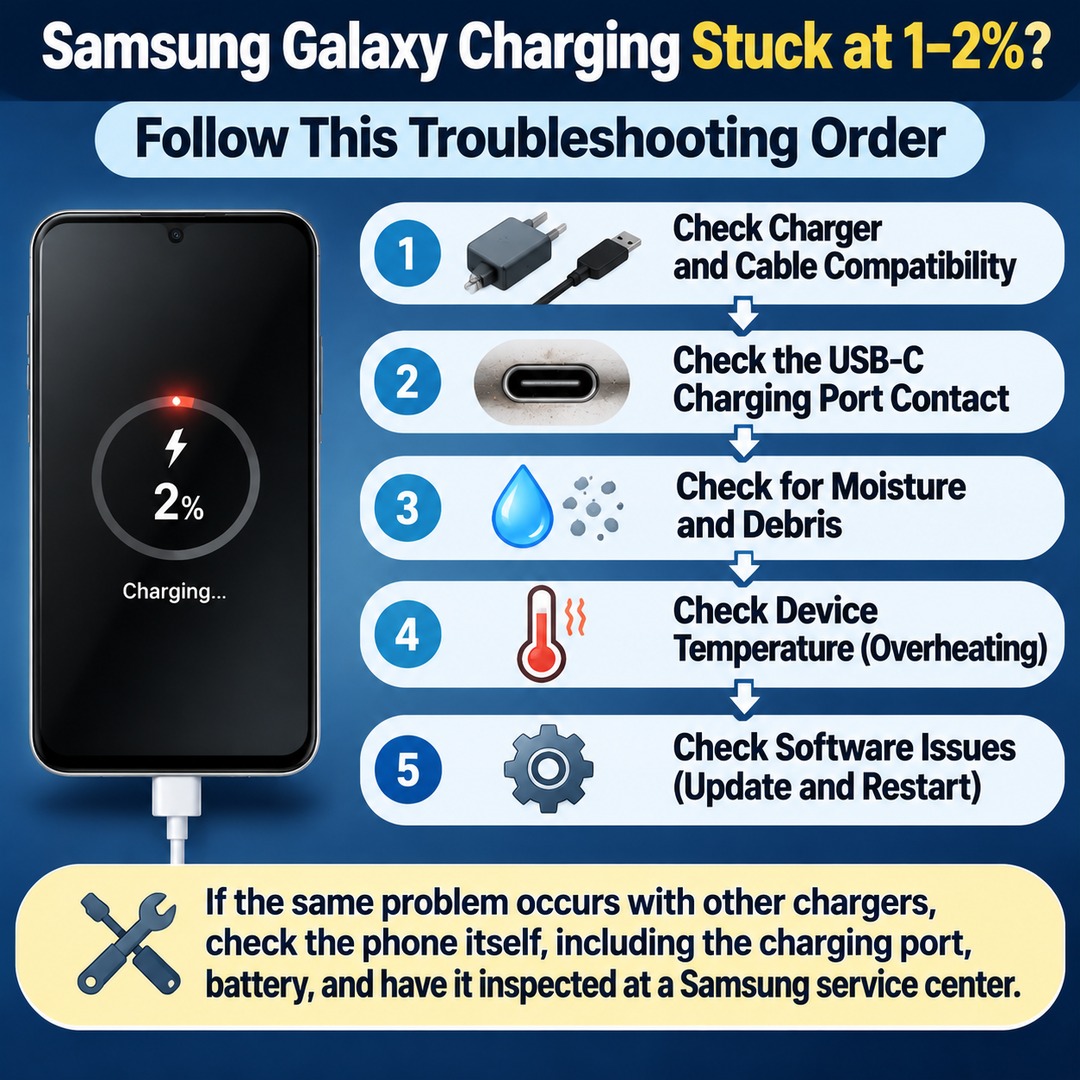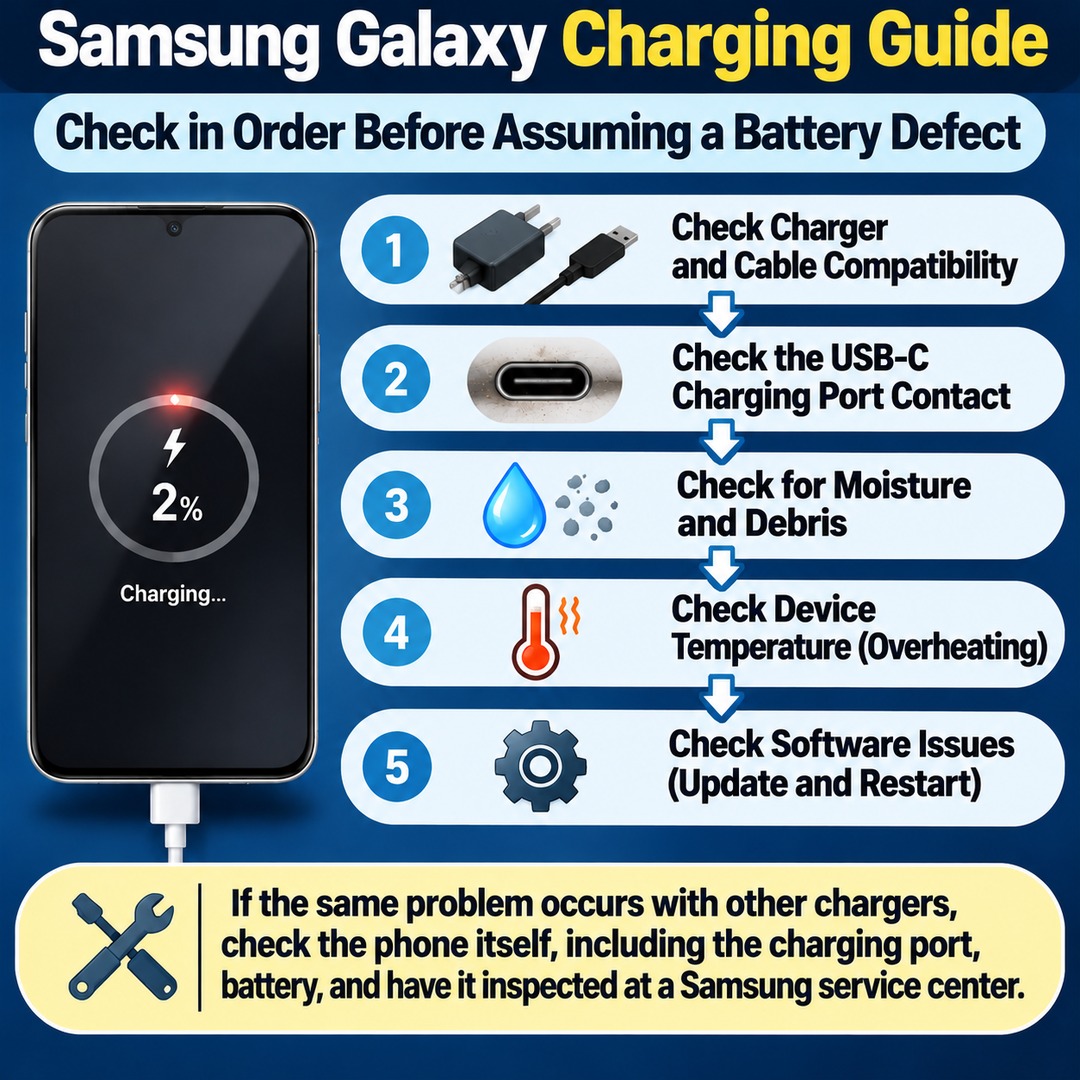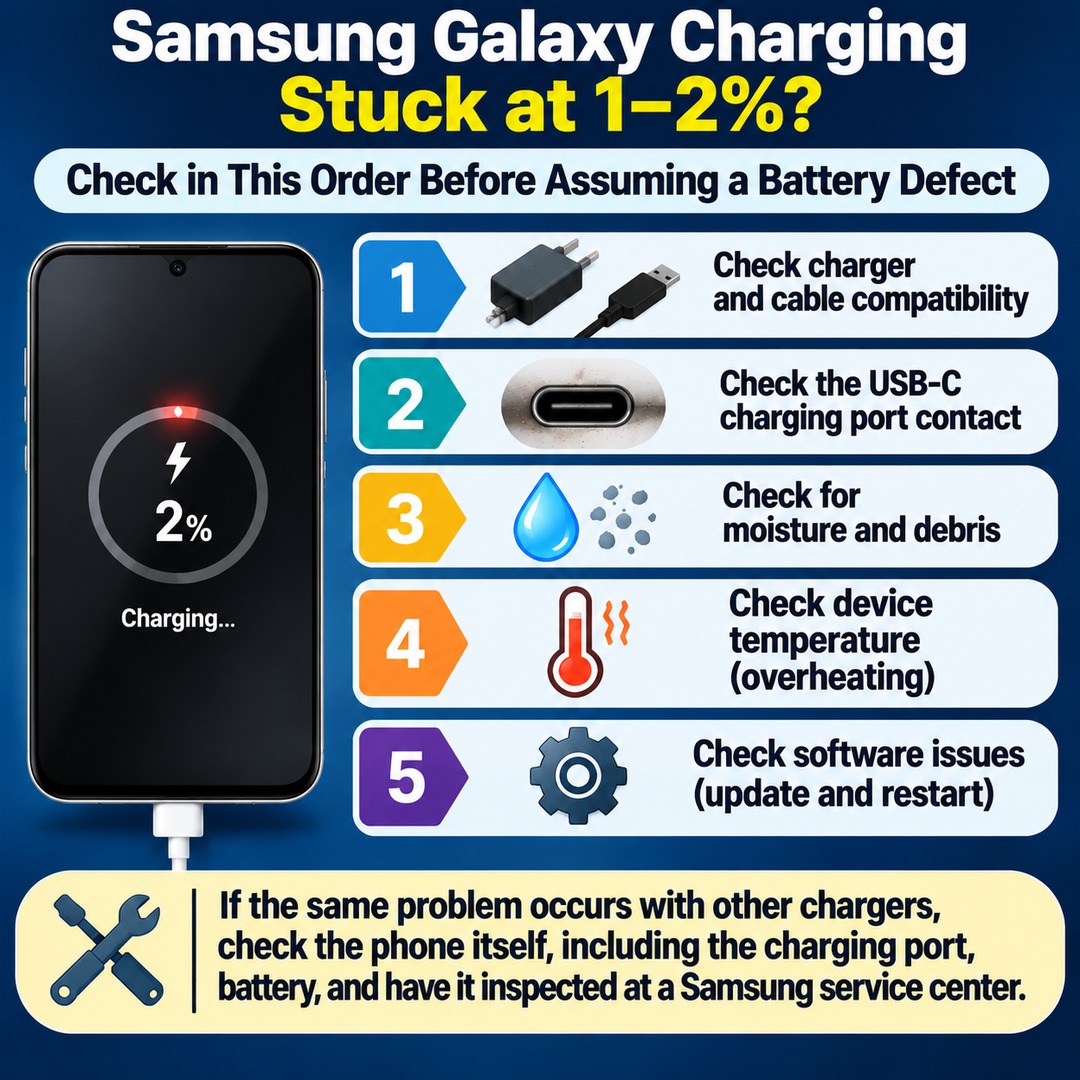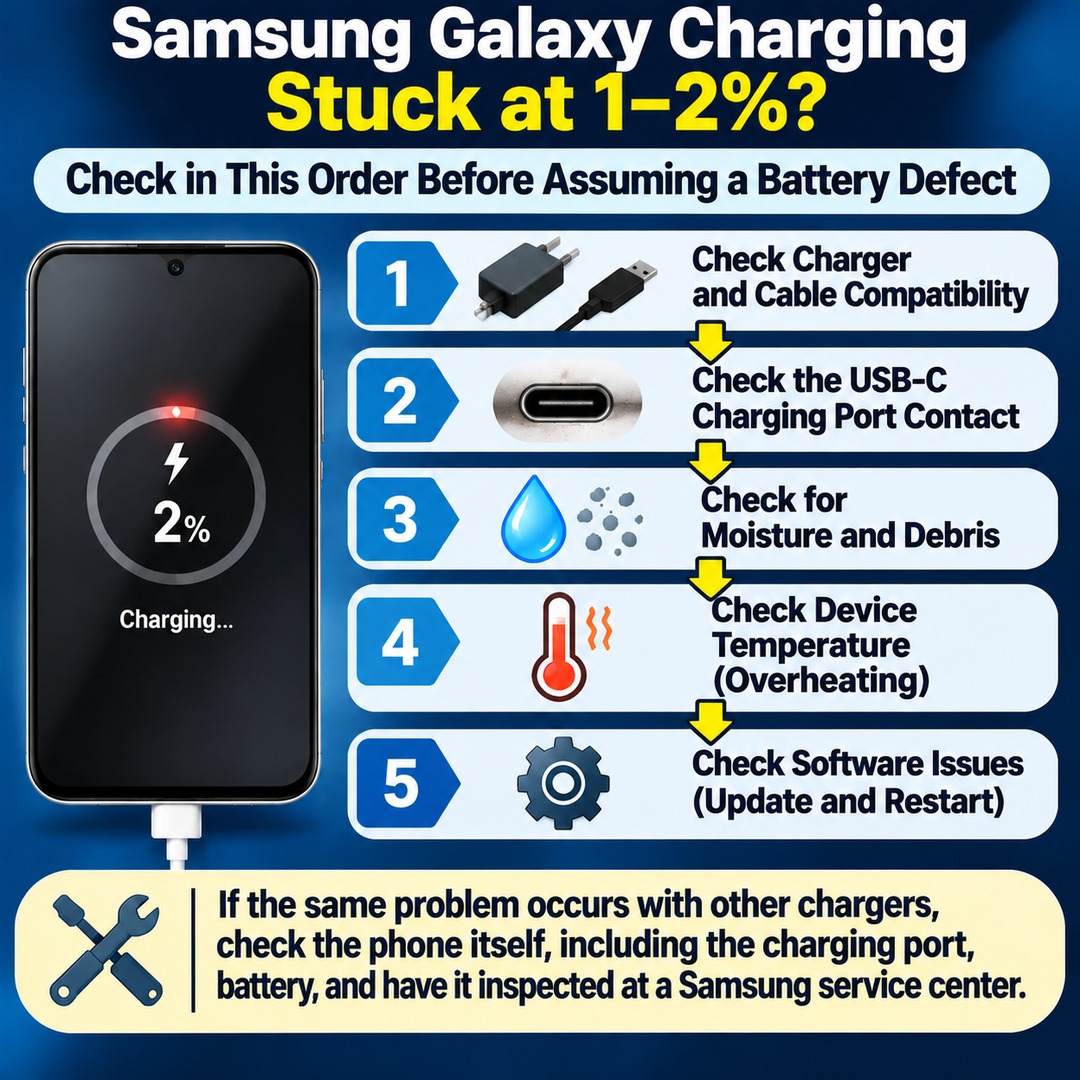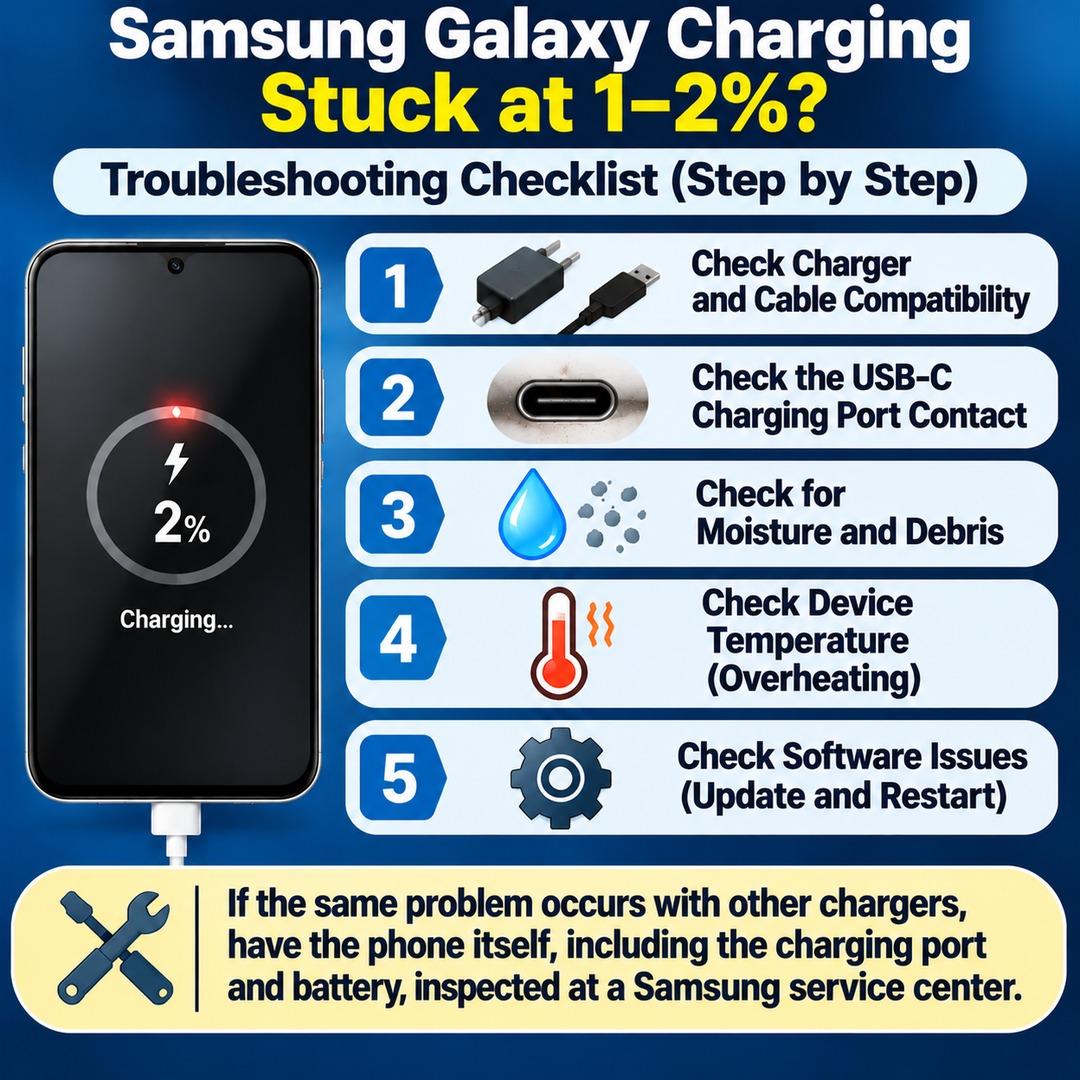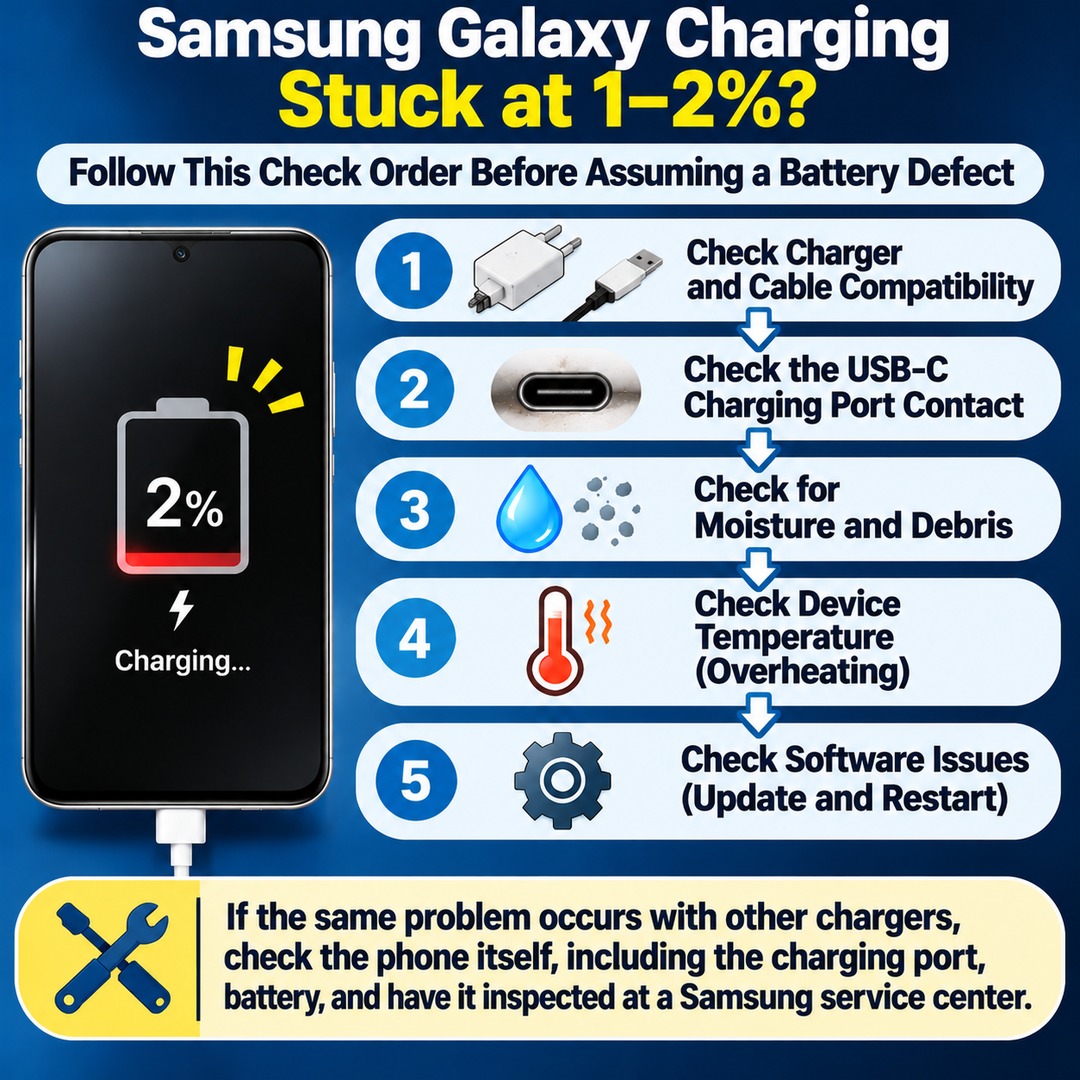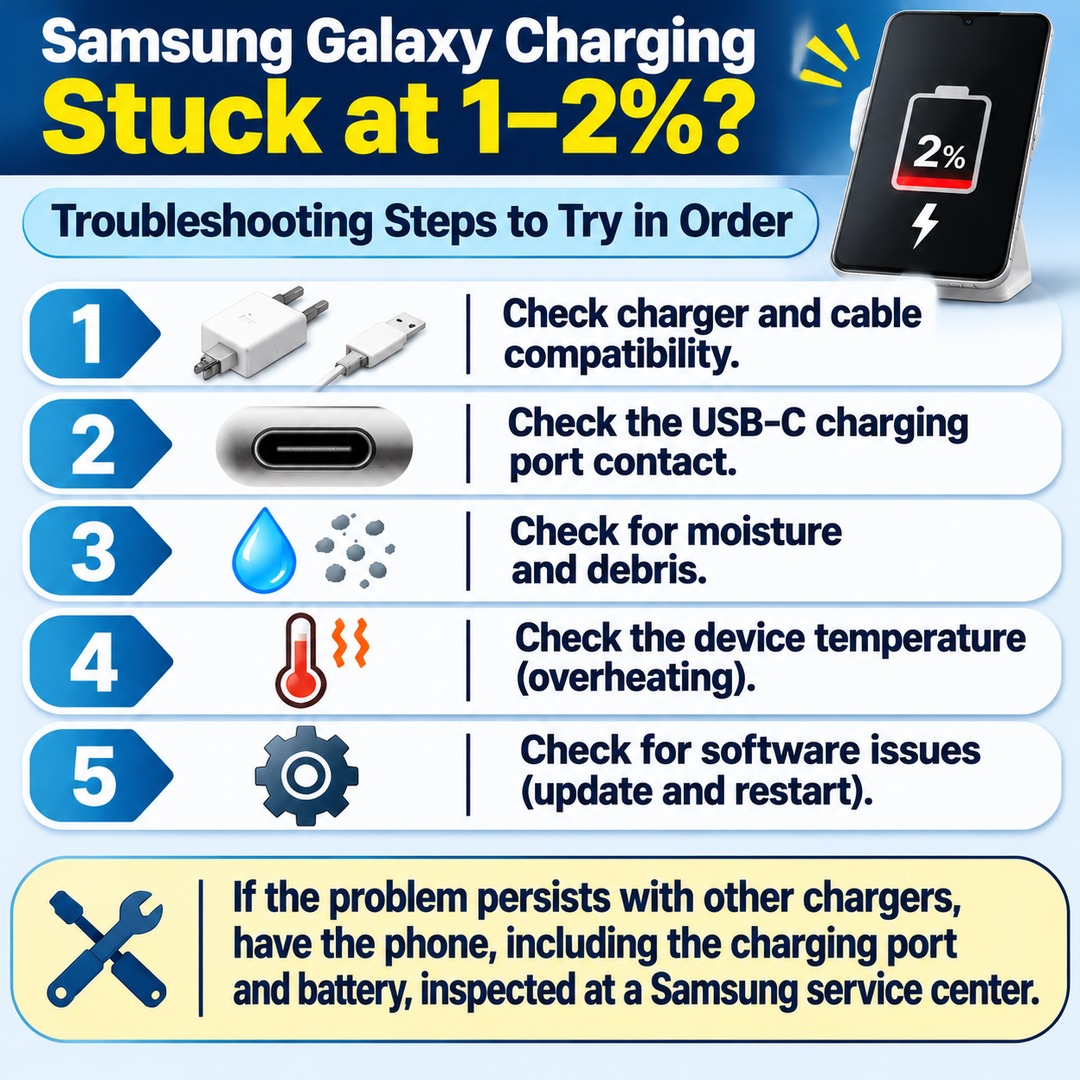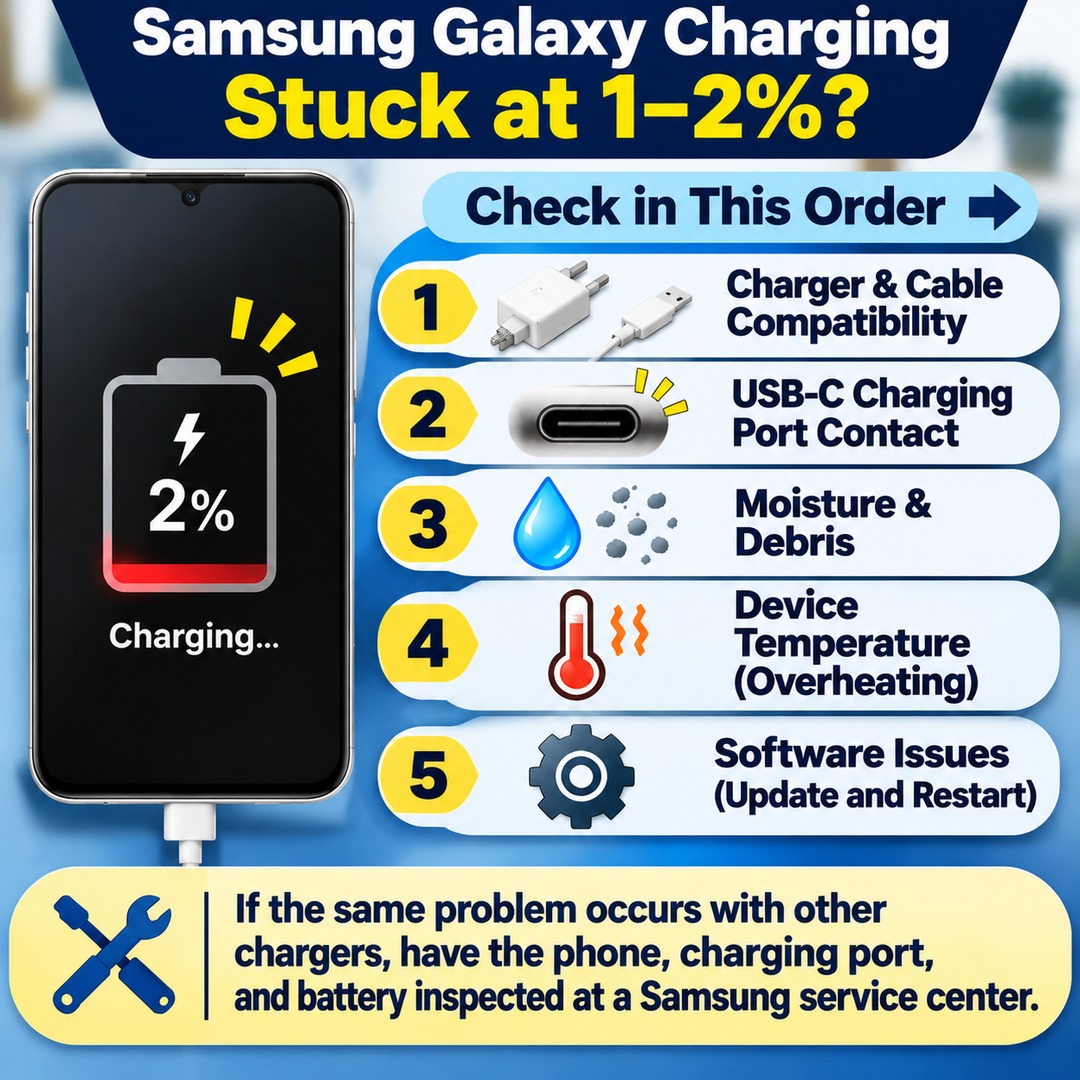

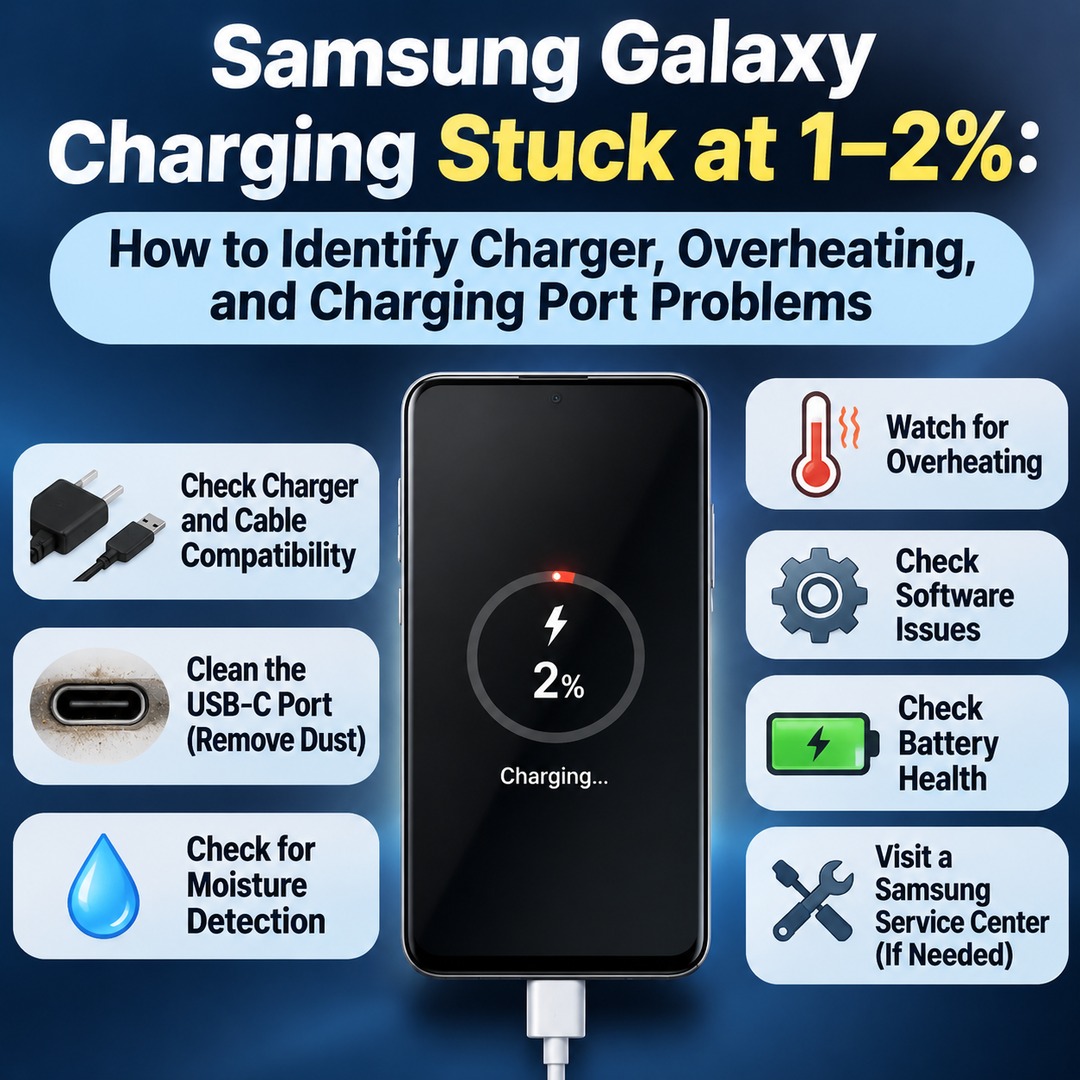
If your Samsung Galaxy smartphone is connected to a charger but the battery remains stuck at 1–2%, or the charging indicator repeatedly disappears, you do not need to assume that the battery is defective. Check charger and cable compatibility, USB-C charging port contact, moisture and debris, device temperature, and software issues in sequence. If the same problem occurs with other chargers, the phone itself, including its charging port and battery, may need professional inspection.\n\nIn particular, if a charger works normally with other phones but fails only with a specific Galaxy device, replacing the charging accessories alone may not solve the problem.\n\n## What Should You Check First When Your Galaxy Is Stuck at 1–2% While Charging?\n\nStart by testing a different charger and cable separately. Rather than replacing both at the same time, change one component at a time. This makes it easier to identify which component is causing the problem.\n\nSamsung Electronics recommends checking the following potential causes of charging problems:\n\n- Damage to the charging adapter or USB cable\n- Dust and lint inside the charging port\n- Moisture on the charging port or cable\n- Charging accessories that do not meet the required specifications\n- Problems related to downloaded apps or software\n- Charging restrictions caused by elevated device temperature\n\nThe important point is to check not only whether the charging icon appears, but also whether the actual battery percentage increases.\n\nA charging icon that appears briefly and then disappears may indicate a different problem from one that remains visible while the battery percentage fails to increase.\n\n## How to Identify Whether the Charger or Cable Is Causing the Problem\n\nYou can identify accessory-related problems by testing your phone with other known-working charging equipment.\n\nFollow these steps:\n\n1. Prepare a Samsung-approved charger and compatible cable for your Galaxy model.\n2. Disconnect the original charging cable and replace it with a known-working cable.\n3. Check the charging status using the same power adapter.\n4. If the problem continues, replace the adapter with another working unit.\n5. Check whether the charging connection remains stable and whether the actual battery percentage changes.\n\nUse the following results to narrow down the cause.\n\n| Test result | Component to check first |\n| --- | --- |\n| Charging returns to normal after replacing the cable | Original cable |\n| Charging returns to normal after replacing the adapter | Original charging adapter |\n| The problem continues with multiple working chargers | Phone charging port or internal hardware |\n| The charging connection repeatedly disconnects | Cable contact or charging port |\n\nA charger that works with another device is not necessarily guaranteed to work properly with every Galaxy model. Charging specifications and device compatibility must also be considered.\n\n## Can Dust or Lint in the Charging Port Interrupt Charging?\n\nYes. Dust or fabric lint accumulated inside a USB-C port can prevent the cable from connecting properly, resulting in an unstable charging connection.\n\nCheck the charging port if you notice any of these symptoms:\n\n- Charging does not start even after connecting the cable.\n- The charging indicator appears and then disappears.\n- Charging behavior changes depending on the cable's orientation or position.\n- The connection becomes unstable while the cable is plugged in.\n\nFollow these steps to inspect the port safely:\n\n1. Turn off your smartphone.\n2. Use a flashlight to look inside the charging port.\n3. Check for visible dust or lint.\n4. Follow the manufacturer's instructions and use gentle airflow to remove loose debris.\n5. If the debris cannot be removed, visit a service center for cleaning and inspection.\n\nDo not insert sharp objects such as metal pins, needles, or paper clips into the charging port. Damage to the charging contacts can turn a simple debris problem into a more serious repair issue.\n\nIt is also best to avoid wiggling the cable from side to side to test whether charging resumes.\n\n## Can Overheating Cause Charging to Stop at 1–2%?\n\nYes. Samsung Galaxy devices have protective mechanisms that can restrict charging when the device temperature becomes too high.\n\nOverheating may occur in situations such as:\n\n- Charging while playing graphics-intensive games\n- Recording videos or playing high-resolution video for extended periods\n- Installing app updates or restoring data\n- Charging on surfaces that prevent heat from escaping, such as blankets or sofas\n- Using damaged or incompatible chargers and cables\n\nIf this happens, disconnect the charger, close running apps, and wait for the device to cool down.\n\nPlace the phone in a cool, well-ventilated location and allow it to cool naturally.\n\nA phone becoming slightly warm while charging does not automatically indicate a malfunction. Heat can also occur during fast charging and wireless charging.\n\nHowever, if the charging port or cable connection becomes unusually hot, you notice a burning smell, or the device's exterior becomes deformed, stop using it immediately.\n\nIf normal charging resumes after the device cools down, temperature and charging conditions may be the main factors to investigate. If charging continues to stop even after the phone has cooled sufficiently, check for other possible causes.\n\n## What Should You Do If a Moisture Detection Warning Appears?\n\nIf a moisture detection warning appears, disconnect the charger and stop wired charging until the port is completely dry.\n\nSamsung Galaxy's moisture detection feature is a protective mechanism that restricts charging when moisture or foreign material is detected in the charging port.\n\nEven if your smartphone supports water resistance, that does not mean it is safe to connect a charging cable while the port is wet.\n\nTake the following steps:\n\n- Disconnect the charger immediately.\n- Remove any visible moisture from the charging port.\n- Allow the device to dry thoroughly in a dry, well-ventilated location.\n- Once the port is completely dry, check whether the moisture detection warning has disappeared.\n- If the warning persists or the phone still will not charge, contact a service center.\n\nDo not use hot air from a hair dryer or metal tools to remove moisture. These can damage the inside of the port.\n\nEven if no moisture warning appears, it is safer not to attempt charging before the device has dried if water or another liquid has actually entered the phone.\n\n## If the Charger and Port Are Fine, Should You Check the Battery and Software?\n\nYes. If the problem continues after replacing the external charging equipment and checking the charging port, the phone's internal components may need inspection.\n\nStart by checking for software-related issues.\n\nFirst: Restart the smartphone\n\nIf sufficient battery power remains, turn the phone off and back on to see whether a temporary software issue is responsible.\n\nHowever, if the battery remains at 1–2% and the phone may shut down, do not repeatedly attempt to restart it.\n\nSecond: Check for software updates\n\nOpen Settings and look for the Software Update section. If an operating system or related software update is available, check whether an update is recommended according to the manufacturer's instructions.\n\nThird: Run diagnostics through Samsung Members\n\nThe Samsung Members app allows you to check the following functions:\n\n- Wired charging\n- Wireless charging\n- Battery status\n\nOpen the app and select the Phone Diagnostics or Diagnostics menu, then choose the relevant test. Menu names and navigation paths may differ depending on your Galaxy model and software version.\n\nDiagnostic results can provide useful information for troubleshooting, but they cannot conclusively confirm or rule out every internal hardware failure.\n\n## Which Charging Problems Require a Visit to a Samsung Service Center?\n\nIf the same problem occurs with multiple known-working chargers and cables, it is advisable to have the phone itself inspected.\n\nIn particular, avoid repeatedly attempting DIY fixes if you notice any of these symptoms:\n\n- Charging does not work even after cleaning the charging port.\n- The battery remains stuck at 1–2% even with a compatible, working charger and cable.\n- The charging connection repeatedly disconnects.\n- The battery percentage drops rapidly or battery life has become noticeably shorter.\n- Unusual heat develops around the charging port or cable connection.\n- The smartphone will not turn on or repeatedly restarts.\n\nWhen visiting a Samsung service center, it is helpful to bring the Galaxy phone along with the charging adapter and cable you have been using.\n\nAn inspection can help determine whether the problem involves charging port contact, battery condition, or another internal circuit issue. A motherboard problem cannot be confirmed based on symptoms alone, so an engineer's diagnosis is necessary.\n\n## How to Diagnose Galaxy Charging Problems Based on Their Symptoms\n\nThe troubleshooting steps explained above can be organized into the following practical sequence.\n\n1. The charging indicator does not appear at all: Test the phone with a known-working charger and cable.\n2. The charging indicator repeatedly disappears: Inspect the cable connection and charging port contact.\n3. The charging indicator remains visible, but the battery percentage does not increase: Check for overheating, charging environment issues, and software problems.\n4. A moisture detection warning appears: Disconnect the cable and allow the device to dry completely.\n5. Charging stops as the device becomes hot: Stop charging and allow the phone to cool down.\n6. The same symptoms occur with multiple working chargers: Have the hardware inspected at a Samsung Electronics service center.\n\nA Samsung Galaxy phone getting stuck at 1–2% while charging cannot always be explained by a single faulty component. Checking the charger and cable first, followed by the charging port, temperature, and software, is a practical way to avoid unnecessary component replacements.