
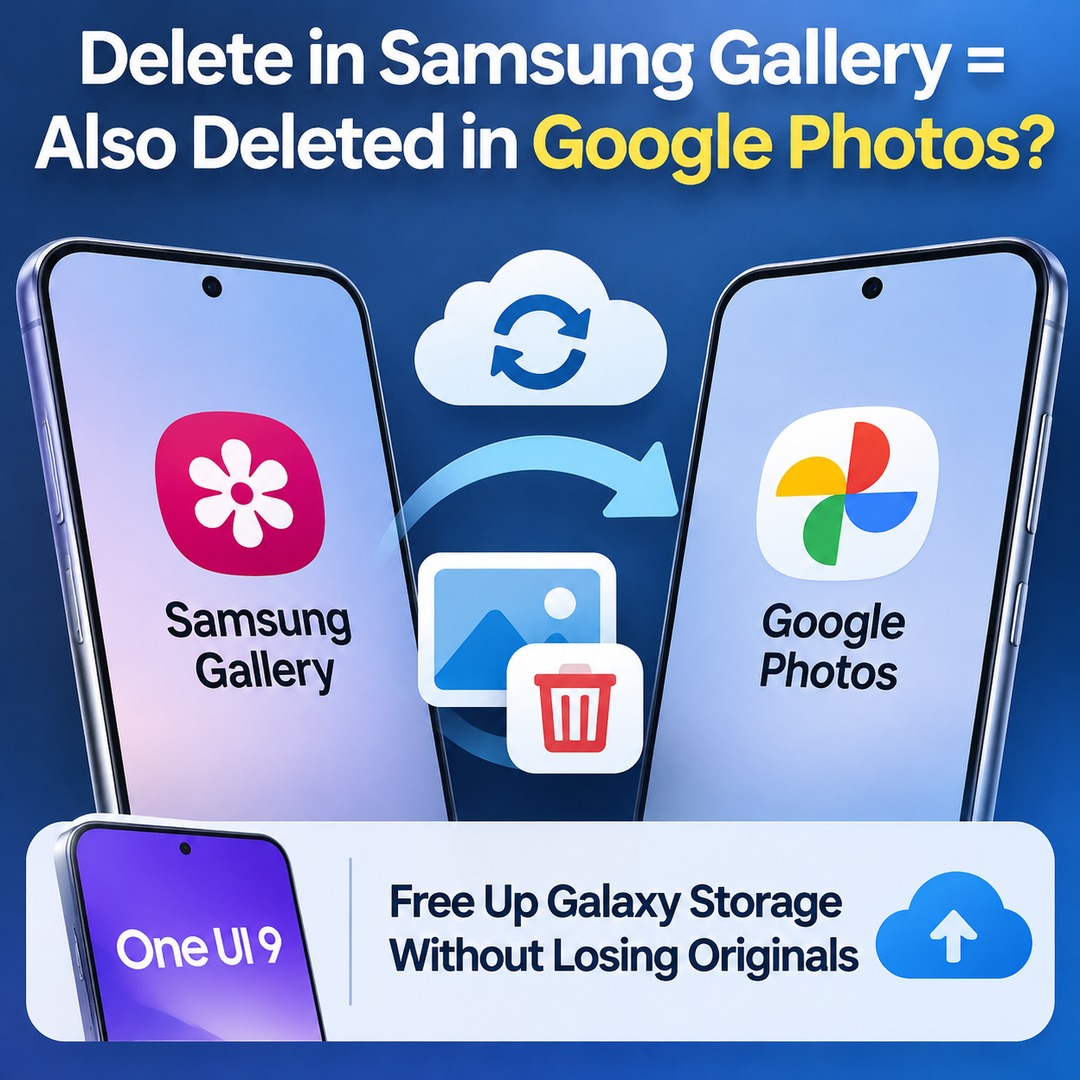
If you use two-way synchronization between Samsung Gallery and Google Photos on your Galaxy device, deleting a photo from Gallery using the standard delete option may also delete the original stored in the cloud. If you want to keep your photos while freeing up space on your phone, you should use the Free Up Space on This Phone feature instead of regular deletion.
In November 2026, some Galaxy devices running One UI 9 offer integration between Samsung Gallery and Google storage, including a feature for freeing up device storage. However, this functionality is not necessarily available in the same way on every Galaxy device.
Does Deleting Photos from Samsung Gallery Also Delete Them from Google Photos?
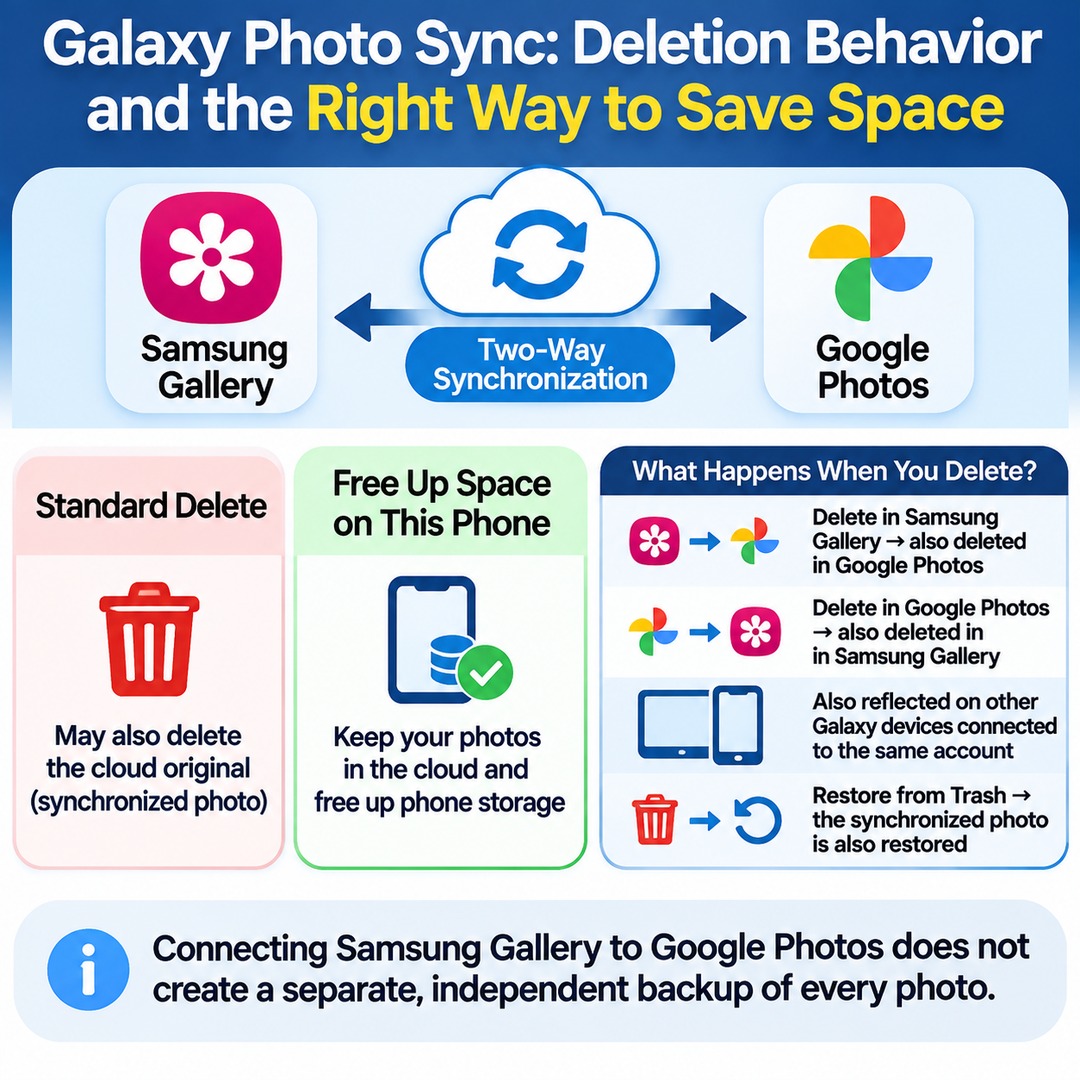
Yes. If two-way synchronization with a Google account is enabled in Samsung Gallery, deleting a synchronized photo in either app can also apply the deletion to the other app and the cloud.
Standard Google Photos backup and Samsung Gallery cloud synchronization work differently. In particular, the new integration feature in One UI 9 does more than simply back up photos to one location. It manages the photo status across connected devices and cloud storage.
The deletion behavior can be summarized as follows:
Delete a synchronized photo in Samsung Gallery → The photo is also deleted from Google Photos.
Delete a synchronized photo in Google Photos → The photo is also deleted from Samsung Gallery.
Other Galaxy devices connected to the same account → The deletion is reflected on those devices.
Restore a photo from the Trash → The synchronized photo is restored as well.
Connecting Samsung Gallery to Google Photos does not mean that every photo is preserved as an independent backup copy.
If your goal is to protect important photos, you must understand the difference between regular deletion and freeing up device storage.
How Is One UI 9 Gallery Synchronization Different from Traditional Google Photos Backup?
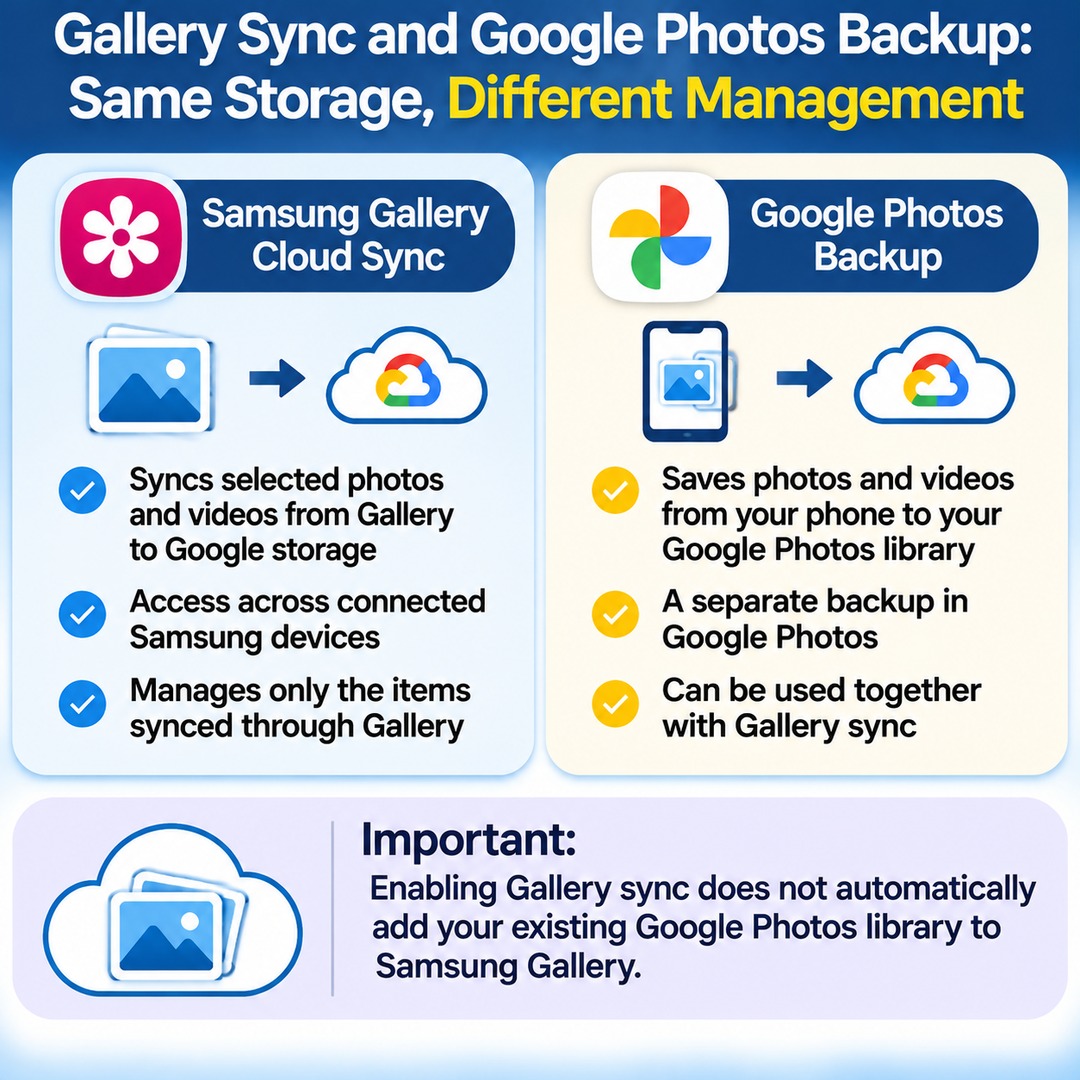
Both features can use the same Google account storage, but they manage photos in different ways.
Samsung Gallery cloud synchronization syncs selected photos and videos from Gallery to Google storage and allows you to access them across connected Samsung devices.
By contrast, Google Photos backup saves photos and videos from your phone to your Google Photos library.
You can use both features together, but even when they use the same Google account, the photos displayed in Samsung Gallery may cover a different collection.
| Category | Samsung Gallery Sync | Google Photos Backup |
|---|---|---|
| Main purpose | Synchronizing photos across Samsung devices | Backing up photos to the cloud |
| Storage location | Google account storage | Google account storage |
| Photo management | Integrated with connected Gallery apps | Managed primarily through Google Photos |
| Regular deletion | Also affects connected items | Deletes backed-up photos |
| Freeing up device storage | Gallery-specific storage cleanup feature | Google Photos Free Up Space feature |
There is one important point to understand.
Enabling Samsung Gallery synchronization in One UI 9 does not automatically make every photo in your existing Google Photos library appear in Samsung Gallery.
Photos and videos synchronized through Samsung Gallery after enabling the feature are the items managed through this integration. Photos previously stored in Google Photos remain in the cloud, but they are not automatically added to Samsung Gallery.
If you assume that existing Google Photos backups and newly synchronized Gallery items are the same collection, it may appear as though some photos have disappeared.
How to Free Up Galaxy Storage Without Deleting Your Photos
The most important method is to use Samsung Gallery's Free Up Space on This Phone feature.
Introduced by Samsung Electronics in November 2026, this feature removes the local original files of photos and videos that have finished synchronizing with Google storage. Thumbnails remain in Gallery, allowing you to save space on your device.
Follow these steps:
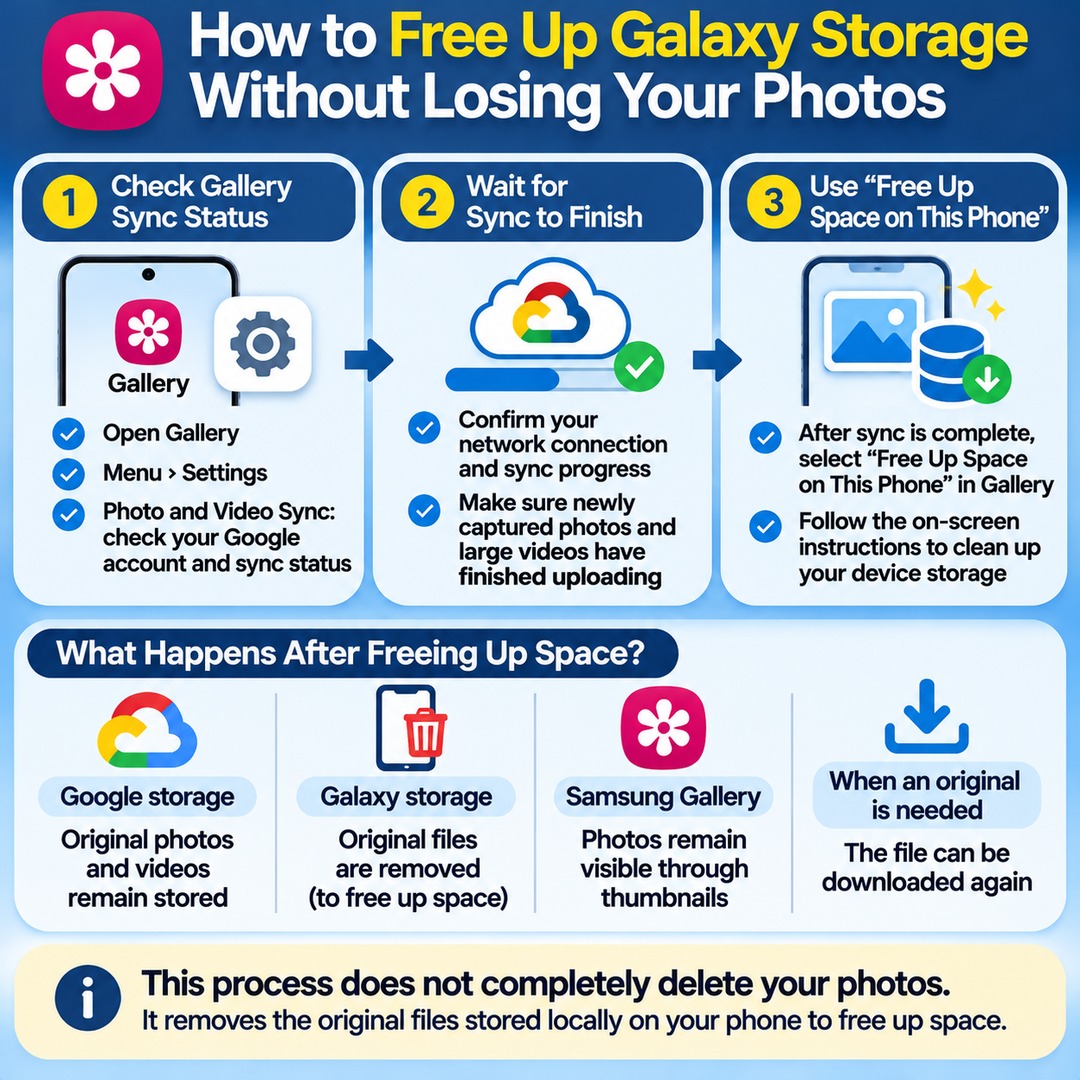
Step 1. Check the Samsung Gallery synchronization status
Open the Samsung Gallery app and follow this path:
Open Gallery.
Select Menu in the bottom-right corner.
Open Settings.
Select Photo and Video Sync.
Check your Google account connection and synchronization status.
Step 2. Wait until synchronization is complete
Do not assume that a photo is already stored in the cloud simply because it exists on your phone.
Check your network connection and synchronization progress. This is particularly important for newly captured photos and large video files. Make sure their uploads have finished before proceeding.
Step 3. Use the Free Up Device Storage feature
Once synchronization is complete, select Free Up Space on This Phone in Gallery.
Follow the on-screen instructions to clean up your device storage.
Using this feature produces the following results:
Google storage: Original photos and videos remain stored.
Galaxy internal storage: Original files are removed.
Samsung Gallery: Photos remain visible through thumbnails.
When an original is needed: The file can be downloaded again.
In other words, this process does not completely delete your photos. It removes the original files stored locally on your phone to free up space.
However, feature availability and menu locations may vary depending on the device model and software version.
Is It Safe to Use Google Photos' Free Up Space Feature?
Google Photos also offers a feature called Free Up Space. This feature likewise removes photos and videos that have already been backed up from your phone's internal storage.
However, it is best to distinguish this feature from Samsung Gallery synchronization in One UI 9.
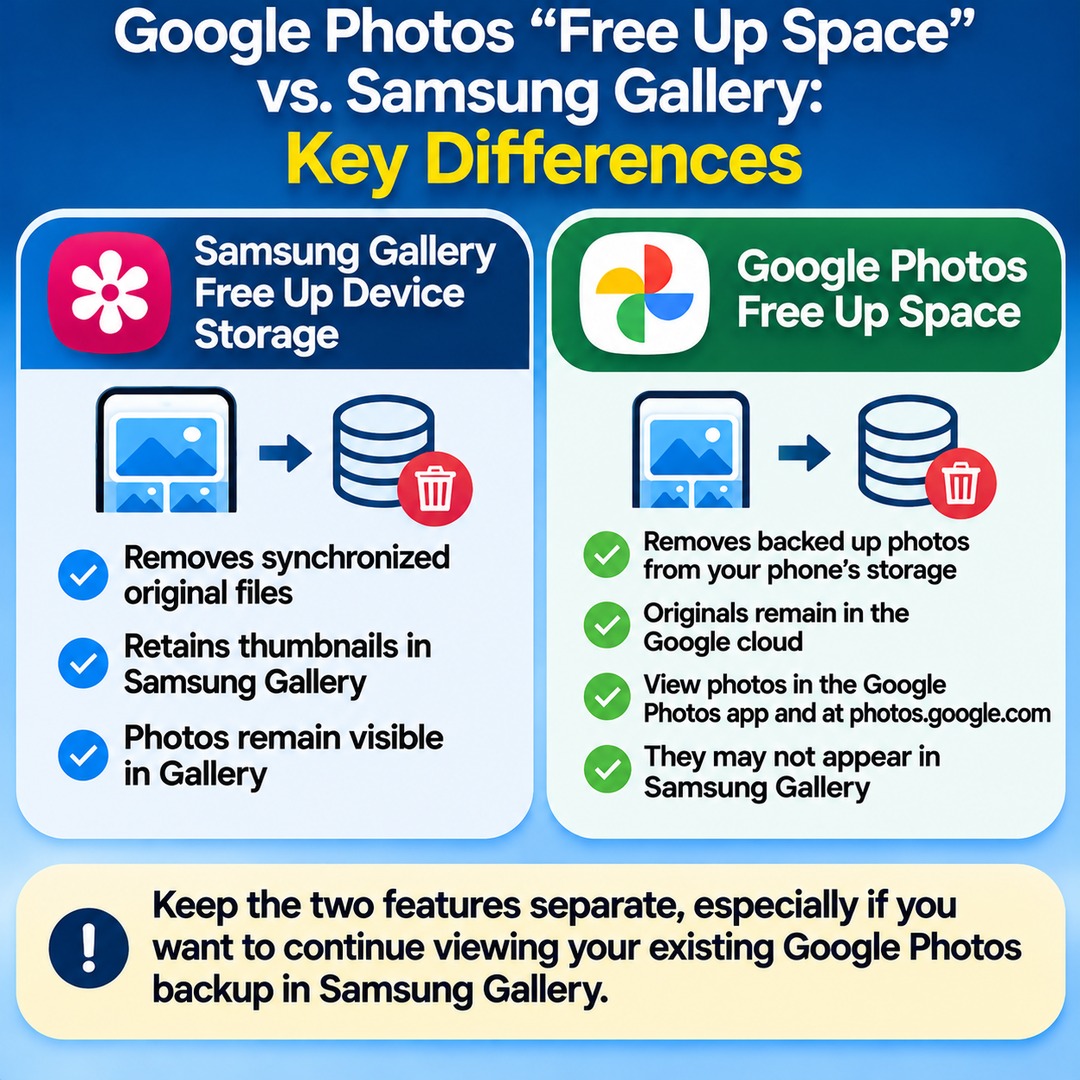
When you use Free Up Space in Google Photos, your backed-up photos remain in the Google cloud. However, they may no longer appear in your phone's default Gallery app.
You can still view them in the Google Photos app and at photos.google.com, but Samsung Gallery displays photos based on the files available on your device.
It is therefore important to understand the difference between these two features:
Samsung Gallery Free Up Device Storage: Removes synchronized original files while retaining thumbnails in Gallery.
Google Photos Free Up Space: Removes backed-up photos stored on the device and manages them through Google Photos.
In particular, if you want to continue viewing photos from your existing Google Photos backup in Samsung Gallery, avoid confusing these two features.
What Happens to Your Photos If You Turn Off Sync or Disconnect Your Google Account?
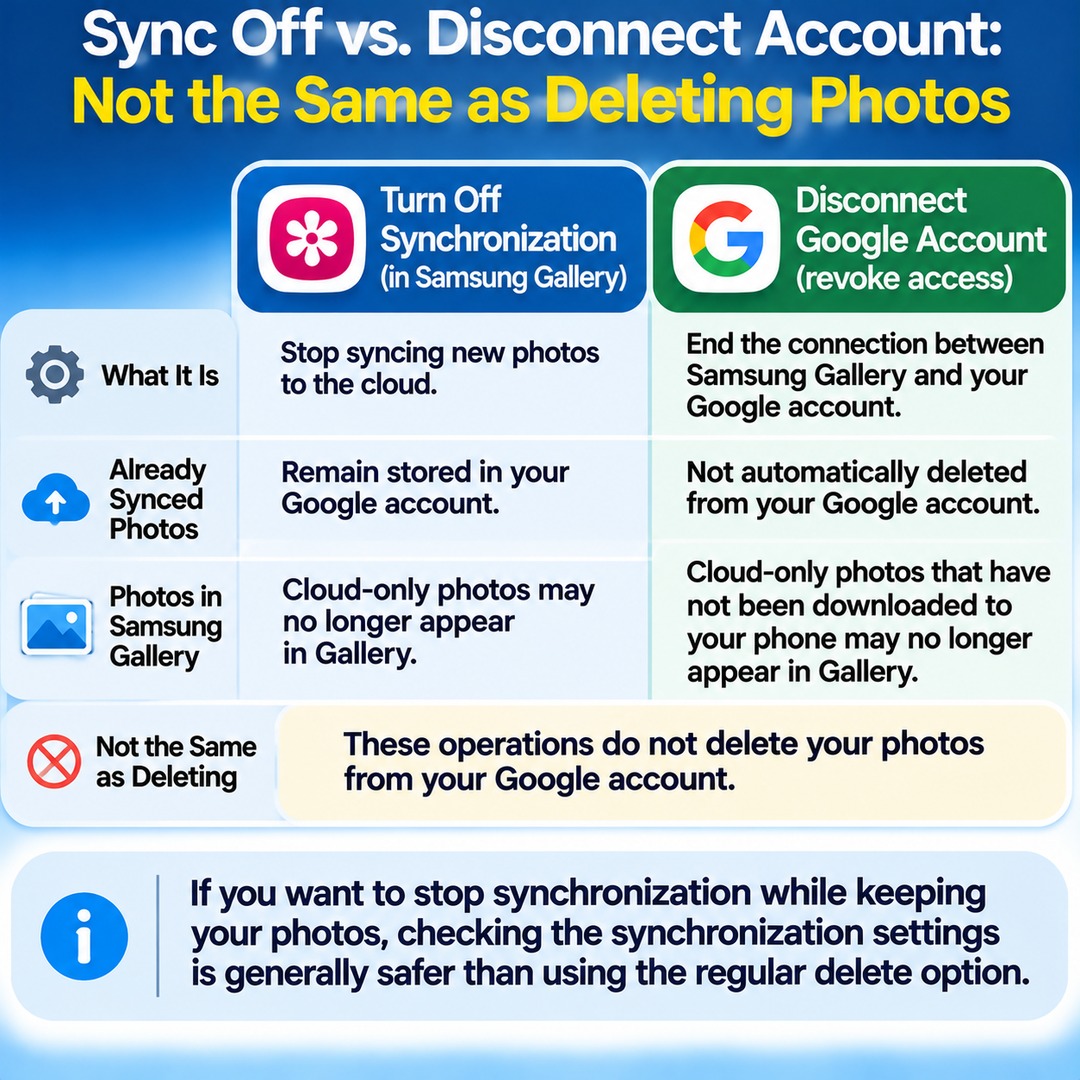
Stopping synchronization and disconnecting an account are different operations from deleting photos.
If you turn off synchronization in Samsung Gallery, new photos will no longer sync to the cloud, while photos that were already synchronized remain stored in your Google account. However, photos that exist only in the cloud may no longer appear in Samsung Gallery.
By contrast, revoking Gallery's access to your Google account ends the connection between the Samsung app and your Google account itself.
The differences are summarized below:
| Action | Existing Cloud Photos | Gallery Display |
|---|---|---|
| Turn off synchronization | Remain in your Google account | Cloud-only photos may become hidden |
| Disconnect the account | Remain in Google Photos | Cloud-only photos are no longer displayed |
| Delete a photo normally | Synchronized originals are also deleted | Deletion is reflected |
| Free up device storage | Cloud originals are retained | Thumbnails remain visible |
Disconnecting your Google account does not automatically delete photos that were previously stored there.
However, cloud-only photos that have not been separately downloaded to your phone may no longer appear in Samsung Gallery.
If you want to stop synchronization while keeping your photos, checking the synchronization settings is generally safer than using the regular delete option.
Can You Restore Photos from the Trash If You Accidentally Delete Them?
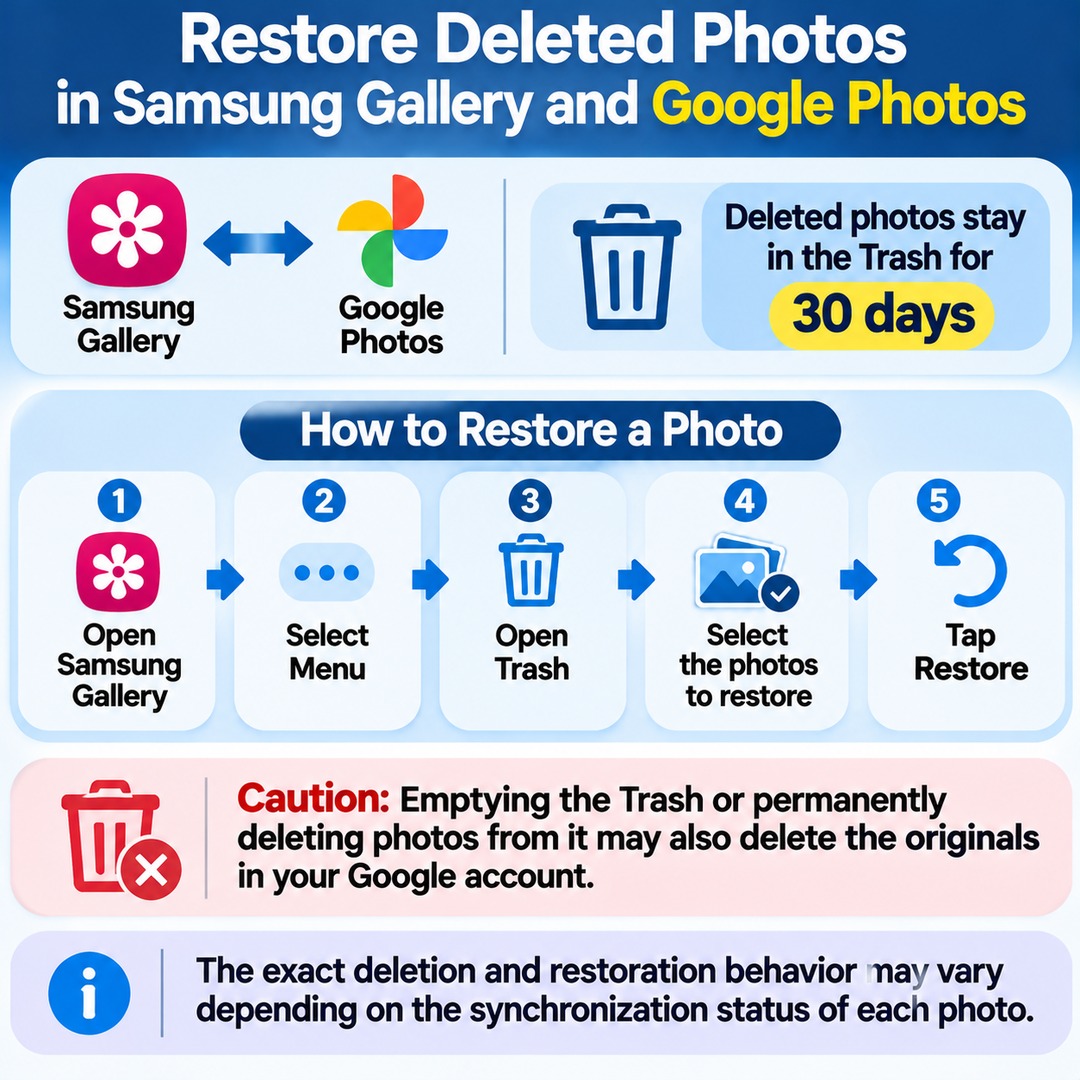
If you delete a photo synchronized between Samsung Gallery and Google Photos, check the Trash.
According to Samsung Electronics' customer support guidance, synchronized photos are kept in the Trash for 30 days after deletion. Restoring a photo from the Trash also restores its connected synchronized photo.
To restore a photo, follow these steps:
1. Open Samsung Gallery.
2. Select Menu.
3. Open Trash.
4. Select the photos you want to restore.
5. Tap Restore.
One important precaution concerns emptying the Trash or permanently deleting photos from it.
Doing so may permanently delete the originals stored in your Google account as well. Before emptying the Trash, check whether important photos still exist in Google Photos or another backup location.
Also, the exact deletion and restoration behavior in Google Photos and Samsung Gallery may vary depending on the synchronization status of individual copies.
You Should Also Check Your 15 GB of Google Storage
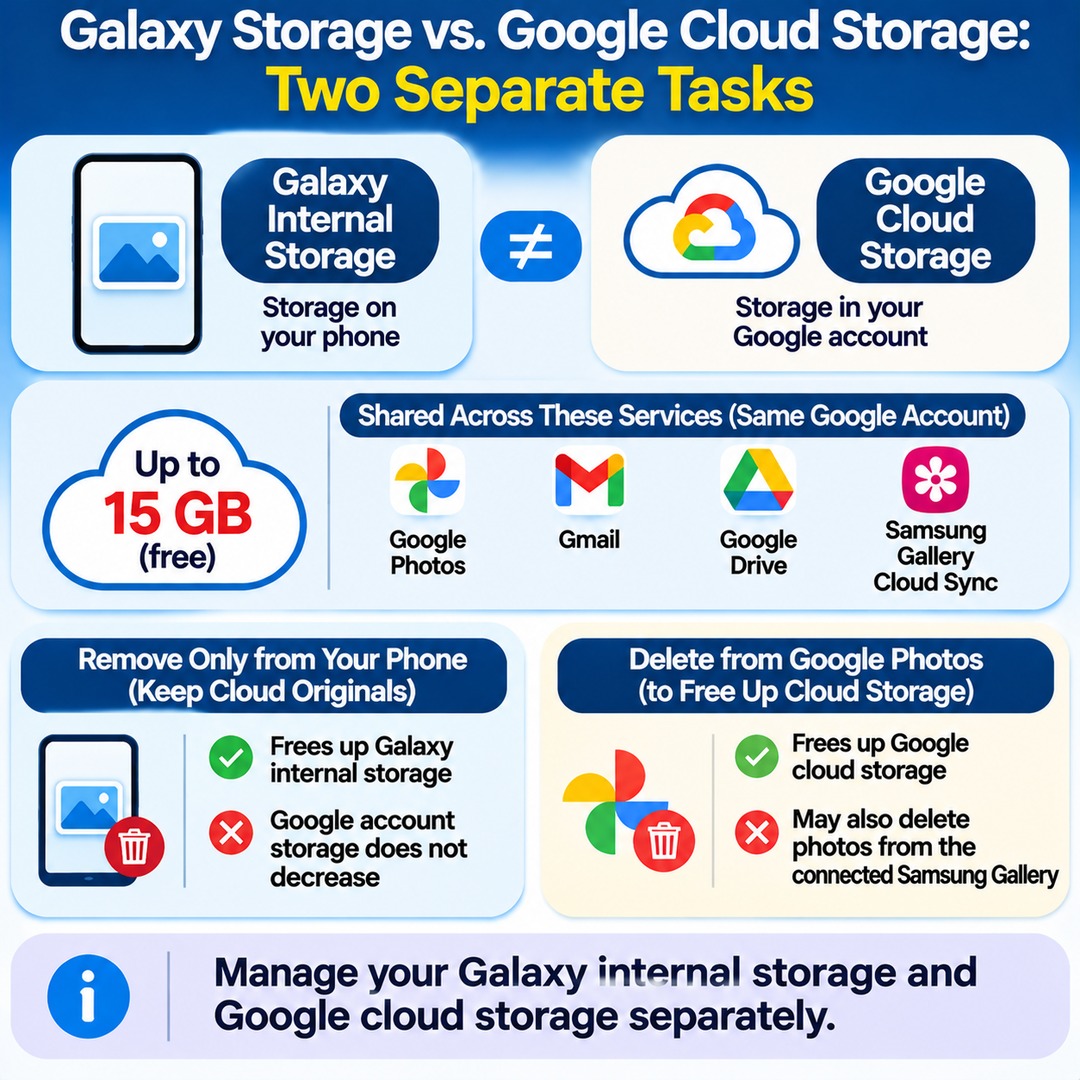
Freeing up Galaxy internal storage and freeing up Google cloud storage are two separate tasks.
Samsung Gallery and Google Photos can use the same Google account storage.
A standard Google account provides up to 15 GB of free storage, which is shared across the following services:
Google Photos
Gmail
Google Drive
Samsung Gallery cloud synchronization
For example, if you remove photos only from your phone while keeping their cloud originals, you free up Galaxy internal storage, but your Google account storage usage does not decrease.
Conversely, if you delete photos from Google Photos to free up cloud storage, they may also be deleted from the connected Samsung Gallery.
This is why you need to manage your two types of storage separately.
Final Checklist for Keeping Your Photos Safe
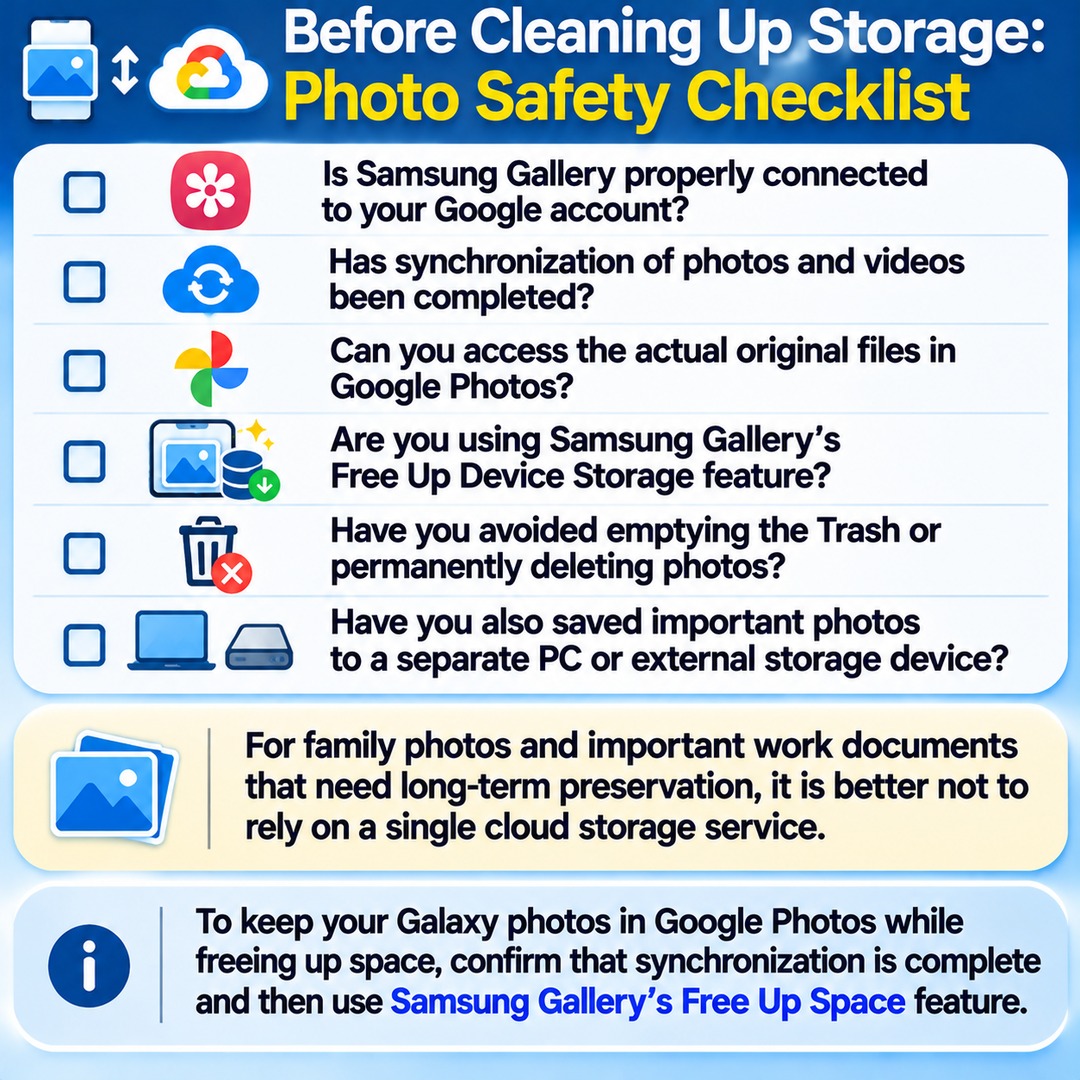
To avoid accidentally losing important photos, check the following items before cleaning up your storage:
Is Samsung Gallery properly connected to your Google account?
Has synchronization of photos and videos been completed?
Can you access the actual original files in Google Photos?
Are you using Samsung Gallery's Free Up Device Storage feature?
Have you avoided emptying the Trash or permanently deleting photos?
Have you also saved important photos to a separate PC or external storage device?
For family photos and important work documents that need to be preserved for a long time, it is better not to rely on a single cloud storage service.
If you want to keep your Galaxy photos in Google Photos while freeing up space on your phone, the key is to confirm that synchronization is complete and then use Samsung Gallery's Free Up Space feature instead of deleting photos normally.